How to Clone a Seagate SSD or HDD to a New Drive
Seagate gives away DiscWizard, a cut-down Acronis True Image build, which sounds like a free cloning tool for every customer. In practice the program checks the hardware first: unless at least one Seagate or Samsung drive takes part in the operation, the clone options stay locked.
This guide explains which Seagate families behave differently during a copy, how to connect a 3.5-inch drive or an SSHD outside the machine, and how to clone to any brand of SSD and still boot Windows afterwards.
PAGE CONTENT
- Seagate Drives and the DiscWizard Limits
- Connect a 3.5-Inch Seagate Correctly
- Boot After a Seagate-to-SSD Clone
- Clone with Qiling Disk Master
- Verify the Clone and Retire the Drive
- FAQs About Seagate Drive Clones
- Back Up Before the Clone
Seagate Drives and the DiscWizard Limits
- DiscWizard is an OEM Acronis build. Seagate licenses a reduced True Image edition and brands it for its own customers.
- One Seagate drive must take part. Source or destination has to be a Seagate or Samsung unit, otherwise cloning is refused or heavily restricted.
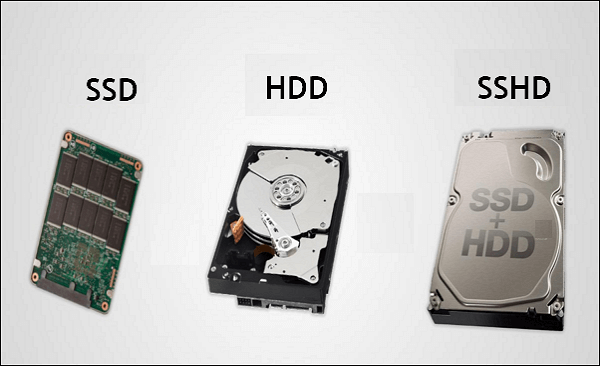
- The families differ. BarraCuda covers 2.5-inch and 3.5-inch hard drives, while FireCuda spans SSHD hybrids and NVMe SSDs.
- SSHD caching is not copied. The 8 GB NAND on a FireCuda SSHD learns from usage patterns, and that learning data rebuilds from scratch after the swap.
- IronWolf is built for NAS. These drives survive 24/7 workloads but clone slowly because their firmware favours sustained reliability over peak speed.
Knowing the exact family matters more than the brand badge. A BarraCuda 3.5-inch drive needs external power, an SSHD needs cache-aware expectations, and an IronWolf NAS drive needs a long time window for the copy.
Connect a 3.5-Inch Seagate Correctly
- Desktop drives need two cables. A 3.5-inch BarraCuda takes SATA power from the power supply plus a data cable to the motherboard.
- Laptop upgrades need an adapter. A USB 3.0 to SATA adapter lets a 2.5-inch drive run outside the machine during the copy.
- SMR models write slowly. Many large BarraCuda drives use shingled recording, and sustained writes can fall to around 100 MB/s.
- Keep the drive flat and cool. A bare desktop drive in a long copy should sit on a solid surface with some airflow.
- Size the target by used data. The destination must hold every partition, including the EFI partition and the recovery image.
Do not place a bare 3.5-inch drive on a soft surface such as a sofa cushion; vibration and blocked airflow are the usual reasons a long copy ends in a SMART warning.
Boot After a Seagate-to-SSD Clone
- Clone the disk, not a folder. The boot partitions must travel with the data partition so the target can start Windows.
- Put the new drive first. Enter UEFI or BIOS setup and move the SSD or new hard drive to the top of the boot order.
- Match the boot mode. A GPT layout needs UEFI, and an MBR layout needs Legacy or CSM enabled.
- Allow a slow first start. Windows may take longer while it detects the new storage controller and installs drivers.
- Check activation. A large hardware change can prompt for activation, although a digital license usually re-arms itself.
An SSHD cloned to a plain SSD loses the cache but gains predictable performance. Nothing needs reconfiguring, because the hybrid logic belongs to the old drive and disappears with it.
Clone with Qiling Disk Master
DiscWizard will not copy to a non-Seagate target, so a disk-level clone from a tool without hardware restrictions is the practical path for a BarraCuda to SSD upgrade.
Watch the video tutorial below to clone the drive step by step with Qiling Disk Master.
Step 1. Open Qiling Disk Master, choose Clone, and then select Disk Clone.

Step 2. Select the Seagate disk as the source and click Next.

Step 3. Select the new SSD or hard drive as the destination and confirm that its data will be replaced.

Step 4. Choose the clone mode and confirm that the EFI and recovery partitions are included on the target.

Step 5. Click Proceed, wait for the copy to finish, then shut the machine down before you remove any cable.

Verify the Clone and Retire the Drive
- Boot twice. Two clean starts prove the boot entry stays stable after the hardware change.
- Read SMART on the new drive. Vendor tools or a disk health utility should show a healthy status and a low power-on count.
- Reconnect the Seagate externally. Use an adapter to pull leftover files rather than to boot from the old system.
- Wipe it properly. Overwrite the drive or use the manufacturer's secure erase before reselling or reusing it.
- Run Windows Update once. A single update pass installs storage-related patches for the new hardware.
If the machine starts from the old drive despite the clone, the firmware still holds its entry. Remove the Seagate for one boot and confirm the new drive works alone before reconnecting anything.
FAQs About Seagate Drive Clones
Can DiscWizard clone to a Samsung or Crucial SSD?
Only when a Seagate or Samsung drive takes part in the operation. With no qualifying drive connected, the clone function stays disabled or limited.
Does cloning a FireCuda SSHD keep its cache contents?
No. The NAND cache is managed by the drive firmware and is not part of the cloned image, so it rebuilds after the swap.
Will a 3.5-inch BarraCuda fit inside a laptop?
No. A 3.5-inch drive needs external power, a desktop bay, or a powered enclosure; it cannot run from a laptop SATA port.
How long does cloning a 4 TB Seagate drive take?
An SMR model writing near 100 MB/s can need several hours for a full copy. Intelligent clone, which skips empty sectors, shortens it considerably.
Should I defragment the new SSD after cloning?
No. Defragmenting an SSD adds wear and brings no speed benefit; Windows handles TRIM on its own schedule.
Back Up Before the Clone
A Seagate drive that is already weak may fail during a long copy. Take a system image first so the data survives even if the source stops responding halfway through.
Watch the video tutorial below to back up Windows and restore it if the clone fails.
Step 1. Open Qiling Disk Master and select System Backup to include the boot partitions and the recovery image.

Step 2. Save the image to a drive other than the Seagate source and the new target.

Step 3. Click Proceed to start the system backup and wait patiently until it finishes. You can also tick Shut down the computer when the operation is completed to power off automatically.

Step 4. If the Seagate clone will not boot, restore the image to the original drive and recheck the boot mode.

Conclusion
DiscWizard is a Seagate-branded Acronis build that only works when a Seagate or Samsung drive is in the chain, which rules it out for many BarraCuda to SSD upgrades. A hardware-neutral disk clone solves that: connect the source correctly, size the target by used data, copy every boot partition, and match the boot mode. Then boot with the old drive removed, confirm SMART and activation, and wipe the Seagate only after the new drive has started cleanly twice.
For more on capacity changes and drive swaps, see Clone an HDD to an SSD on Windows 7, Clone a Hard Drive to a Smaller SSD, Clone an SSD to an HDD, and Does Cloning a Hard Drive Copy Windows?.
Related Articles
- Can I Safely Clone an HDD to an SSHD?
Hybrid drives accept a clone, but the cache learns from scratch. - Clone a Hard Drive to a Larger Hard Drive
Copy a full disk and extend the last partition on the bigger drive. - Clone an HDD to an SSD on Windows 10
Move a Windows 10 installation to an SSD without reinstalling. - Clone an HDD to an NVMe SSD on Windows 11
Switch from SATA to PCIe storage and fix the boot order. - Seagate DiscWizard Clone: Move Windows to a New Drive
Use the free Seagate wizard, then finish a blocked clone.
Products
Articles & Tutorials
- Data Recovery
- Data Backup
- File Recovery
- File Backup
- System Backup and Restore
- Disk and Partition Clone
- Technical articles
- Mobile articles
- Disk Master Help
- Windows Data Recovery Tutorials
- Windows Secure Delete Tutorials
- Windows Partition Management Tutorials
- Windows File Backup and Restore Tutorials
- Windows System Backup and Restore Tutorials
- Windows Disk Backup and Restore Tutorials
- Windows Clone Tutorials