Solidigm Storage Tool Clone: Migrate to Intel or Solidigm SSD
Solidigm Storage Tool manages Solidigm SSDs, and it inherits a question from the Intel era. Intel owners once used the Intel SSD Toolbox and Intel Data Migration Software, and both have been retired. The current tool reports health and updates firmware, but it does not clone a disk, so the old migration habit needs a new answer.
This article covers what the Storage Tool does, where the Intel and Solidigm utilities stop, and how to move Windows to a Solidigm P41 Plus or an older Intel SSD without hunting for discontinued software.
PAGE CONTENT
- What Storage Tool Does
- Prepare the Solidigm SSD
- Where Intel and Solidigm Tools Stop
- Clone with Qiling Disk Master
- Confirm the Solidigm Drive Boots
- FAQs About Solidigm Cloning
- Back Up Before the Migration
What Storage Tool Does
- It reports drive health. SMART data, temperature, and remaining life appear per drive.
- It updates firmware. Supported Solidigm SSDs can be flashed from the tool.
- It shows capacity and usage. Partition and spare-area details are listed.
- It runs diagnostics. Self-tests and log collection are built in.
- It cannot clone. No copy or migration feature exists in the current build.
The tool is a service console for the drive. It can tell you whether the SSD is sound; it cannot put Windows on it.
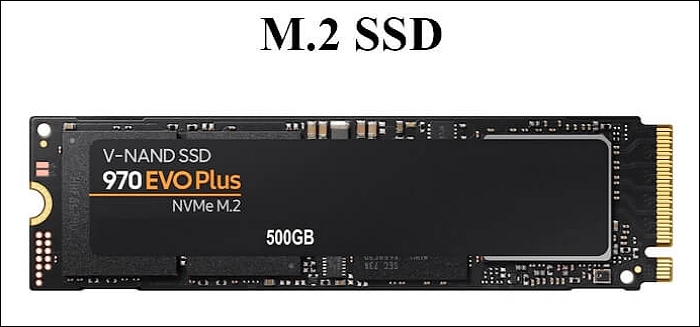
Prepare the Solidigm SSD
- Clear the target SSD. A clone replaces everything on the Solidigm drive.
- Use an internal slot. M.2 or SATA connections avoid USB bridge problems.
- Compare used space. The target must hold the data, not the source capacity.
- Disable BitLocker temporarily. Suspend encryption before the copy starts.
- Match the boot mode. UEFI and legacy BIOS layouts are not interchangeable.
An older Intel SSD usually works the same way, so the procedure does not change. The only difference is which utility you open for a health check afterwards.
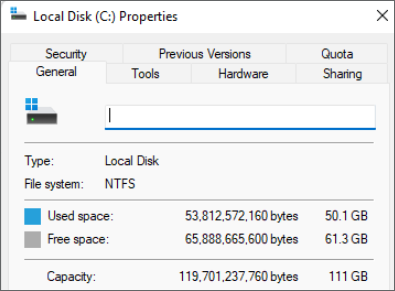
Where Intel and Solidigm Tools Stop
- Intel Data Migration Software is retired. It is no longer distributed, and old installers may not run.
- Intel SSD Toolbox is discontinued. Its functions moved into the Solidigm Storage Tool.
- Neither replaced the clone app. The migration utility was separate and is now unsupported.
- Firmware mismatches cause errors. Outdated firmware on the target can block a copy.
- Old installers fail on new systems. Driver signing requirements have changed.
Anyone holding an Intel SSD and a Windows installation has to accept that the original toolchain is history. The replacement is a generic cloning tool, not another brand utility.
Clone with Qiling Disk Master
Generic is the advantage here. Qiling Disk Master reads the Solidigm or Intel SSD as ordinary storage, copies the system and recovery partitions, and writes boot entries for the new layout.
Watch the video tutorial below to clone the drive step by step with Qiling Disk Master.
Step 1. Open Qiling Disk Master, choose Clone, and then select Disk Clone.

Step 2. Select the source disk and click Next.

Step 3. Select the destination SSD and confirm that its data will be replaced.

Step 4. Choose the clone mode and confirm the system partition gets the C letter on the target.

Step 5. Click Proceed, wait for the copy to finish, then shut the machine down before you remove any cable.

Confirm the Solidigm Drive Boots
- Boot with only the Solidigm SSD. The old disk must be disconnected.
- Review Disk Management. All system volumes should be online.
- Open the Storage Tool. Check firmware and health on the new drive.
- Test installed programs. Licenses and settings should follow the copy.
- Keep the old disk for a week. Retire it only after the clone proves stable.
If Windows asks to be reactivated, run the activation troubleshooter and link the digital license to the new hardware. A disk swap alone rarely needs a new key.
FAQs About Solidigm Cloning
Does Solidigm Storage Tool clone a disk?
No. It monitors health, updates firmware, and collects logs, but it has no cloning function.
Is Intel Data Migration Software still available?
No. It has been retired, and old installers often fail on current Windows versions.
Can I clone Windows to a Solidigm P41 Plus?
Yes. It is a standard NVMe drive, and any mainstream cloning tool can target it.
Will an Intel SSD work with Solidigm software?
Supported models are detected, but the tool still only monitors and updates them.
Why is the new SSD not listed in the tool?
It may need a firmware update or a different slot. Check the BIOS drive list first.
Back Up Before the Migration
Migration is a single full read of a source disk, and the source is often the oldest part of the system. An image kept on another drive makes a failed copy recoverable.
Watch the video tutorial below to back up Windows and restore it if the clone fails.
Step 1. Open Qiling Disk Master and select System Backup to include the boot partitions.

Step 2. Save the image to a drive other than the target disk and start the backup.

Step 3. Click Proceed to start the system backup and wait patiently until it finishes. You can also tick Shut down the computer when the operation is completed to power off automatically.

Step 4. If the clone or the boot repair fails, restore the image and then reassign drive letters or rebuild the boot records from Windows Recovery.

Conclusion
The Solidigm Storage Tool handles health and firmware, and Intel's migration app is retired. Move Windows with a cloning tool, then use the Storage Tool to confirm the drive is healthy.
For more on Intel-era SSDs, see Clone an SK hynix SSD, Clone a PNY SSD, Cloned Drive Won't Boot? Fix It, and Best Free SSD Cloning Software.
Related Articles
- Migrate the Operating System to an SSD
Move only Windows to the new drive. - SSD Not Detected After Cloning
Make Windows recognize the new SSD. - Clone an SSD to a Larger SSD
Expand the copy onto a bigger drive. - 4K Alignment When Cloning an SSD
Keep the partitions aligned for full SSD speed. - Sector-by-Sector Clone vs Intelligent Clone
Pick the copy mode that fits the job.
Products
Articles & Tutorials
- Data Recovery
- Data Backup
- File Recovery
- File Backup
- System Backup and Restore
- Disk and Partition Clone
- Technical articles
- Mobile articles
- Disk Master Help
- Windows Data Recovery Tutorials
- Windows Secure Delete Tutorials
- Windows Partition Management Tutorials
- Windows File Backup and Restore Tutorials
- Windows System Backup and Restore Tutorials
- Windows Disk Backup and Restore Tutorials
- Windows Clone Tutorials