Fix 0x8007000E: Out of Memory During a Disk Operation
Quick Navigation:
- What 0x8007000E Actually Counts
- Release the Memory the Job Needs
- Make Each Job Smaller
- Back Up the Disk with Qiling Disk Master
- Frequently Asked Questions
A backup stops part-way with 0x8007000E and the line "Not enough memory resources are available to complete this operation". The first instinct is to test the drive, yet the drive is almost never involved: the code is E_OUTOFMEMORY, an allocation that failed inside the tool or inside the Volume Shadow Copy service. Memory here covers four different limits that share one code, namely physical RAM, the page file, the address space a 32-bit process can reach, and the metadata tables that a volume with millions of small files forces the system to build.
What 0x8007000E Actually Counts
0x8007000E is the generic out-of-memory status of the COM and Win32 layers. It is raised when a caller asks for a block that could not be satisfied, and the reason can be anything from a genuinely full machine to a single allocation that was too large to be contiguous. That is why a system with 16 GB of RAM and a third of it free still reports the error on a large job.
Snapshot work is the most common trigger. Creating a shadow copy makes Windows track changes to every block on the volume, and the tracking tables scale with the volume size and the write rate. Imaging a 4 TB drive that is being written to simultaneously can exhaust the structures long before the copy itself runs out of space.
File count matters more than size. A volume holding several million small files, typical of a development tree, a mail store, or a photo library with previews, forces the backup engine to hold per-file records and path strings in memory. Two volumes of identical size behave very differently when one holds 200 files and the other holds 3 million.
The last limit is architecture. A 32-bit helper process, whether the main executable or a plugin loaded into it, can address roughly 2 GB, and no amount of installed RAM changes that ceiling. Large-address-aware builds raise it slightly, yet a job that needs 3 GB of metadata will fail on the same machine at the same point every time.
Release the Memory the Job Needs
Open Task Manager, which is a Microsoft built-in tool used here only to read figures, and look at the committed memory rather than the percentage of physical RAM. A commit charge near the limit, with a large paged pool, means the system is already swapping before the job starts. Close browsers, sync clients, and virtual machines, then start the task again with the machine otherwise idle.
Check the page file next. Some optimization guides recommend disabling it on an SSD, and that advice turns a large allocation into an immediate failure. In System Properties, under Advanced and then Performance, open the virtual memory settings and confirm that the system drive manages a page file automatically. This is a Windows setting; it is not part of Qiling Disk Master and no Qiling component changes it.
Restart before the next attempt. A reboot clears the shadow copy diff areas left by the failed run, releases handles that a crashed helper still holds, and resets the paged pool fragmentation that made the first allocation fail. On a machine that has been up for weeks, this single step resolves the error more often than any setting.
Make Each Job Smaller
If the machine is already lean and the job still fails, reduce what one job has to hold at once. Backing up a whole disk builds one index for every partition on it; backing up one volume at a time keeps the peak at the size of that volume and lets the finished parts stand on their own. On a disk with an operating system partition and a data partition, this also means a failed job no longer discards work already done on the other half.
Choose a moderate compression level. Maximum compression keeps larger dictionaries and more working buffers alive for the whole run, and on a modern CPU the time saved is often smaller than the memory cost. Write the image to a local disk rather than a network share as well, because buffering over SMB adds its own copy of the data in flight.
Suspend antivirus real-time scanning for the duration of the job, and stop any second backup agent. Two engines that both request a snapshot at the same time double the tracking structures, and the pair fails where either alone would succeed. Exclude temporary folders and caches when the tool offers filters, since those files are large in number and worthless in an image.
Back Up the Disk with Qiling Disk Master
Qiling Disk Master writes a disk image with its own engine, and its options let each job be scoped to what actually needs protecting. Work with the external target attached from the start, so the free space is verified before the copy begins rather than after an hour of reading.
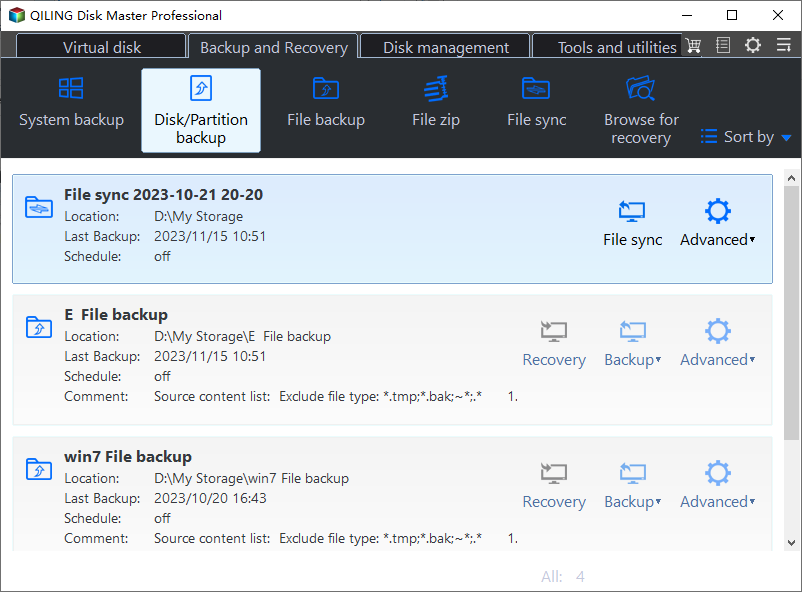
Step 1. Open Disk Backup and tick the disk to protect. The task page lists every attached disk with its partitions. Tick one disk at a time when memory has already been a problem, and leave a second disk for a separate task rather than one oversized job.
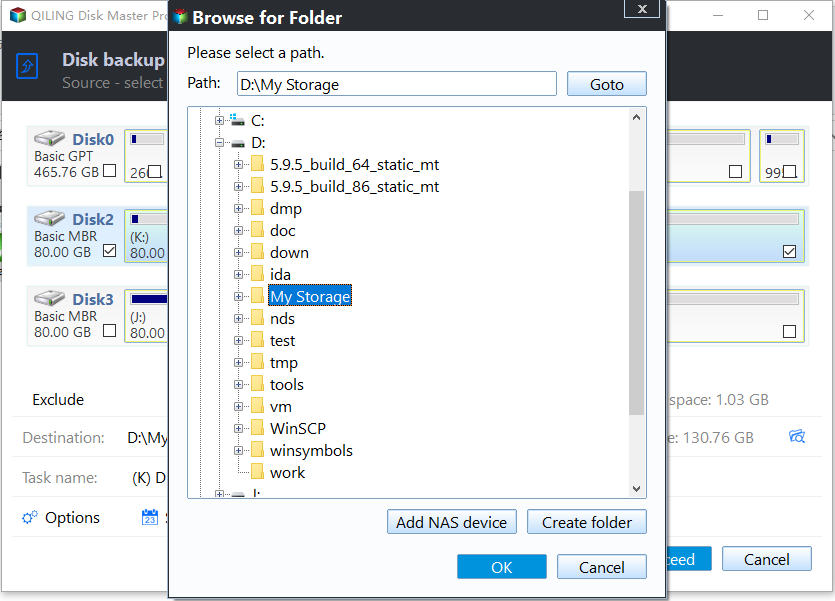
Step 2. Choose the destination for the image. Select an external disk or a folder with enough free space, and read the estimate against the capacity shown. Keeping the target local and separate from the source avoids both the buffering cost of a share and the risk of writing the image onto the disk being copied.
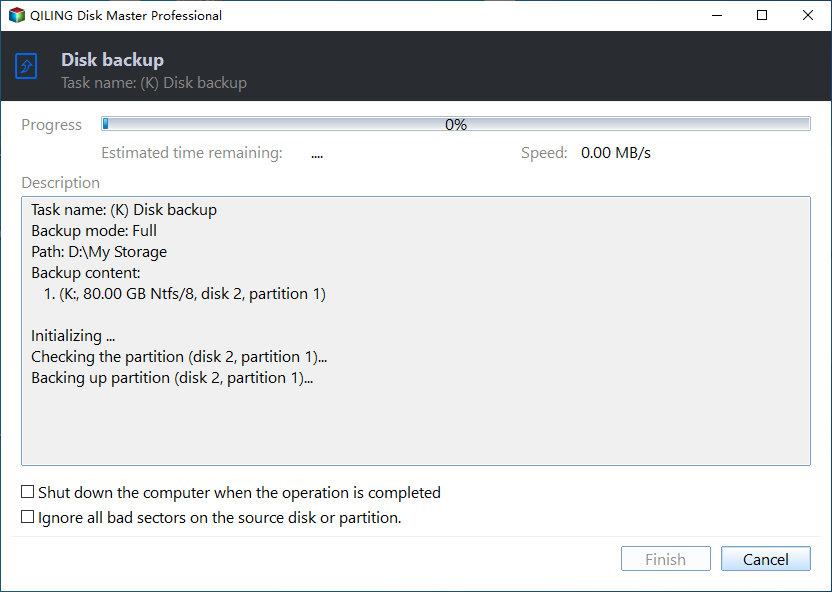
Step 3. Review the settings and click Proceed. Confirm the source, the destination, and the compression level on the summary, then start the task and leave the machine alone until the completion notice appears. Do not open the source volume's large folders in Explorer while the copy runs.
If the same volume still fails with a memory error, split it by folder into two tasks instead of raising the compression. The peak belongs to a single run, and halving the run halves the peak without touching the hardware.
Frequently Asked Questions
Does 0x8007000E mean the disk is damaged?
No. The status comes from an allocation that failed, and it is reported before or during the read, not because a sector could not be read. Disk damage shows up as read errors, retries, and a job that stops at a specific percentage every time.
Why does the job fail only on the data volume?
Because that volume holds far more files than the system volume. Per-file records and path strings, not raw capacity, set the memory peak, so a 1 TB volume with millions of small files is harder to process than a 4 TB volume with a few large ones.
Will a larger page file always fix it?
No. It removes the paging limit, but a 32-bit helper process still stops near 2 GB of address space, and snapshot tracking tables still grow with volume size and write rate. Splitting the job is the reliable answer when the page file is already managed by Windows.
Related Articles
- Backup Error 0x800705AA: Insufficient System Resources
- VSS Writer Timed Out: Fix Backup Error 0x8004230F
- Backup Error 0x80780119: Shadow Copy Storage Area Too Small
- Chkdsk Insufficient Disk Space to Repair USN Journal
- Hiberfil.sys Still Huge After Disabling Hibernate
Products
Articles & Tutorials
- Data Recovery
- Data Backup
- File Recovery
- File Backup
- System Backup and Restore
- Disk and Partition Clone
- Technical articles
- Mobile articles
- Disk Master Help
- Windows Data Recovery Tutorials
- Windows Secure Delete Tutorials
- Windows Partition Management Tutorials
- Windows File Backup and Restore Tutorials
- Windows System Backup and Restore Tutorials
- Windows Disk Backup and Restore Tutorials
- Windows Clone Tutorials