Fix 0x800706BA: RPC Server Is Unavailable in Disk Management
Quick Navigation:
- What 0x800706BA Actually Reports
- Restore the Service Chain First
- Separate a Service Fault from a Disk Fault
- Read and Resize the Disk with Qiling Disk Master
- Frequently Asked Questions
A console that opens to an empty pane and ends with "The RPC server is unavailable"; a DiskPart session that stops at 0x800706BA on the first command. Both tools read the disk through the Virtual Disk Service, and that service answers only while the RPC endpoint mapper and its own dependencies are running. The error therefore describes a broken chain of services rather than a broken drive, which is why the dialog offers no hint about the hardware at all. This guide walks that chain from the endpoint mapper down to the disk, and then shows how to read and resize the volume with Qiling Disk Master once the layout is visible again.
What 0x800706BA Actually Reports
0x800706BA is Windows error 1722, the reply a client receives when it finds the RPC endpoint mapper but cannot connect to the endpoint it was handed. Inside Disk Management the client is the console itself; inside DiskPart it is the command interpreter. Both expect the Virtual Disk Service (VDS) to be registered and running, and both fail with the identical code when it is not, when the endpoint mapper is stopped, or when a service VDS depends on never started.
The disk is not part of that chain. A drive with failing sectors still opens in File Explorer, usually slowly and often with event log entries about retries and bad blocks. A drive that vanishes from every tool at once is a cable, port, or controller question. 0x800706BA belongs to a third category: every volume still works in Explorer, and only the management tools are blind. Keeping those three pictures apart saves an unnecessary disk replacement and points the repair at the right layer.
The code also appears when a remote session is involved. Opening the Disk Management snap-in against another computer, or attaching a disk through remote management, adds a network hop where a blocked dynamic RPC port range produces the same 1722 reply. In that case the local services are healthy and the firewall rule at either end is the thing to inspect.
Restore the Service Chain First
Press Win+R, type services.msc, and read the status column of five entries: Remote Procedure Call (RPC), RPC Endpoint Mapper, DCOM Server Process Launcher, Plug and Play, and Virtual Disk. The first four are protected, start with Windows, and are rarely the culprit. Virtual Disk is the one that third-party "optimizers", debloat scripts, and some imaging suites disable to save a few megabytes of memory.
If Virtual Disk is set to Disabled, return it to Manual (Trigger Start) and start it. Its Dependencies tab must not list a stopped service; a dependency left in a failed state produces the same 1722 code and also breaks the Storage Spaces and iSCSI pages of the same console. net start vds and sc query vds are Microsoft command-line tools that ship with Windows, used here only to start the service and read its state. Neither is part of Qiling Disk Master, and no disk is written by either command.
A service that starts and then stops within seconds leaves a trace in Event Viewer under Windows Logs > System, with the service name in the Source column. Read that entry before changing anything else, because the exit code recorded there usually names the real fault: a missing dependency, a damaged Storage Spaces pool, or a driver that failed to load at boot.
Group policy is the other quiet cause on managed machines. A policy that hardens the service startup list can reset Virtual Disk to Disabled at every logon, which is why a manual fix seems to work until the next restart. Check the policy source before repeating the same repair a third time.
Separate a Service Fault from a Disk Fault
If the services run and the console still shows nothing, the next step is to separate a service fault from a disk fault without writing anything. Open Disk Management again after a rescan; a list that appears but refuses to act on one particular disk means the chain is fine and that disk is the problem. Event Viewer, still a Microsoft built-in tool used only for reading, adds detail: events 7, 51, and 153 point at the device, while repeated VDS events carrying the same error point back at the service.
A Storage Spaces pool that fails to start is a common hidden cause. VDS will not start cleanly while a pool it manages is unhealthy, so the RPC message is a symptom of the pool rather than of the console. A stale iSCSI target or an offline cluster disk behaves the same way. None of these need a partition change; they need the pool or the target repaired first, and a backup taken before that repair begins.
Device Manager completes the picture. A storage controller with a warning icon, or a disk listed under Other devices without a driver, explains both the empty console and the crash of VDS at startup. Update or roll back that driver and test the console again before you touch the partition layout.
Read and Resize the Disk with Qiling Disk Master
When the chain answers again, the console reports the real layout, and a second reading is worth the minute it takes before anything is changed. Qiling Disk Master enumerates the same drives through its own driver, so its disk list does not depend on VDS and serves as a cross-check: if both lists agree on number, model, and capacity, the layout can be trusted and the resize can be planned on it.
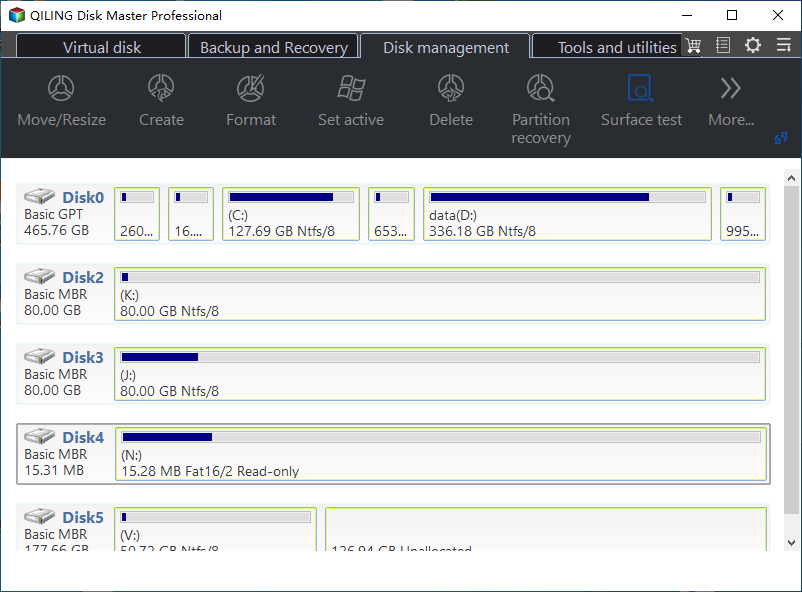
Step 1. Open Qiling Disk Master and match the disk list to the drives. The main window lists every attached disk with its number, model, and capacity, together with the partitions on each one. Compare that list with the labels on the drives and with the numbers Disk Management reported, so the disk you are about to edit is the disk you mean.
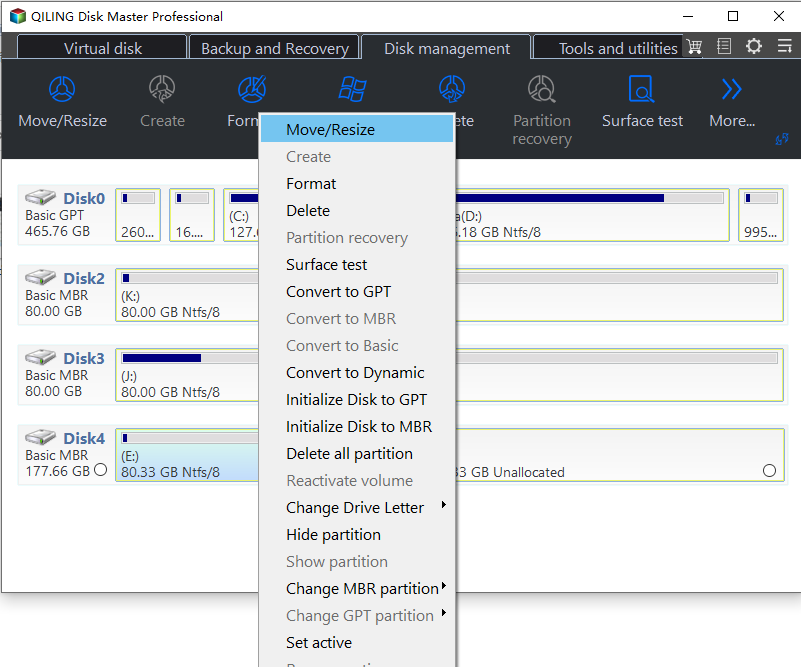
Step 2. Right-click the partition and choose Resize/Move. Select the volume whose size is wrong and open the Resize/Move dialog. The window draws the partition as a bar with the free space around it, and nothing is written to the disk while the bar is being edited.
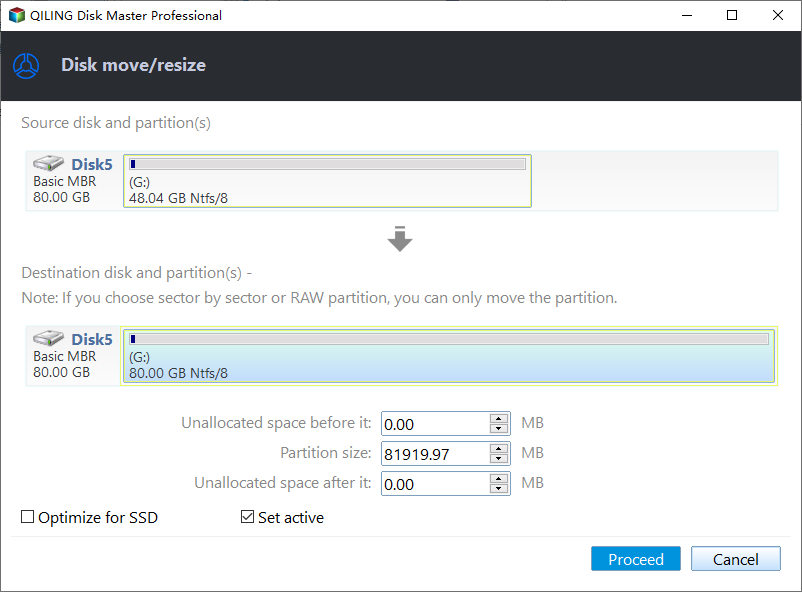
Step 3. Drag the border to set the new size. Pull the right edge into the unallocated space to extend the volume, or push it toward the start to shrink the volume. A number follows the pointer as it moves, and the free space on both sides of the bar is recalculated at the same time.
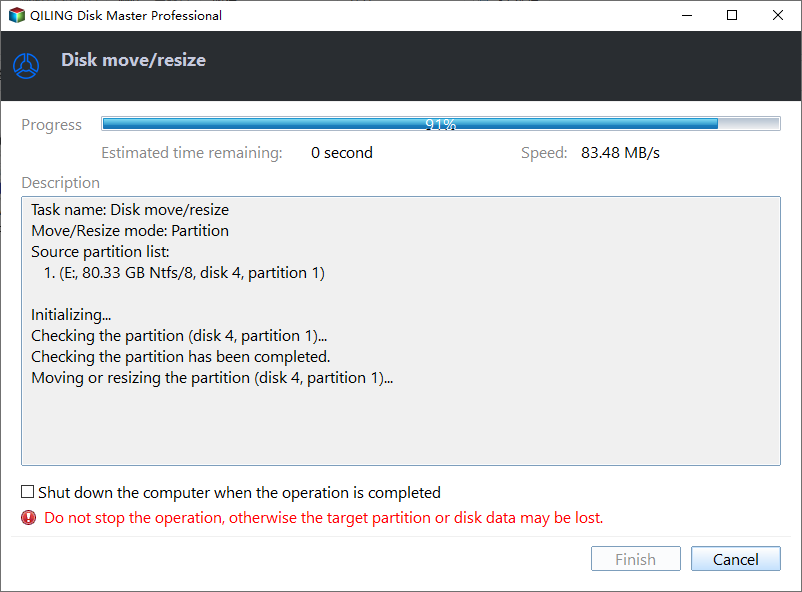
Step 4. Check the preview and click Proceed. The preview page lists the pending operation with the old and the new size on one line. Confirm it, click Proceed, and let the task finish; a volume that is in use is handled at the next restart, which the program announces before the task begins. Nothing is applied until that confirmation.
Reopen Disk Management afterwards and compare the reported sizes with the preview. If the console still fails to load, the service stopped again in the meantime and the events described in part three will say why; the resize itself has already been applied and does not depend on VDS.
Frequently Asked Questions
Is 0x800706BA a sign that the disk is failing?
No. The code comes from the RPC layer and describes a service that could not be reached. A failing disk produces delays, retries, and device events instead, and its volumes usually keep opening in File Explorer while the management tools still start normally.
Why does the error return after every restart?
Because the service that was started by hand is still set to Disabled, or because a dependency such as a Storage Spaces pool fails again at boot. Check the startup type of Virtual Disk and the System log for the service exit code after the next restart.
Can I resize a partition while Disk Management will not open?
Yes. Qiling Disk Master reads the disks through its own driver, so a stopped Virtual Disk service does not block it. Repairing the service chain is still worth the effort, because Windows Update, restore points, and most backup tools rely on it.
Related Articles
- DiskPart List Disk Shows No Disks: What to Check
- Virtual Disk Service Error: Element Not Found (0x80070490)
- Storage Spaces Pool Read-Only: How to Fix It Safely
- Disk Offline After a Windows Update
- NVMe SSD Missing After BIOS Update: How to Get It Back
Products
Articles & Tutorials
- Data Recovery
- Data Backup
- File Recovery
- File Backup
- System Backup and Restore
- Disk and Partition Clone
- Technical articles
- Mobile articles
- Disk Master Help
- Windows Data Recovery Tutorials
- Windows Secure Delete Tutorials
- Windows Partition Management Tutorials
- Windows File Backup and Restore Tutorials
- Windows System Backup and Restore Tutorials
- Windows Disk Backup and Restore Tutorials
- Windows Clone Tutorials