Storage Spaces Pool Read-Only: How to Fix It Safely
Quick Navigation:
- Why the Pool Became Read-Only
- Copy the Data Before Anything Else
- Bring the Disks Back and Read the Pool
- Back Up, Check, and Move the Data
- Frequently Asked Questions
A Storage Spaces pool that turns read-only is protecting itself. The pool keeps more than one copy of its configuration on the member disks, and when those copies no longer agree, or when a disk disappears before a write can be completed, the driver stops accepting changes rather than write a layout it cannot trust. The volumes usually stay readable, the window in which the data can still be copied. The repair comes after that copy, never before it.
Why the Pool Became Read-Only
Every pool stores metadata that describes its columns, its virtual disks, and the location of every slab. A sudden power loss can leave one copy newer than the others, and a disk that returns after a reset can present an older version of that metadata. The pool notices the mismatch and locks itself instead of choosing a version at random.
A physical disk that drops off the bus for a moment is enough to trigger the same state. Enclosure firmware that spins a drive down, a backplane with a marginal power rail, or a cable that loses contact under vibration all produce a brief disappearance, and Storage Spaces records that disappearance as a failure event even when the disk returns seconds later.
Firmware is the third common cause. Some drives and some USB bridges report a capacity or a logical sector size that changes after a firmware update, and the pool cannot reconcile the new value with the metadata it already holds. The lock is deliberate, and clearing it without knowing which event caused it risks the volume it was meant to protect.
Copy the Data Before Anything Else
The volumes in a read-only pool can still be read, so copy what matters to a disk outside the pool now. Do not write into the pool, do not remove a disk, and do not reset the pool to clear the flag; each of those actions can turn a readable volume into one that will not mount. Keep the original disks in place while the copy runs.
An image of each volume is better than a folder copy when the file system has been interrupted. An image keeps the files that will not open, and it can be mounted later when a document turns out to be missing from the first pass. Store it outside the pool, on a disk that is not a member at all.
Storage Spaces, its settings page in Windows, and Disk Management are Microsoft components and are not part of Qiling Disk Master. They are described here so the state of the pool can be read correctly before anything is changed; the copying, checking, and cloning below are done with Qiling Disk Master, which reads the volumes that the pool still exposes.
Bring the Disks Back and Read the Pool
Reconnect every member disk, including the one that dropped. Reseat the cables, use a port on the board rather than a hub, and confirm that each drive spins up. A pool that was locked because one disk was missing often returns to a healthy state on its own once that disk is present and its metadata matches the rest of the pool.
If the pool stays read-only with all disks present, the metadata is inconsistent rather than incomplete, and the pool has to be repaired or rebuilt from the remaining members. Do not delete the pool as the first move: deleting it removes the description of the virtual disks, and the volumes then have to be recovered from the member disks with other tools entirely.
Back Up, Check, and Move the Data
Qiling Disk Master works on the volumes that a read-only pool still exposes, because the file system can be read even when the pool refuses writes. The three operations below are separate tools, not one filter, and each has its own stopping point. Back up first, because it is the only one that protects the data; check the file system only to find out whether a repair is needed; clone only when the data has to leave the pool.
Operation 1: Back Up Each Volume of the Pool
This operation protects the data and is the only one you must finish before anything else is attempted. It reads the volumes without writing to them, so it works while the pool is still locked.
Step 1. Select the volumes and a destination outside the pool. Open Backup and Recovery, choose Disk/Partition backup, and tick the volumes of the virtual disk. A destination outside the pool is essential, because an image stored on the same member disks disappears with the pool.
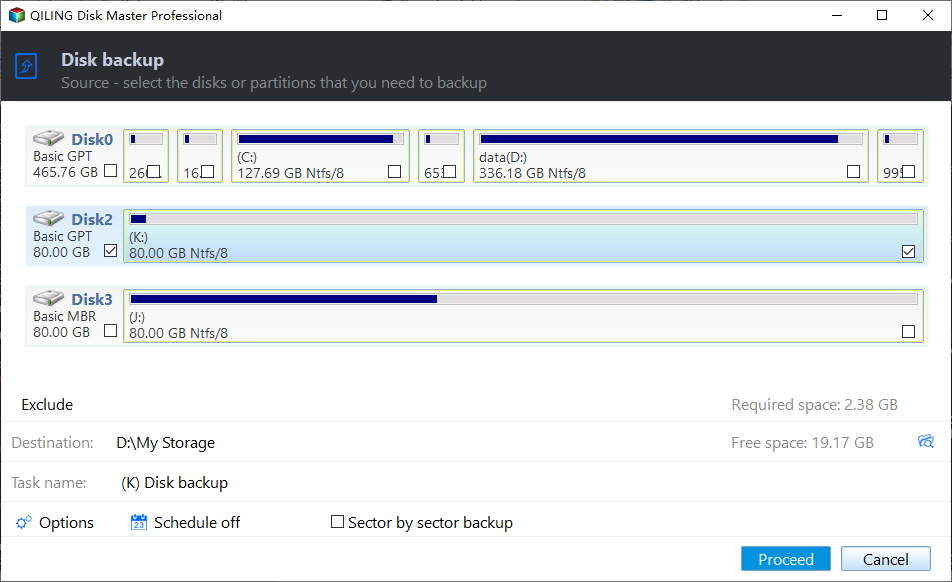
Step 2. Preview the task, click Proceed, and verify the image. Check the list of volumes in the preview, run the task to completion, then open the image and read a folder from it. A backup that has never been opened is not yet a backup.
Operation 2: Check the File System
This is a diagnostic, not a repair and not a substitute for the copy in Operation 1. Finish Operation 1 first, then use the log to decide whether the volume needs repairing at all.
Step 1. Run a check without the repair option. Right-click the volume, open Advanced, then Check File System, and run the first pass with the repair option cleared. The report shows whether the read-only state interrupted a write and left the index inconsistent.
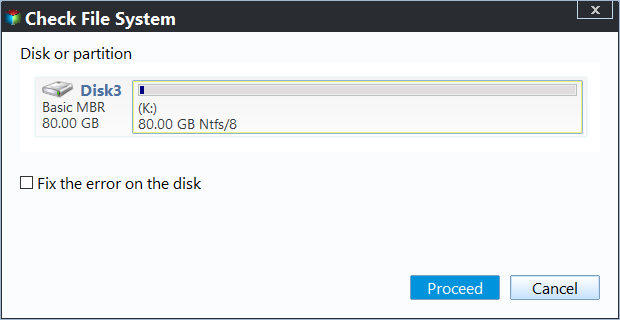
Step 2. Read the log before you decide. Look for errors that point at the index rather than at free space, and compare the free space it reports with what the rebuild will need. A clean check says the volume is readable; it does not say the pool has room to rebuild.
Operation 3: Move the Data to a Healthy Disk
Clone only when the pool has to be rebuilt or its member disks have to be moved. Cloning writes over the destination, so pick a disk outside the pool that holds nothing you still need.
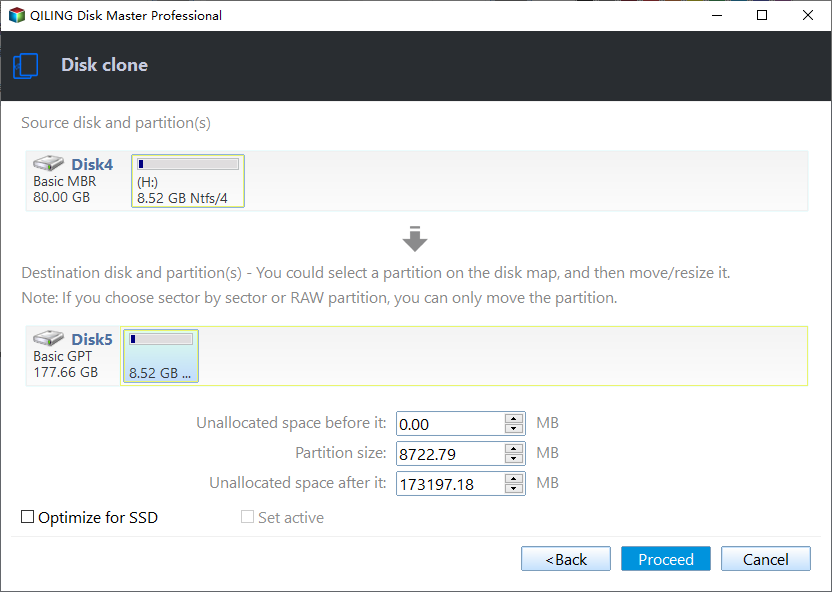
Step 1. Select the volume and a healthy disk outside the pool. Choose Disk/Partition clone, take the pool volume as the source and the outside disk as the destination. If the destination is larger, the extra space stays unallocated until you use it.
Step 2. Preview the task and click Proceed. The preview confirms the source and the destination. After Proceed, let the clone finish before the pool is rebuilt or any member disk is moved.
Frequently Asked Questions
Will the volumes come back if I clear the read-only flag?
Sometimes, but only after the metadata agrees again. Clearing the flag while a disk is still missing or a copy is still stale can leave the pool writable and the volume inconsistent, which is worse than a pool that refuses writes. Restore the member disks of the pool first, then let the pool check itself before you change any state at all.
Can I remove the failed disk from a read-only pool?
Not safely while the pool is locked. Copy the data first, then repair or rebuild with the disk in place, and remove it only once the pool reports healthy and the new copy has been verified. A removal order that ignores the lock is how a readable volume becomes a recovery job that takes days, money, and a lot of patience.
Is a two-way mirror enough to survive this?
A mirror protects against the loss of a disk, not against metadata drift or a firmware fault that affects both members. Keep an image outside the pool for the cases a mirror cannot cover, and keep it until the pool has been rebuilt and the new volume has been read back once on another machine. Then refresh it on a regular schedule.
Related Articles
- Storage Pool Metadata Corrupted After Power Loss
- Storage Spaces Physical Disk Shows Unknown Status
- Storage Spaces Virtual Disk Stuck in Degraded State
- Storage Spaces Drive Lost Communication
- Storage Pool Will Not Claim a Replacement Drive
Products
Articles & Tutorials
- Data Recovery
- Data Backup
- File Recovery
- File Backup
- System Backup and Restore
- Disk and Partition Clone
- Technical articles
- Mobile articles
- Disk Master Help
- Windows Data Recovery Tutorials
- Windows Secure Delete Tutorials
- Windows Partition Management Tutorials
- Windows File Backup and Restore Tutorials
- Windows System Backup and Restore Tutorials
- Windows Disk Backup and Restore Tutorials
- Windows Clone Tutorials