Virtual Disk Detached: Majority Disks Unhealthy in S2D
Quick Navigation:
- What the Reason Means
- Record the Status First
- Bring the Members Back
- Copy the Data Before Repair
- Frequently Asked Questions
A Storage Spaces Direct volume that shows Detached with the reason Majority Disks Unhealthy has lost contact with more members than its resiliency setting can tolerate. Windows takes the volume out of service to avoid serving an incomplete copy, so the file system is usually intact even though the drive letter is gone.
What the Reason Means
Each virtual disk carries a resiliency setting that defines how many members may be missing. A three-way mirror survives one failed disk but not two; once the number of unhealthy members passes that limit, the health status changes and the operational status becomes Detached.
The pool also keeps a dirty region tracking (DRT) log for each virtual disk. Writes that arrive while a member is out are recorded there, so the member can catch up on the regions it missed when it comes back.
The DRT log has a fixed size. If the members stay offline long enough for it to fill, the pool can no longer prove that a returning disk can be resynchronized, and the volume stays detached until the data is recovered another way.
Record the Status First
Write down the health status, the operational status, and the health of every member before touching a cable. Take a screenshot of the page, because the values change the moment a disk reconnects and the original state is what a support case needs.
Look for members marked lost communication, predictive failure, or missing from the slot list. A single dropped disk with the rest healthy points at a cable or a slot; several disks vanishing together points at a backplane, a power rail, or the controller.
Read the System and StorPort entries in Event Viewer around the moment the volume detached. Windows built-in Event Viewer and Device Manager are Microsoft tools, not part of Qiling Disk Master, and they show whether the link dropped once or repeatedly before the volume went offline.
Bring the Members Back
Reseat the drives that stopped enumerating, swap the cable on the one that reports link errors, and rescan the storage bus. If the member returns before the DRT log is full, the pool resynchronizes it and the volume attaches by itself.
Windows Admin Center and the Storage module commands such as Get-VirtualDisk and Get-PhysicalDisk are Windows built-in tools and report the repair percentage while the resync runs. Leave the resync alone until it completes; starting more jobs during it only slows the rebuild.
If the DRT log is already full, or the failed members are physically dead and replacements are smaller than the originals, the volume will not attach. At that point the supported path is restore from backup, not in-place repair.
Do not delete the virtual disk to clear the error. Deletion removes the layout metadata that a recovery tool needs to read the remaining members.
Copy the Data Before Repair
Qiling Disk Master can copy the files of a mounted volume to a disk outside the pool, which gives you a readable copy before any repair is attempted. Attach the volume read-only first if it came back online in a degraded state.
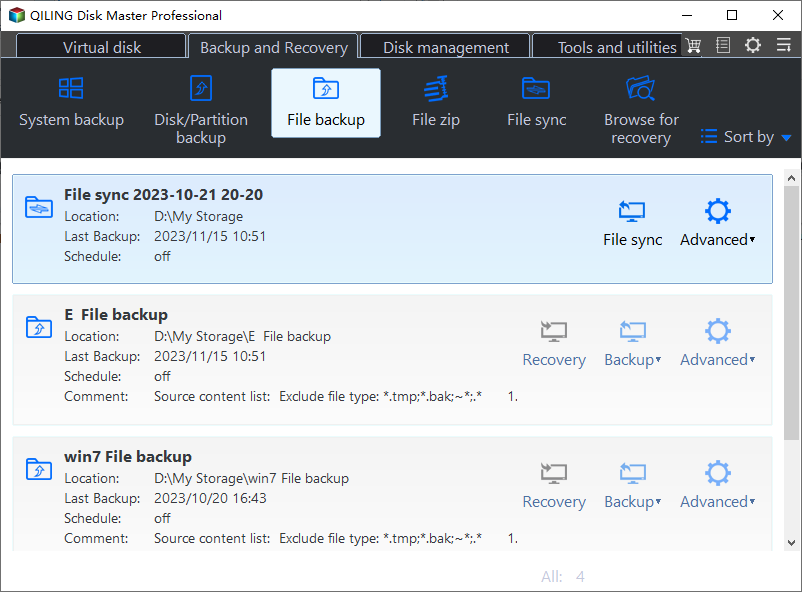
Step 1. Choose File Backup
Open the Backup and Recovery tab and choose File Backup. Use File Backup for a data volume, and switch to System Backup only when the detached volume holds the operating system.
Step 2. Select the Affected Volume
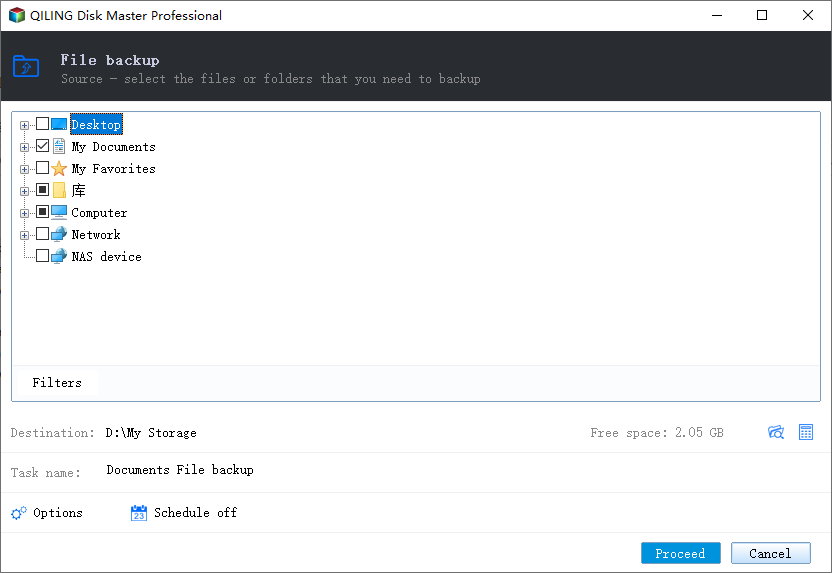
Expand Computer in the source tree and tick the drive letter that belongs to the pool volume. Match the capacity shown there with the pool report so you copy the right volume and not another disk on the same host.
Step 3. Set a Destination Outside the Pool
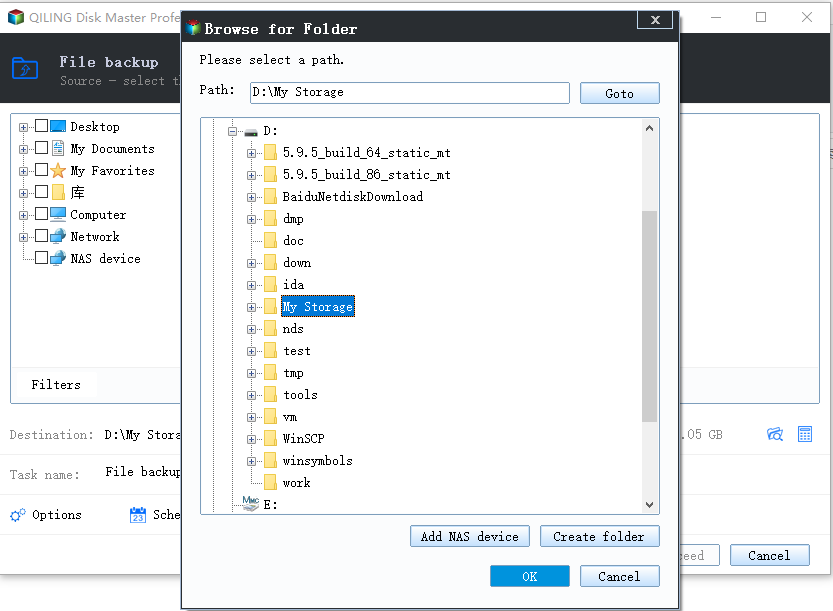
Choose a folder on an external disk or on a disk from another pool, and check that its free space is larger than the used space of the volume. Never point the task at a folder inside the same pool, because the pool is the component that is failing.
Step 4. Run the Task and Verify
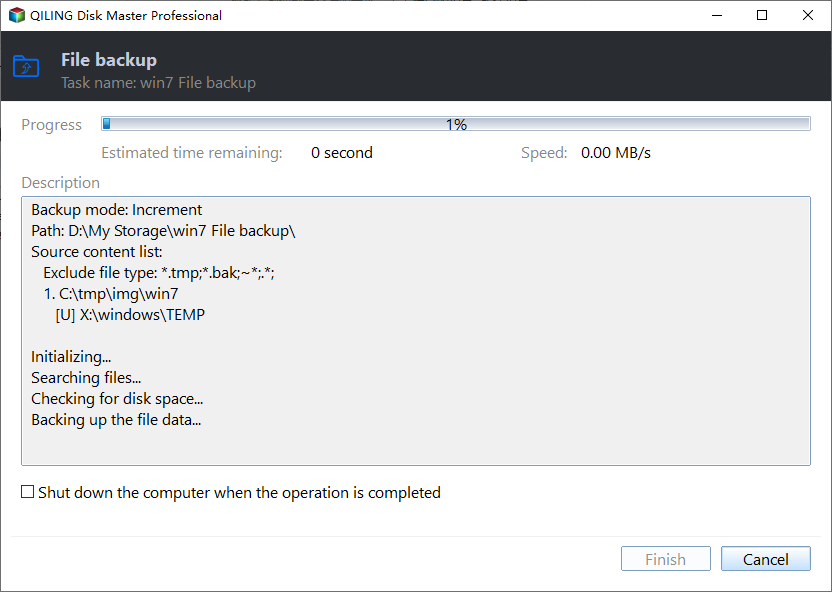
Name the task, click Proceed, and let it finish. Open the backup point afterwards, restore a sample folder to a temporary path, and confirm the files are readable before you touch the pool again.
Frequently Asked Questions
Will a reboot reattach the volume?
No, not while the members are still unhealthy. A restart clears transient errors but the pool re-evaluates health on boot and detaches the volume again.
Can I remove the failed disk from the pool?
Only when enough healthy capacity remains to evacuate its slabs. On an already detached volume the removal is refused, which is another reason to copy the data first.
Is the data lost when the DRT log fills?
Not necessarily, but the pool can no longer guarantee a consistent resync. Treat the volume as read-only, copy what it serves, and restore the rest from the last backup.
If the pool is still reporting reduced resiliency rather than detaching, see Storage Spaces reduce resiliency warning.
Related Articles
- Storage Spaces Direct Pool Cannot Extend: Stuck Storage Job
- Storage Spaces Reduce Resiliency Warning
- Storage Spaces Disk Missing and Cannot Be Removed
- ReFS Block-Level Reconstruction and What It Repairs
- Back Up Windows Server 2025 Storage Spaces
Products
Articles & Tutorials
- Data Recovery
- Data Backup
- File Recovery
- File Backup
- System Backup and Restore
- Disk and Partition Clone
- Technical articles
- Mobile articles
- Disk Master Help
- Windows Data Recovery Tutorials
- Windows Secure Delete Tutorials
- Windows Partition Management Tutorials
- Windows File Backup and Restore Tutorials
- Windows System Backup and Restore Tutorials
- Windows Disk Backup and Restore Tutorials
- Windows Clone Tutorials