Beginners' Shot: Clone Windows 11 for Free with Step-by-Step Guide
In this article, you'll learn:
- To prepare a new disk or partition for cloning Windows 11, you'll need to create a bootable USB drive with the Windows 11 installation media, then use the built-in tool called Windows 11 Installation Media to create a new disk or partition. Alternatively, you can use a third-party cloning software like Qiling Disk Master to clone the existing Windows 11 installation to the new disk or partition. Make sure to back up any important files and data before proceeding, as the cloning process will overwrite the existing data on the new disk or partition.
- #2. Download and Install Free Windows 11 Cloning Software
- #3. Guide to Clone Windows 11 for Free
- #4. Make Windows 11 Bootable
Windows 11 is the latest Windows installment and has gained widespread acclaim for its new features and utilities. If you're looking for a way to clone Windows 11 for free, there's good news - although Windows 11 lacks an in-built cloning tool, there is a way to clone it without hassle. This article will explain the easiest method to clone Windows 11, making it possible to do so without any additional costs.
Using the procedure explained in this article, you can clone Windows 11 (or any other Windows version) for free in about 15 to 30 minutes, even if you're a basic-level Windows user.
How to Clone Windows 11 for Free? Your Full Guide Is Here
Cloning your Windows OS instead of reinstalling it from scratch offers numerous benefits, including saving time and effort in re-configuring and reinstalling required programs. If you find the process complex, it can be broken down into four manageable parts.
- #1. Prepare a New Disk or Partition
- #2. Download and Install Free Windows 11 Cloning Software
- #3. Clone Windows 11 for Free
- #4. Set Windows 11 Bootable on New Disk or Partition
Before starting the process, you need to decide where you want to clone Windows 11 - on a new disk or a new partition on the same disk. We'll explain the methods for both situations, so you can easily move Windows 11 to a new disk for free.
#1. Prepare a New Disk or Partition for Cloning Windows 11
To start the Windows 11 cloning process, first prepare the targeted partition or disk by attaching and initializing a new disk, such as an SSD, if necessary.
To initialize a new disk on a Windows 11 computer and prepare it for cloning Windows, you will need to format and clean up an existing partition on the same disk to make room. This process involves using built-in tools to format and clean up the existing partition, making it ready for cloning Windows 11 onto the new disk.
Step 1: After attaching the new disk to your computer, turn it on and use the "Win + X" key to access a menu. From there, click on "Disk Management" to proceed.

Step 2: To prepare your new disk for use, navigate to Disk Management, right-click on the disk, and select "Initialize". This will launch the disk initializing wizard, where you should choose the same partition style as the disk containing Windows 11.
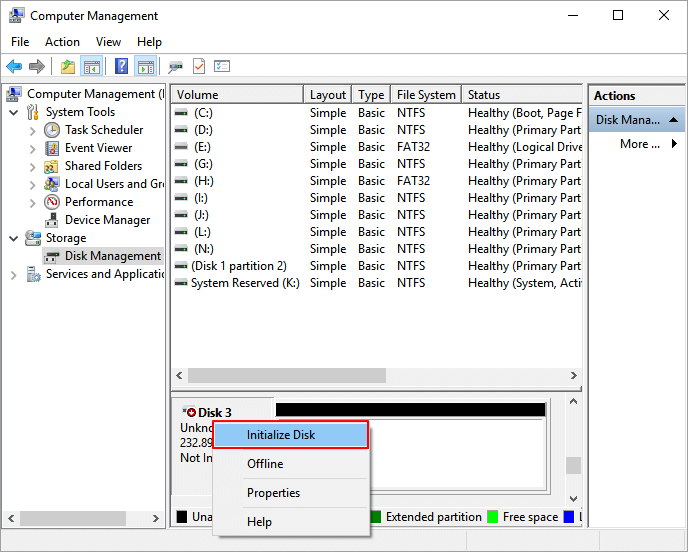
Step 3: To initialize the disk and create a new partition, right-click the disk and select "New Simple Volume" after initializing it.
To clone Windows 11 for free using the same disk but a new partition, format and clean up an existing partition by following these steps: delete any existing partitions, create a new partition, format the new partition with the same disk's file system, and then clone Windows 11 to the new partition. This process will allow you to create a duplicate of your Windows 11 installation on the same disk without incurring any additional costs.
Step 1: To format a partition on Windows, open the search bar and type "Disk Management", then navigate to the partition you want to format. Right-click on the targeted partition and select "Format" from the dropdown menu.
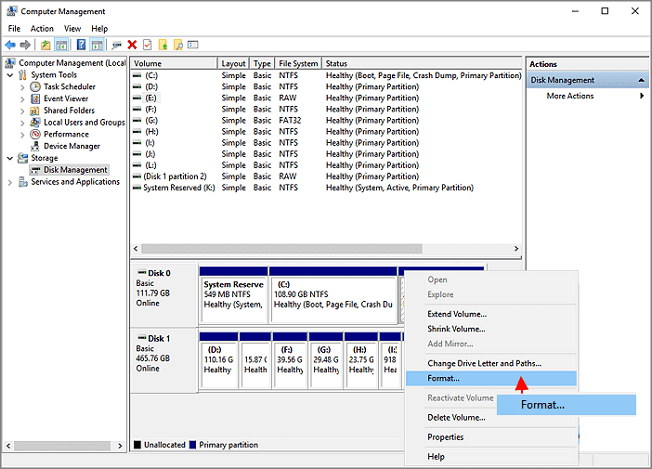
Step 2: To clone Windows, you should first create a new partition in the format window, then select the old partition and click "format" to erase its contents. After that, you can select the new partition and click "clone" to copy the old partition's contents to the new one. The cloning process may take some time, depending on the size of the old partition. Once the cloning is complete, you can remove the old partition and use the new one as the boot partition.
Step 3: To delete a partition and create a new one, right-click the partition you want to delete and select "Delete Volume". After deleting the partition, right-click the unallocated space and select "New Simple Volume" to create a new partition.
#2. Download and Install Free Windows 11 Cloning Software
To clone Windows 11 for free, you'll need reliable software, as Windows 11 doesn't have an in-built cloning tool. Fortunately, Qiling Disk Master Free is an excellent option that can be downloaded for free, offering a simple and quick cloning process, as well as additional features to make the process smoother.
Prominent Key Features
- Allocate Disk Space: The "Allocate Space" feature allows you to take unallocated space from one partition and allocate it to another on the same disk without affecting the data in the partitions.
- Check Disk Health: The "Disk Health" feature allows you to monitor the condition of your hard disk and identify any potential issues, enabling you to take proactive measures to resolve them. This feature can be used to check the overall health of your hard disk and detect any problems that may be affecting its performance.
- Test Disk Speed: Using the "DiskMark" feature of Qiling Disk Master, you can determine if a slow hard disk is the reason for your slow computer by finding out your hard disk's read and write data speed.
- Check File System Error: Qiling Disk Master is a tool that helps detect and resolve file system errors on a hard disk, identifying issues such as invalid files, full disk, and problems with reading or writing.
- 4K Alignment: If you're using an SSD but still experiencing slow system performance, junk data on the drive might be the culprit. Clearing this data through 4K alignment using a tool like Qiling Disk Master can help restore the SSD's speed.
#3. Guide to Clone Windows 11 for Free
Now that you have your targeted disk ready and Qiling Disk Master installed, it's time to clone Windows 11. To do this, follow these simple steps below.
Step 1. Select "Clone" from the tools page.
Step 2. Select the source partition and click "Next".
Step 3. Choose your the target partition and click "Next "to continue.
- When cloning a partition to an existing partition, it's essential to transfer or back up the data on the destination partition first, to prevent it from being overwritten during the cloning process.
- Check warning message and confirm "Yes".
Step 4. Click Start and wait for the clone to complete.
You can find instructions on how to clone a partition or system reserved partition by watching a video tutorial.
With Qiling Disk Master, you cannot only clone Windows 11 but also clone older versions of operating systems, such as Windows 10, to a new disk, making it a versatile tool for upgrading or replacing old operating systems.
#4. Make Windows 11 Bootable
To assign the highest boot priority to the partition or disk containing Windows 11, you can follow these steps: First, restart your computer and enter the BIOS settings by pressing a designated key such as F2, F12, or Del. Then, navigate to the Boot Order or Priority section, which is usually found under Advanced or Security settings. Select the partition or disk containing Windows 11 and move it to the top of the list, assigning it the highest boot priority.
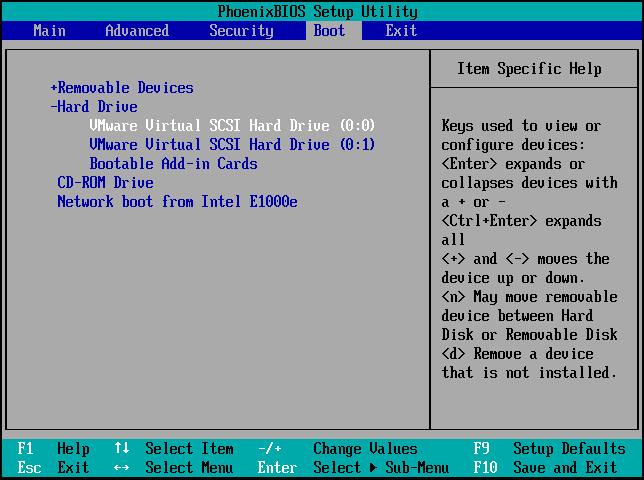
Step 1: After cloning Windows 11, reboot your computer and use the BIOS key (usually DEL, F1, F2, F10, or F12, depending on your computer brand) to access the BIOS settings. This will allow you to configure and save the changes to your computer's settings.
Step 2: To find the "Boot" tab in your BIOS settings, navigate using the arrow keys and locate the "Boot Device Priority" option, which may be named differently depending on the brand.
Step 3: To assign the disk or partition containing Windows 11 highest priority, navigate to the BIOS settings, use the "+" or "-" key to prioritize the disk or partition, and then press "F10" to save and exit the BIOS and reboot your computer.
Final Verdict
Cloning Windows 11 is a faster and more convenient option than reinstalling it, taking only 15 minutes with a tool like Qiling Disk Master, which guides you through the process and optimizes your hard disk for free.
FAQs about Clone Windows 11 Free
Cloning Windows 11 can be a challenging task, especially for new Windows users. To help, we've answered some frequently asked questions about cloning Windows 11 for free.
1. Does Windows 11 have a clone tool?
No, there is no in-To clone Windows 11, you can use a trustworthy third-party cloning tool available in Windows 11. One such tool is Qiling Disk Master, which allows you to clone Windows 11 for free using a straightforward cloning procedure.
2. How to clone Windows 11 to NVMe SSD?
To clone Windows 11 to an NVMe SSD, attach the disk, initialize it with the same partition style as the drive containing Windows 11, use a cloning software like Qiling Disk Master to clone Windows 11, and finally, set the NVMe SSD as the boot drive through BIOS.
3. What is the best cloning software for Windows 11?
Qiling Disk Master is a free cloning software for Windows 11 that offers an easy-to-use cloning process, as well as features to create, delete, or merge partitions.
Related Articles
- 4 Quick Fixes to Remove Your Login Password in Windows 11🚀
- How to Tell If a Hard Drive Is Failing or Not [Step-by-Step Guide]
- Solved: PS5 Not Recognizing External Hard Drive - 2023
- How to Repair Windows 10 From USB [Complete Guide]
- Guide on Converting MBR to UEFI [Safe Guide for Beginners]
To seamlessly convert your MBR (Master Boot Record) to UEFI (Unified Extensible Firmware Interface), follow a secure guide using trusted tools. This process involves a few steps, including creating a bootable USB drive, running a UEFI conversion tool, and verifying the successful conversion. - Convert to GPT Greyed Out in Windows 10? Fix It Instantly
This article will focus on the error 'convert to GPT greyed out Windows 10', which includes why it greyed out and how to solve this problem.
Products
Articles & Tutorials
- Data Recovery
- Data Backup
- File Recovery
- File Backup
- System Backup and Restore
- Disk and Partition Clone
- Technical articles
- Mobile articles
- Disk Master Help
- Windows Data Recovery Tutorials
- Windows Secure Delete Tutorials
- Windows Partition Management Tutorials
- Windows File Backup and Restore Tutorials
- Windows System Backup and Restore Tutorials
- Windows Disk Backup and Restore Tutorials
- Windows Clone Tutorials