How to Clone Windows to New SSD [Most Efficient Way]
If you've bought a new SSD, you're likely looking for a hassle-free way to clone Windows to the new drive without losing any data. Fortunately, there's a reliable method to achieve this. By using a cloning software, you can easily move your system and data from the old SSD to the new one, eliminating the need for a time-consuming reinstall of the operating system. This allows you to start using your new SSD with minimal disruption, making it a convenient and efficient solution for upgrading your storage.
You need to clone Windows to a new SSD if your current SSD is running low on space, you want to upgrade to a faster or larger SSD, or you want to create a backup of your current system. Cloning Windows to a new SSD allows you to transfer all your installed programs, settings, and files to the new drive, making the transition seamless and minimizing downtime.
Why Clone Windows to New SSD
Cloning Windows to a new SSD is not just a simple copy of Windows data, but rather a complete clone of the drive, including all data, settings, and applications. This process is often necessary when upgrading to a new SSD, as it allows for a seamless transition of all files, programs, and settings to the new drive, preserving the exact same state as the original drive. The reasons for cloning Windows to a new SSD include upgrading to a faster storage device, replacing a failing drive, or simply wanting to keep the same Windows setup on a new drive.
1. Get more storage space
To increase the storage capacity of a small SSD, you can clone the smaller SSD to a larger one, effectively doubling the storage space, or clone the Windows system to the larger SSD, freeing up space on the original smaller SSD.
2. Get better performance
Compared to traditional hard disk drives (HDD), solid-state drives (SSD) offer significantly better performance, with faster data read and write speeds and lower power consumption. As a result, cloning an HDD to an SSD can provide a noticeable boost in computer performance, making it a popular upgrade option for many users.
3. Avoid the hassle of manual installation
You can clone your old computer's data to a new SSD to avoid reinstalling the OS and transferring all your files, settings, and programs. This can save you time and effort, and ensure a smooth transition to your new computer.
4. Save your budget
With the cost of SSDs decreasing and their performance improving, they now offer a more affordable and efficient alternative to traditional HDDs, potentially saving you money on computer repairs.
To clone Windows to a new SSD, you'll need to use a professional cloning software, such as Qiling Disk Master Professional, as Windows itself does not offer a cloning service. This software allows you to quickly and securely clone your Windows operating system to the new SSD, making it a convenient solution for upgrading your computer's storage.
To clone Windows to a new SSD using this tool, first, download and install the software on your current Windows system. Next, connect the new SSD to your computer and ensure it's recognized by the operating system.
- Notice:
- Before cloning, backup all essential data from your old computer and ensure the new SSD has enough storage space for the source disk.
How to Clone Windows to New SSD
Qiling Disk Master is a powerful cloning software that supports SSD 4K alignment, ensuring SSD performance is not affected. It's also an easy-to-use tool, making it simple to navigate the cloning method even for novices. To clone Windows to a new SSD, users should initialize the new SSD to match the source disk's partition format, and Qiling Disk Master provides three guides to help with this process, including cloning Windows to a new SSD and then booting Windows from the cloned SSD.
Guide 1. Initialize the New SSD
Guide 2. Clone Windows to the New SSD
Guide 3. Boot Windows from Cloned SSD
Qiling Disk Master simplifies the initialization and cloning process. Here's a step-by-step guide to get you started below.
Guide 1. Initialize the New SSD
You can initialize the new SSD to either GPT (GUID Partition Table) or MBR (Master Boot Record) format. To do this, you'll need to download Qiling Disk Master, which will guide you through the process. The new SSD should have the same partition format as the original one.
Step 1. Open Qiling Disk Master and got to Partition Manager.
Step 2. To convert a disk to MBR or GPT, right-click the target disk - HDD or SSD, and select "Initialize to MBR" or "Initialize to GPT". Then, click "Proceed" to save the changes.
Guide 2. Clone Windows to the New SSD
Once you have initialized the SSD, you can clone Windows to the new SSD, which is the next step.
Let's see how to do it.
Step 1. Launch Qiling Disk Master, go to the Tools tab, select "Clone System Disk" from there.
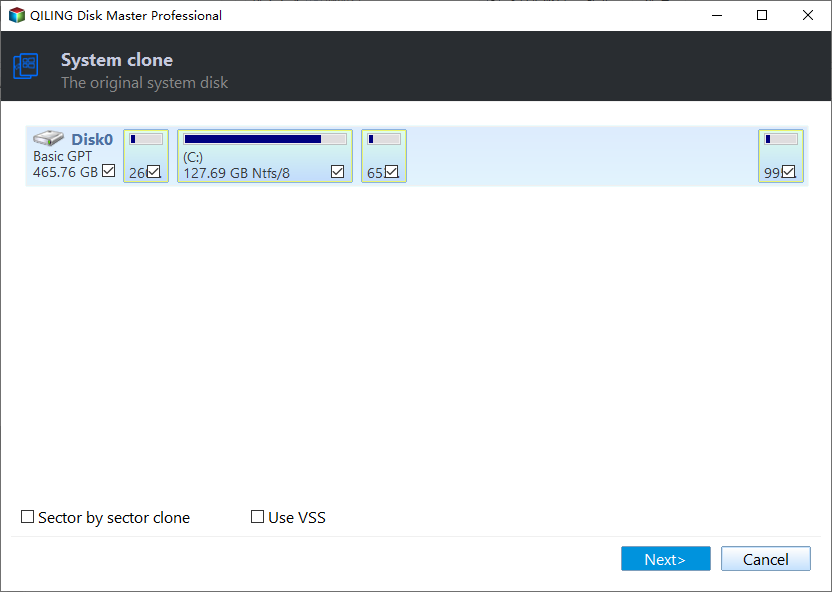
Step 2. Select the target new drive where you want to clone the OS to, and click "Next".

I will continue the OS disk cloning process.

Step 3. To initiate the OS cloning process, view the disk layout and click "Proceed" to start the cloning process.

Step 4. When the process finishes, you'll see a confirming message asking if you want to start up your computer from the cloned target disk.
- Reboot Now To reboot your PC and configure the computer to boot OS from the new disk immediately, you would perform a cold boot, which means turning off your PC, waiting a few seconds, and then turning it back on. This process allows the computer to load the operating system from the new disk, rather than the old one.
- Done means you want to make the changes later.
Guide 3. Boot Windows from Cloned SSD
Follow the steps below to set the cloned SSD as the boot drive, and then you can boot Windows from the cloned SSD.
Step 1. Reboot the computer. And press F2/F8/Del to enter the BIOS.
Step 2. In the boot environment, set the cloned SSD as the boot drive.

Step 3. Save the settings and exit.
- Tip
- If you're having trouble accessing the system from the cloned drive, you can click on the link "clone SSD won't boot" to identify and fix the issue.
What Else Can Qiling Disk Master Do?
Qiling Disk Master, a comprehensive disk partition tool, also offers cloning features, allowing users to create an exact copy of their disk or partition. This feature is useful for backing up important data or creating a duplicate of a system for testing or troubleshooting purposes.
- Clone larger HDD to smaller SSD
- Clone Windows to external hard drive
- Clone SD cards to external hard drives
- Clone SD cards, USB, or external hard drives
Qiling Disk Master can also completely wipe hard drive after cloning to free up more space.
Conclusion
After reading this guide, you'll know the efficient way to clone Windows to a new SSD. This article analyzes the reasons for cloning Windows to a new SSD and provides a reliable tool as a cloning method. Using Qiling Disk Master is fast and safe, but remember to format the new SSD before cloning to prevent any issues. With the help of Qiling Disk Master, this clone operation is very easy!
FAQs About Clone Windows to New SSD
Here are some other common questions about cloning Windows to SSD. If you still have questions, please read on.
1. Does Windows 10 have cloning software?
Windows 10 does not have built-in cloning software, despite offering Disk Management and Diskpart commands for managing disks and partitions. These tools, however, do not support cloning, and instead provide a system image backup feature that allows for restoring a previous system in case of damage. For actual cloning, users can utilize third-party software like Qiling Disk Master.
If you're unsure of a specific tool, you can browse this link to find one of the best free SSD cloning software for assistance.
2. Do you have to rebuy Windows if you get a new SSD?
You can reactivate your Windows account on a new SSD without needing to rebuy the operating system, as the data and programs from the old system will be cloned when you transfer to the new SSD.
3. How do I transfer my whole system to a new SSD?
To transfer your system to the new SSD, first format it using Qiling Disk Master. Once formatted, follow the steps below to complete the transfer.
Step 1. Download Qiling Disk Master and open it. Select "Clone" on the left side.
Step 2. Select the target disk and click "Next."
Step 3. Click "Yes." on the warning message page.
Step 4. Click "Start" to migrate the OS to the SSD.
Related Articles
- Top 6 Best Free SSD Cloning Software 2024 [Pros & Cons]🔥
- How to Format BitLocker Partition in Windows 11
- Partition Manager Windows 11 Free Download in 2024 🏆
- Best Free System Clone Software for Windows 10 Recommend
- Solved: Win10 Disk Management Not Loading - 10 Fixes
If Win10 Disk Management is not loading and causing you headaches. Our step-by-step guide provides a practical and effective solution to resolve loading or responding problems, ensuring you can access and manage your disk with ease. - How to Run Disk Performance Test on Windows [Step-by-Step Guide]
The performance of your PC's disk has a significant impact on the overall system performance. To optimize your system's performance, it's essential to run a disk performance test on Windows. Fortunately, there are safe and secure ways to do this, and here are some techniques to get you started.
Products
Articles & Tutorials
- Data Recovery
- Data Backup
- File Recovery
- File Backup
- System Backup and Restore
- Disk and Partition Clone
- Technical articles
- Mobile articles
- Disk Master Help
- Windows Data Recovery Tutorials
- Windows Secure Delete Tutorials
- Windows Partition Management Tutorials
- Windows File Backup and Restore Tutorials
- Windows System Backup and Restore Tutorials
- Windows Disk Backup and Restore Tutorials
- Windows Clone Tutorials