Fix 0x8007048F: The Device Is Not Connected
Quick Navigation:
- What 0x8007048F Reports
- Why the Disk Drops Mid-Task
- Confirm the Disk Is Still There
- Test the Disk, Then Rerun the Task
- Frequently Asked Questions
A backup, a clone, or a format runs for a few minutes and then stops with 0x8007048F and the message that the device is not connected. The drive is still plugged in, and its folders may still open in File Explorer, which makes the error look like a software fault. It is not: Windows asked the disk to complete a write and the disk was no longer present at the address it had when the task started. The drive either dropped off the bus or came back with a new identity, and both leave the running task pointing at a device that no longer answers.
What 0x8007048F Reports
The code is the hexadecimal form of ERROR_DEVICE_NOT_CONNECTED, a system error that appears when an I/O request cannot be completed because the target device has disappeared from the system. It shows up in backup software, in cloning tools, in Disk Management when a volume is created or formatted, and in update installers that write to a USB stick. In every case the wording is the same and so is the meaning: the request was issued, the device left, and the operation could not finish.
What makes the error confusing is that the device often returns within seconds. A drive that drops for a moment and reconnects is enumerated again, usually with the same letter but sometimes with a new disk number, and the task that started before the drop keeps writing to the old handle. The result is a partial write, an interrupted image, or a volume that Windows reports as unformatted even though it was healthy a minute earlier.
This is why the error deserves a real diagnosis instead of a retry. Running the same job again on the same cable, port, and power path usually fails at roughly the same point, and each failed attempt writes over part of the previous result. The aim of the checks below is to make the link stable first, and only then to repeat the task.
Why the Disk Drops Mid-Task
The first suspect is the cable. A USB cable that charges a phone does not always carry data reliably under sustained load, and a cable that has been bent at the connector can pass a short test and fail during a long write. SATA data cables have the same problem in a different shape: a loose or damaged connector produces a reset that the operating system logs as a device that vanished. Replace the cable before you change anything else, because it is the cheapest part and one of the most common causes.
The second suspect is the port and the power path. Front-panel USB ports on a desktop are often fed by an internal header that cannot supply the current a 3.5-inch enclosure needs, and an unpowered hub multiplies the problem across every device attached to it. Connect the drive directly to a port on the back of the machine, or use a powered hub, and keep other high-draw devices off the same controller while the task runs.
The third suspect is power management. Windows can suspend a USB device to save energy, and some controllers take a moment to wake a drive that was parked, which is long enough for a running job to time out. The selective suspend setting for USB devices, and the power plan setting that turns off hard disks after a period of inactivity, both produce drops that only appear during long tasks.
The fourth suspect is the driver or the bridge chip. Enclosures built around older bridge chips can behave badly with the current USB stack, and a storage controller driver that predates the installed Windows release can reset a disk under load. Update the chipset and storage drivers from the machine vendor, and check the enclosure vendor for a firmware update before you conclude that the drive itself is failing.
Confirm the Disk Is Still There
Disk Management, Event Viewer, and Device Manager are Microsoft tools that ship with Windows. They are not part of Qiling Disk Master, and this section uses them only to read the state of the machine. Open Disk Management after a drop and look for the disk by its number and capacity. A disk that is missing from the list is not connected; a disk that is present but marked offline, or one that shows no volumes where there were three, reconnected after the task had already failed.
Event Viewer adds the timing. Open the System log, filter for the disk, the storahci, or the USB storage source, and read the entries around the moment of the failure. A reset, a surprise removal, or a controller error recorded at that second explains the code better than any guess, and it also tells you whether the drop came from the link or from the media.
Read the SMART state if the drive supports it, and note whether the enclosure reports the drive at all. A drive that disappears from the list entirely and returns only after the power is cycled is usually a power or bridge problem; one that stays listed but reports errors is usually the disk. Both cases need the copy of your data to be finished before anything else is attempted.
Test the Disk, Then Rerun the Task
Qiling Disk Master shows every attached disk on one map, which makes a disappearance easy to see, and its surface test reads the whole disk without writing so you can find out whether the media is sound before a second backup or clone. Use it after the cable, the port, and the power path have been changed, so that the test measures the disk rather than a known bad link.
Step 1. Confirm that the disk is listed before you start. Open the Disk management tab and compare the disk map with the device in your hand: the disk number, the capacity, and the file system of each volume should match what Disk Management reported. A drive that is absent here is not connected, and no test or backup will reach it until the link is restored.
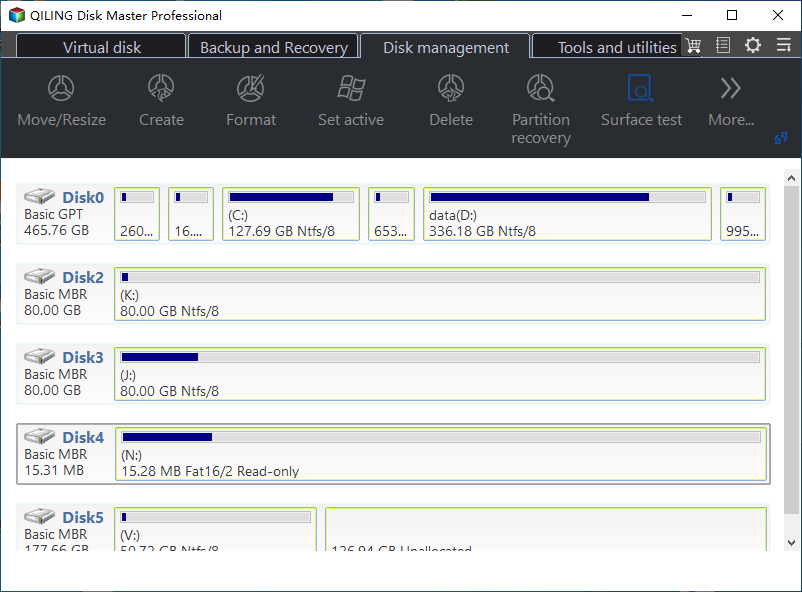
Step 2. Select the disk and open Surface test. Click the disk label on the left of the map so that the whole disk is selected, then choose Surface test on the Tools and utilities tab. Selecting a single partition tests only that volume, which leaves the rest of the platter unchecked.
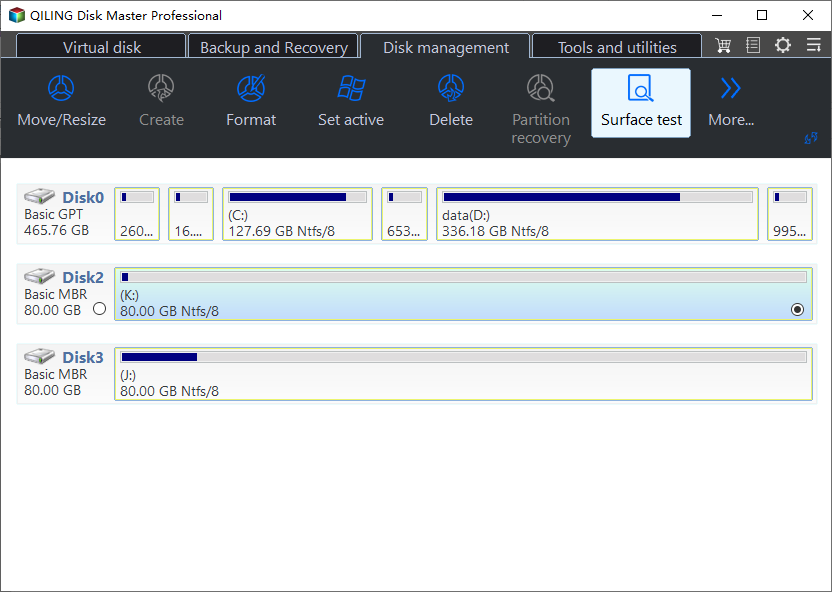
Step 3. Click Proceed and read the error count. The scan reads every block and marks the ones that cannot be read, and the counter of errors found updates as it runs. Leave the drive untouched on the desk while the test runs, and note the block number of any error, because a cluster of bad blocks explains both the drop and the failed write.
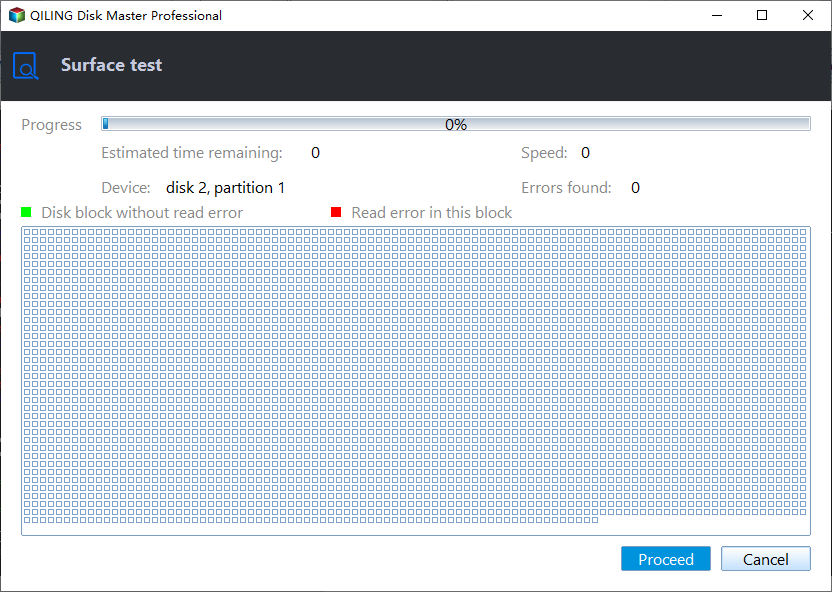
A clean scan moves the fault back to the cable, the port, or the power path, and the task can be repeated once the link has been changed and the drive has stayed connected through a full read. A scan with errors means the disk should be replaced rather than reused, and the safest next step is to clone the contents to a new disk while the old one still answers. Keep the failed job's partial output until the new copy has been verified, then delete it and run the backup or clone again from the start instead of resuming into a file that was cut in the middle.
Frequently Asked Questions
Does 0x8007048F mean my files are lost?
Not necessarily. The code reports an interrupted write, so the task that failed is incomplete, but the data that was already on the disk is usually still readable. Copy what you need to another drive before you format, repair, or retry anything on the affected disk.
Why does the drive only disconnect during long jobs?
Because a short copy may finish inside the window before power management parks the device or a marginal cable loses the link under sustained load. Long writes keep the controller busy for minutes, which is exactly when heat, current draw, and a weak connector start to matter.
Can I resume the backup that failed?
Only if the software offers a verified resume for that exact job and the destination file is intact. A clone cannot be resumed, because the target was only partly written. Restart the task from the beginning once the link is stable, and keep the partial result until the new one has been checked.
Related Articles
- External Drive Randomly Goes Offline: Causes and Fixes
- SATA Cable or Port Causing Disk Drops: How to Isolate It
- USB Drive Keeps Disconnecting in Windows 11: How to Fix It
- Windows Setup Error 0x800701B1: USB Media Disconnected
- Disk Offline After a Windows Update
Products
Articles & Tutorials
- Data Recovery
- Data Backup
- File Recovery
- File Backup
- System Backup and Restore
- Disk and Partition Clone
- Technical articles
- Mobile articles
- Disk Master Help
- Windows Data Recovery Tutorials
- Windows Secure Delete Tutorials
- Windows Partition Management Tutorials
- Windows File Backup and Restore Tutorials
- Windows System Backup and Restore Tutorials
- Windows Disk Backup and Restore Tutorials
- Windows Clone Tutorials