Free Partition Manager for Windows 11 25H2
Windows 11 25H2 users may need to resize C drive, adjust the EFI system partition, format USB drives, check disk errors, or prepare a new SSD. A clear partition manager helps you finish these tasks without using long command lines.
What Can a Windows 11 Partition Manager Do?
- Resize, shrink, extend, and move partitions.
- Format partitions, USB drives, and SD cards.
- Check file system errors and bad sectors.
- Manage disk layout before system updates or SSD upgrades.
- Clone disks or partitions when moving data to another drive.
Manage Windows 11 Partitions with Qiling Disk Master
Step 1. Install and open Qiling Disk Master. Choose the partition tool you need, such as resize, format, check, or clone.
Step 2. Select the target partition. For resizing, drag the partition border or enter the new size. For formatting, check the drive letter and file system carefully.

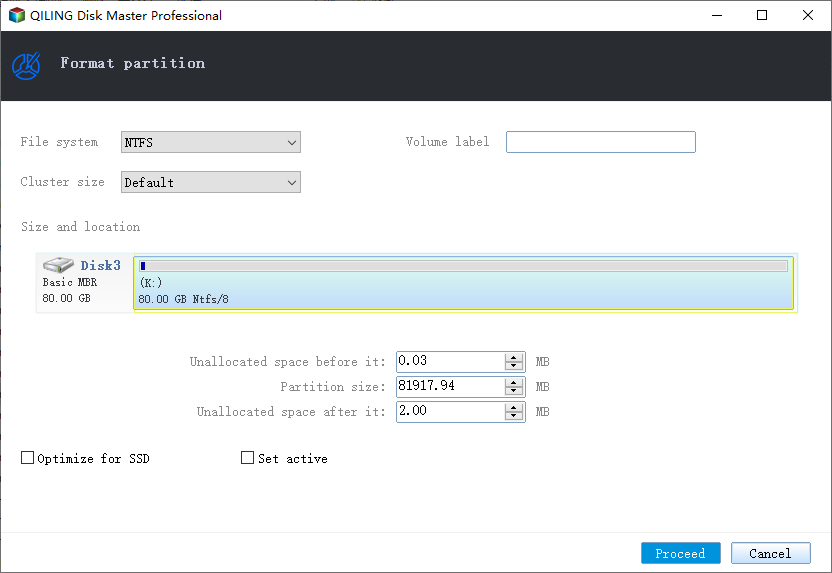
Step 3. Preview the pending operation. Make sure the system partition, EFI partition, or external device you selected is the correct one.

Step 4. Click Proceed to start the operation and wait until it finishes.
When to Use a Partition Manager
Use it before a Windows feature update if the system or EFI partition is too small. It is also helpful when USB drives show write protection, SD cards cannot be formatted, or a new SSD needs to be prepared.
For a specific update error, see resize EFI system partition when Windows 11 update fails.
Conclusion
A Windows 11 25H2 partition manager is useful for storage cleanup, update preparation, and disk changes. Always confirm the target disk and back up important files before changing partitions.
Related Articles
- Write Protected USB Format Tool for Windows 11
- SD Card Write Protected Format Software
- Windows 11 26H2: Release Date, Features and How to Get It
- Windows 11 26H1: What It Is and Who Can Install It
Products
Articles & Tutorials
- Data Recovery
- Data Backup
- File Recovery
- File Backup
- System Backup and Restore
- Disk and Partition Clone
- Technical articles
- Mobile articles
- Disk Master Help
- Windows Data Recovery Tutorials
- Windows Secure Delete Tutorials
- Windows Partition Management Tutorials
- Windows File Backup and Restore Tutorials
- Windows System Backup and Restore Tutorials
- Windows Disk Backup and Restore Tutorials
- Windows Clone Tutorials