KB5127648 0x80073712: Component Store Files Damaged
Quick Navigation:
- What the Component Store Holds
- Store Damage or Disk Damage
- Repair in the Right Order
- Check and Image the Disk
- Frequently Asked Questions
KB5127648 stops during installation and reports 0x80073712, which Windows describes as a component store that is damaged or missing files. The package needs a specific set of system files to build the new version, and the store that should hold them no longer matches its own records. The machine usually keeps working, so the failure looks like a bad update rather than a disk problem. It is neither: the store is the part that needs attention. This guide explains what the store contains, how to tell store damage from a failing drive, and which two operations come before any repair.
What the Component Store Holds
The component store is the folder that keeps every version of every system file Windows has installed, arranged by component rather than by folder. Files that appear in the Windows directory are hard links into that store, so one stored copy can serve several locations without taking extra space.
When a package installs, it does not overwrite a file in place. It adds the new version to the store, points the system at it, and keeps the old version for rollback. That design is what makes an update reversible, and it is also what makes the store the single point of failure when a write is interrupted.
0x80073712 means the store cannot produce a file that matches the manifest for the new build. The manifest and the stored copy disagree, so the installer stops before it changes anything. Common causes are a power loss during an earlier update, a cleanup tool that deleted entries from the store by hand, and a security suite that quarantined a system file.
Store Damage or Disk Damage
A store fault is the better explanation when the code appears on one package only, the machine boots normally, and the same error returns at the same percentage on every attempt. Damage is consistent, and the installer reaches the same broken entry each time.
A failing drive looks different. Errors move around between packages, copy operations slow down, the drive makes a regular ticking sound, and the firmware may report a warning. A file system check that repairs errors on every run is a strong sign that the surface, not the store, is the problem.
Do not repair the store on a drive that is still returning read errors. The repair writes new files into the same folder, and a write that fails halfway leaves the store in a worse state than the one you started with. Fix or replace the drive first, restore the image, and only then repair the store.
Windows includes its own servicing tools for the store, including the file checker and the image servicing utility. Both are Microsoft tools, not features of Qiling Disk Master. They belong in a separate session after an image exists, and neither can succeed on a disk that is failing underneath them.
Repair in the Right Order
Start with a copy of the disk. The store repair rewrites thousands of files, and a machine that loses power during that work has no rollback of its own. An image taken now restores the exact state you have, including the damaged store, which is still better than a half-repaired system.
Next, check the file system on the Windows volume. This step is cheap, it rules out the errors that would make the repair fail, and it often finds the interrupted write that damaged the store in the first place. Let the check finish before you start anything that writes to the volume.
Then repair the store, restart, and read the result before retrying KB5127648. A repair that reports it fixed some components but not all means the source for those components is missing, which is the case the 0x800f081f source error covers.
Finally, remove the tool or habit that caused the damage. A cleaner that empties the component store, or a security product that quarantines files inside the Windows directory, will damage the store again within a few months.
Check the Disk and Image It Before the Repair
Qiling Disk Master checks the file system and writes a full image of the system disk from the same window, so the two steps that must happen before a store repair take one pass instead of two. The image can be restored from the same rescue media if the repair leaves the machine unbootable.
Step 1. Open the File System Check
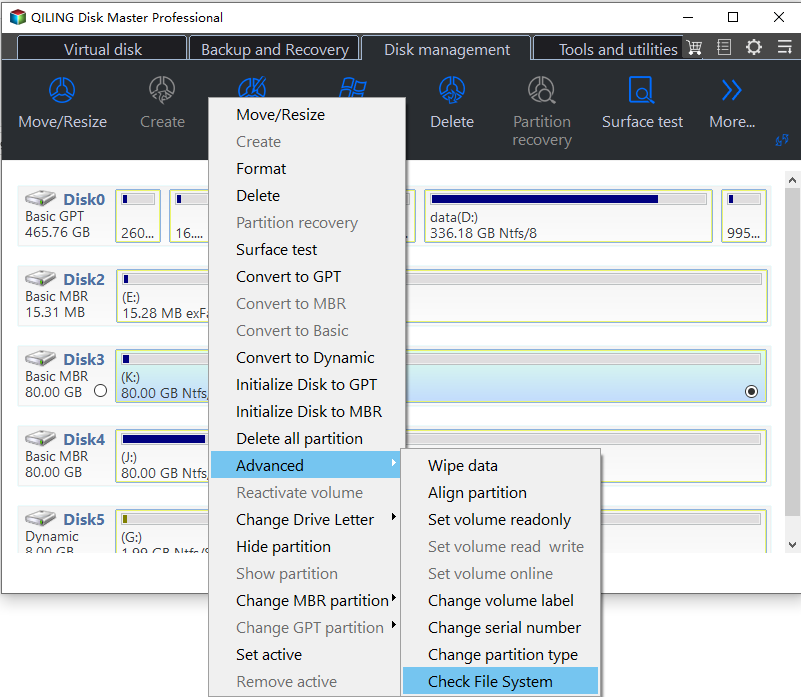
Right-click the Windows volume, open the Advanced submenu, and choose Check File System. The check reads the file system rather than the component store, but it removes the disk errors that would make a store repair fail on the next write.
Step 2. Read the Report
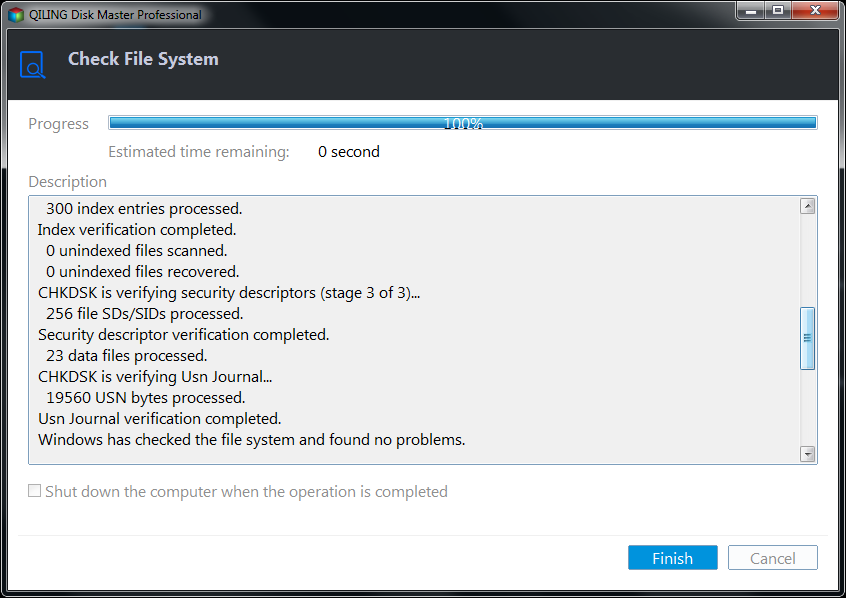
Wait for the summary at the end of the scan. A report that lists no problems means the store damage came from an interrupted write, while a report that repairs errors on every run points at the drive rather than at Windows.
Step 3. Open Disk Backup
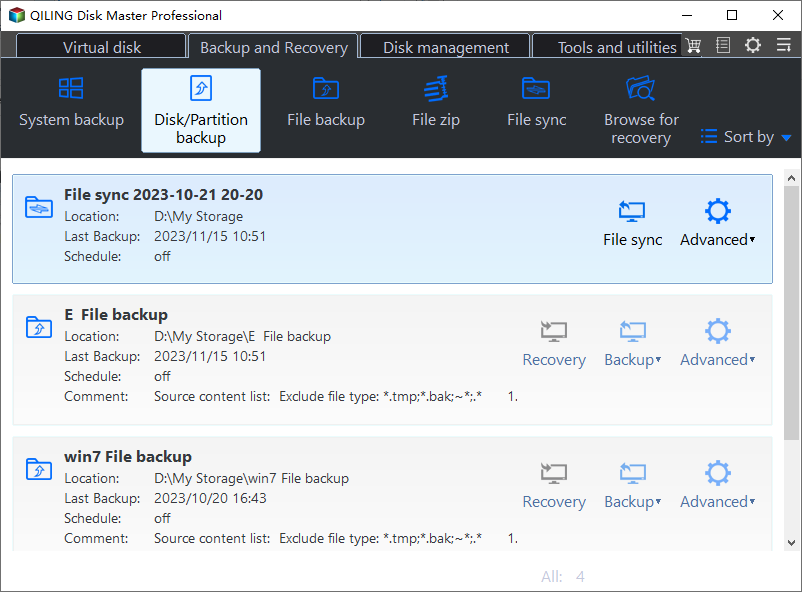
On the Backup and Recovery tab, click Disk/Partition Backup and tick the whole system disk. The boot and recovery partitions belong in the image, because a store repair can rewrite files outside the Windows folder.
Step 4. Set the Destination and Start
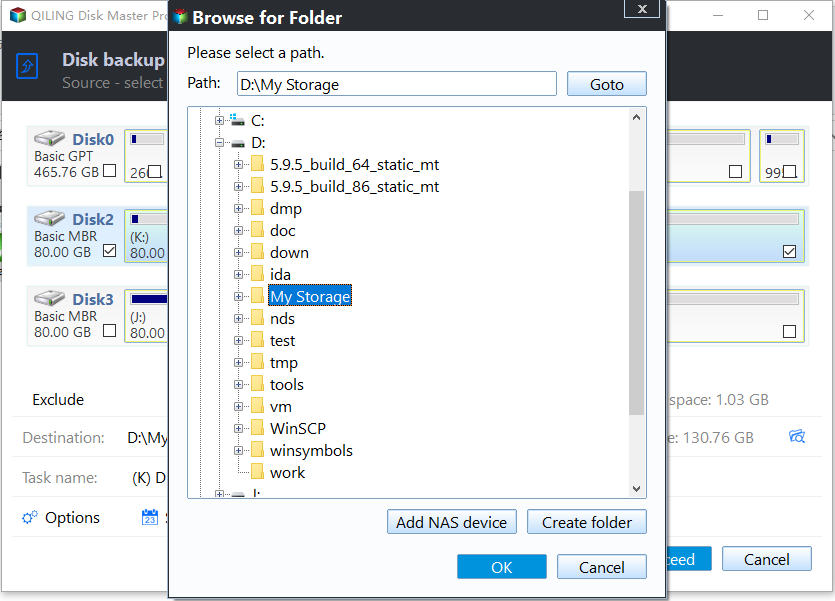
Pick a destination on a healthy disk and confirm the free space, then preview the pending operation and click Proceed. Keep the image until KB5127648 installs and the machine restarts twice without the code returning.
Frequently Asked Questions
Is 0x80073712 a virus infection?
Usually not. The store is damaged by an interrupted write or a cleanup tool far more often than by malware, but a scan is still worth running before you trust the repaired system.
Can I delete the component store to start fresh?
No. The Windows directory is linked into that store, and deleting it removes files the running system needs. Repair it instead of removing it.
Will the store repair remove my programs?
No. It replaces system components and leaves installed programs and personal files in place. A repair install of Windows, which is the next step, also keeps both.
Related Articles
- How to Run SFC and DISM in Windows 11
- SFC, CHKDSK, and DISM: What Each One Repairs
- DISM Error 0x800f0915: Update Repair Failed
- Windows 11 24H2 Update Cache Cannot Be Deleted
- Windows 11 26H2 Upgrade Failed With 0x800F0922
Products
Articles & Tutorials
- Data Recovery
- Data Backup
- File Recovery
- File Backup
- System Backup and Restore
- Disk and Partition Clone
- Technical articles
- Mobile articles
- Disk Master Help
- Windows Data Recovery Tutorials
- Windows Secure Delete Tutorials
- Windows Partition Management Tutorials
- Windows File Backup and Restore Tutorials
- Windows System Backup and Restore Tutorials
- Windows Disk Backup and Restore Tutorials
- Windows Clone Tutorials