Not Enough Space Available on the Disk(s)
Quick Navigation:
- What the Message Really Measures
- Read Where the Free Block Sits
- Move the Space Next to the Volume
- Retry the Operation
- Frequently Asked Questions
"Not enough space available to complete this operation" is a message about position rather than about the total free space of the disk. A drive can show hundreds of gigabytes free and still refuse to extend a volume by ten, because the room has to exist as one block in a specific place.
What the Message Really Measures
Each disk operation has its own rule. Extending a volume needs unallocated space directly behind it, creating a partition needs a single free block large enough for the whole partition, and shrinking needs free space inside the file system, which is a different number again.
Windows checks the block, not the sum. Free space on the other side of a second partition is invisible to an extend operation, and two free blocks of 5 GB each cannot hold a partition that asks for 8 GB.
The gap is often a partition rather than a setting. A Microsoft Reserved partition of a few megabytes between two volumes splits what looks like one free area into two blocks, and the operation is refused for a reason that the dialog never spells out.
Read Where the Free Block Sits
Open the disk map and read it from left to right, the way the disk stores its data. Unallocated blocks are drawn with their size, and their position relative to the volumes is what matters.
Four layouts cause most of the reports: the free block sits behind another volume rather than behind the one you want to extend, the free space is split into two blocks that are each too small, the space is still inside a partition and was never unallocated, or the disk is dynamic and the volume has members on more than one disk.
A block that looks adjacent can still be separated by a partition of a few megabytes. Read the size column rather than the drawing, and note exactly which volume comes before and after the block.
Write down the position and the size of every free block on the disk. Those two values decide whether the space can be used as it is or has to be moved first.
Move the Space Next to the Volume
If the block already sits directly behind the target volume and the operation is still refused, look for a small partition between them or a file system that cannot grow in place. A block that is truly adjacent and large enough is accepted.
When the block is on the wrong side, it has to be moved behind the volume. The built-in Disk Management console can shrink, extend, and delete, but it cannot move a partition, so this step needs a tool that relocates the data inside the volumes it shifts.
A move rewrites the partition table and copies the contents of every partition it passes, which takes time on a large disk. Back up the volumes you cannot recreate before you start, and keep the machine powered until the operation finishes.
Retry the Operation
Qiling Disk Master does both halves of the job in one pass: it moves the free block behind the volume and then extends the volume into it, without deleting the partitions in between. The disk map shows the layout before and after the change, so the result is visible before anything is written.
Step 1. Find the Volume and the Free Blocks
Open the program and locate the volume you want to extend. Read the free space of the partitions on its left and right on the disk map, and decide whether the block you need already exists or has to be created by shrinking a neighbour.

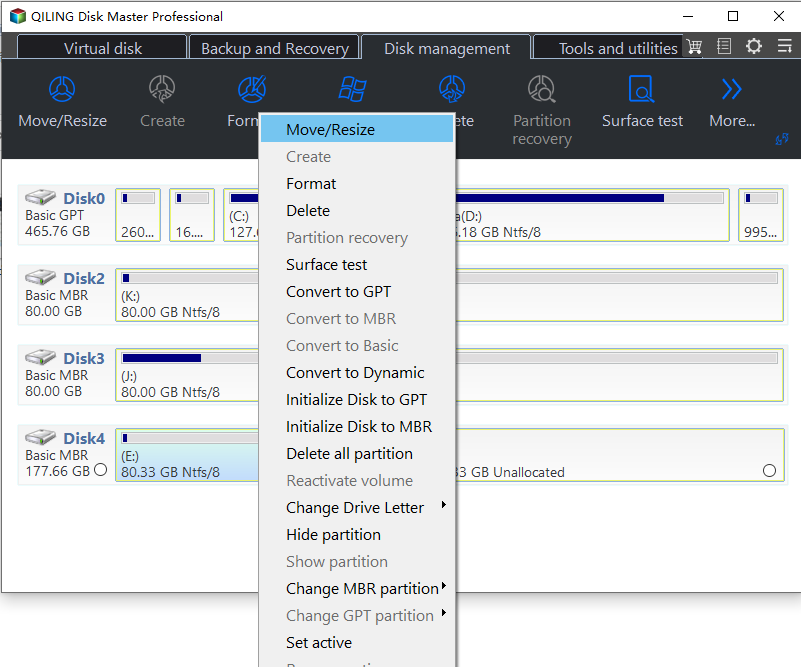
Step 2. Open Move/Resize on That Volume
Right-click the target volume and choose Move/Resize from the context menu. The wizard opens on that partition, which keeps the operation tied to the volume you selected rather than to the whole disk.
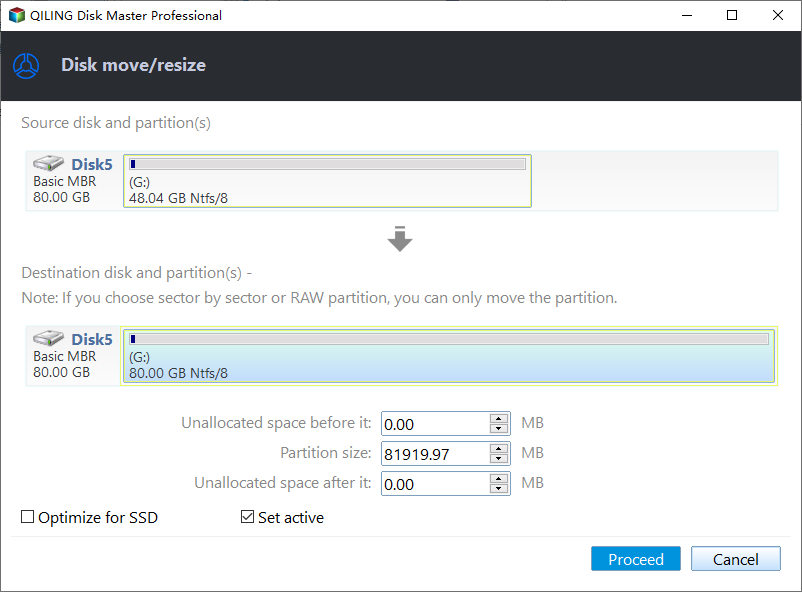
Step 3. Set the Values and Click Proceed
In the disk move/resize window, change the partition size and the unallocated space before and after it until the free block sits on the side you need. Click Proceed; the operation runs in a progress window that reports Moving or resizing, and the machine restarts if the volume in use has to be moved. When the window closes, go back to the create or extend step that produced the message and run it again.
Frequently Asked Questions
Why is the message shown when the disk has plenty of free space?
Because the space is not in the right place or not in one piece. Windows needs a single block at the position the operation requires, and the total free space says nothing about that.
Can Disk Management move the free space for me?
No. It can shrink, extend, and delete, and extending works only with unallocated space directly behind the volume. Moving a block means moving the partitions in front of it, which needs a third-party tool.
Does moving unallocated space delete the files in the partitions it passes?
The operation relocates the data and keeps the volumes intact, but an interrupted move can damage them. Copy the important files to another disk before you start and keep the machine powered until the progress window closes.
If the space you need is held by a recovery partition rather than by a data volume, see moving a recovery partition before you change the layout.
Related Articles
- 26H2 Upgrade Failed With 0x800F0922
- 844 MB Unallocated After a Windows 11 25H2 Update
- Move the Recovery Partition
- Remove the Recovery Partition
- All Options Grayed Out in Disk Management
Products
Articles & Tutorials
- Data Recovery
- Data Backup
- File Recovery
- File Backup
- System Backup and Restore
- Disk and Partition Clone
- Technical articles
- Mobile articles
- Disk Master Help
- Windows Data Recovery Tutorials
- Windows Secure Delete Tutorials
- Windows Partition Management Tutorials
- Windows File Backup and Restore Tutorials
- Windows System Backup and Restore Tutorials
- Windows Disk Backup and Restore Tutorials
- Windows Clone Tutorials