Windows 11 26H2 Adds an Extra 1 GB Partition: What It Is
Quick Navigation:
- What the New Partition Is
- Find the Partition WinRE Uses
- Can the Extra One Be Removed
- Merge the Space Back Into C
- Frequently Asked Questions
After a 25H2 or 26H2 upgrade, Disk Management sometimes shows a new partition of about 1 GB at the end of the system disk, with no drive letter and no obvious owner. It is almost always a recovery partition that Setup created so the Windows Recovery Environment could grow, and the older recovery partition from the original installation is often still sitting beside it. Knowing which of the two is actually in use decides whether the new one can be removed.
What the New Partition Is
A Windows installation keeps a recovery partition to hold the WinRE image, a small operating system that provides startup repair, reset, and system restore. The image has grown with each release, and a 500 MB or 750 MB partition from an older installation no longer has room to accept the current image during servicing.
When the servicing stack finds too little free space in the registered recovery partition, it prepares a replacement. Setup creates a new partition at the end of the disk, formats it, writes the WinRE image, and registers it as the active recovery location. The old partition stays where it is because shrinking or moving it from inside a running Windows is not possible.
The result is a disk with two recovery partitions: a small one that is no longer used and a larger one around 1 GB that is. Sizes vary with the layout, and a machine that already had a vendor recovery partition can end up with three. The related case of unallocated space left after 25H2 comes from the same mechanism.
Find the Partition WinRE Uses
The partition with the drive letter is never the recovery one, and the label in Disk Management is not proof either. Both entries may read Healthy (Recovery Partition) while only one of them holds a registered image, so the check has to read the recovery configuration rather than the partition list.
Windows includes a built-in tool named reagentc that reports that configuration. It is part of Windows and is not a feature of Qiling Disk Master. Run it from an elevated command prompt and read the Hard Disk and Partition values: they point at the partition index that currently holds the recovery image, counting every partition on the disk from the start.
Match that index against the disk map. On a typical GPT layout the order is EFI, MSR, Windows, then recovery, so partition 4 is the last entry; a machine with the new 1 GB partition and the old one both present will report only one of them. If the report says the recovery environment is disabled, no partition is in use and the new one was created but never activated.
Can the Extra One Be Removed
An unregistered recovery partition can usually be deleted, and doing so returns its space to the disk. Before that, confirm three things: the registered partition is not the one you plan to delete, the partition holds no vendor factory image, and the disk has no pending encryption operation.
Vendor recovery partitions often look identical in size and type. A machine from a major OEM may keep a 1 GB partition that restores the factory image, and deleting it removes the only path back to that image. Check the label and the folder contents before you act, and keep the vendor recovery media if one exists.
BitLocker adds a second condition. Resizing or deleting partitions on an encrypted system disk changes the layout that the protector is bound to, and an interrupted operation can leave the volume asking for a recovery key. Suspend protection and keep the key available before any layout change, and never start the work on a laptop with a low battery.
There is also a maintenance angle. Once the leftover partition is gone, the next feature update may create a new one again if the registered recovery partition is still tight on space. Removing the unregistered partition is safe; removing the registered one is what breaks startup repair, as described in the WinRE servicing failure.
Merge the Space Back Into C
Qiling Disk Master shows every partition on the disk with its exact size, type, and position, and it can remove the unused one and extend the system volume in a single pending operation. Work from the installed program when Windows still starts, and reboot only if the program asks for it.
Step 1. Read the Disk Map and Compare the Recovery Entries
Open the disk map and note the size and position of every recovery entry. The 1 GB partition at the end is the new one, and the smaller entry nearer to Windows is the leftover; write both sizes down so the deletion cannot hit the wrong one.

Step 2. Delete the Unregistered Partition
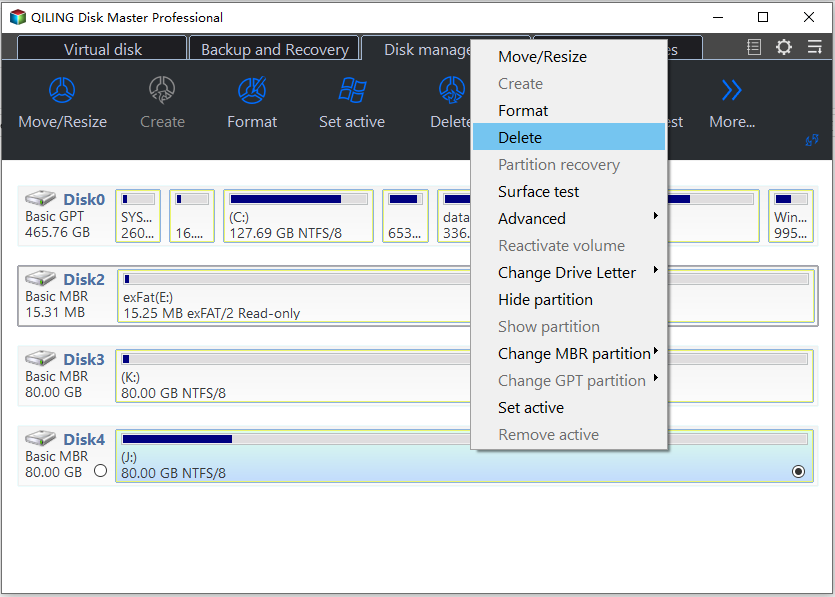
Right-click the leftover entry and choose Delete Partition, then confirm. The partition disappears from the map and its space becomes unallocated; nothing else on the disk moves at this point.
Step 3. Extend the System Volume Into the Freed Space
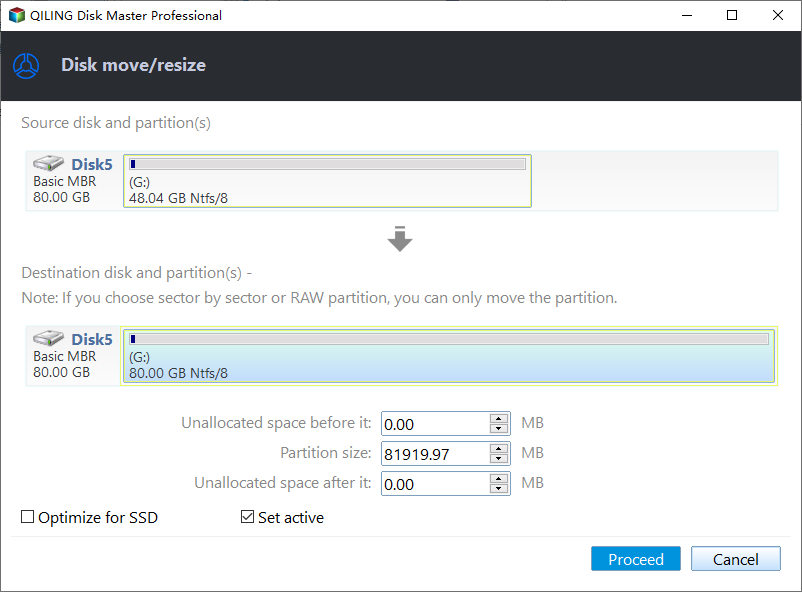
Right-click the Windows volume, choose Resize/Move, and drag its right edge across the unallocated block. The partition must be directly followed by that block; if another partition sits in between, move it first.
Step 4. Preview the Layout and Proceed
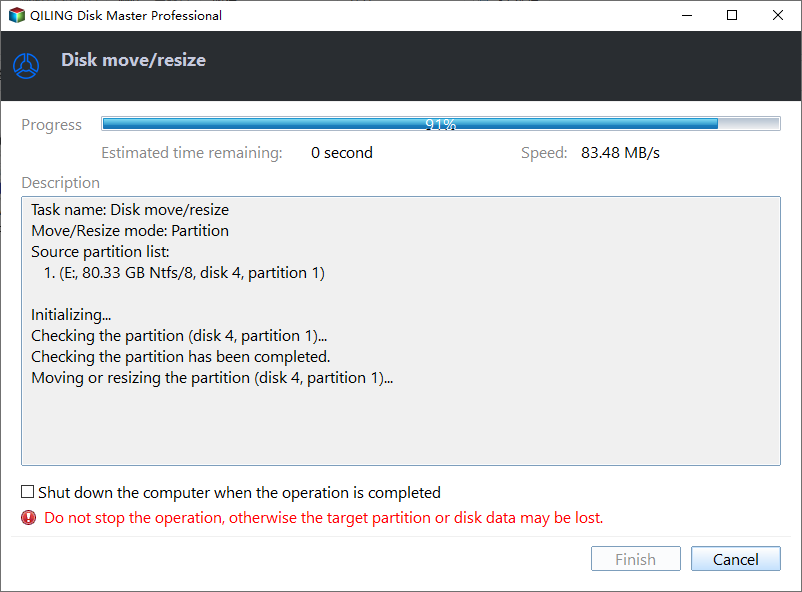
Review the pending changes with Preview, confirm that only the system volume grows and the registered recovery partition keeps its size, then click Proceed. The progress window reports each write, and the new layout is usable as soon as it closes.
Windows also ships its own disk management console and a command-line disk tool, both built into the operating system and neither part of Qiling Disk Master. They can delete a partition but cannot extend a volume into space that does not sit directly behind it, which is why the layout above is prepared in one pass.
Frequently Asked Questions
Will Windows create the 1 GB partition again?
It can, if the registered recovery partition is still too small for the next WinRE image. The durable fix is to keep the registered partition at 1 GB or more and remove only the leftovers, so servicing has room without creating another entry.
Is it safe to delete the partition while BitLocker is on?
Only with the recovery key saved and protection suspended. Deleting an unregistered partition does not touch the encrypted volume, but any layout change on an encrypted disk carries a small risk of triggering a key prompt, and the key is the only way back in.
Why does Disk Management call it Primary instead of Recovery?
The type label reflects the identifier stored in the partition table. A partition that was reformatted or created by an older tool may keep a basic data identifier, and the label alone then says nothing about its role. Use the recovery configuration report rather than the label.
Related Articles
- 844 MB Unallocated Space After a Windows 11 25H2 Update
- Why Do I Have Two Recovery Partitions in Windows 10
- Why Windows 11 Has Multiple Recovery Partitions
- What Is Recovery Partition and Can I Delete It
- WinRE Update Failed 0x80070643: Recovery Partition Full
Products
Articles & Tutorials
- Data Recovery
- Data Backup
- File Recovery
- File Backup
- System Backup and Restore
- Disk and Partition Clone
- Technical articles
- Mobile articles
- Disk Master Help
- Windows Data Recovery Tutorials
- Windows Secure Delete Tutorials
- Windows Partition Management Tutorials
- Windows File Backup and Restore Tutorials
- Windows System Backup and Restore Tutorials
- Windows Disk Backup and Restore Tutorials
- Windows Clone Tutorials