How to Delete a Corrupted File Windows 10? Simple Methods Here!
Learn how to delete corrupted files using five effective methods. This tutorial will guide you through the process of removing corrupted files from your system, helping you to free up space and improve your computer's performance.
| Workable Solutions | Step-by-step Troubleshooting |
|---|---|
| 1. Delete the Corrupted File with an Administrator Account | Reboot your computer and delete the corrupted file with an Administrator account. Close all the programs...Full steps |
| 2. Delete a Corrupted File in Safe Mode Windows 10 | Access Safe Mode: Click the Windows button. Select "Power > Restart" and hold the Shift key down...Full steps |
| 3. Delete a Corrupted File Using CMD | Click the Search button and type cmd. Right-click the "Command Prompt" program and choose...Full steps |
| 4. Check and Repair Disk Error to Delete Corrupted Files | You can check and repair corrupted file system on the storage drive to delete a corrupted file...Full steps |
| 5. Format Hard Drive to Solve Can't Delete Files Error | The final solution to delete a corrupted file is formatting the hard drive to permanently remove the file...Full steps |
To resolve the issue of not being able to delete a corrupted file on your external hard drive on Windows 10, you can try running the built-in Check Disk (chkdsk) utility on the drive. This will scan the drive for errors and potentially fix any corrupted files, allowing you to delete them.
"I tried to delete a corrupt file from my external hard drive, but it gives me an error saying the file is in use or can't be found. What can I do?
The error 0x80070570, also known as "Error Deleting File or Folder," is a common issue that occurs when Windows is unable to delete a file or folder due to a system error. This error is often caused by a corrupted system file, a disk error, or a permissions issue. To resolve this issue, you can try restarting your computer in Safe Mode, running a System File Checker (SFC) scan, or using a third-party disk cleanup tool to identify and repair any disk errors.The file or directory is corrupted or unreadable.
This has been bugging me for a month now. Can anyone show me how to delete a corrupted file on Windows 10? Thanks in advance."
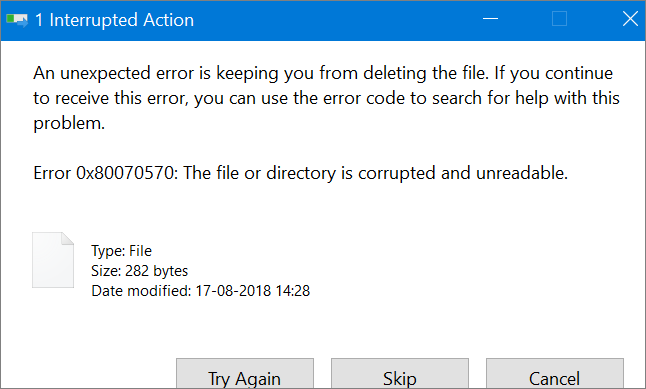
You can't delete a corrupted file or folder on Windows 10 due to various reasons, including the file system being in an inconsistent state, the file being locked by a system process, or the file being part of a system file that's essential for Windows to function properly. In these cases, attempting to delete the corrupted file or folder may result in an error or the file remaining intact, requiring alternative methods to resolve the issue.
- The corrupted files are in use by a running program.
- Your computer was improperly shut down.
- A storage device, such as a hard drive, USB drive, or external hard drive, has encountered disk errors, which can cause data corruption, loss, or system crashes. This issue can be caused by various factors, including physical damage, software bugs, or wear and tear over time.
- The hard drive or external memory storage device can be corrupted.
- Viruses and malware attacks.
This article shows you how to delete a corrupted file or folder on Windows 10. You can try deleting corrupted files in Safe Mode, or use the Command Prompt (CMD) to attempt removal, or even fix hard drive errors to resolve the issue.
1. Reboot Your Computer and Delete the Corrupted File with an Administrator Account
To resolve the issue, reboot your computer and attempt to delete the corrupted files using an administrator account. This should allow you to bypass any file system permissions and successfully remove the problematic files.
Step 1. Close all the programs you are using.
Step 2. To resolve the issue, simply restart the computer and log back in using an administrator account. If your current account isn't an admin account, you may not have the necessary permissions to delete specific files.
Step 3. Find the corrupted file you want to delete and either delete it or drag it to the Recycle Bin.
2. How to Delete a Corrupted File in Safe Mode
Safe mode starts the computer without loading a third-party device driver, running the system in minimum mode to help users detect and fix errors.
When you can't delete a corrupted file on Windows, try restarting your computer and entering Safe Mode. In Safe Mode, Windows releases control of the file, allowing you to delete it.
How to Boot into Safe Mode Windows 10
To quickly access Safe Mode in Windows 10, follow these steps.
Step 1. Click the Windows button. Then, select "Power > Restart" and hold the Shift key down.
Step 2. On the "Choose an Option" screen, select "Troubleshoot > Advanced options > Startup Settings > Restart".
Step 3. In the "Startup Settings" window, press the "4" or "F4" key to enter Safe Mode.
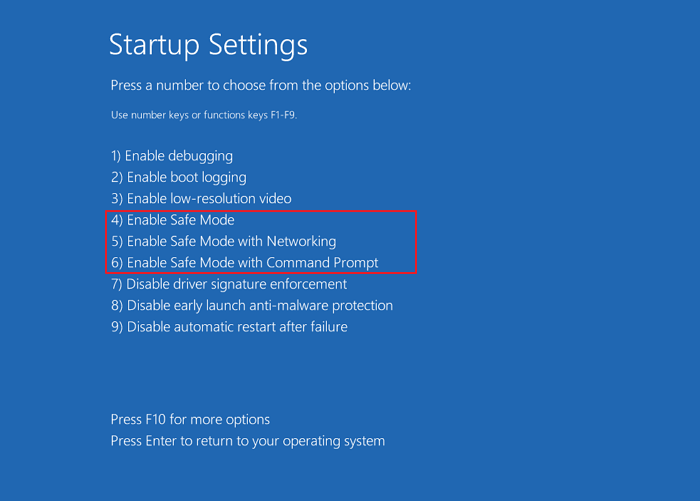
Locate and Delete the Corrupted File
To resolve the issue, locate the corrupted file or folder, either on the desktop or within File Explorer, and press the Delete or Shift+Delete keys to remove it.
3. How to Delete a Corrupted File Using CMD
If the previous method did not work, you can try another approach, deleting corrupted files using CMD. Here are the steps to delete a corrupted file with the command line.
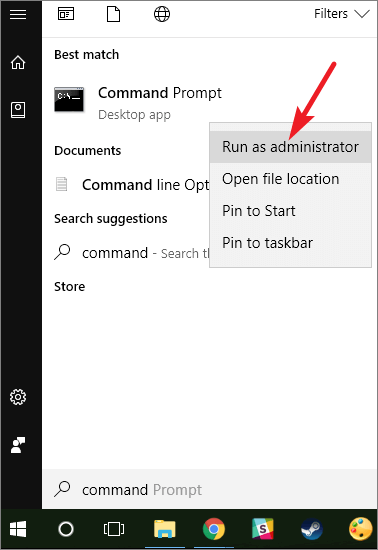
Step 1. To open Command Prompt as an administrator, click the Search icon, type "cmd", and from the search results, right-click the "Command Prompt" program and choose "Run as administrator".
Step 2. Type the command "Del /F /Q /A < file path >" and press Enter to permanently delete a file without prompting for confirmation. This command will force deletion and suppress the confirmation prompt, making sure the file is deleted without any chance of recovery.
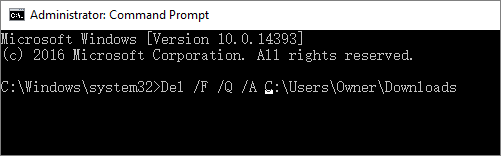
- "/F" means to force delete files
- "/Q" means to delete read-only files,
- "/A" means to select files with the archiving attribute.
- You can use the `DEL` command in Windows to delete a corrupted file, but you need to specify the file's location. For example, you can use the command "Del /F /Q /A C:\Users\XXX\Downloads" to delete the corrupted file in the specified location.
The corrupted files or folders should be permanently deleted, bypassing the Recycle Bin and making them unrecoverable.
If you enter a wrong path and accidentally delete some wanted files, stop using your hard drive immediately and use a file recovery tool to get back the files.
Bonus Tip: How to Recover Permanently Deleted Files on Windows 10/8/7
Deep Data Recovery is a professional data recovery utility that can recover deleted, lost, formatted, inaccessible and corrupted files.
You can download Qiling file recovery software for free to restore deleted files from various devices, including USB flash drives, SD cards, external hard drives, HDDs, and SSDs.
Step 1. Launch Deep Data Recovery. Select file types and click "Fast Scan" to start.

Note: You can choose different search modes based on where and why the data was lost.
Step 2. To proceed, select the precise file location and then click the "Scan" button.

Step 3. After the process, select the "Deleted Files" and "Other Lost Files" folders in the left panel, and then use the "Filter" feature or click the "Search files or folders" button to find the deleted files.

Step 4. After clicking the "Recover" button, save the restored files in a new location, making sure it's different from the original one.
4. Check and Repair Disk Error to Delete Corrupted Files
The "file or directory is corrupted or unreadable" error can be caused by disk issues, preventing you from deleting corrupted files. However, you can check and repair a corrupted file system on the storage drive easily with a free partition management tool, such as Qiling Partition Master.
Step 1. To check the file system on a partition in Open Qiling Partition Master, you can locate the disk, right-click the partition you want to check, and choose "Advanced" > "Check File System".
Step 2. In the Check File System window, select the "Fix the error on the disk" option and click "Proceed".
Step 3. The software will start scanning your disk's partition file system. Once it's done, click "Finish".
After resolving the disk error, attempt to delete the corrupted files once more to see if the issue is resolved.
5. Format Hard Drive to Solve Can't Delete Files Error
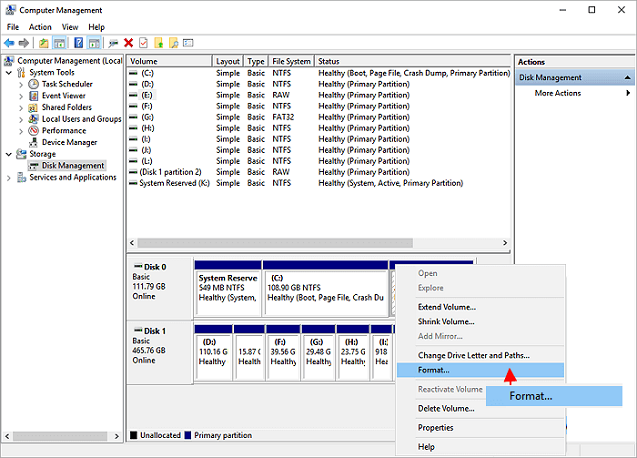
If none of the solutions work to delete corrupted files on Windows 10, the last resort is to format the hard drive, which will permanently remove the corrupted file or directory and resolve the "corrupted or unreadable" error. To do this, you can follow the steps in Disk Management to format the hard drive.
Step 1. Right-click the Windows Start button and choose "Disk Management".
Step 2. Find and right-click the problematic hard drive partition and choose "Format".
Step 3. Set the volume label, file system, and click "OK" to start formatting the drive.
Closing Thoughts
If you're experiencing issues deleting files on Windows 10, there are several methods you can try. First, try restarting your computer and logging in with an administrator account to remove the files. If that doesn't work, you can try deleting them in Safe Mode, using the Command Prompt, or attempting to fix or format the corrupted hard drive. These methods can help resolve common issues with deleting files on Windows 10.
If data loss occurs, immediately stop using the storage device and utilize professional data recovery software to retrieve the data in a timely manner.
Related Articles
- Top 10 Best Word Repair Tools [FREE DOWNLOAD]
- Recover Data After Windows 10/11 Crashed
- How to Use Deep Data Recovery
- [Solved] There Are No Previous Versions Available Windows 10/8/7
- Can't Backup LINE Chat? Fix in 5 Ways [Guide Updated]
This article explains why you can't backup LINE chat and provides a solution to fix the issue of not being able to backup LINE chat on your phone. It also recommends Qiling MobiSaver to help recover LINE chat on iPhone/Android devices without a backup. - Can't See Files on External Hard Drive Mac? Find Missing Files Here
If you're unable to see files on an external hard drive on your Mac, follow the guide to resolve the issue.
Products
Articles & Tutorials
- Data Recovery
- Data Backup
- File Recovery
- File Backup
- System Backup and Restore
- Disk and Partition Clone
- Technical articles
- Mobile articles
- Disk Master Help
- Windows Data Recovery Tutorials
- Windows Secure Delete Tutorials
- Windows Partition Management Tutorials
- Windows File Backup and Restore Tutorials
- Windows System Backup and Restore Tutorials
- Windows Disk Backup and Restore Tutorials
- Windows Clone Tutorials