A Complete Guide to Recover Deleted Files
Most people have experienced the frustration of deleting a file only to regret it later. This can happen with essential documents, cherished memories like wedding videos, or any other valuable data. So, why does this happen? Intentional or unintentional deletion can occur due to various reasons, and the good news is that lost files can often be recovered. This tutorial will guide you through the process of recovering deleted files.
How Do You Delete Files on a Computer
Many people believe that data deletion is something that only happens to others, not to them. However, the reality is that daily activities can lead to data loss, often unintentionally. For example, deleting files, formatting devices, or even using certain apps can cause data to be deleted.
Deleting a file removes it from its storage location, either intentionally or by mistake. It can be done by right-clicking on the file, selecting "Delete", or pressing the "Delete" key. Additionally, multiple files can be deleted simultaneously.
To delete a file permanently without recovery, you can either hold down the Shift+Delete keys simultaneously or use the del command in the Command Prompt (CMD). Alternatively, consider using a third-party file deletion tool to ensure the file is completely erased.
Where Do Deleted Files Go on Windows 10/11
When you delete a file on a Windows 10 or Windows 11 PC or laptop, it doesn't actually delete the file. Instead, it moves the file to the Recycle Bin. The Recycle Bin is a special folder where deleted files are stored temporarily.
When you delete a file on Windows using the Delete key in File Explorer, it gets sent to the Recycle Bin, which is usually visible on the desktop. However, if you empty the Recycle Bin or use the Shift + Delete shortcut, the file is permanently deleted and won't be found on your computer.
- Tip
- When you delete a file from a hard disk on your computer, it goes to the Recycle Bin, but if you delete a file from a portable storage device like a USB drive, SD card, or pen drive, the file is lost forever.
Can Deleted Files Be Recovered on Windows 10
If you delete files and they're in the Recycle Bin or Recently Deleted folder, you can easily recover them by restoring them from there.
Permanently deleted files can sometimes be recovered, but it's not always possible. When a file is deleted, the operating system doesn't delete the file's data directly from the hard drive, but rather marks the file's disk location as deleted, allowing new data to be written to that location. This means that the original file data may still exist on the hard drive, making it potentially recoverable. However, the likelihood of recovery depends on various factors, such as the type of file system, the amount of time that has passed since the deletion, and whether the hard drive has been overwritten or not.

When a file is deleted, its data remains on the disk until new data is written over it. Advanced recovery methods can then read and restore the deleted file from the disk, essentially recovering its contents.
To restore deleted files on Windows 10, you can check the following solutions. First, check the Recycle Bin, which is the most common place where deleted files go.
- Recover Deleted Files on Windows 11/10 Without Software
- Recover Permanently Deleted Files on Windows with File Recovery Software
- Recover Deleted Files with a Professional Recovery Service
- Recover Permanently Deleted Files in Different Formats
- Recover Deleted Files from Multiple Devices
How to Recover Deleted Files on Windows 11/10 Without Software
If you've accidentally deleted or permanently deleted files in Windows 10/11, don't worry - there are several methods to recover them. Our guide provides a step-by-step process to help you recover deleted files without relying on software, taking you from beginner to expert in no time.
Method 1. Recover Deleted Files from Recycle Bin
You can easily undelete deleted files from your computer's Recycle Bin if they haven't been permanently erased. To retrieve them, you can follow the process of accessing the Recycle Bin and looking for the files you want to recover.
Step 1. Find the Recycle Bin icon on your desktop and open it.
Step 2. Select the files you want to restore, then click on the "Restore" button. If you want to restore all your files, click on "Restore all items".
Step 3. Or, choose a certain file you need and click "Restore". The file will be returned to its original location.
Full Guide
Click here to follow the instructions on Recycle Bin recovery.
Some users are unable to find deleted files in the Recycle Bin, despite not having permanently deleted them. This issue may be caused by three possible reasons.
- The system automatically deletes files stored in the Recycle Bin for too long.
- If a file is too large, it may be permanently deleted without going through the Recycle Bin, or if the file is deleted while bypassing the Recycle Bin, it will be permanently deleted.
- To resolve this issue, you can free up space on your Recycle Bin by deleting some of the files it's holding onto. You can also consider increasing the size of your Recycle Bin to accommodate more files.
In-depth reading on recovering deleted files not in Recycle Bin.
Method 2. Recover Deleted Files with Backup
If you have a recent backup, recovering deleted files can be a straightforward process. Windows 10 automatically creates File History backups of your files, allowing you to recover deleted files without needing any additional software. This means you can easily restore lost files, even if they've been deleted by accident or due to a system error.
To access and restore deleted files from File History:
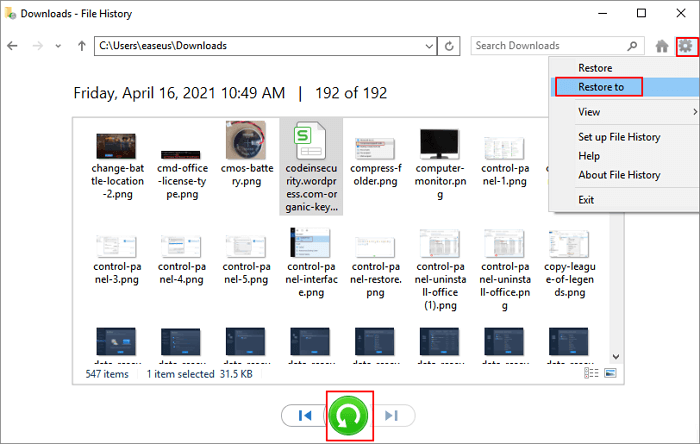
Step 1. In the Search box, type file history and click "Restore your files from File history".
Step 2. When you go to the File History window, find the deleted files you need to restore and preview them.
Step 3. Select the files you want to restore, click the gear icon near the upper right corner of the window, and choose "Restore to" to save the files to a customized path.
Restore Deleted Files from the Previous Version
To restore a deleted file from a previous version, you'll need to follow a few steps. First, you'll need to access a previous version of the file, which can usually be done by checking your computer's backup or cloud storage.
Step 1. To recover deleted files, open "This PC" or "My Computer" and navigate to the folder that previously contained the file or files you want to recover.
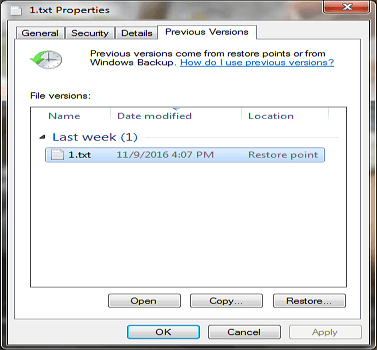
Step 2. Right-click on a file, select "Previous Versions" and Windows will display a list of previous versions of the file that were created with Windows backup or saved as restore points.
Step 3. To recover a previous version of a file, double-click the file you want to recover and drag it to a new storage location where it will be saved and available for further use.
Recover Deleted Files on Windows with File Recovery Software
Using file recovery software is the most effective method for recovering deleted files, even if no backup is available. Permanently deleted files can be easily recovered using software like Deep Data Recovery, which scans the hard drive for any remaining traces of deleted files and attempts to recover them. In many cases, this software can successfully recover deleted files, making it a highly recommended tool for file recovery.
- Recover deleted files from a variety of storage devices, including SD/memory cards, USB flash drives, hard disk drives (HDDs), solid-state drives (SSDs), and more.
- Recover lost or deleted files, photos, videos, documents, and more.
- Data recovery software can be used to retrieve lost data from a computer or other digital device, even after it has been accidentally deleted or formatted. This software works by scanning the device's storage media, such as a hard drive or solid-state drive, for any remaining fragments of data that were previously deleted.
- Restore data from computers that have been damaged by viruses or other malware, allowing users to recover important files and information.
- The software offers a preview function that allows users to see which files can be recovered before initiating the recovery process, giving them a chance to assess the potential outcome and make informed decisions.
To recover deleted files on your Windows PC, download and install Qiling data recovery software from our website. Once installed, open the software and follow the steps to recover deleted files. Note that you can recover deleted files for free with Qiling if they are under 2GB, which is covered by the Free edition of the program.
Step 1. Select a specific hard disk or location.
To recover deleted files, select the drive or partition where the files were deleted and click the "Scan" button to start the recovery process. You can also choose a specific location, such as the Recycle Bin or a folder, to scan. This will begin the search for deleted files.
Step 2. Start a quick or advanced scan for lost data.
The time it takes to scan a file depends on its size and the condition of the disk, and once complete, users can view detailed scan results and filter files by type.
Step 3. Preview and recover the files you need.
After scanning, verify the recovered file is the one you want. Then, click the "Recover" button to save the recovered files.

Recover Deleted Files with a Professional Data Recovery Service
If previous solutions to recover data have failed, it's possible to consider professional data recovery services, which may be the best option at this point, but come with a cost.
If you're considering a professional data recovery service, you can follow these steps to get started. First, identify the type of data you need to recover and the cause of the data loss.
- To recover your lost data, search Google for a reliable data recovery service with a good reputation, such as Qiling Data Recovery Service.
- Make your selection and follow the experts' guidelines to check your device.
- To schedule a remote connection for a free diagnosis, please make an appointment by clicking on the link provided. This will allow a technician to remotely connect to your device and assess the issue without any additional cost to you.
- Complete the financial transaction with the recovery service and let them recover your files.
- Check the device and start using your files again.
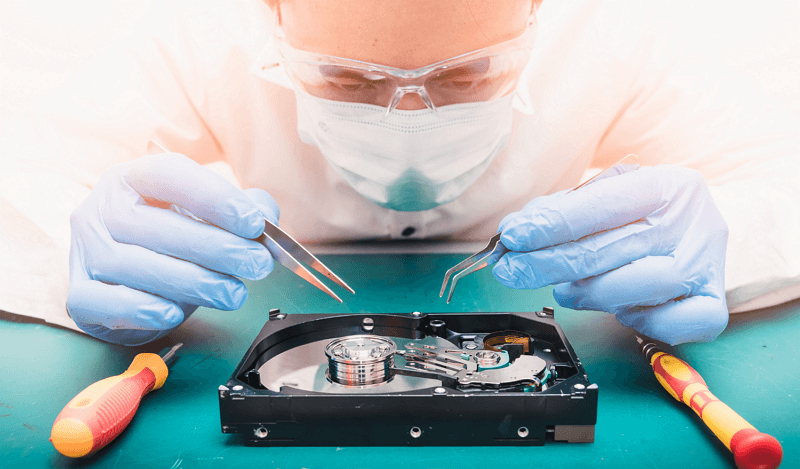
Deleting a file only to later regret it is a common experience for many. It could be an important document, a cherished wedding video, or any other file that's irreplaceable. Fortunately, in Windows 10, it's often possible to recover deleted files, giving you a second chance to retrieve what you've lost.
Full Guide
If you're still experiencing issues, you can try checking out the article on how to recover deleted files in Windows 10.
Recover Permanently Deleted Files with Windows File Recovery Tool
Windows File Recovery is a Microsoft utility that enables users to recover deleted files, including photos, Word documents, and Excel files, from their computer's hard drives, solid-state drives, or portable storage devices. To use it, users must have a Windows account and be signed in with their Microsoft account. This tool allows users to recover lost or deleted files, making it a useful tool for those who have accidentally deleted important files.
To recover deleted files on Windows 10 using this free utility, follow these steps:
Step 1. Download and launch Windows File Recovery from Microsoft Store.
Step 2. To recover deleted files in Windows, enter Windows File Recovery in the search box, and then select "Windows File Recovery".
Step 3. You can use the built-in Windows utility called "chkdsk" to recover lost files. To do this, open the Command Prompt window (you can press the Windows key + R, type "cmd" and press Enter), then type the command "chkdsk /r" and press Enter.
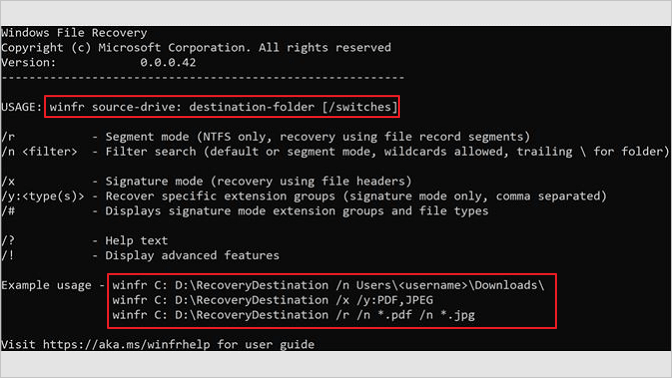
Default mode example - To recover a specific file from your C: drive to the recovery folder on an E: drive, navigate to the C: drive, locate the file you want to recover, right-click on it, and select "Copy" or "Copy as path." Then, navigate to the E: drive, open the recovery folder, and right-click inside it.
winfr C: E: /n \Users\Documents\QuarterlyStatement.docx
Segment mode example (/r) - To recover PDF and Word files from your C: drive to the recovery folder on an E: drive, simply navigate to the recovery folder on the E: drive and copy the files you want to recover from the C: drive to the E: drive. Alternatively, you can also use a file recovery software to scan the C: drive for recoverable files and save them to the recovery folder on the E: drive.
winfr C: E: /r /n *.pdf /n *.docx
Signature mode example (/x) - When using the signature mode, it's a good idea to check the supported extension groups and their corresponding file types beforehand.
info /#
Step 4. When you are prompted for confirmation to continue, enter "Y" to start the recovery operation.
Windows File Recovery is a free tool that can recover deleted files from Windows systems. It can recover files from local disks, removable disks, and even cloud storage services like OneDrive and Google Drive.
Recover Deleted Files from Multiple Devices
Portable devices and cloud disks are popular means to store files, but accidents happen, and files are often deleted from these storage media. Fortunately, we have provided detailed tutorials on recovering deleted files from various storage types, including SD cards, USB flash drives, external hard drives, and cloud disks.
Recover Deleted Files from an SD Card
SD cards are commonly used in digital cameras to store photos and pictures, but it's easy to accidentally delete files before transferring them to a longer-term storage. Fortunately, you can recover deleted data from an SD card using specialized software, which is particularly useful when used in cameras or phones.
Step 1. Connect the SD card to your computer with an SD card reader.
Step 2. Wait for your computer to recognize the SD card.
Step 3. To recover data from your SD card, open the SD card data recovery software on your Windows PC.
Step 4. Recover deleted files from the SD card with the data recovery software.
Retrieve Deleted Files from USB Drive (External Disk)
Restoring deleted files from a USB or external hard drive is a relatively simple process if you have reliable data recovery solutions. The best method to recover deleted files from USB drives involves using a data recovery tool that can scan the drive and retrieve the lost files, allowing you to recover your important data.
Step 1. Connect the USB flash drive to your computer.
Step 2. Wait for your PC to recognize the USB drive.
Step 3. Open the USB drive recovery software on your PC.
Step 4. To recover deleted files from a USB drive, you can use a pen drive recovery software. This type of software can scan the drive and retrieve any deleted files that were previously stored on it, allowing you to recover them and access your important data again.
Restore Deleted Files from Google Drive
Storing data on cloud drives has become increasingly popular, replacing traditional storage media. When you delete a file or folder from Google Drive, it moves to the Trash, where it remains for 30 days by default. After this time limit expires, the cloud storage server permanently deletes the files, making them unrecoverable.
To recover permanently deleted files from Google Drive, contact Google Support, which may restore the deleted files, or restore lost data from backups or search for locally saved files or folders, such as recovering a deleted Google Doc, Sheet, or Slide from the Support.
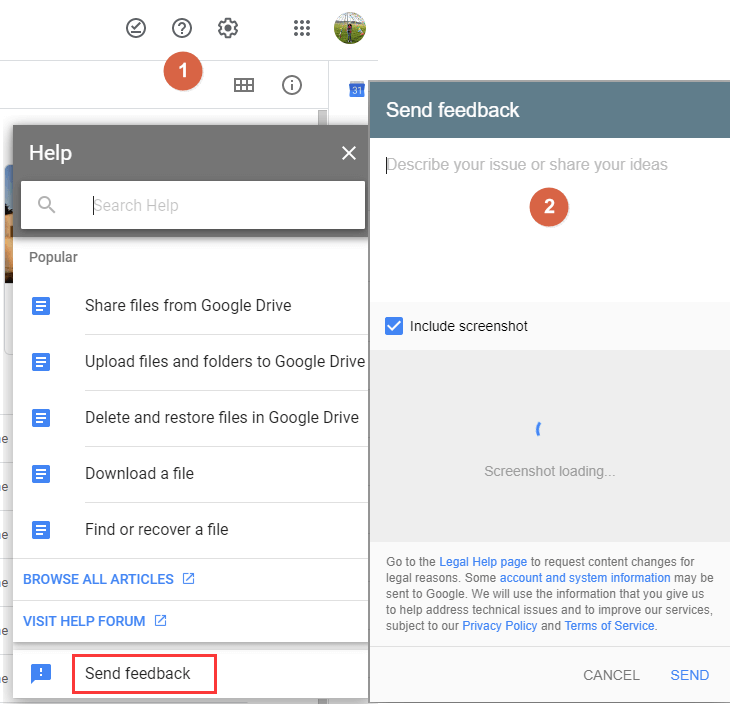
Step 1. To access the Google Drive help page, navigate to drive.google.com, click the question mark icon in a circle located at the top right corner of the screen, and select the "Help" option from the dropdown menu.
Step 2. From the drop-down list, click "Send Feedback".
Step 3. Describe your issue in the pointed area and add a screenshot if necessary. Click "SEND".
If you delete a Google Docs file that is older than 30 days or was permanently deleted from trash, it cannot be recovered.
If you delete a photo older than 60 days or permanently delete it from trash, it can't be recovered. However, if you have a backup in Google Photos, you can restore it. If you're a OneDrive user, you can recover permanently deleted files from OneDrive, but the process might differ since Microsoft stores files on your local drive.
How to Recover Deleted Files on Mac (100% Working)
As a Mac user, you can recover deleted files, just like on Windows. Files removed on a Mac go to the Trash Bin and stay there for a certain period, so the first step is to check the Trash. If the file was unintentionally deleted, it might still be there. Recovering files from the Mac Trash is a simple process. If the file is not in the Trash, there are still options for recovering permanently deleted files.
1. Use Time Machine
Time Machine is a built-On a Mac, the backup feature allows you to keep copies of your files for a specified period, enabling you to recover deleted files from previous backups.
2. Run Mac Data Recovery Software
Mac data recovery software can scan a hard drive for deleted files and attempt to recover them, helping users retrieve lost data.
3. Retrieve Deleted Files on Mac Through Terminal
You can recover deleted files on a Mac using Terminal, as an additional option.
How to Recover Deleted Files on iPhone and Android
On mobile devices, deleted files are first stored in the Recently Deleted folder, only to be permanently erased after 30 days. To recover deleted files, follow the steps below.
Tips for Windows 10 File/Data Prevention
Data protection is crucial in today's digital world, where information is a valuable asset that needs to be safeguarded. Protecting data is easier than recovering it, and there are various methods to prevent data loss.
- Keep backups of your data in multiple locations.
- Don't open suspicious emails or attachments.
- Keep your anti-virus software up to date.
- Don't delete files you don't know, especially system files.
- If your PC is overheating, take it apart and clean out any dust or debris that may be clogging its cooling system. This simple step can help keep your computer running smoothly and prevent damage from heat buildup.
By following these tips and suggestions, you can help ensure that your data is safe and secure. This includes taking proactive measures to protect your personal information, being cautious when sharing sensitive data online, and regularly reviewing and updating your security protocols to stay ahead of potential threats.
Conclusion
Recovering deleted files can be a challenging and time-consuming process, but with the right tools and patience, it's often possible to retrieve lost data. For mission-critical data, having a backup plan in place is always the best approach to avoid costly and frustrating recovery attempts.
Recover Deleted Files FAQs
If you're still struggling to recover deleted files, feel free to reach out to us for further assistance. Alternatively, you can also find additional help by reading through the questions and answers provided.
1. How to recover deleted files on Windows 11?
Steps to recover deleted files on Windows 11:
- Download, install and launch Qiling data recovery software.
- Select the disk or partition that contained the lost files on Windows 11.
- To start scanning for deleted files on your computer, click the "Scan" button.
- Choose the deleted files you want and preview these files.
- To recover deleted files on Windows 11, click the "Recover" button.
2. How do I recover deleted files not in Recycle Bin?
To retrieve deleted files not in Recycle Bin:
- To proceed, select the specific file location you'd like to scan and click the "Scan" button.
- After the process, you can apply the "Filter" feature or click the "Search files or folders" button to search for the deleted files.
- Click the "Recover" button and save the restored files, making sure they are different from the original ones.
3. How do I recover permanently deleted files?
Recovering permanently deleted files is possible through various methods. Depending on the situation, you can choose from the solutions mentioned, such as using file recovery software, checking the Recycle Bin, or seeking professional help from a data recovery service. Each option has its own advantages and may be more suitable for specific data loss scenarios.
Qiling data recovery software is highly efficient in restoring data from various storage devices, including hard drives, SSDs, USB flash drives, SD cards, and memory cards.
4. How can I recover permanently deleted files without backup?
Steps to recover deleted files without backup:
- Download, install and launch Deep Data Recovery.
- Choose the file location and then click the "Scan" button.
- After the process, you can apply the "Filter" feature to find the deleted files.
- Click the "Recover" button and save the restored files.
5. Where do files go when deleted on Windows 10?
On Windows 10, when you delete a file or folder, it is moved to the Recovery Bin, where it remains indefinitely, allowing you to restore deleted items at any time.
If you've emptied the Recycle Bin, the deleted files are stored on the hard drive, and can be recovered using hard drive data recovery software.
6. Are deleted files gone forever?
When you click "Delete", your files go to the Recycle Bin, not permanently deleted. They're just moved to a different folder.
7. Does Windows 10 restore deleted files?
Windows 10 has a built-in feature called File History that automatically backs up files. If you've deleted files you want to recover, you can restore them using File History. To do this, go to Settings, then Update & Security, and finally File History. From there, you can follow the prompts to restore your deleted files.
- To recover a deleted file, open Windows Explorer and right-click on the folder where the file was originally located, then select 'Properties' from the context menu. This will open the Properties window for that folder.
- Select "Restore previous versions".
- To preview the content of a selected File History backup, select the most appropriate backup from the list and click "Open" on it. This will allow you to view the contents of the backup without actually restoring it.
- Select the file you want to recover and click "Restore...".
8. How to recover deleted files on OneDrive?
To retrieve deleted OneDrive files, go to OneDrive.com, sign in with your Microsoft account, click on "Recycle Bin" (Trash), find the file you want to restore, click on it, and click "Restore" to move it back to your OneDrive account. If the file is permanently deleted, you can click on "Empty Recycle Bin" to remove it from the Trash.
- To access OneDrive, go to the OneDrive website or open the OneDrive icon on your local computer.
- Log in with your username and password.
- Select "Recycle Bin" in the navigation pane.
- Select the files you want to recover.
- Click "Restore" to recover lost OneDrive files.
After a Keep my files reset, check user folders, OneDrive, and backups before scanning the original system disk.
Related Articles
- Windows Repair Tools and Services [Windows 10/11]
- The Best Video Repair Tools You Must Know in 2022
- [2022] Recover Deleted Files on Mac with Expert Approved Guide
- Everything You Need to Know About Shortcut Virus
- How to Recover Permanently Deleted Emails in Outlook 2018/2017/2016/2010/2007/2003
If you've permanently deleted emails in Microsoft Outlook 2016, 2013, or any other version, you can still recover them. You can start by checking the Deleted Items folder, where you may be able to find the emails you want to recover. - How to Recover Permanently Deleted Files from Dropbox
You can recover permanently deleted files from Dropbox through two methods: recovering from Dropbox Trash, where you can restore files deleted within the past 30 days, or using Qiling file recovery software to retrieve files from Dropbox's temporary files.
Products
Articles & Tutorials
- Data Recovery
- Data Backup
- File Recovery
- File Backup
- System Backup and Restore
- Disk and Partition Clone
- Technical articles
- Mobile articles
- Disk Master Help
- Windows Data Recovery Tutorials
- Windows Secure Delete Tutorials
- Windows Partition Management Tutorials
- Windows File Backup and Restore Tutorials
- Windows System Backup and Restore Tutorials
- Windows Disk Backup and Restore Tutorials
- Windows Clone Tutorials