Recover Unsaved or Deleted PSD (Photoshop) Files in 2022
To recover unsaved PSD files on Windows 10, you can try using the Auto-Recovery feature in Adobe Photoshop 2017, which automatically saves a copy of your work every 10 minutes. If you haven't already, check the "Recent Files" list in Photoshop to see if the unsaved files are listed. You can also try using third-party data recovery software, such as Deep Data Recovery, to scan your computer for deleted files and potentially recover the PSD files. If you have a backup of your work, you can also try restoring from that. It's worth noting that the longer you wait to try and recover the files, the lower the chances of success. So, act quickly!
Adobe Photoshop is a popular raster graphics editor developed by Adobe Inc. for Windows and macOS, often used for web designs, 3D artwork, and other creative projects. However, with frequent usage comes the risk of losing unsaved files, a common problem that can occur due to various reasons, such as software glitches, system crashes, or accidental closure of the program.
- Photoshop errors
- Unexpected power failure
- Human errors, like closing the program without saving
- Abrupt crash of Photoshop or the Windows computer
4 Methods to Recover Deleted or Unsaved Adobe Photoshop Files
If you've lost an unsaved Photoshop file, don't worry - it can still be recovered. You can try three methods to bring your lost PSD file back, the methods listed below.
| Workable Solutions | Step-by-step Troubleshooting |
|---|---|
| Recover PSD Files with Software | Run Qiling file recovery software > Scan PSD saved drive > Restore lost PSD file...Full steps |
| Recover PSD from Recent Files | Restart Photoshop and go to "File" > "Open Recent" to search the lost unsaved PSD file...Full steps |
| Restore PSD from AutoSave | Run Photoshop > Click "Edit" > "Preference" > "File Handling" > "Automatic save recovery..."...Full steps |
| Restore from Previous Versions | Open "Control Panel". Go to "File History" > "Restore personal files". Click the green...Full steps |
Losing unsaved Photoshop files can be very unpleasant. If you experience this issue, you can try two ways to restore unsaved PSD files in Photoshop CC 2019/2018/2017. Additionally, a professional data recovery tool can be used to recover deleted Photoshop files on Windows 10/8/7 as an extra measure.
If your Photoshop is stuck in launching, see How to Fix Photoshop Lagging Issue.
1 - Recover Deleted/Lost/Corrupted Photoshop PSD Files with Software
If you've accidentally deleted or lost important Photoshop PSD files on your computer, you can recover them using Deep Data Recovery, a powerful PSD file recovery software that can directly restore your lost files.
This hard drive recovery software supports recovery of 200+ lost file types due to deletion, formatting, virus attacks, system crashes, or unknown reasons. It not only recovers data from internal and external hard drives, but also from SSDs, pen drives, memory cards, video and music players, and more. Download and install the software now.
Step 1. Select file types and click "USB/SD Scan" to start
Launch Deep Data Recovery. Select file types and click "USB/SD Scan" to start the recovery process.

Note: You can choose different search modes based on where and why the data was lost.
Step 2. Choose the location and start scanning
To recover deleted or lost pictures, hover over the SD card, camera, or hard drive partition where the pictures were stored, then click on the "Scan" button.

Step 3. Select the pictures you want to recover
After the scanning process is complete, navigate to the "Pictures" section in the left panel. To locate lost photos, click on "Lost" at the top of the list, and then browse through the results by device, type, or date. This allows you to easily find and recover any misplaced photos.

Step 4. Recover lost photos
After the preview, click "Recover" and save the desired pictures to a different location.
2 - Restore Unsaved Photoshop File from Recent Files
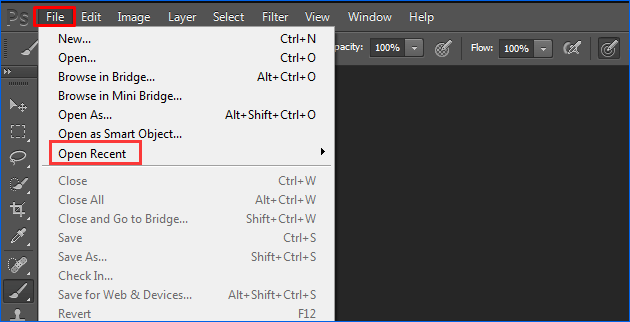
To recover a lost unsaved PSD file in Photoshop, simply restart the application, navigate to "File" and select "Open Recent", and search for the file you're looking for. Once located, open and restore the lost PSD file. This straightforward process should allow you to recover your lost work.
3 - Restore Unsaved Photoshop Files from AutoSave
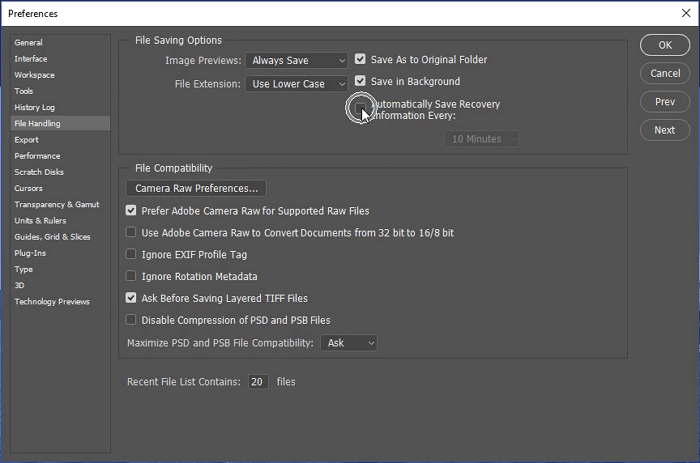
Adobe Photoshop CS6 and later versions, including CC 2014/2015/2017/2018/2019, have an AutoSave feature that automatically saves edited PSD files at regular intervals, allowing for easy recovery of unsaved files.
To set up the AutoSave feature in Adobe Photoshop CC, launch the program, click on "Edit" and select "Preference", then choose "File Handling" and select "Automatic save recovery information every * minute".
- Go to C:/Users/ your username here/AppData/Roaming/Adobe Photoshop (CS6 or CC)/AutoRecover.
- To find and edit unsaved PSD files, you can try the following steps: First, check the Adobe Photoshop application for any unsaved files. If you have Photoshop open, go to File > Open Recent, and look for any files marked as "Untitled" or with a missing filename.
To access the AppData folder, go to the File Explorer, click on "View" and select "Options", then toggle "Show hidden files" to on. This will allow you to view and save PSD files from the AppData folder to a safe location on your PC.
If you've been working on a Photoshop file and it hasn't been saved, there are some simple solutions you can try to retrieve it. If you're looking for similar information, you might also want to check out how to recover unsaved Word documents in Windows 10.
4 - Restoring PSD Files from Previous Versions on Windows 11/10/8/7
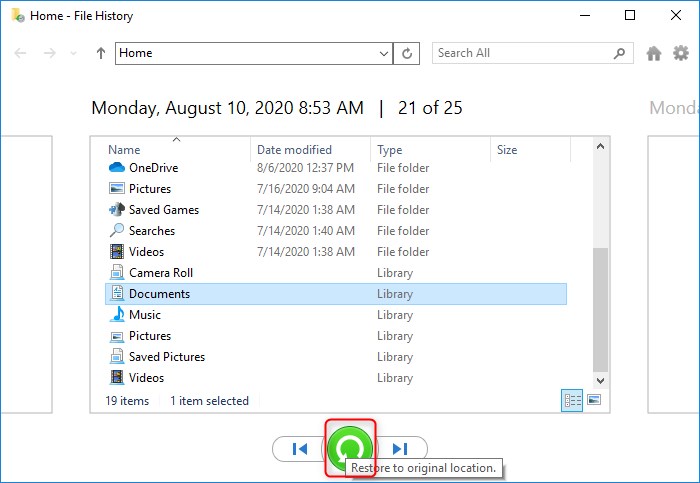
You can restore Photoshop files by restoring previous versions if File History is set up on your Windows PC.
Step 1. Open "Control Panel".
Step 2. Go to "File History" > "Restore personal files".
Step 3. Click the green "Restore" button to recover the PSD files.
4 Solutions to Recover Photoshop Files on Mac
When you lose Photoshop files on a MacBook, there are ways to recover them. As one of the most data-dense file formats, PSD files can be recovered using various methods. If you've lost a deleted or unsaved file, you can try using data recovery software or checking your computer's trash or recycle bin to see if the file is still there. Additionally, you can also try using the "Recover" feature in Photoshop itself or checking if the file was saved in a temporary location.
1 - Recover from Time Machine Backup
Restoring PSD files on a Mac can be straightforward if you've enabled Time Machine. By doing so, you'll have a backup of all your files, including PSD files, which can be easily restored in case of data loss or corruption.
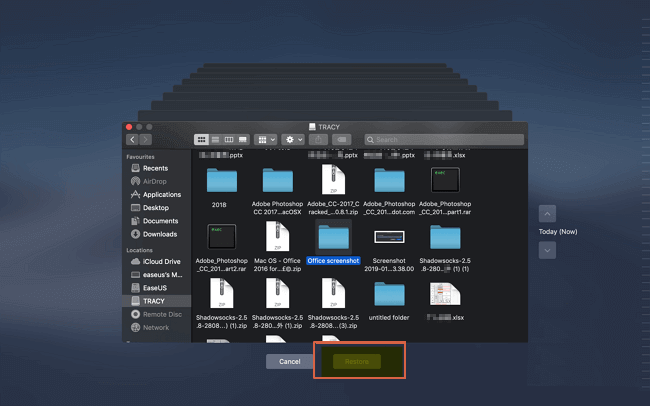
Step 1. Connect the Time Machine backup drive to your Mac, then click on the "Time Machine" icon in the Dock.
Step 2. Enter Time Machine, find your Photoshop backup files, and then click "Restore" to recover lost Photoshop files on Mac.
2 - Recover Unsaved Photoshop Files on Mac from The Autosave Location
To recover PSD files on a Mac, you can use the Autosave feature in Photoshop. If you had Autosave enabled when working on the files, you can follow the steps to restore them.
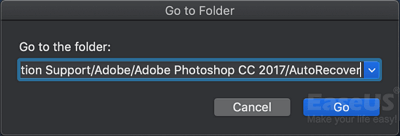
Step 1. Click "Go" on the Apple menu, select "Go to Folder".
Step 2. To access the AutoRecover folder, go to Finder, click "Go" in the top menu bar, select "Go to the folder:", and type in the following path: ~/Library/Application Support/Adobe/Adobe Photoshop CC 2017/AutoRecover. Then click "Go".
Step 3. Open the "AutoRecover" folder on your Mac, and save the found PSD file as a new project.
3 - Recover Lost Photoshop Files from Temp Files on Mac
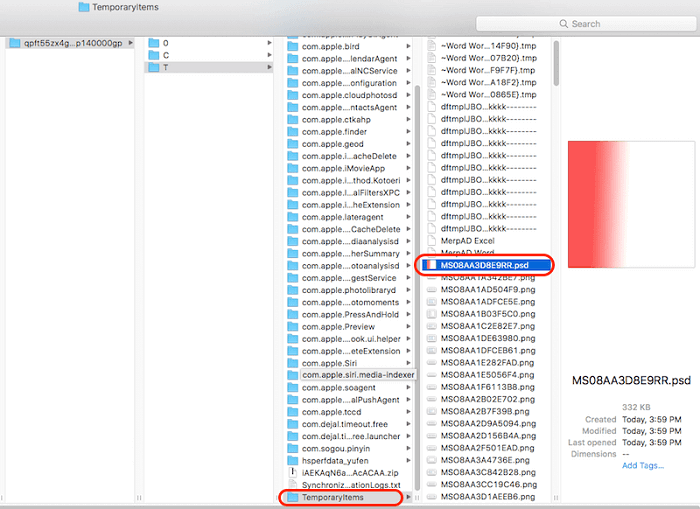
Step 1. To open Terminal on a Mac, navigate to the Finder, click on the "Applications" folder, and then select the "Terminal" application. This will launch the Terminal application on your computer.
Step 2. Enter "open $TMPDIR" and press Enter.
Step 3. Open the PSD file in Photoshop to save it on your Mac. Find the file in the "Temporaryitems" folder and open it with Photoshop.
4 - How to Recover PSD Files on Mac with Software
When all other solutions fail, data recovery software is the most effective option. A good data recovery tool can easily search for lost data on your hard drive, SSD, and external devices, even after files have been deleted, such as after emptying the Trash.
Step 1. Launch Deep Data Recovery. Select file types and click "USB/SD Scan" to start.
Note: You can choose different search modes based on where and why the data was lost.
Step 2. Select the location where your valuable photos were lost and click Scan button.
Step 3. Deep Data Recovery for Mac starts a quick scan and a deep scan on the selected disk volume, displaying the results in the left pane.
Step 4. You can quickly filter the lost photos by path and type, select the target files, and click the "Recover" button to get them back.
Conclusion
If you've deleted a PSD file, you can recover it from the recycle bin or Trash if you've recently done so. If you closed Photoshop without saving, you can restore the PSD files from Autosave. If it's permanently deleted, you can use Qiling data recovery software to get it back.
Related Articles
- Chrome Cache Viewer to View/Recover Google Chrome Cache Files
- Files Automatically Encrypted, How to Remove Encryption from Files
- Recover Deleted or Lost AppData Folder and Files in Windows 11, 10, 8, 7
- How to Recover Permanently Deleted Files from OneDrive on Windows 11/10
- Free | How to Recover Files from Formatted USB/Pen Drive
This tutorial will guide you through the process of recovering data from a formatted USB drive or pen drive. Follow the steps to safely recover files or data from a formatted USB flash drive or pen drive under Windows 10/8/7. - Fixed: USB/External Hard Drive Shows in Device Manager Not This PC
This article provides a solution to the issue where a USB or external hard drive only appears in Device Manager and not in Windows Explorer, My Computer, or This PC. The guide helps users to completely fix the problem and make the external drive visible in all relevant Windows interfaces.
Products
Articles & Tutorials
- Data Recovery
- Data Backup
- File Recovery
- File Backup
- System Backup and Restore
- Disk and Partition Clone
- Technical articles
- Mobile articles
- Disk Master Help
- Windows Data Recovery Tutorials
- Windows Secure Delete Tutorials
- Windows Partition Management Tutorials
- Windows File Backup and Restore Tutorials
- Windows System Backup and Restore Tutorials
- Windows Disk Backup and Restore Tutorials
- Windows Clone Tutorials