How to Encrypt a Drive in Safe Mode
Safe mode starts Windows with a reduced set of drivers and services. That is useful when something is broken, but it also changes how storage and encryption tools behave.
This guide explains how to encrypt a drive in safe mode, when it makes sense, and what to check once you are back to normal.
PAGE CONTENT
- What Safe Mode Changes
- Why Encryption Can Misbehave There
- Encrypt a Drive with Safe Disk
- What to Check After Safe Mode
- Mistakes to Avoid
- FAQs About Safe Mode and Encryption
- Back Up Windows Before You Change Settings
What Safe Mode Changes
Safe mode loads only the essentials, which affects everything that touches your disks.
- Minimal drivers. Only basic drivers load, so some storage features are unavailable.
- No extra services. Third-party services that manage drives may not start.
- Simple display and input. The screen and keyboard run in a basic mode.
- Built for troubleshooting. Safe mode exists to diagnose problems, not for daily work.
- Still useful in a crisis. It can open a container when Windows will not start normally.
Safe mode helps most when a system is unstable, such as before a repair. For that situation, see How to Encrypt a Drive Before PC Repair.
Why Encryption Can Misbehave There
- Some tools will not run. Encryption software may need services that safe mode disables.
- Drivers may be missing. A container normally attaches as a drive, but not always here.
- Whole-disk methods are fragile. Full-disk tools often refuse to load in safe mode.
- Mounting still works sometimes. A simple container tool may mount an existing container.
- Creating is riskier. Building a new container is best done in normal mode.
Safe mode is good for reaching data, not for setting up encryption for the first time.
Encrypt a Drive with Safe Disk
If you need to protect files while Windows is unstable, set up Qiling Safe Disk in normal mode and use it to reach data in safe mode. Download and install it first.
Step 1. Open Qiling Safe Disk and review the list of containers and their states.
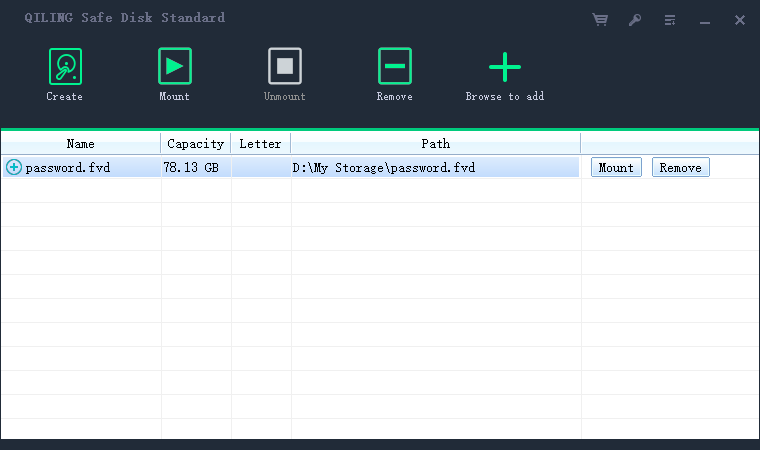
Step 2. Mount an existing container and enter the password to reach the files.
Step 3. Copy any files you need out to a safe location before you make changes.

Step 4. When the system is stable again, create or update your containers in normal mode.
What to Check After Safe Mode
- Restart normally. Return to standard Windows and confirm the container mounts.
- Check the drive state. Verify the drive still reads as protected.
- Open a file. Read a document from inside the container to confirm it opens.
- Re-run your tool. Open the encryption program and read its status directly.
- Repeat the check later. Confirm again after your next restart.
A quick verification avoids the false confidence of assuming everything returned to normal. See How to Check If a Drive Is Encrypted on Windows for the steps.
Mistakes to Avoid
- Creating containers in safe mode. Setup is safer in normal mode with all services running.
- Assuming drivers are present. Missing drivers can stop a container from attaching.
- Forgetting a backup. Move important files out before you troubleshoot.
- Leaving a container mounted. Unmount before you restart, so nothing stays open.
- Skipping the recheck. Always confirm protection after returning to normal.
Treat safe mode as a rescue tool, not a place to configure your security.
FAQs About Safe Mode and Encryption
Can I encrypt a drive in safe mode?
Reaching an existing container usually works, but creating one is safer in normal mode once the system is stable.
Why will my encryption tool not open in safe mode?
It may depend on services that safe mode disables. Restart normally and try again.
Can safe mode decrypt my files?
It can mount an existing container if the tool runs, letting you copy files out to a safe place.
Should I set up encryption in safe mode?
No. Wait until Windows boots normally so all storage features and services are available.
What if I forget to unmount before switching?
Restart normally and unmount as soon as you can, then confirm the container is closed.
Back Up Windows Before You Change Settings
Before installing security software or changing storage, create a full Windows backup. Qiling Disk Master creates a system image you can restore from.
Step 1. Open Qiling Disk Master and select System Backup to include Windows and the boot partitions.
Step 2. Save the image to a drive other than the Windows disk and start the backup.
Step 3. If a change causes issues, restore from the image to return Windows to its working state.
Conclusion
Safe mode is a rescue environment, not a workshop. It loads Windows with minimal drivers and services, which means a container tool may open an existing vault but may not be able to create one. The practical approach is to set up Qiling Safe Disk in normal mode, then use safe mode only to reach files when Windows will not start, copying what you need out to a safe place. Unmount before you restart, verify the container mounts again once the system is back, and recheck the drive's protection status. Encryption survives safe mode; the tools that manage it simply behave differently.
For more on protecting drives through trouble, see How to Create an Encrypted Virtual Drive, How to Encrypt Your Windows System Drive, How to Mount an Encrypted Drive on Another Computer, and How to Use Qiling Safe Disk.
Related Articles
- Can Antivirus Scan an Encrypted Drive?
See how security tools behave with a locked drive. - Is an Encrypted Drive Safe from Hackers?
See what encryption protects against and what it does not. - Encrypted Drive vs BitLocker: Which Should You Use?
Compare container encryption with full-disk encryption. - Does Encryption Slow Down Your Disk?
See how AES encryption affects real-world performance. - How to Encrypt a Drive Before a Windows Update
Prepare your encryption so an update cannot disturb it.
Products
Articles & Tutorials
- Data Recovery
- Data Backup
- File Recovery
- File Backup
- System Backup and Restore
- Disk and Partition Clone
- Technical articles
- Mobile articles
- Disk Master Help
- Windows Data Recovery Tutorials
- Windows Secure Delete Tutorials
- Windows Partition Management Tutorials
- Windows File Backup and Restore Tutorials
- Windows System Backup and Restore Tutorials
- Windows Disk Backup and Restore Tutorials
- Windows Clone Tutorials