How to Backup Game Data on PS5 in Every Possible Way
To back up game data on PS5, you can use the built-in feature called "Game Save" or "Cloud Save" which allows you to automatically save your game data to the cloud, and also manually back up your game saves to a USB drive or an external hard drive. This way, you can easily restore your game saves in case of any issues or if you need to transfer your game data to another console.
Why Do You Backup PS5 Game Data
If you're a pro gamer, losing video game progress due to a power outage is frustrating, especially since you've invested time and effort into your game. It's annoying to have to start over from the beginning, which is why it's essential to have a backup plan in place to prevent this from happening. This could include using a battery backup system or a UPS (uninterruptible power supply) to keep your console or gaming PC running during a power outage. Alternatively, you could consider cloud saving or online backup services that allow you to save your progress remotely.
Having a backup of your game data ensures that you can resume playing from the exact same point in case of a power outage or reinstallation, saving you time and frustration.
3 Ways to Backup Game Data on PS5
Sony allows users to back up game data in multiple ways. Three ways to do this on the PS5 are discussed in this article, with the best method highlighted first.
| Workable Solutions | Step-by-step Troubleshooting |
|---|---|
| Way 1. Backup Game Data on PS5 to Cloud |
One way to save your PS5 game data is to create...Full steps |
| Way 2. Backup PS5 Game Data to External Hard Drive | Another way to create a backup of PS5 game data...Full steps |
| Way 3. Backup PS5 Game Data via Backup Software | Keeping your PS5 game data on an external drive...Full steps |
Way 1. Backup Game Data on PS5 to Cloud
To save your PS5 game data, you can create a backup on the cloud, which minimizes the risk of losing game data. Even if your game gets uninstalled, you can still retrieve all your data easily. To do this, follow the steps to back up your PS5 game data on the cloud.
Step 1. On your PS5, open "Settings" from the main menu.
Step 2. Find and select "Saved Data and Game/App Settings" here.
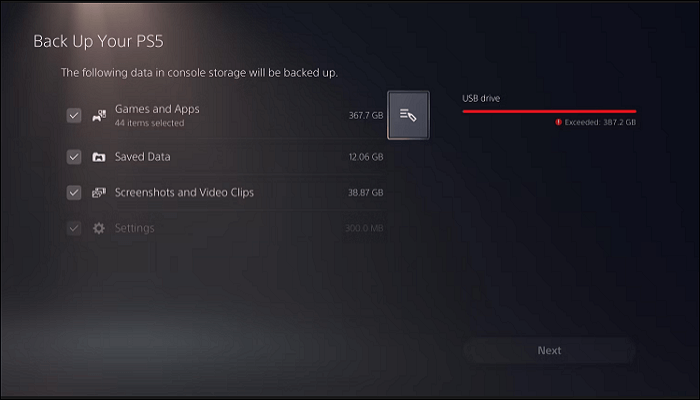
Step 3. When selecting your saved data, you'll likely see two options: Save Data (PS4) and Saved Data (PS5). For PS5 games, choose the Saved Data (PS5) option.
Step 4. To view the game data of every game on your PS5, select "Console Storage" from the options. This will display the game data for all games installed on your console.
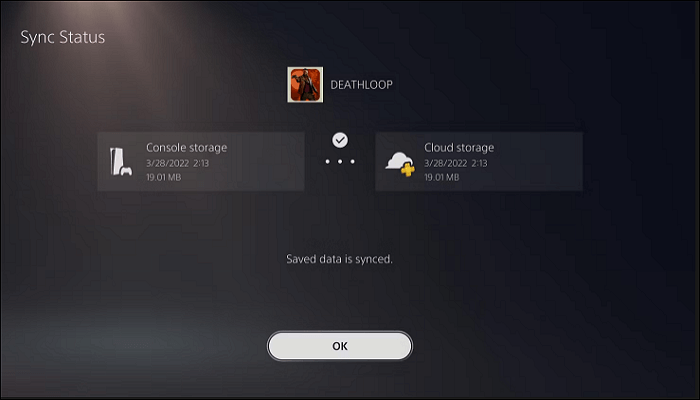
Step 5. Select the games you want to create a backup of. You may also choose "Select All" to create a backup of all the games.
Way 2. Backup PS5 Game Data to External Hard Drive
To create a full backup of your PS5 game data, you can use an external hard drive, which is a convenient and easy method. This approach allows you to make a complete backup of all your games at once, unlike cloud backup which enables individual game backups. Follow the steps below to complete this process.
Step 1. Connect your external hard drive to your PS5 console and navigate to Settings > Storage > Console Storage > External Storage > Format. Then, navigate to Settings > Storage > External Storage and select the drive you just formatted.
To back up your PS5, go to Settings, then System, followed by System Software, and select Back Up and Restore. From there, choose Back Up Your PS5.
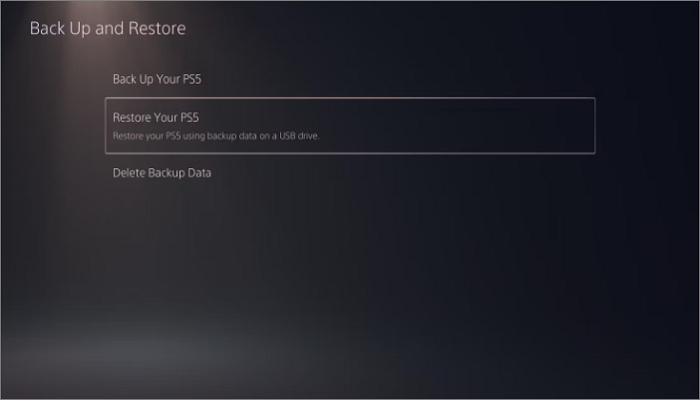
Step 2. You will be asked to select the data type you want to back up. Simply choose the one you want to back up.
Step 3. After selecting the type of backup, the estimated size of the backup file will be displayed, and you can also add a description to the backup data to help you remember what was included in the backup.
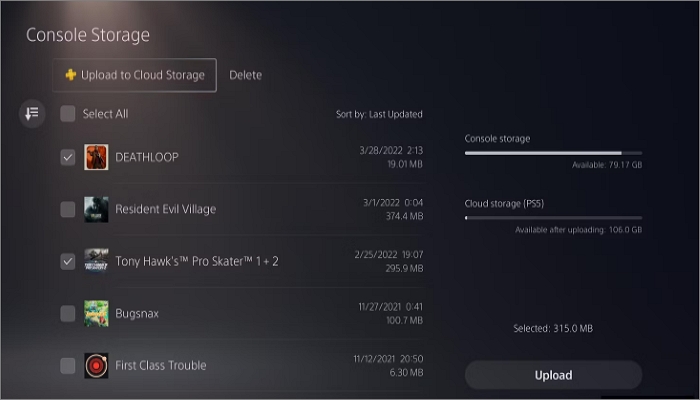
Step 4. To start the backup process, select the "Back Up" option, which will initiate a series of console restarts. Once the backup is complete, it will be displayed on the screen.
Way 3. Backup PS5 Game Data via Backup Software
To avoid losing your PS5 game data in case you lose the external drive, it's recommended to back up your data to a secure location using backup software. This way, you can ensure that your data is safe and accessible even if the external drive is lost or damaged. Professional backup software, such as Qiling Disk Master, can be a good option for this purpose.
Qiling Disk Master Pro is a feature-rich backup option that allows automatic backups of disks, files, systems, partitions, and more on Windows 11/10/8/7. It enables backing up favorite games, such as Cyberpunk 2077 saves and Minecraft worlds, and allows creating diverse backups to various locations, including the cloud, security zone, local disk, and NAS, making it possible to reinstall Windows without losing games.
To back up game data on PS5, follow these steps. First, go to Settings, then select System, and finally, choose Backup and Reset.
Step 1.To create a backup, open Qiling Disk Master and choose the "Create Backup" option on the home page, then click "Select backup contents".

Step 2.To back up your Disk, click on the "Disk" option. This will initiate the backup process.

Step 3.Qiling Disk Master provides the option to back up either the entire disk or a specific partition, depending on your requirements.
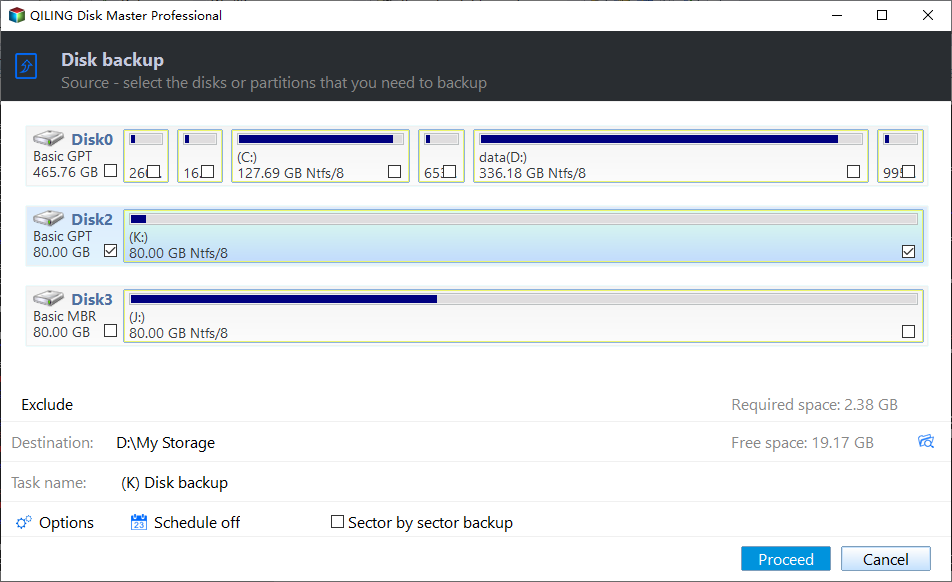
Step 4.Select the destination where you want to save the backup. You can choose to save the disk to a local drive or to a network-attached storage (NAS).

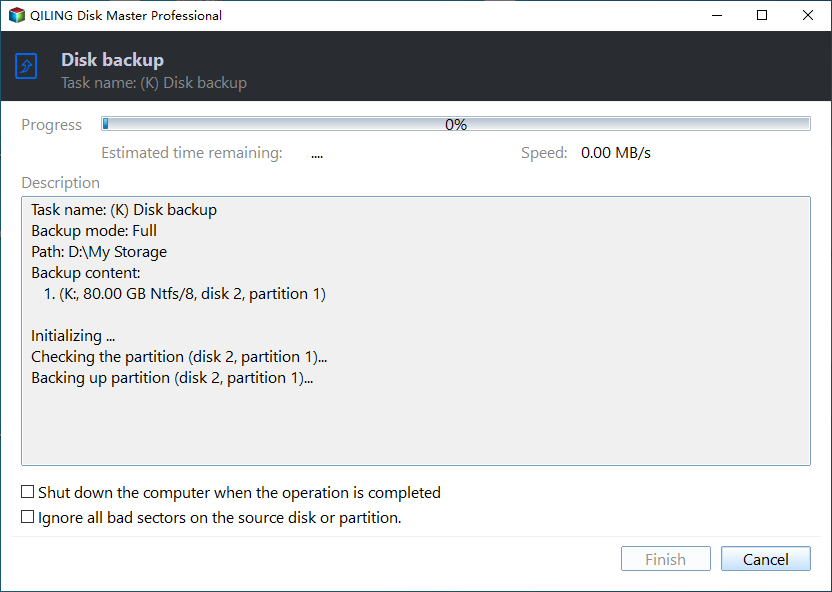
Step 5.After the backup process is completed, click "Proceed". You can then right-click any task to manage your backup further, such as recovering it or creating an incremental backup.
The Best Way to Backup PS5 Game Data
We discussed three ways to back up game data on PS5, each with its pros and cons. Using an external hard drive is quick and easy, but requires a full backup every time, and all data will be lost if the drive is lost.
Creating a backup on the cloud storage provided by Sony is a viable option, but with a 100GB data limit. A more comprehensive solution is using backup software, which offers various backup locations and robust data protection features. This method appears to be the best option for backing up PS5 game data, and an added benefit is that the software, Qiling Disk Master Pro, also allows for backing up Xbox 360 drives.
FAQs
1. How do I restore my PS5 without losing games?
To restore your PS5 without losing games, create a backup of your game data. This way, you can easily restore your console to its previous state, including all your games, without having to redownload them.
2. Is it OK to leave a disc on PS5?
You can safely leave a disc inside a PS5 without worrying about any damage to the disc or the console itself. It won't cause any harm.
3. Will I lose my game progress if I reset my ps5?
If a backup of your game data is available, you won't lose your game progress, and you can easily start from where you left.
4. Does the PS5 automatically copy games?
The PS5 automatically copies game data when you sync your console with cloud storage, ensuring that your game progress is backed up and easily accessible.
Related Articles
- Exclusive Tips for How to Reset Lenovo/HP/Acer Laptop
- Cloud Download or Local Reinstall Windows 11/10? Check Differences
- Virus vs. Ransomware vs. Malware: Figure out Differences in 1 Minute
- How to Backup Thunderbird Emails Windows 10 [Latest Tips]
- 2023 Fix: Windows 11 Cumulative Update Failed to Download and Install
- What Size External Hard Drive Do I Need to Backup My Laptop | Quick Guide
- Windows 11 Virus & Threat Protection Not Working (2024 Fixes)
Many users have reported Windows 11 virus and threat protection not working. We have wrapped up a few solutions here in this blog for our readers to let them get rid of this issue.
Products
Articles & Tutorials
- Data Recovery
- Data Backup
- File Recovery
- File Backup
- System Backup and Restore
- Disk and Partition Clone
- Technical articles
- Mobile articles
- Disk Master Help
- Windows Data Recovery Tutorials
- Windows Secure Delete Tutorials
- Windows Partition Management Tutorials
- Windows File Backup and Restore Tutorials
- Windows System Backup and Restore Tutorials
- Windows Disk Backup and Restore Tutorials
- Windows Clone Tutorials