How to Backup Office 365 Emails - Top 2 Methods of 2024
The Importance of Backing up Office 365 Emails
Office 365 email backup is the practice of duplicating essential emails and data to protect them from loss, preserving business-critical digital information and valuable conversations with clients or employees.
Office 365 data backup is essential to safeguard emails and contained data from loss due to events like system crashes, malware infections, or hard drive failure. Office 365 emails are safe and 100% encrypted, but backing up your important emails and files is still crucial. This can help protect against unexpected data loss.
Despite Office 365's features, users may still lose important emails due to accidental deletion or technical issues, and its 5 GB free storage limit can be a concern, necessitating email backups.
Manually Backup Emails from Office 365
With the increasing use of online messages, comes the challenge of securely backing up sensitive email data that can be highly vulnerable to risks such as accidental deletion, disasters, computer virus attacks, and hacker attacks. This is particularly crucial as email data is often the most requested documentation for audits and other processes. To ensure the safety and accessibility of your valuable data, it's essential to back up your essential emails from Office 365 using one of the two methods described below.
Way 1. Save Office 365 Emails as PST
To save Office 365 emails as PST, start by configuring your Office 365 account with Outlook, ensuring a successful setup. Once configured, follow the detailed steps to save your emails.
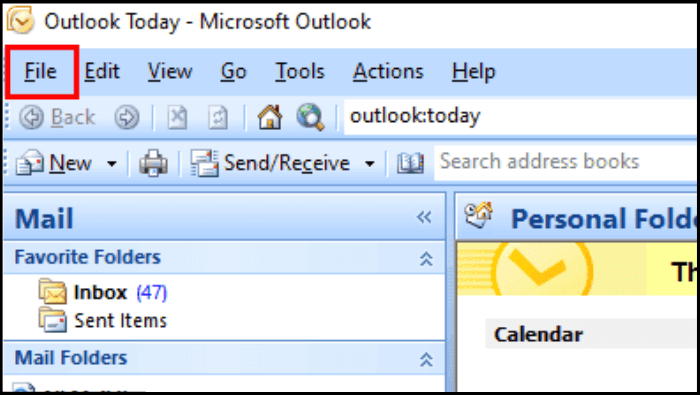
Step 1. To open the Outlook app, click on "File" from the top left, then select the option.
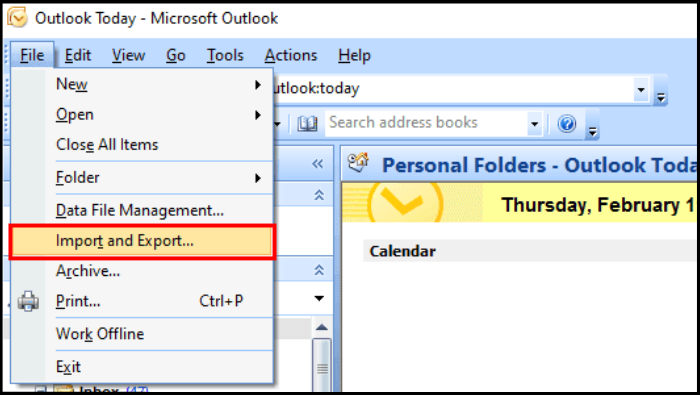
Step 2. Choose "Import and Export" from the drop-down options menu.
Step 3. Here in the Import and Export Wizard, you'll see three different options, and you need to choose only "Export to a file" and click "Next".

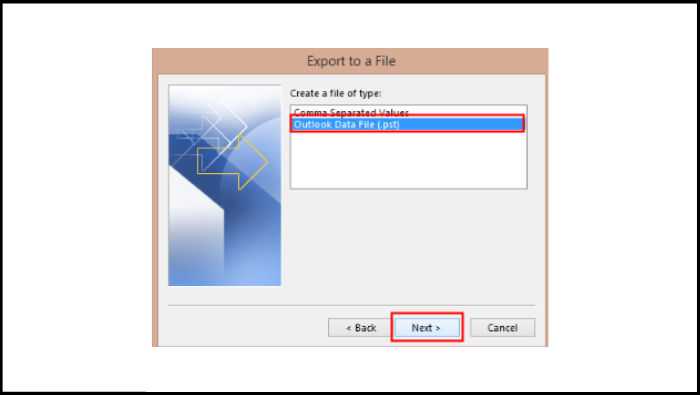
Step 4. Choose "Outlook Data file (.pst)" and click "Next".
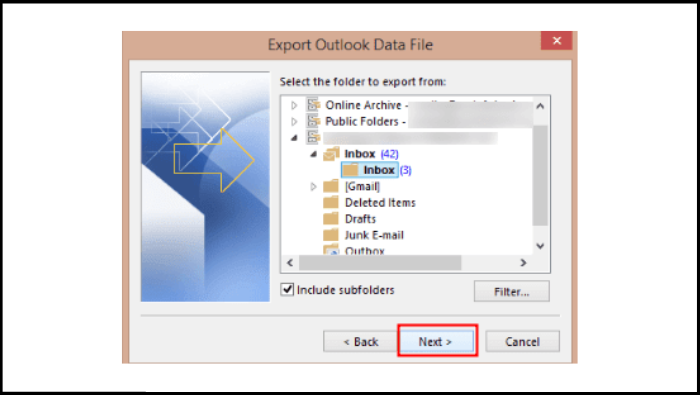
Step 5. Select desired folders you want to save and click "Next".
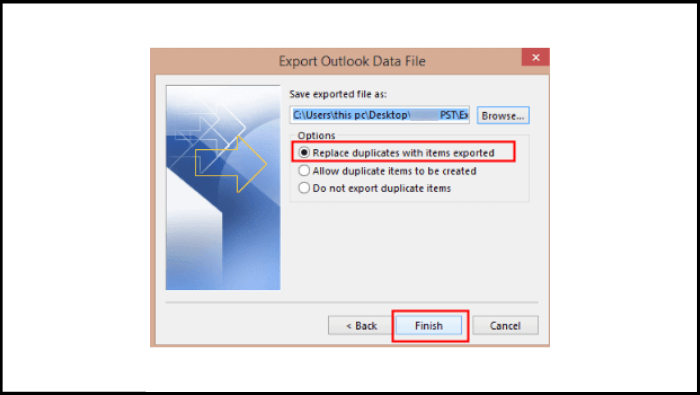
Step 6. Select the destination folder on your PC, choose "Replace Duplicates with Items Exported", and click "Finish".
After performing the above steps, wait for a few minutes. Your selected email folders will be downloaded into your system from Office 365.
Way 2. Export Office 365 Emails as HTML
Exporting Office 365 emails as HTML is also a straightforward process, similar to exporting as PST. Another way to export Office 365 emails as HTML involves following a few simple steps.
Step 1. Select the desired emails you want to export as HTML in Outlook.
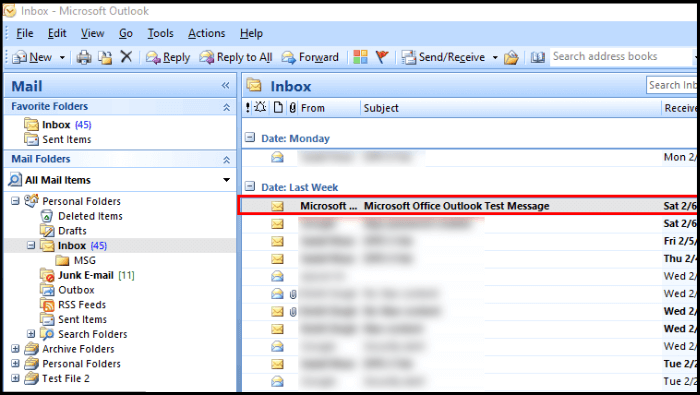
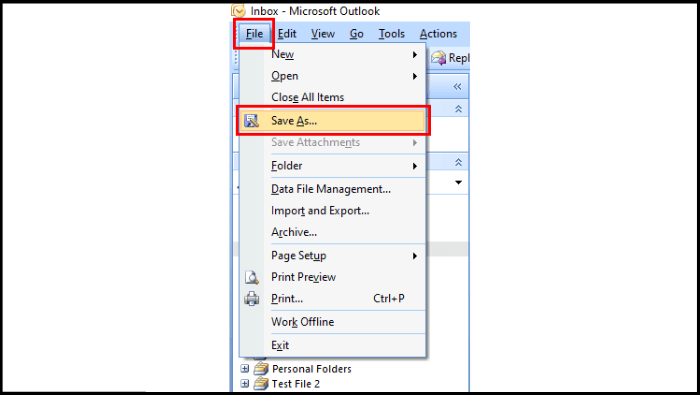
Step 2. Go to the "File" tab, click on "Save As," and choose the "Web Page" (.htm) or "Web Page, Filtered" (.htm) format.
Step 3. You'll be directed to your system folders to save and choose the destination. Select "HTML" from the "Save as type" option and click "Save".
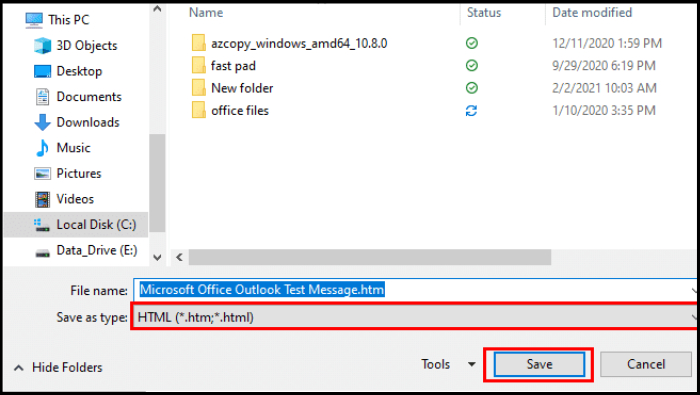
Your chosen emails will be saved in your system as HTML files.
Bonus Tip: Backup Office 365 Emails via Outlook Backup Software
To avoid the hassle of manual backup and protect your data, you can use Qiling Disk Master Pro, a professional Outlook backup software that automatically creates backups of your crucial Office 365 emails, saving you time and effort. This tool offers simple and easy-to-use features and options to schedule backup.
Qiling Disk Master Pro is a multi-functional backup and recovery program for Windows 11/10/8/7 that allows you to back up various data, including Outlook emails and profiles, as well as files, disks, systems, partitions, and more. It also enables you to create an ISO image from a hard drive and clone your hard drive, and even back up your PC game saves and favorite games. Additionally, you can enjoy 250G free cloud storage.
The following are the detailed steps to back up your emails.
Note: You should add your Office 365 account to Outlook first.
Step 1. Launch Qiling Disk Master on your computer, click "Create Backup" on the home screen, and then select the backup contents by clicking the big question mark.

Step 2. Among the four backup options, click "Apps data".

Step 3. To back up Microsoft Outlook, find and check the "Microsoft Outlook" option in the list of available apps, select the mailbox addresses you want to back up (emails, contacts, or calendars), and click "OK".

Step 4. To begin, select the location where you want to save the Outlook backup by clicking on the illustrated area.

Step 5. The backup location can be another local drive, an external hard drive, network, cloud, or NAS. It's generally recommended to use an external physical drive or cloud to preserve the backup files.

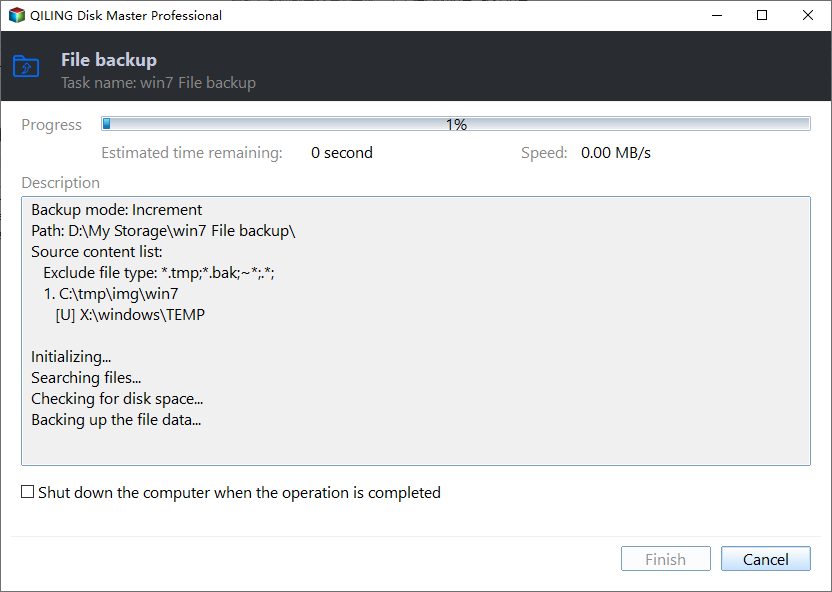
Step 6. Users can set up automatic backup schedules through the Options button, choosing daily, weekly, monthly, or event-based backups. They can also select differential and incremental backup options. Once the desired settings are selected, clicking Proceed initiates the backup process. The completed task is then displayed on the left side in a card style.
The Final Say
In the business world, data and email leaks can have a significant impact on an organization. To mitigate this risk, it's essential to have a secure and reliable way to protect emails. This can be achieved by backing up Office 365 emails, which can be done in two ways, and then using Qiling Disk Master to securely store essential emails and data forever. By taking these steps, you can ensure that your crucial email files are safe and accessible.
FAQs
1. Is Office 365 email the same as Outlook?
Outlook is a mail client that comes in different versions: Outlook.com is a free web-based version, Outlook is a traditional mail client application part of the Microsoft Office suite, and Outlook for Microsoft 365 is a mail client specifically designed for Microsoft 365 subscribers.
2. How do I access my Office 365 email in Outlook?
To access your Office 365 email in Outlook, simply log in to your account using your credentials. You can do this by going to the Outlook website and entering your email address and password. Once you've logged in, you'll be able to view your email inbox and access all of your Office 365 email features.
- Visit the Microsoft 365 sign-in page or Outlook.com.
- To sign in, enter your email address and password in the designated fields, then click the "Sign in" button.
3. Does Office 365 include Outlook?
If you get a subscription to Office 365, you'll also get access to Outlook, along with other apps like Microsoft Teams, Word, Excel, PowerPoint, and OneDrive.
4. Why is my Outlook 365 email not working?
If your Outlook 365 email is not working, you may face issues like trouble signing in, can't send or receive emails, or get an error message. To resolve this, you should identify the specific error you're encountering and apply the corresponding solution from the Microsoft support page at learn.microsoft.com.
Related Articles
- What Is M.2 and NVMe? This Article Will Tell You the Differences
- Top 10 Free Features in Qiling Disk Master
- Why Is OneDrive Not Syncing on Windows PC? Answers and Fixes Are Here!
- Samsung M.2 SSD Migration Software for Windows[2024 Choice & Guide]
- How to Open Outlook Backup Files in PST Format
- How to Fix Windows Defender Not Turning On | 7 Methods
Windows Defender not turning on can occur due to various reasons, and if not resolved quickly, it can risk the protection of your computer. To address this issue, you can refer to the post for guidance on how to turn on Windows Defender again.
Products
Articles & Tutorials
- Data Recovery
- Data Backup
- File Recovery
- File Backup
- System Backup and Restore
- Disk and Partition Clone
- Technical articles
- Mobile articles
- Disk Master Help
- Windows Data Recovery Tutorials
- Windows Secure Delete Tutorials
- Windows Partition Management Tutorials
- Windows File Backup and Restore Tutorials
- Windows System Backup and Restore Tutorials
- Windows Disk Backup and Restore Tutorials
- Windows Clone Tutorials