Surface Recovery Image: How to Download & Create & Use🔥
| 🕐Time Duration | 5-10 minutes |
| ⭐Complex Level | Low, suitable for beginners |
| 📶Download | download the recovery image from Microsoft |
| 🌀Create | create a bootable recovery disk easily |
| 🔱Use | restore Surface with recovery USB |
🙍♂️User Case: Need A Surface Recovery Image
You created a Recovery Image with Microsoft, but it didn't work properly. You unzipped the file with Secure Boot off, and initially, there were no errors. However, when you rebooted, you were asked for the BitLocker Recovery Code, and later, you tried a full factory surface recovery image, but it ended with an error message saying "Error while trying to reset the system."
To download the Surface Recovery Image, go to the Microsoft Support website, search for your Surface device model, and follow the instructions to download the recovery image. This will allow you to create a bootable USB drive with the factory settings to restore your Surface device to its original state.
An Overview of Surface Recovery Image
A Surface Recovery Image is a file provided by Microsoft to perform a clean and How to Reinstall Windows 10 Without CD (3 Ways) on a Surface device, allowing for a restore or reset to a previous state.
- 🧩Corrupt system: If your OS is corrupted due to malware, file corruption, or software conflict, you can restore your system to its previous state or completely clean it up using the recovery image.
- 💰Clean up for selling/buying: If a Surface device is to be sold or returned, recovery images will erase all data from the device.
- ⚙️Critical system failure recovery: If you're experiencing critical system failures such as blue screen errors, boot failure, or issues that limit your device's functionality, this image can help you reinstall your operating system and essential drivers.
- 🖥️Upgrade or Replacements: If you're upgrading or replacing the hard drives, you can use the recovery image to reinstall Windows, drivers, and firmware.
If you want to create a Surface recovery image and don't know how to do it for Surface devices, follow the guide below to learn how to download or create a Surface recovery image using Qiling Disk Master.
[Download] Surface Recovery Image to USB from Microsoft
The Surface comes with Windows Recovery info by default, but if that doesn't work, you'll need to download the Surface Recovery Image and use a USB flash drive to refresh or reset your device to its factory condition.
USB Flash Drive Requirements:
- 1️⃣For most Surface Models: A USB flash drive with at least 16 GB of free space is required.
- 2️⃣For Surface RT and Surface 2 models: The USB drive should have at least 8 GB of free space.
To prepare your USB drive for use, it's essential to format it to FAT 32. You can use the built-in Windows Disk Management or Diskpart tools to achieve this, but keep in mind that these tools are limited to formatting USB drives with capacities of 32 GB or less. For larger capacities, you may need to rely on third-party tools. This ensures your USB drive is ready for use with your device.
Let us know how to download the Surface Recovery Image.
Step 1. Navigate to the Microsoft Surface Recovery Image Download page.
Step 2. Select the Surface drive section, choose your Surface device model, enter your Serial Number, and click Continue.
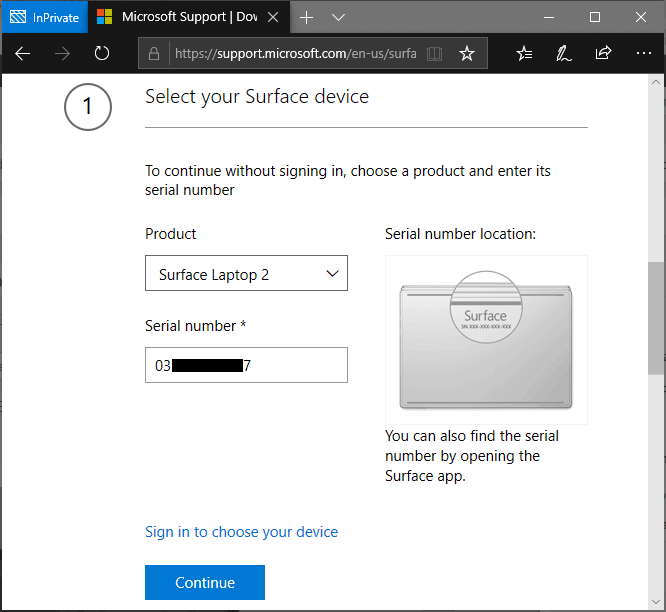
Step 3. Click the Download recovery image link, and select the location to save the recovery_rd.IMG zip file on your device.
Step 4. To proceed, you need to decompress the image file and then move on to the next step, which involves creating the Surface Recovery Image using the USB drive.
📖Read Also: Surface Pro Stuck on Windows Logo
[Create] Surface Bootable Recovery USB via Qiling Disk Master
If you don't want to download a Surface recovery file, you can create an emergency recovery disk to help restore the operating system when your device is unbootable.
Qiling Disk Master is a professional backup tool that allows you to create a recovery drive with a USB disk in just three steps. It also enables you to create a Bootable disk using WinPE features, which can be used to quickly restore or reset your Surface system. Additionally, the tool provides advanced backup and clone options to protect your data and system at any time.
Key Features of Qiling Disk Master:
- Best to perform Surface Image Recovery.
- Provides advanced backup and restore options.
- Create a system image with a few clicks.
- Clone your disk, system, or partition with ease.
- Create bootable media with USB or CD/DVD.
After downloading the software, you can create a Surface Recovery Image on a USB flash drive using Qiling Disk Master. This method requires a working computer or laptop with the same operating system as your unbootable device, allowing you to follow the guide and complete the process.
Step 1. Prepare a USB drive which can be written and read.
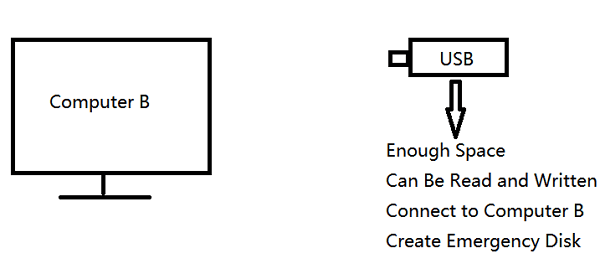
Step 2. Launch and install Qiling Disk Master on the Computer B.
Step 3. Find and click "Tools" and choose "Create Emergency Disk".
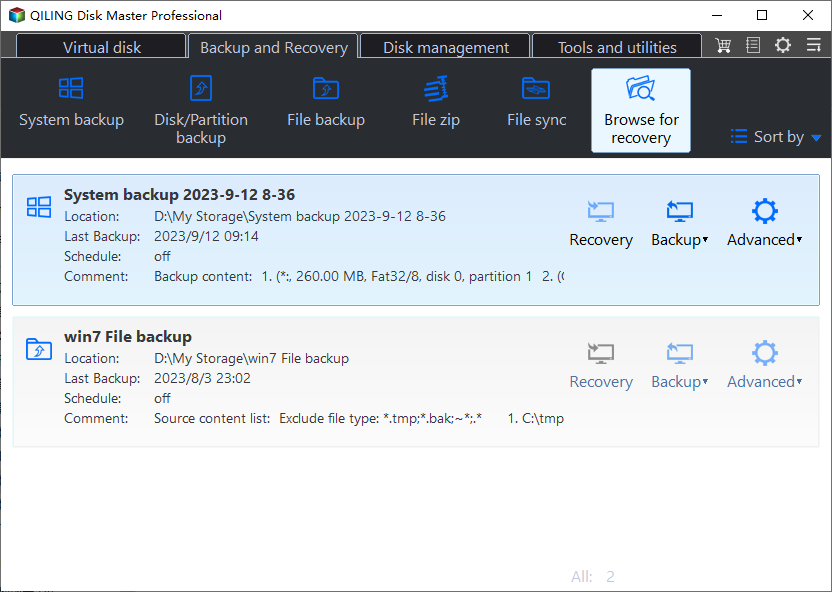
Step 4. To proceed, select the method for creating a bootable disk, which can be an ISO file, a bootable USB drive, or a CD/DVD disc.

Step 5. Then click "Create" to start.
Don't forget to share this post if it helps!
[Use] Restore Surface with Recovery USB
To restore the Surface recovery image, start by creating a Recovery Image on a USB drive. Once you have the Recovery Image, you can follow the steps to restore it and reset your Surface device. The process involves using the Recovery Image to reset your Surface, effectively restoring it to its original state.
Step 1. Turn off the Surface device, and insert the USB flash drive into the device.
Step 2. Press and hold the Power button and the Volume-down button at the same time until the device restarts.
Step 3. Once the Microsoft logo appears, release the volume-down button.
Step 4. Select the Language, and Keyboard layout from the options.
Step 5. To troubleshoot and recover from a drive, navigate to the "Choose an option" menu and select "Troubleshoot" followed by "Recovery from a drive". If prompted for a recovery key, click on "Skip this drive" at the bottom.
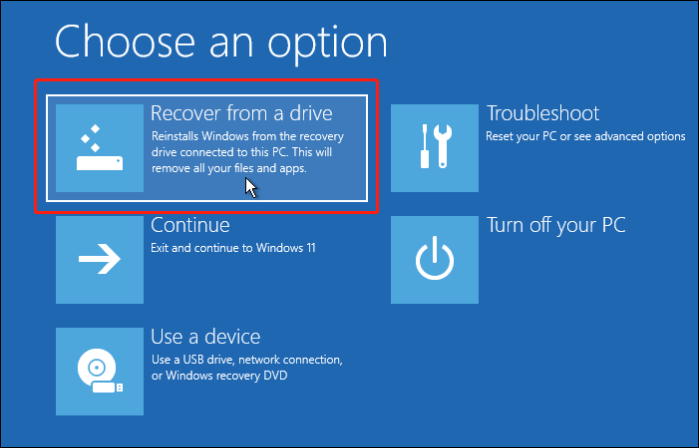
Step 6. Based on your requirements, choose between "Just remove my files" and "Fully clean the drive" from the recovery options. The former will refresh the computer, while the latter will recycle the entire Surface device.
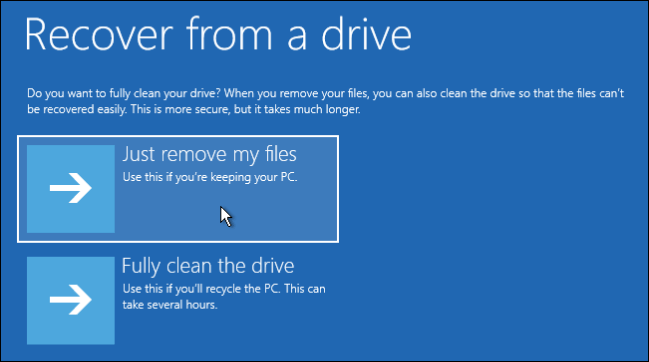
Step 7. To restart the Surface and complete the resetting process, click on the "Recovery" option. This will initiate the reset process, and once completed, the Surface will restart.
🚩You may be interested: Windows 10 can't create a recovery drive due to various reasons such as insufficient storage space, corrupted system files, or issues with the Windows Update service. To resolve this issue, users can try updating Windows, running the built-in System File Checker, checking for disk errors, and ensuring sufficient disk space.
Wrapping Up
To download, create, and restore a Surface Recovery Image on your Surface device, follow these steps. First, download the Qiling Disk Master to create an emergency USB drive with the Surface Recovery Image. With this tool, you can easily create the image in just three steps, making the process simple yet advanced. By learning these steps thoroughly, you can complete the process securely and efficiently.
To create a Surface recovery image, you can use the Surface USB Recovery Tool. This tool allows you to download and create a recovery image for your Surface device.
FAQs on Surface Recovery Image
1. How do I reimage my Surface?
To reimage a Surface device, go to PC settings > Update and recovery > Recovery, select the Remove Everything and reinstall Windows section, and click Get Started. You can choose to remove files or fully clean the drive and proceed with the reimaging process.
2. How to restore surface RT from USB?
- Shut down the computer, and plug it in.
- Insert the USB drive.
- To turn off your Surface, press and hold the Volume down button while you press and release the Power button. Release the Volume down button once the Surface logo appears.
- When prompted, select your language and keyboard layout, then follow the on-screen instructions to restore your device from the USB recovery drive.
3. How to convert Windows image to bootable USB?
- Download the Windows ISO file.
- Download and install Rufus, and plug a USB drive into the PC. Then, launch Rufus, select the USB drive as the target, and choose the Windows 10 installation media from the list.
- Select the device as USB and Windows ISO for Boot selection on Rufus.
- Use Rufus to burn the ISO file onto the USB flash drive.
Related Articles
- Top 5 Best Free Registry Backup Software [Updated 2024]
- Windows 11 Ruined My Computer! Slows Down and Crashes a Lot
- Google Drive Video Still Processing Takes Forever [Issue Fixed]
- How to Copy/Move Recovery Partition to USB or Another Hard Drive [2 Ways]
- Set Up Email Notification in Qiling Backup
Learn how to set up email backup notification in Qiling Backup Personal Edition. Step-by-step guide for configuring automatic email alerts for new and existing backup tasks on Windows. - Schedule Backup with Qiling Backup
This article includes basic steps how to create a schedule and also tries to give you some suggestions how to create a proper and suitable schedule to ensure your backup job finished in an efficient way.
Products
Articles & Tutorials
- Data Recovery
- Data Backup
- File Recovery
- File Backup
- System Backup and Restore
- Disk and Partition Clone
- Technical articles
- Mobile articles
- Disk Master Help
- Windows Data Recovery Tutorials
- Windows Secure Delete Tutorials
- Windows Partition Management Tutorials
- Windows File Backup and Restore Tutorials
- Windows System Backup and Restore Tutorials
- Windows Disk Backup and Restore Tutorials
- Windows Clone Tutorials