A Quick Answer to: Will Updating My BIOS Delete Anything?
Updating your BIOS will not delete any of your files or programs, but it's still a good idea to back up your data first. The BIOS update process replaces the existing BIOS software with a new version, which can cause issues if the update is not done correctly. It's always a good idea to create a restore point before updating your BIOS, and to follow the manufacturer's instructions carefully. Additionally, if you're not comfortable with the process, you can also consider taking your computer to a professional for assistance.
This article from Qiling explains whether updating BIOS will delete something on your computer and offers a solution to keep your data safe, providing a straightforward answer to this concern.
BIOS Update Will Not Delete Anything
The BIOS is a low-level system that controls various essential features, including booting. BIOS updates are typically released to address programming flaws, and while they may occasionally improve performance by fixing issues with the old version, their primary purpose is to correct bugs.
A BIOS update will not erase data or delete files. The BIOS update process only updates the firmware of the motherboard, which controls the basic functions of the computer, and does not affect the data stored on the hard drive or other storage devices. The process of flashing the BIOS resets it to its default settings, leaving your data intact.
Updating the BIOS can potentially cause issues with booting into the operating system, which may result in data loss or render the computer inoperable, although this is a rare occurrence.
To avoid potential data loss, it's recommended to back up your computer before flashing BIOS, taking precautions to ensure your data security.
If you encounter the backup screen after a BIOS update, don't panic. You can find assistance in this article to resolve the issue.
(Solved!) Black Screen After BIOS Update - Qiling
This article discusses 8 ways to help you resolve the computer's black screen issue after a BIOS update. Read more to learn about the solutions.
How to Backup Your PC for Data Security
Before updating the BIOS, backup all of your essential data to an external drive or cloud storage to prevent data loss in case of a failure during the update process.
When backing up your computer, you can create a system image using Windows Backup and Restore, but it's worth noting that it can't offer advanced backup options like cloud backup, making third-party backup software like Qiling Disk Master a better choice.
Qiling Disk Master Pro is a backup program that allows users to back up systems, files, partitions, and applications, as well as multiple hard drives, with various backup modes such as automatic, scheduled, full, incremental, and differential backups.
Qiling Disk Master is a highly recommended tool due to its ability to restore a system to a previous state with just a few clicks. Its user-friendly interface and comprehensive feature set, including disk imaging and cloning, make it a powerful solution for system recovery and backup. Additionally, its ability to create a bootable USB drive and restore a system from a previous snapshot, even if the system is unbootable, makes it invaluable for ensuring your system's integrity and security.
Qiling Disk Master
- Clone a hard drive for backup and recovery
- Simple and intuitive interface, suitable for newbies or professionals
- Transfer operating system from one computer to another
- Provide prime after-sale support from well-trained staff
- 250GB of free cloud storage is available to back up your computer to the cloud, allowing you to access your files from anywhere and ensuring they are safe in case of a hardware failure or other disaster.
Qiling Disk Master is a reliable tool that can meet all your needs for backing up your computer or files. You can download and install it to get started. With Qiling Disk Master, backing up your computer is a straightforward process.
Step 1. Launch Qiling Disk Master on your computer, click Create Backup on the home screen, and select backup contents by hitting the big question mark.

Step 2. To back up your Windows operating system, click "System backup" to initiate the backup process.

Step 3. After selecting the Windows operating system, all system-related files and partitions will be automatically chosen, so manual selection is not required. Next, you'll need to choose a location to save the system image backup by clicking on the illustrated area.

Step 4. The recommended backup location is an external physical drive or cloud, providing a secure and separate storage for system backup files, away from the original location on your computer.

Step 5. Customization settings like enabling an automatic backup schedule in daily, weekly, monthly, or upon an event, and making a differential and incremental backup are available in the Options button. If interested, click Proceed and the Windows system backup process will begin, displaying the completed backup task on the left side in a card style.

If you like this post, you can share it on your social platforms.
How to Update BIOS on a PC
To safely update your BIOS, start by backing up your computer and data. Once you've done that, you can proceed with the update. Updating BIOS can be a bit tricky, but following this guide carefully will help you successfully flash your BIOS via UEFI Firmware Settings.
Step 1. To open the Settings app on your computer, press the "Windows" key and the "I" key at the same time, which is represented by the shortcut "Windows + I". This will quickly take you to the Settings page where you can make various adjustments and changes to your computer's settings.
Step 2. Select "Update & Security".
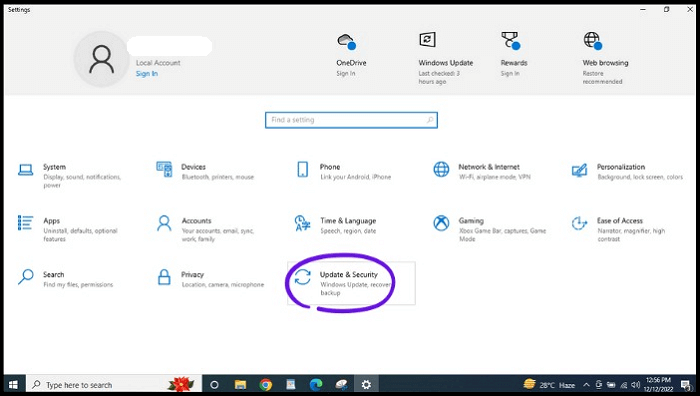
Step 3. Tap "Recovery" from the left side menu.

Step 4. Click "Restart now" under "Advanced startup".
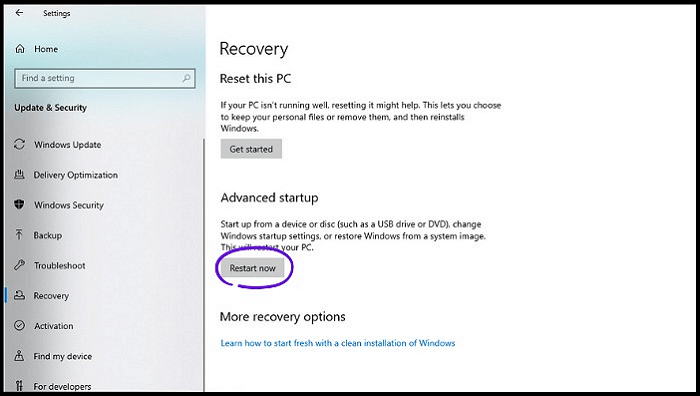
Step 5. Press "Troubleshoot" in the "Advanced startup" and tap "Advanced options".

Step 6. Select "UEFI Firmware Settings".
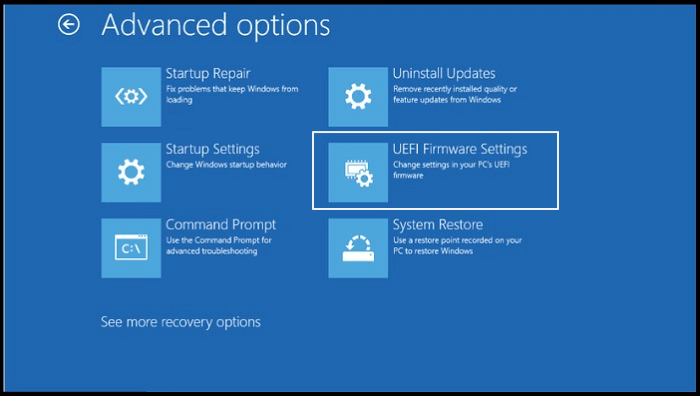
Step 7. To access the advanced mode, navigate to the "Tool menu" and select "Asus EZ Flash Utility" by pressing "Enter".
Step 8. Select "by Internet".
Step 9. To connect to the internet, select the desired connection using the "Left/Right" arrow buttons on your keyboard, and then press the "Enter" button.
Step 10. Follow the remaining on-screen instructions to complete the BIOS update.
To flash your BIOS without hassle, you can use the UEFI firmware settings to update it, but there are also other ways to do so. If you're having trouble, you can refer to the following two articles for additional help. Alternatively, you can follow the above method to update your BIOS with ease.
To Wrap Things Up
Will updating my BIOS delete anything? Updating your BIOS will not remove anything on your computer, but there is a risk of data loss during the process, making it essential to take precautions before updating.
Qiling Disk Master is a practical backup tool that helps protect your computer data by creating a scheduled backup, keeping your computer and data safe and secure. It has many useful features to explore, and you can simply download and try it to see its benefits for yourself.
FAQs on Will Updating My BIOS Delete Anything
1. Will resetting my BIOS erase my hard drive?
Resetting the BIOS will only restore default settings, not delete data. To keep data safe, use backup software like Qiling Disk Master.
2. What is the risk of flashing BIOS?
Updating the BIOS is a more delicate process than updating a Windows program, and if something goes wrong, it could result in a bricked computer. There's also a small risk of losing data, although this is rare. It's highly recommended to back up your data before proceeding with the BIOS update.
3. Can I update BIOS without losing data?
Updating the BIOS will not delete your files, but failing to install a new version might damage your computer and result in data loss, making backing up your data before updating helpful for security.
4. What happens if you fail to flash BIOS?
If the BIOS update fails, the computer won't boot properly and the Boot Blocker function will be activated, displaying an error notice on the screen. This can happen if the motherboard has an integrated VGA, causing the screen to go black. In such cases, the user can restore the BIOS.
Related Articles
- Surface Recovery Image: How to Download & Create & Use🔥
- Can You Backup C Drive to OneDrive in Windows 10/11
- Windows 7 System Image Backup Failed Not Enough Disk Space[SOLVED]
- Upgrade 32 Bit to 64 Bit in Windows 10 Without Losing Data
- How to Back Up Windows 10 to USB on Your Own [3 Ways]
- Top 10 Best Free Open Source Backup Software | 2023 Selections
- How to Backup External Hard Drive to Dropbox [ Recommend 3 Ways]
Back up external hard drive to Dropbox is not difficult. The best way to back up an external hard drive to Dropbox is by applying backup software. You can drag and drop files and folders on Dropbox web and Dropbox Desktop.
Products
Articles & Tutorials
- Data Recovery
- Data Backup
- File Recovery
- File Backup
- System Backup and Restore
- Disk and Partition Clone
- Technical articles
- Mobile articles
- Disk Master Help
- Windows Data Recovery Tutorials
- Windows Secure Delete Tutorials
- Windows Partition Management Tutorials
- Windows File Backup and Restore Tutorials
- Windows System Backup and Restore Tutorials
- Windows Disk Backup and Restore Tutorials
- Windows Clone Tutorials