How to Backup Multiple Drives on Windows 11/10/8/7
A hard disk stores computer data, so backing up your drives is essential for preventing data loss after drive failure, malware, accidental deletion, or system corruption. If your PC has several drives, a complete backup plan should protect each important disk.
This post will guide you on how to back up multiple hard drives at once using either the professional hard drive backup software Qiling Disk Master or the Windows built-in backup program Backup and Restore. Let's get started!
Why Do You Backup Multiple Hard Drives
Many computer users have multiple hard drives installed on their computers, often using a solid-state drive (SSD) for the operating system and a hard disk drive (HDD) for storage, allowing them to save a variety of crucial data on the HDD.
If your computer crashes or is attacked by malware or ransomware, unprotected files may become inaccessible. A reliable backup system helps safeguard important data across all drives.
A computer's hard drive stores essential data and files, making a solid backup plan crucial to safeguarding information. Hard disk backup and multiple hard drive backups provide a reliable way to protect against data loss.
If you had previously created a disk backup, for example, you backed up a hard drive to another one, you could quickly restore the disk backup image to another disk to restore your computer.
You can choose the hard drives you want to back up and the destination path to save the backup image, eliminating the need for manual file dragging and dropping, which can sometimes be affected by the drag and drop not working issue.
Backup Multiple Hard Drives with Hard Disk Backup Software
When it comes to backing up multiple hard drives, the most effective and simplest way is to use professional hard drive backup software, such as Qiling Disk Master, which can help you back up many hard drives or partitions on the drive easily and quickly and offer you more advanced backup options.
Qiling Disk Master Pro is a Windows backup and recovery program that allows automatic backups of systems, disks, files, partitions, and apps, and also enables imaging of hard drives and creation of ISO image files, with 250G free cloud storage for secure file backup.
Key Features of Qiling Disk Master
- Create different backup modes. It allows you to create automatic, smart, intelligent, full, incremental, differential, and scheduled backups.
- Various storage paths. This feature allows you to save your backup to a local drive, external drive, Security Zone, NAS, or even the Cloud, giving you flexibility and peace of mind.
- Perform universal restore. It enables you to transfer a Windows operating system from one computer to another.
- Provide advanced backup options. The software offers various backup features, including mounting and unmounting backup images, compressing backups to reduce storage space by up to 80%, and backing up to FPT. Additionally, it provides image encryption for secure backups.
- Clone Windows/hard drive. It allows you to clone a hard drive and transfer Windows to a solid-state drive (SSD).
After you download and install Qiling Disk Master on your computer, here is how to back up multiple drives or partitions with it.
Step 1. Start with selecting the backup contents.

Step 2. There are four backup categories: File, Disk, OS, and Mail. Click on "Disk".
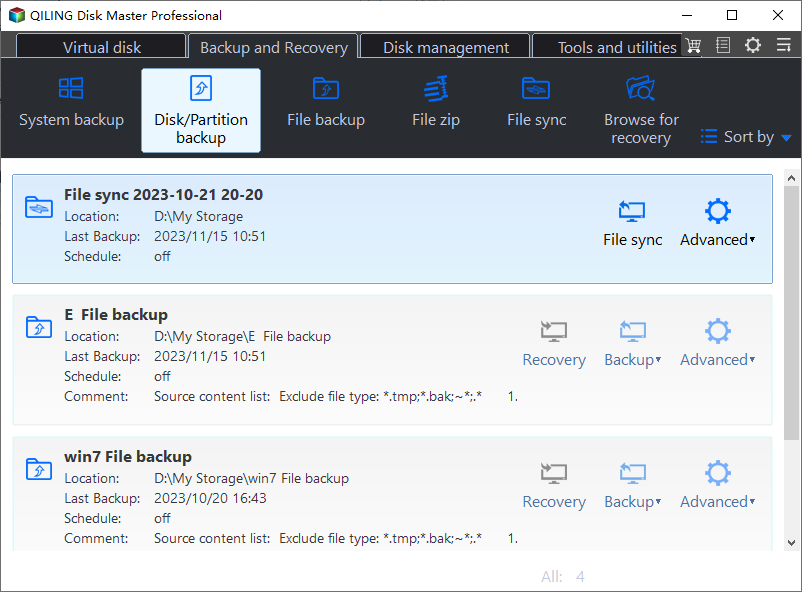
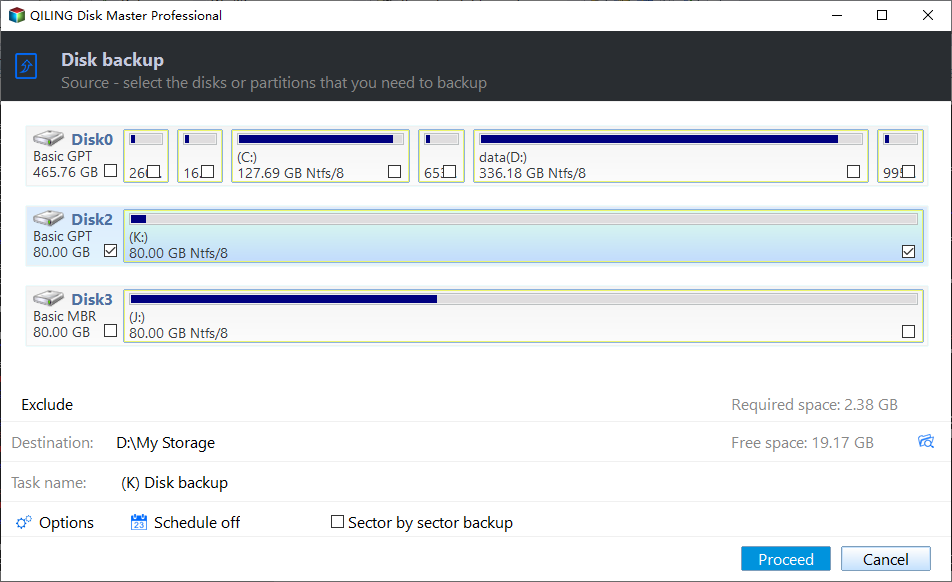
Step 3. Choose the disks or partitions you want to include in the backup. You can select a whole disk or only the partitions that contain important data.
Step 4. Select the destination where you want to save the backup.
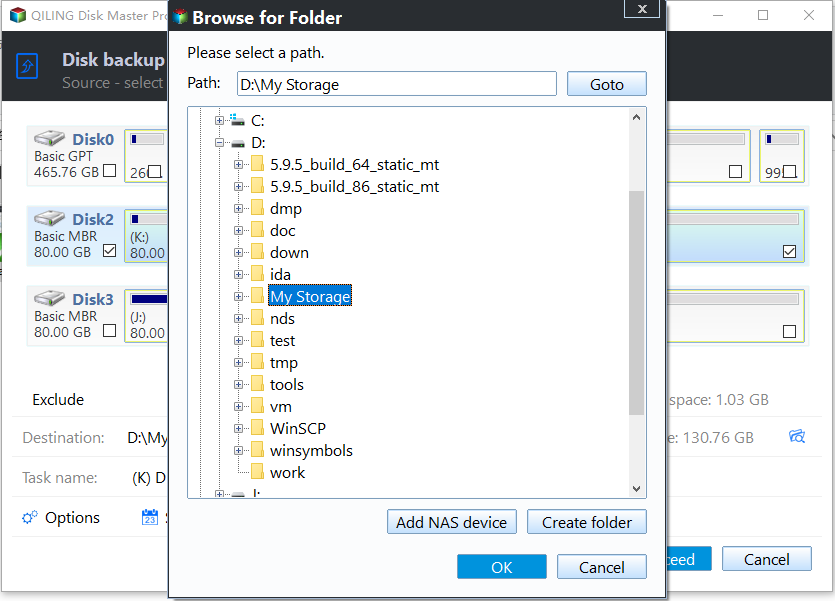
Step 5. For disk/partition backup, you can save the backup to either a local drive or a Network-Attached Storage (NAS) device.
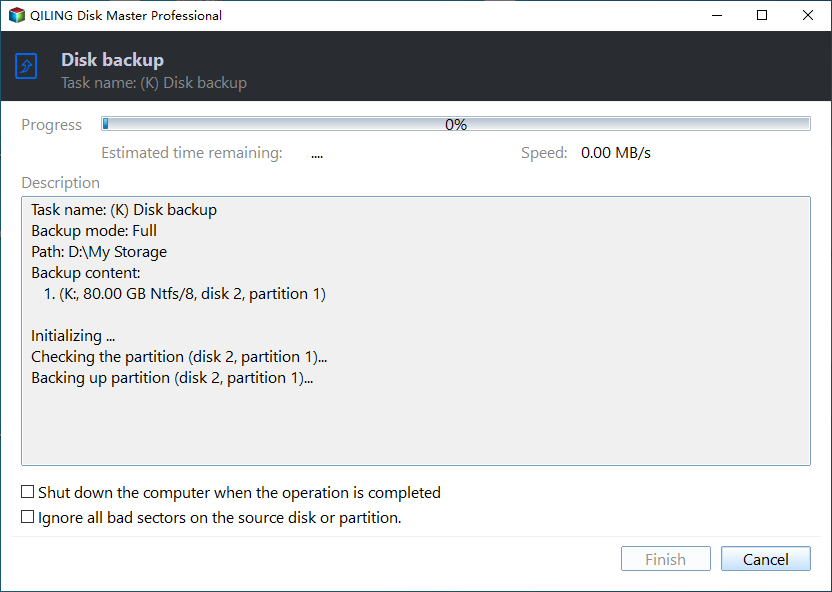
Step 6. After the backup process is completed, your task will be displayed at the left. You can right-click on any task to further manage your backup, such as recovering it or creating an incremental backup.
Backup Multiple Hard Drives via Backup and Restore
Windows has a built-The Backup and Restore tool, initially introduced in Windows 7, is a popular backup solution that allows users to back up multiple drives on their computer.
Here is how to use Backup and Restore to back up your hard drive or multiple drives on a Windows 10 computer:
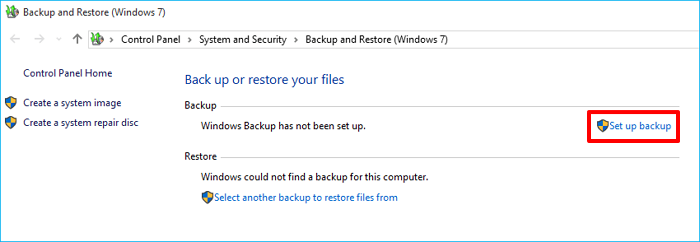
Step 1. To set up a backup on Windows, go to Settings, then Update & Security, followed by Backup, and finally Backup and Restore (Windows 7), where you can click Set up backup.
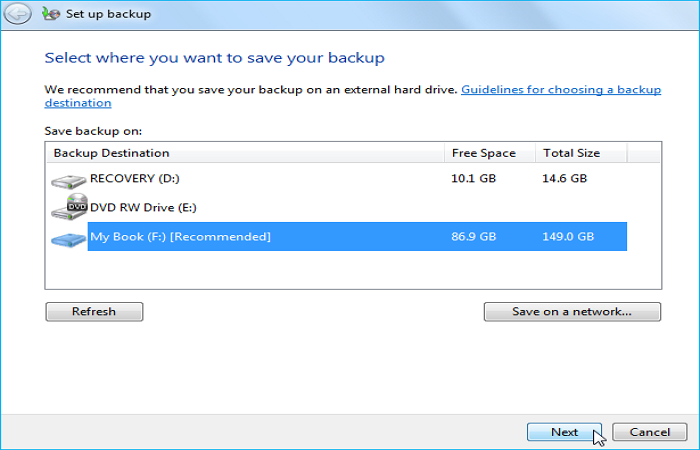
Step 2. Your computer will automatically scan and list all available hard drives on your computer, allowing you to choose where to save backups, with the option to select a network drive as the backup destination.
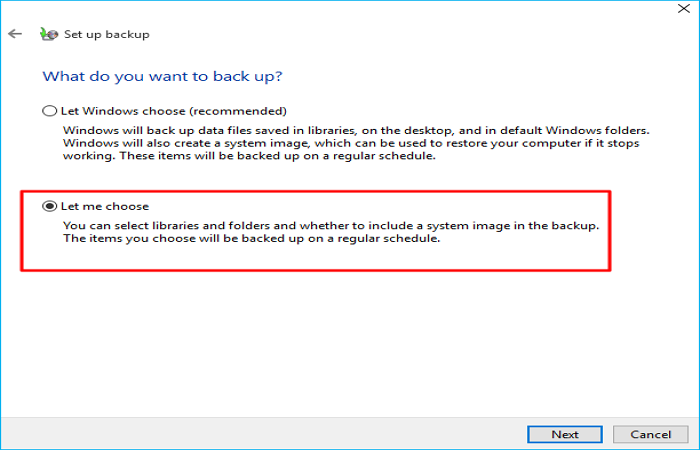
Step 3. (Optional) Choose Let me choose to make a custom backup and click Next.
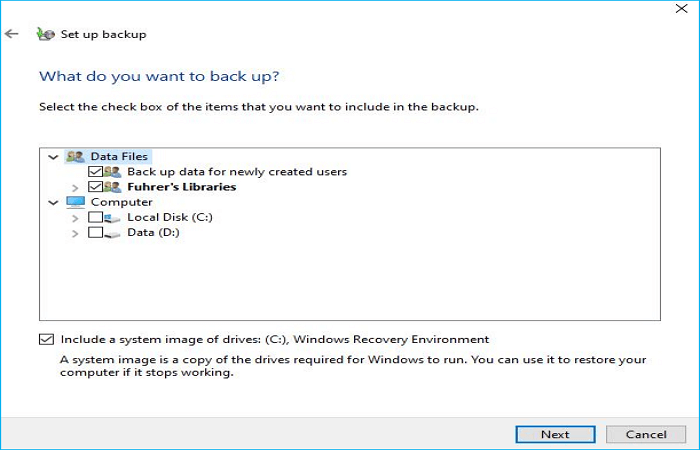
Step 4. Select the hard drives you want to back up and click Next.
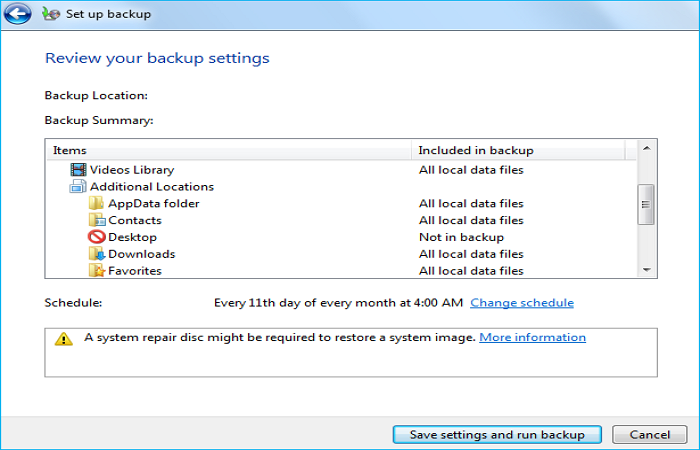
Step 5. To confirm the backup settings, review the backup schedule, storage location, and any specific files or folders you want to include or exclude. Once you're satisfied with the settings, initiate the backup process. This will start the backup of your data to the designated storage location, ensuring your files are safely backed up and protected.
To Wrap Things Up
Backing up multiple drives on your computer can be easily done using either Qiling Disk Master or Backup and Restore. Both tools allow you to back up multiple hard drives simultaneously, making it a convenient and efficient process.
Compared to Backup and Restore, Qiling Disk Master offers more backup options for diverse needs and fewer limitations, making it a more practical backup software. You can use it to back up drives and partitions according to your needs, and it can also perform other tasks. Sometimes, you might encounter the System Restore not working error, but Qiling Disk Master can help you with that, making it a useful tool to have on your PC.
FAQs on How to Backup Multiple Drives
1. Can I backup my entire hard drive?
You can back up an entire hard drive, including the system partition and data partitions, by creating a system image, which is the best way to back up a whole hard drive.
2. How do I backup all my drives?
To back up all hard drives on your computer, you can use either professional hard disk backup software like Qiling Disk Master or the Windows native backup solution, Backup and Restore.
3. Does deleting drive remove all data?
Removing a hard drive from your computer won't delete its data, but you can't access it. If you're concerned about losing data during the deletion process, consider using Qiling Disk Master to safeguard your data on the drive.
Related Articles
- How to Backup USB to OneDrive [Bidirectional Way]
- Troubleshooting of a Failed Hard Drive to SSD Cloning
- How to Compress Backups with a Free Backup Tool
- 2 Ways: How to Backup Partition to Image File for Free
- How to Backup Any Folder to OneDrive on Windows 10 [Step-by-step Guide]
- How to Clone Android SD Card to A Larger One
- Best Qiling Disk Master Free Alternative for File, App, and Account Setting Transfer in 2022
Are you looking for a reliable Qiling Disk Master Free alternative tool that helps you migrate files, transfer apps, and even user account settings from PC to PC? This page will explain Qiling Disk Master Free, its Pros and Cons, and the best alternative tools you can rely upon.
Products
Articles & Tutorials
- Data Recovery
- Data Backup
- File Recovery
- File Backup
- System Backup and Restore
- Disk and Partition Clone
- Technical articles
- Mobile articles
- Disk Master Help
- Windows Data Recovery Tutorials
- Windows Secure Delete Tutorials
- Windows Partition Management Tutorials
- Windows File Backup and Restore Tutorials
- Windows System Backup and Restore Tutorials
- Windows Disk Backup and Restore Tutorials
- Windows Clone Tutorials