SQL Server Full Backup Tutorial with Examples
What Is SQL Server Full Backup
SQL Server full backup is a complete backup that captures all data in a SQL Server database at the start of the backup operation, including the transaction log. It also creates a new log file, which is essential for a full recovery from any failure. This is the basis for all other SQL Server backup operations and represents a complete backup of all data in the database.
Depending on your recovery model, you may need to perform full backups more frequently. If you're using the FULL recovery model or switching from the SIMPLE to the FULL model, it's recommended to take a full backup as soon as possible to minimize data loss in case of an unexpected failure.
You can perform a full SQL Server backup using professional database backup software, SQL Server Management Studio, Transact-SQL, or PowerShell. For most scenarios, we recommend using server backup software to back up SQL databases, as it provides a GUI that simplifies everyday tasks and allows you to schedule an automatic full backup.
We will explain how to create SQL Server full backup automatically or manually in detail. This includes creating full backups automatically using SQL Server Agent and manually using SQL Server Management Studio.
How to Schedule SQL Server Full Backup Automatically
Qiling Backup Enterprise offers a robust backup solution for businesses and servers, supporting various operating systems and applications, including Windows Server 2022 and 2019, SBS 2008, Microsoft Exchange email, and SQL databases.
The Qiling Server backup program offers an all-in-one backup solution for SQL Server, ensuring that your database is well protected from unexpected disasters, making it an effective tool for maintaining the integrity of your SQL Server.
- Supports multiple backup types, including full backups that capture the entire server's data at a specific point in time, differential backups, and incremental backups
- Allows you to clone your hard drive to an external drive, creating an exact replica for disaster recovery
- Dedicated Exchange Server backup software with advanced options
To create a full SQL Server backup schedule with Qiling Backup, follow these steps: First, log in to your Qiling Backup account and navigate to the "Backup Schedule" section. Then, click on the "Add Schedule" button to create a new schedule, and select the SQL Server instance you want to backup.
Step 1. Open Qiling Backup Enterprise, click "Backup and recovery", and set a new backup.

Step 2. To create a file backup, select "File backup" as the target among the options at the top, and choose the specific files you want to back up.

Step 3. Select the destination where you want to save the backup file. You can choose a local drive, external hard drive, network location, or NAS device.

Step 4. Click "Schedule: Off" to customize your backup scheme, where you can see options for "Schedule", "Backup cleanup", and "Advanced Settings". Click "New" under the "Schedule" catalog to create a new schedule.

Then set the backup frequency based on your needs.
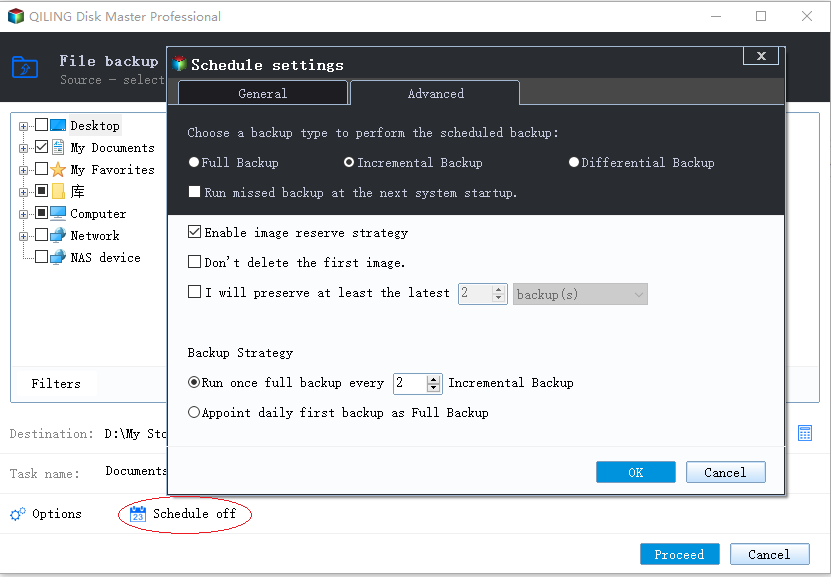
Step 5. Click "Backup options" on the bottom-left corner of the interface.

Here, you can customize various settings such as performance, encryption, and email notifications to suit your needs, and then click "OK" to return to the main interface once you're done.
Step 6. After completing all the settings, click on "Proceed" to initiate the file backup process.
SQL Server Full Backup with SQL Server Management Studio
SQL Server Management Studio is an excellent utility for managing and backing up your SQL Server databases. Here are the how-to-steps:
Step 1. To start SQL Server Management Studio and connect to the SQL Server instance where your database is located, open the software, enter the server name and authentication mode, and click Connect. Once connected, navigate through the Object Explorer to find and manage your database and its objects.
Step 2. To start a SQL Server full backup, right-click the "Backup Devices" mode in the Object Explorer, specify the backup location, and then initiate the backup process.
Step 3. Right-click the database in the Object Explorer, then select "Tasks > Back Up" from the menu.
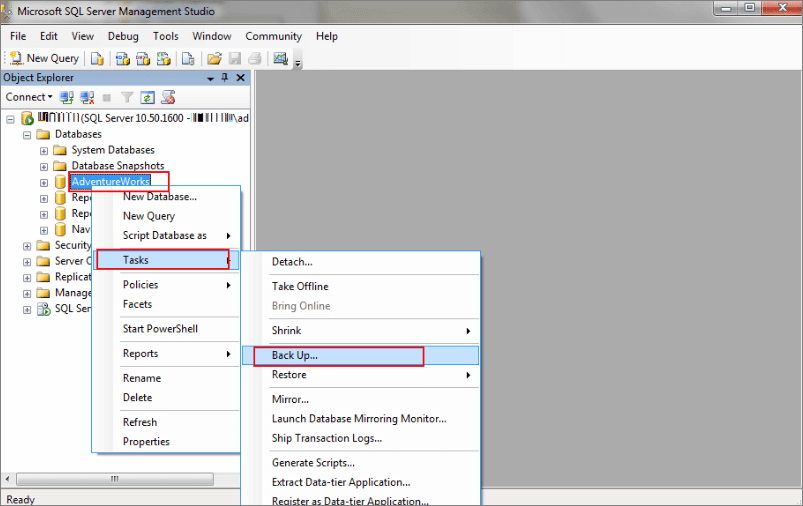
Step 4. To back up a database, open the Back Up Database dialog box and specify the name of the backup set, the type of backup, and the destination for your backup.
Step 5. Enter a name for your backup set in the Name field, which can help identify your backup.
Step 6. Select "Full" from the Backup type drop-down list to back up all data in your database.
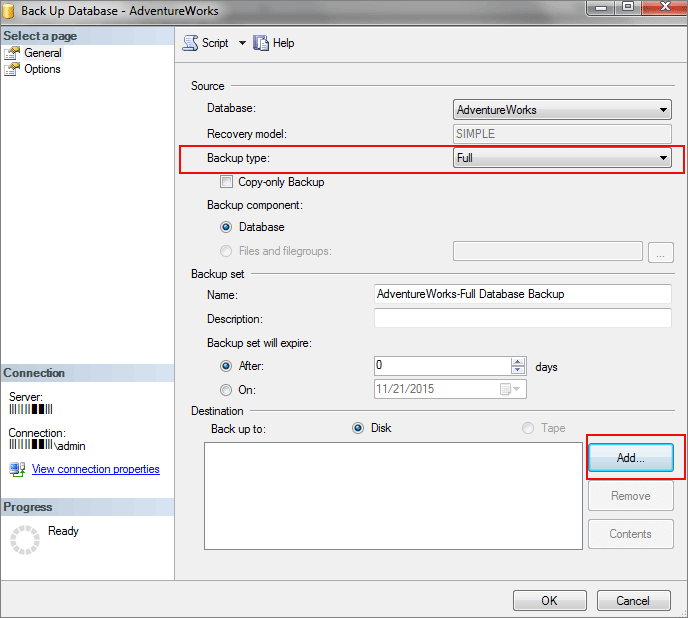
Step 7. Select your backup device from the Destination drop-down list, then click "OK" to start the backup process.
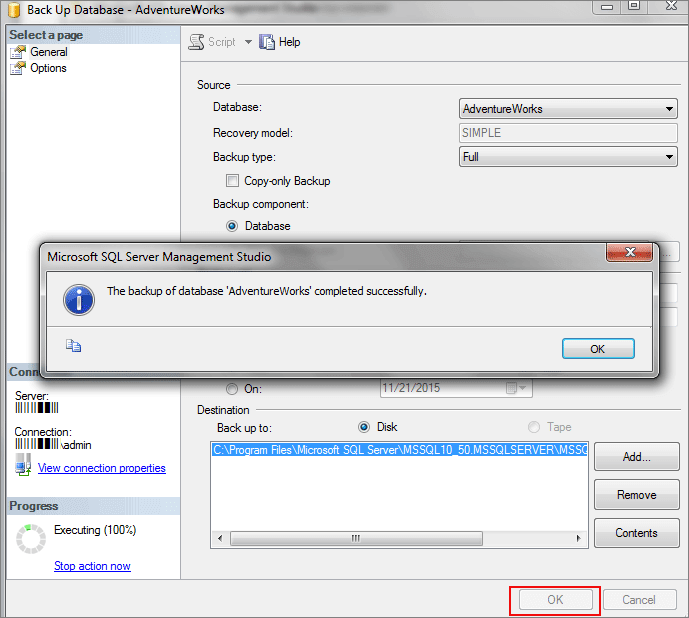
Step 8. SQL Server Management Studio will now begin the full backup of your SQL database. Once the backup process is complete, a message will indicate that the backup was successful, and you can close SQL Server Management Studio, marking the completion of your SQL Server Full Backup.
Create SQL Server Full Backup with PowerShell
To create a SQL Server full backup using PowerShell, you can use the Backup-SqlDatabase cmdlet. This cmdlet is used to create a baseline for differential and transaction log backups, allowing you to capture the entire database at a specific point in time.
To create a SQL Server full backup using PowerShell, you can use the Invoke-SqlCmd cmdlet to execute a SQL script that creates the full backup. Here's how you can do it in one paragraph:
Step 1. Open PowerShell as an administrator by clicking Start, typing "PowerShell" in the Search programs and files box, right-clicking Windows PowerShell in the Programs list, and then clicking "Run as Administrator".
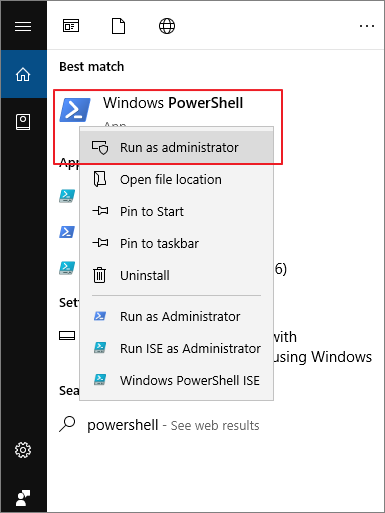
Step 2. If you are prompted for an administrator password or confirmation, type your password or click Continue.
Step 3. At the PowerShell prompt, type the following cmdlet and press Enter:
Backup-SqlDatabase -ComputerName "ServerName" -Database "DBName" -BackupFile "C:\SQLBackups\DBName.bak" -CompressionOption On
Replace the following placeholder values with the actual values:
- ServerName: Specifies the name of the SQL Server instance.
The `DBName` variable specifies the name of the database to be backed up.
The full path of the backup file, including the file name, is specified as C:\SQLBackups\DBName.bak.
What Are Different Types of Backups in SQL Server
SQL Server offers various types of data backup, providing users with a range of options to ensure their data is securely stored. You can back up entire databases, specific tables, or individual files, allowing you to tailor your backup strategy to your specific needs.
SQL Server full backup. A SQL Server full backup is a type of backup that captures the entire database, allowing for restoration to a specific point in time, and can be taken with or without the transaction log.
SQL Server differential backup. SQL Server differential backups only save data that has changed since the last full SQL Server backup, reducing the time to restore a database from a full backup. To restore, you need a copy of the full backup and all subsequent differential backups.
SQL Server transaction log backup. This mode backs up the transaction log, ideal for recovering data lost since the last full or differential backup, requiring a full backup and all subsequent differential and transaction log backups to restore.
SQL Server incremental backup. This pattern only backs up data that has changed since the last backup. SQL incremental backups must include the transaction log, which helps reduce the time it takes to restore a SQL Server database from a full backup.
SQL Server compressed backup. SQL Server compressed backups allow for the entire database or individual files to be backed up, similar to standard SQL Server backups. However, they reduce the required disk space to store SQL Server backups.
SQL Server encrypted backup. SQL Server backups are a type of backup that protects sensitive data from unauthorized access by backing up the entire database or individual file. These backups are encrypted using either the AES-128 or AES-256 encryption algorithms, providing an added layer of security.
SQL Server Full Backup FAQs
Read the FAQs below to get more instructions on full backup of the SQL Server database.
What are the backup types in SQL Server?
SQL Server offers three main backup types: full, differential, and log. A full database backup includes all data and transaction logs for all databases, but requires a valid SQL Server Enterprise Edition license. If you don't have this license, you can opt for differential or log backups instead.
How do I back up all my SQL Server databases?
One way to back up your SQL Server databases is by using third-party tools, such as Qiling Server backup program.
Step 1. Start Qiling Server backup tool. Choose your SQL database and backup destination.
Step 2. Configure the backup options.
Step 3. Start SQL Server database backup.
How do I make a full SQL backup?
Doing a full backup is the most comprehensive way to protect your data, as it captures all of your files and settings, providing a complete snapshot in case of any issues.
To create a full SQL backup, use the BACKUP DATABASE command, which creates a copy of your database that can be used for disaster recovery.
How does SQL Server backup work?
Backing up your SQL Server database is crucial to safeguarding your data. When you perform a backup, you create a copy of the entire database, which is essential for ensuring business continuity in case of data loss or corruption.
Having a copy of your database, also known as a backup, is crucial in case something happens to the original. This copy can be stored on your local hard drive, a remote server, or even in the cloud, and its location is not as important as having it available in case of an emergency.
Conclusion
A SQL Server full backup creates a copy of all data in a SQL Server database, including table data, indexes, and stored procedures. It also copies the SQL Server transaction log, allowing for roll-forward recovery to any point in time since the backup was taken.
You can create a full SQL Server backup using either an automatic database backup tool like Qiling Backup or by manually applying one of three technical methods.
Related Articles
- Best Commercial Backup Software for Window(2022 Thorough Review)
- How to Create Backup Schedule in SQL Server 2008 [Ultimate Guide 2022]
- How to Back Up Windows Server 2019 Files in 2 Ways [Proven Solutions]
- Full Guide to Perform Windows Server Backup Bare Metal Recovery [2022]
- How to Turn on Bluetooth on Windows 11 and Transfer files
Bluetooth is a great wireless technology that allows for easy file transfers between devices. To get started, simply follow these steps: turn on Bluetooth on your Windows 11 device, and then use the technology to transfer files with ease. - How to Update BIOS Windows 10
When users need to update their computer's hardware or resolve BIOS-related issues, they may want to update their BIOS. However, improper BIOS updates can lead to severe problems like computer breakdown and data loss.
Products
Articles & Tutorials
- Data Recovery
- Data Backup
- File Recovery
- File Backup
- System Backup and Restore
- Disk and Partition Clone
- Technical articles
- Mobile articles
- Disk Master Help
- Windows Data Recovery Tutorials
- Windows Secure Delete Tutorials
- Windows Partition Management Tutorials
- Windows File Backup and Restore Tutorials
- Windows System Backup and Restore Tutorials
- Windows Disk Backup and Restore Tutorials
- Windows Clone Tutorials