What Is exFAT Format on Mac?
Mac users often prefer exclusive storage solutions, but adding external storage is a convenient option. To access files quickly, it's crucial to choose a compatible file system, such as exFAT, which works seamlessly with Macs. This makes exFAT a popular choice for Mac users who need to share and store data on external devices.
This section delves into the details of the exFAT file system format, providing a concise definition and a step-by-step guide on how to set up exFAT on a Mac. Additionally, related questions and answers are included to address common queries and concerns users may have about this file format.
What Is exFAT Format on Mac?
The Extensible File Allocation Table (exFAT) is the preferred file format for seamless data sharing between Windows and Mac devices. Among the various external drive formats available to Mac users, including APFS, HFS, NTFS, and exFAT, exFAT stands out for its significant popularity.
1. What is the exFAT Format?
Microsoft created the exFAT file system in 2006, which was initially proprietary. However, on August 28, 2019, the company released its specifications, making it open to the public. Unlike NTFS, exFAT efficiently solves data-structure overhead issues and allows for larger file sizes, exceeding the 4GB limit of FAT32. As a result, exFAT has become the default file system for SDXC cards larger than 32GB, adopted by the SD Association.

2. What Is exFAT Format on Mac?
The exFAT format on Mac is recommended for external drives, ensuring seamless data transfer between Mac and Windows devices, and allowing large storage devices with clusters up to 32MB and 64-bit file size descriptions.
If the external disk to be used with a Mac is over 32GB, it's recommended to format it in exFAT, as it allows large applications without the file attribution systems like NTFS or complicated ACLs.
3. Advantages of exFAT on Mac
exFAT is an improved version of the FAT file system, offering several benefits when used on a Mac. With exFAT, users can enjoy larger file size limits, improved performance, and enhanced compatibility with modern operating systems. This makes it an attractive option for those who need to work with large files or transfer files between different devices.
- exFAT supports a maximum file size of 16 exabytes while storing file size references in eight bytes.
- The FAT32 file system is an ideal file format for formatting high-capacity flash memory devices.
- External drives for Mac can store large files and record high-quality video, making them a convenient option for users.
- The SD Association accepts it as the default file system for high-capacity SDXC cards.
- exFAT and APFS are highly interoperable between different platforms and operating systems, making it easy to share files across various devices.
- exFAT supports various types of flash storage, including universal flash storage, Embedded MultiMediaCard (eMMC), and MultiMediaCard.
Mac's internal hard disk or SSD is set to HFS or APFS file system, while external drives require exFAT, which can be formatted on a Mac through a detailed process.
How to Set exFAT Format on Mac?
After learning about what exFAT format is on Mac, it's time to explore the different ways to set this format on your Mac devices. Whether you're a beginner or a professional, you can choose from two methods to achieve the same result.
1. Set exFAT format with Disk Utility
The Disk Utility feature on Mac allows you to format an external drive to work with both Windows and Mac devices. However, before doing so, it's essential to back up any data on the drive, as the process will erase all existing data. This utility can convert the drive's file format to make it compatible with both operating systems.
The quick steps to set the exFAT format with disk utility are:
Step 1. To insert the USB, simply plug the USB into the Mac device.
Step 2. To open Disk Utility, you can press Command + Space to open Spotlight, type "Disk Utility" and press enter, or go to the Finder, click on "Applications," and then click on "Utilities" and finally click on "Disk Utility."
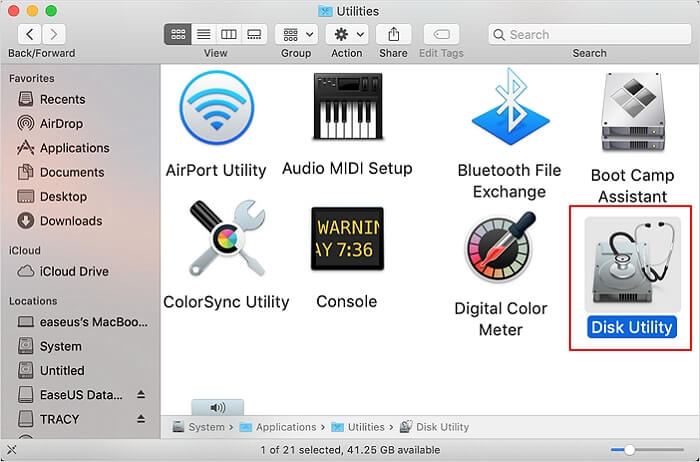
Step 3. Select the USB drive on the left side of the panel and click on the "Erase" option at the top.
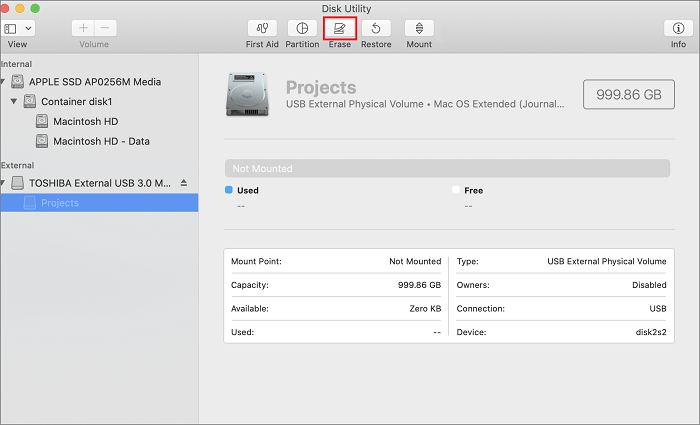
Step 4. It's easy to name and select the "exFAT" format for the drive.
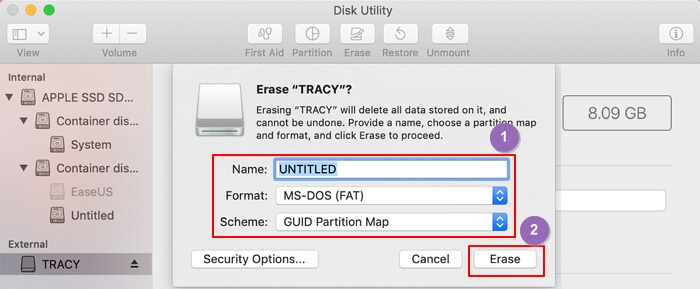
Step 5. To set exFAT as the file format on Mac, select the name you want to use and choose the file format, then click on the erase option.
If you're having trouble erasing a USB drive on your Mac, you can try formatting it to exFAT instead. To do this, simply connect the drive to your Mac, go to the Disk Utility app, select the drive, click the "Erase" button, and follow the prompts to format it to exFAT. If you're still having issues, you can click the button below for additional solutions.
2. Set exFAT Format with Terminal Command
The Mac Terminal command is a powerful tool for performing and navigating tasks on Mac devices. While it may seem complicated for beginners, it's actually easy to complete all GUI functions with terminal commands only, making it a convenient option for users. Setting exFAT format, for instance, is a relatively simple process that can be completed using Terminal commands.
To set the exFAT format with terminal command, follow these steps:
Step 1. To start, insert the USB into the Mac device.
Step 2. Hold the "Command + Space" and search the "Terminal" option, or go to the "Finder," locate "Utilities," and open the "Terminal" to open a terminal command.
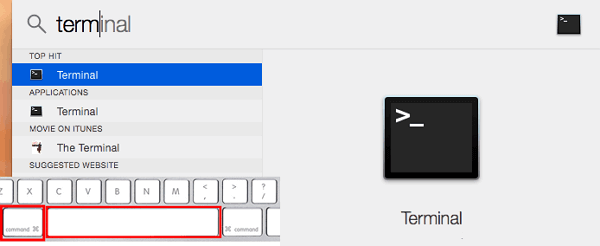
Step 3. To find all the available devices, you can simply type "diskutil list" in the terminal and it will display a list of all the available devices.
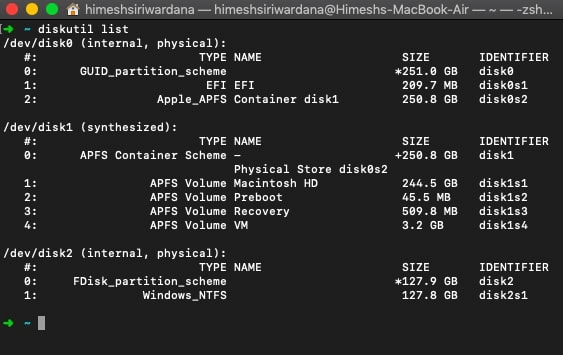
Step 4. Entering the command: Select the USB and then enter the following command
diskutil erasedisk exFAT MyDisk DISK_IDENTIFIER
To set the exFAT format on Mac, you can use the Disk Utility app or the command line. The exFAT format is compatible with both Windows and Mac, so you can also format a USB drive for Mac on a Windows computer. If you're interested in learning how to format exFAT on Windows, you can click the link below to learn more.
Conclusion
The Extensible File Allocation Table (exFAT) format is a popular choice for external storage devices, offering seamless data transfer between Mac and Windows. With its definition, best use, and applications reviewed, exFAT is ideal for external storage devices aiming to facilitate smooth data exchange between different operating systems.
exFAT is perfect for large-exFAT is a file system size applications and has numerous benefits over the other available file systems for Mac. It can be easily set up using disk utility or Terminal Command, making it a convenient option for users.
Please let us know about your experience with exFAT for Mac. Also, please share the article to help all Mac users looking to get the optimum benefits of the exFAT format for different external devices.
FAQ of What is exFAT Format on Mac
Mac users often have questions about the exFAT format, and here's a quick rundown of frequently asked questions to provide instant help.
1. Is ExFAT slower than MacOS enabled?
ExFAT is generally slower than MacOS-enabled file systems because it doesn't keep track of changes and offers quick repair in case of issues, which macOS enabled does. However, MacOS-enabled file systems are not as safe as ExFAT, making ExFAT a more secure option. If speed is a priority over safety, MacOS-enabled is faster than ExFAT.
2. What is the best format for a USB drive on Mac?
The best format for a USB drive on a Mac is exFAT, which allows for large file storage and seamless use on both Windows and Mac devices without any interoperability issues.
3. Is FAT32 or exFAT better for Mac?
The exFAT file system is an improved version of FAT32, offering support for files larger than 4GB, making it a suitable option for transferring data between Windows and Mac systems.
Related Articles
- Fix Invalid Partition Table Error in Windows 10/8/7
- 5 Best S3 Backup Software [Can't Miss]
- How to Recover Unsaved/Lost Notepad ++ Files with/Without Backups
- How to Fix "the Archive Is Either in Unknown Format Or Damaged" [100% Working Solution]
- How to Fix Windows 7 Backup Error 0x80041321 [Four Ways]
Fix Windows 7 backup error 0x80041321 with clear troubleshooting steps. Check backup settings, system files, disk errors, and restore backup tasks. - How to Enable Windows Auto Login without Password
If you're fed up with entering a long password every time you log in to your Windows system, this article shows you how to enable Auto Login without a password in Windows 10, saving you time and hassle.
Products
Articles & Tutorials
- Data Recovery
- Data Backup
- File Recovery
- File Backup
- System Backup and Restore
- Disk and Partition Clone
- Technical articles
- Mobile articles
- Disk Master Help
- Windows Data Recovery Tutorials
- Windows Secure Delete Tutorials
- Windows Partition Management Tutorials
- Windows File Backup and Restore Tutorials
- Windows System Backup and Restore Tutorials
- Windows Disk Backup and Restore Tutorials
- Windows Clone Tutorials