How to Fix Mac Keeps Crashing [macOS Ventura/Monterey/Big Sur]
If your Mac keeps crashing, it could be due to a software issue, a hardware problem, or a combination of both. Some common causes include outdated operating system, corrupted system files, overheating, and faulty RAM. To troubleshoot the issue, try restarting your Mac in safe mode, running a diagnostic test, and checking for software updates.
Intel Macs are more prone to crashing due to their underpowered performance and lack of optimization compared to Apple silicon-based MacBooks.
| Workable Solutions | Step-by-step Troubleshooting |
|---|---|
| Fix 1. Restart Your Mac | Restarting your Mac closes all operations and boots your computer without any existing...Full steps |
| Fix 2. Reinstall macOS | As previously stated, if your macOS was not properly updated or if you encountered...Full steps |
| Fix 3. Apple Diagnostic | Run Apple Diagnostics to see what's causing your Mac to crash. Here's how to run...Full steps |
| Fix 4. Run First Aid | This process can resolve issues with your device's disk or volume. If your Mac keeps...Full steps |
| Fix 5. Reset NVRAM | You might be able to stop your Mac from crashing by clearing the NVRAM and SMC...Full steps |
| More Fixes... | The other 2 fixes, boot into Mac Recovery Mode and free up more space, are available...Full steps |
If your Mac keeps crashing, there are steps you can take to fix the issue and prevent it from happening again. To get started, try restarting your Mac in safe mode to see if any problematic software is causing the crashes. You can also try resetting the System Management Controller (SMC) and the Power Management Unit (PMU) to see if that resolves the issue.
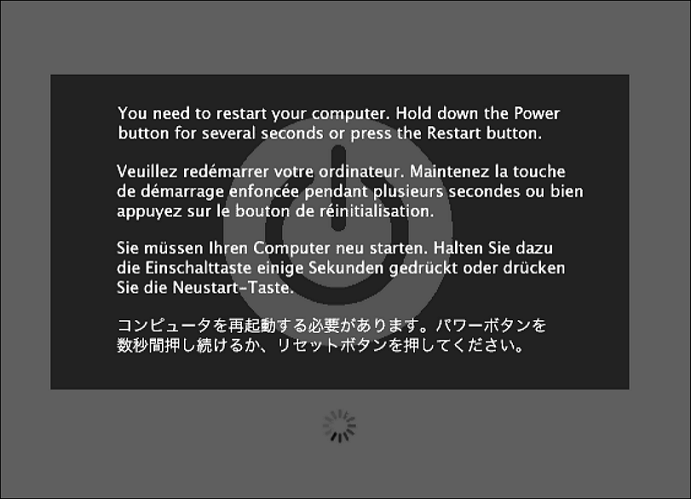
Causes: Why Your Mac Keeps Crashing
If your Mac keeps crashing, there are several reasons behind it. To prevent this from happening, you can take some proactive steps to save yourself from the hassle of later fixing your Mac.
To prevent your Mac from crashing, you can take a few simple steps. First, make sure your Mac is running the latest version of macOS.
1. macOS Update Problem
If you're experiencing issues with your macOS due to outdated software, you can try updating to the latest version, which usually includes bug fixes and improvements. This can resolve problems related to compatibility, performance, and stability.
2. Low Space on the Startup Disk
If your Mac Ventura is running low on space, it may not be able to boot, launch applications, or execute certain commands or tasks. This is because it needs more space on its SSD to store and process information. To resolve this issue, you can try deleting unnecessary files or apps to free up some space on your Mac's SSD. This should help prevent your Mac from crashing due to lack of space.
3. Inadequate CPU for Handling Processor-Intensive Tasks
If your Mac is outdated or you're running too many resource-hungry apps, it may struggle to perform properly, leading to crashes as it can't keep up with the demands placed upon it.
To close unwanted applications on a Mac, open the app and press CMD + Q, or press Option + Command + ESC, then click on "Force Quit" to shut it down.

4. Bad Race Conditions for Accessing System Resources
Many applications require your PC's resources to run smoothly.
Even if you have lighter programs open, if too many are running in the background, it can still consume your Mac's resources and potentially lead to crashes.
5. Incompatible Software and Hardware
If you have an old Mac or an Apple silicon Mac, it may crash due to outdated software, as many apps are still transitioning to support Apple silicon Macs. Rosetta is used to translate Intel Mac apps for Apple silicon Macs.
Using an old Mac to run modern applications that require a lot of resources can lead to crashes, as the outdated hardware is incompatible with the demanding programs. This results in system instability and frequent shutdowns.
Solutions: Troubleshoot and Fix Mac Keeps Crashing Issue
If your Mac keeps crashing, don't worry, there are 7 methods to try and fix it. You can start by troubleshooting the issue, checking for software updates, and running a disk cleanup and repair. If that doesn't work, you can try resetting the System Management Controller, disabling extensions, or running a PRAM reset. If none of these methods resolve the issue, it may be worth considering a more advanced solution, such as reinstalling macOS or seeking professional help.
Solution 1. Restart Your Mac
Restarting your Mac will shut down all running operations and applications, and then boot up your computer from scratch, effectively ending any background processes that were running before the restart.
If your Mac is crashing or you're experiencing issues, a simple restart can resolve them.
Here's how to restart a Mac:
Step 1. To access the Apple menu, click on the Apple logo in the menu bar at the top. This will open a dropdown menu with options for System Preferences, Restart, Shut Down, and other system-related tasks.

Step 2. Now, select "Restart."
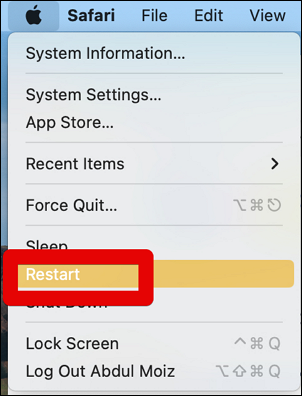
Step 3. Allow some time for your Mac to close all applications and restart. This process can take a few minutes, so be patient and let your Mac do its thing.
Solution 2. Reinstall macOS
If your macOS wasn't updated properly or you ran into issues, it could lead to your Mac crashing or experiencing performance problems.
Reinstall macOS to fix this. Here's how to reinstall macOS:
Step 1. Restart your Mac.
Step 2. On an Apple silicon Mac, press and hold the power button until the startup options window opens, then select "Options."
- Notice
- On an Intel Mac, immediately after turning it on, press and hold CMD+R and keep holding it until you see the Apple logo.

Step 3. Select Reinstall macOS from the utility window and click "Continue."
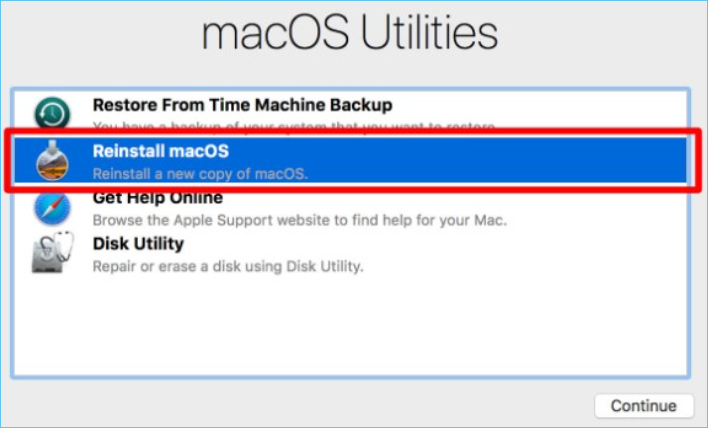
Step 4. Follow the prompts now and complete the reinstallation of macOS.
Solution 3. Run Apple Diagnostic
Run Apple Diagnostics to troubleshoot and identify the issue causing your Mac to crash. This built-in diagnostic tool can help you determine if there's a problem with your hardware or software, and provide steps to resolve the issue.
Here's how to run Apple Diagnostics:
- Restart your Mac and press and hold the "D" key as it restarts. This will boot your Mac in verbose mode, which can help you troubleshoot issues with your operating system.
- The Apple Diagnostics window will open and run automatically.
- The tool will analyze the information and provide a report on what's causing the issue and any potential problems.
Solution 4. Run Disk Utility First Aid
If your Mac is crashing, a simple disk or volume maintenance process may be able to resolve the issue. This procedure can help resolve problems with your device's disk or volume.
Here's how to do this:
- Restart your Mac and press and hold CMD+R.
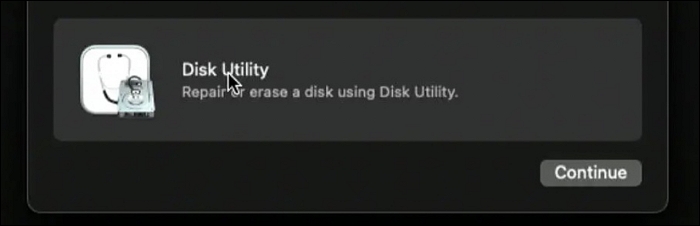
- Under the macOS utility window, select "Disk Utility" and click "Continue."
- Select your SSD or the fusion drive, and then click on the "First Aid" option from the Disk Utility menu.
- Click on "Run," followed by "Continue."
Solution 5. Reset NVRAM and SMC
Clearing the NVRAM and SMC on your Mac may help resolve issues that cause it to crash, by resetting settings and parameters to their default values. This process can be performed by pressing the power button and the Command+Option+P+R keys simultaneously for 20 seconds, then releasing them.
Here's how to apply NVRAM reset:
Step 1. To restart your Mac and enter recovery mode, press and hold the CMD + Option + P + R keys while restarting your Mac. This will boot your Mac into recovery mode, where you can perform various tasks such as reinstalling macOS, running a disk utility, or restoring from a Time Machine backup.

Step 2. Hold the keys until you see the Apple logo.
Step 3. Now that you've reset the NVRAM, your Mac should boot normally.
To reset the System Management Controller (SMC) on a Mac, you can follow these steps. First, shut down your Mac completely. Next, unplug the power cord and any other cables connected to the Mac. Wait for 30 seconds to allow any residual power to dissipate.
Step 1. To restart your Mac, press and hold the Shift+Option+Control+R keys simultaneously while restarting the computer. This will boot the computer in Recovery Mode.

Step 2. Keep holding until the Apple logo appears.
Step 3. Now you will have reset the SMC, and your Mac will boot normally.
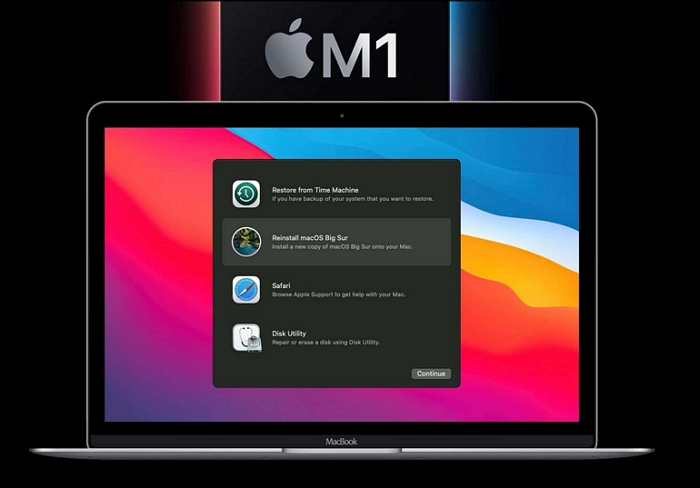
Solution 6. Boot into Mac Recovery Mode
To prevent your Mac from crashing, boot it into recovery mode to reset your Mac in a stable and safe way. Simply restart your Mac and immediately hold down the Command (⌘) + R keys, which will boot your Mac into the macOS Utilities window. From there, you can select the option to reset your Mac and restore it to its factory settings, effectively preventing a crash.
Recovery mode for Intel Macs
- Click on the Apple logo in the menu bar and click on "Restart."
- Press and hold Cmd+R.
- Keep holding until you see the Apple logo.
Recovery mode for Apple Silicon Macs:
- Restart your Mac, and then press and hold the power button.
- Click on the cog icon, and then click on "Continue."
- Enter your password and follow the prompts accordingly.
Solution 7. Free Up More Space for Mac
This is self-If your Mac's hard drive is full, it's under a lot of stress, which can cause it to perform poorly. To alleviate this, delete unused apps and unnecessary files to free up some space.
By optimizing your Mac's performance, you can prevent it from crashing again. This can be achieved by ensuring your Mac's operating system is up-to-date, running regular maintenance tasks, and closing unused applications.
Bonus Tip: Recover Data When Mac Crashes
When a Mac crashes, it's common to lose files or data that was saved during the corruption. In severe cases, repeated crashes can even prevent the computer from booting up.
Thankfully, you can recover deleted files on Mac with the help of an advanced and powerful data recovery software called Deep Data Recovery.
You can use Deep Data Recovery to recover data from a dead MacBook or due to a malfunction, restore deleted files, repair photos or corrupted videos, and much more.
Deep Data Recovery for Mac
- Recover lost or deleted files in macOS due to data loss caused by crashed or corrupted operating systems.
- Recover trash on Mac, formatted hard drive, crashed operating system, or infected PC with ease.
- Data recovery services can help recover lost data due to sudden deletion, formatting, hard drive corruption, virus attacks, and system crashes under various circumstances.
If your Mac crashes and won't boot, you can use Deep Data Recovery to create a WinPE bootable CD or DVD, allowing you to recover your corrupted hard drive.
Final Thoughts
Running resource-If your Mac is prone to crashing, especially with intensive applications, it may be due to outdated software or hardware limitations. First, ensure your Mac is running the latest macOS version, as updates often include performance enhancements and bug fixes. If your Mac is old or underpowered, it may not be able to handle demanding tasks without crashing. If you've already updated macOS and are still experiencing issues, try the solutions mentioned above to help prevent crashes.
Mac Keeps Crashing FAQs
Here are a few more answers about why Mac keeps crashing that we think you're looking for:
1. Why does my Mac keep shutting down?
If your Mac keeps shutting down, it's likely due to a software issue, hardware problem, or a flaw in the Mac model's construction, or even mismatched drivers causing it to get stuck on a black screen.
2. How to fix Mac shuts down randomly?
The simple solution to keep your Mac from shutting down randomly is to keep it updated with the latest macOS update, which will help to resolve any software issues that may be causing the problem.
- Boot in Mac Recovery Mode.
- Reset your Mac's NVRAM.
- Reformat Mac Startup Disk
- Restart macOS
3. Why does my Mac keep crashing and restarting?
Running too many resource-Intensive tasks, software errors, and other issues with your MacBook can cause it to crash and restart.
4. How to fix the Mac keeps crashing to a black screen?
Don't run too many resource-To prevent your Mac from crashing, you can run multiple intensive apps simultaneously or keep them open in the background. This allows your computer to manage the resources more efficiently and prevent crashes.
Related Articles
- Copy Speed 0 Bytes: How to Fix File Transfer Speed Drops to Zero Windows 10
- [Solved] How to Fix DISM Error 2 Unable to Access the Image Windows 11/10
- [3 Ways] How to Backup Wireless Network Profile
- How to Perform Windows 10 Factory Reset from Boot [Step-by-step with Pictures]
- Revert Windows 11 to 10? How to Downgrade Windows OS
If you want to revert from Windows 11 to Windows 10, you can do so within 10 days of installing Windows 11, or there are alternative methods to do so if you've waited longer. - How to Update Drivers on Windows 11 [Download USB Drivers]
Learn how to update drivers on Windows 11 with Windows Update, Device Manager, manufacturer tools, or manual driver downloads.
Products
Articles & Tutorials
- Data Recovery
- Data Backup
- File Recovery
- File Backup
- System Backup and Restore
- Disk and Partition Clone
- Technical articles
- Mobile articles
- Disk Master Help
- Windows Data Recovery Tutorials
- Windows Secure Delete Tutorials
- Windows Partition Management Tutorials
- Windows File Backup and Restore Tutorials
- Windows System Backup and Restore Tutorials
- Windows Disk Backup and Restore Tutorials
- Windows Clone Tutorials