How to Force Restart a MacBook or MacBook Air
If your MacBook or MacBook Air is frozen and you can't shut it down normally, a hard reset can help resolve the issue by forcing the device to restart and return to its normal state. This can be done by pressing and holding the power button and the volume down button simultaneously for a few seconds. This will reset the Mac and resolve any freezing issues.
A hard reset or force restart on a MacBook Air simply reboots the device, without deleting any data, and can be done via different methods.
| Workable Solutions | Step-by-step Troubleshooting |
|---|---|
| Fix 1. Restart by Only Clicking | The easiest method to restart the device is to use the mouse and click some functions...Full steps |
| Fix 2. Restart with the Keyboard | You can also use the keyboard to restart the device. Check out the steps listed below...Full steps |
| Fix 3. Restart from the Terminal | You can restart the system from the command line if you have an administrator account...Full steps |
| Fix 4. Restart to Factory Settings | To reset the MacBook Air to factory settings, you can use the Erase All Content and...Full steps |
How to Force Restart A MacBook Air?
To restart a MacBook Air, you can press and hold the Power button for 10 seconds, or press the Command (⌘) + Option (⌥) + Power buttons at the same time. This will force the device to restart. If you're experiencing issues, you can also try pressing the Command (⌘) + R keys to boot in Recovery Mode. If your MacBook Air freezes or becomes unresponsive, pressing the Power button for 10 seconds will force it to shut down and then restart. It's always a good idea to have a backup of your data before attempting any restart methods.
To protect your data before using these methods, make sure to back up your critical files, images, and videos.
Fix 1. How to Restart by Only Clicking
The easiest method to restart the device is to use the mouse and click some functions. Take a look at the steps you need to follow –
Step 1. Go to the Apple logo.
Step 2. Click "Restart" from the drop-down menu.
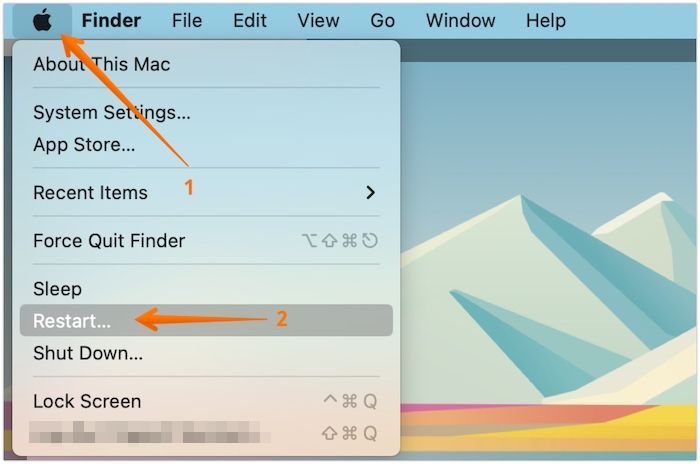
Step 3. If a pop-up appears, select "Restart" again. The system will shut down in a few seconds.
Step 4. The Apple logo appears on the screen, indicating that the device is turning on. This is a normal part of the boot process.
Fix 2. How to Restart with Only Keyboard
You can also use the keyboard to restart the device. Check out the steps listed below –
Step 1. Press the "power" - "command", and control keys and hold them. Press the "power" - "command", and control keys and hold them.
Step 2. Hold the keys until the screen turns black and the device restarts. Then, log in after the rebooting is done.
- Notice:
- If a force restart doesn't resolve the issue, try rebooting into Diagnostics Mode to determine if the problem is hardware-related. If not, contact Apple support for further assistance.
Fix 3. How to Restart from the Terminal
You can restart your Mac from the command line if you have the administrator account. To do this, open Terminal on your Mac, and then type in the following command: `sudo shutdown -r now`. This will restart your Mac. You can also use `sudo shutdown -r +1` to restart it after 1 minute, or `sudo shutdown -r +10` to restart it after 10 minutes, and so on.
Step 1. To open the Terminal app, click on Applications, then Utilities Folder.
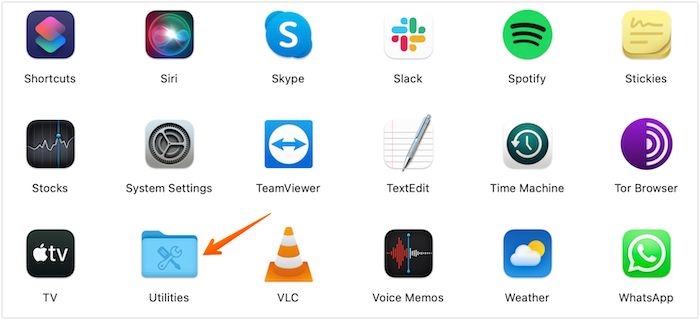
Step 2. Launch the Terminal app, type - shutdown -r and press enter to restart your computer.
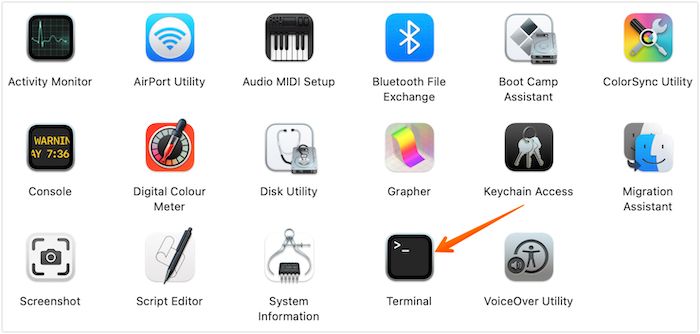
Step 3. To reset a device, press the Enter button, enter the password, and press the Enter button again. This will restart the device immediately.
Fix 4. How to Restart a MacBook Air to Factory Settings
To reset the MacBook Air to factory settings, use the "Erase All Content and Settings" feature, which will wipe out data from the system and restore the device to its original state.
Take a look at the steps –
Step 1. To reset your Mac, go to the Apple menu, click "System Settings", select "General", and choose "Transfer or Reset".
Step 2. To reset the browser, click on "Erase All Content and Settings", enter the admin credentials, and then click "OK".
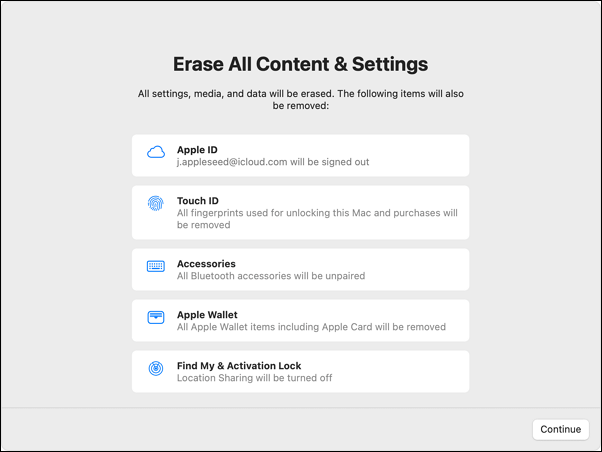
Step 3. You will be prompted to back up data using Time Machine Backup; select "Continue" if you wish to proceed without the backup.
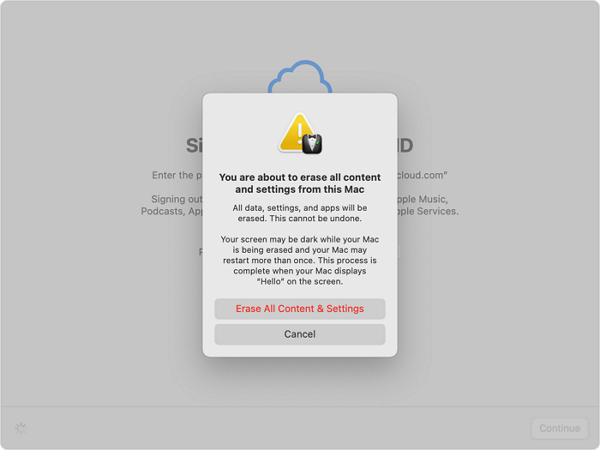
Step 4. Confirm that you want to erase all settings, media, and data, click "Continue", and the device will restart with a progress bar or black screen, allowing you to click Restart to complete the process.
Note: The steps are applicable for macOS Ventura. Keep in mind that the steps may vary for other models.
How to Recover Lost Data While Mac Is Frozen
MacBook Air users often experience black screen issues due to errors, forcing them to restart the system. This sudden freeze can cause panic and anxiety, leaving users wondering what's going on.
The first thing that crosses your mind when you lose valuable data is the loss itself, which can induce a state of panic and frenzy. To recover deleted files on Mac, a specialized data recovery tool is the only solution, and Deep Data Recovery is a suitable choice.
- The tool is designed to assist users in recovering data lost due to various situations, including file system malfunction, accidental file deletion, crashes, virus attacks, hardware damage, and more.
- The data recovery program is user-friendly, making it accessible to both beginners and experts who can use it efficiently.
- This software helps restore various types of data, including photos, emails, documents, and videos, making it useful for users who need to recover lost or corrupted files.
- You can restore your Mac using a variety of devices, including USB drives, cameras, memory cards, hard disk drives (HDD), solid state drives (SDD), and fusion drives.
- The software allows users to recover deleted data and send it to various cloud storage options, including OneDrive, Dropbox, Google Drive, and other hard drives.
Try out the Deep Data Recovery for Mac in three simple steps to rescue your data today.
Step 1. Select the drive to be scanned
In the main Deep Data Recovery window, select the drive from which you want to recover lost files and click "Search for lost files".
Note: Before attempting data recovery, it's recommended to create a backup of your Mac by clicking "Disk Backup" from the left sidebar to safeguard against further data loss. Once the backup is complete, the software can recover data from the backup, allowing your computer to write new data again.

Step 2. Select your lost data/files
Deep Data Recovery for Mac will immediately scan your selected disk volume and display the scanning results on the left pane, allowing you to sort the results to find specific files if needed.

Step 3. Recover lost/deleted data
Once you have found the desired files, preview them and then click "Recover" to start the recovery process of your deleted or lost Mac files.

Why does the MacBook Repeatedly Freeze?
Your MacBook may freeze due to various reasons, including issues with the NVRAM or PRAM, which store essential settings, or a lack of space on the startup disk, which can cause system crashes and freezing.
A MacBook that freezes repeatedly can be caused by running multiple applications simultaneously, as well as other factors such as malware, poorly coded software, outdated drivers, and incompatible apps with the system.
Final Words
If your MacBook is freezing frequently, you can try restarting it using one of the following methods: pressing the power button, using the Apple menu, or holding down the Command + Option + Esc keys. It's a good idea to back up your important data before restarting, as there's a small chance of data loss. However, in most cases, restarting your MacBook will resolve the freezing issue without any data loss.
If you're unfortunate enough to experience data loss despite taking all necessary safety precautions, using a professional yet user-friendly data recovery tool is crucial. A reliable option is Deep Data Recovery for Mac, which efficiently restores various data types in just a few minutes, making it a great choice to get your data back on track.
How to Restart A MacBook Air FAQs
Restarting a MacBook or MacBook Air is a straightforward process. To do so, click the Apple menu and select Restart, or press the Power button located on the top right corner of the keyboard. Alternatively, you can also press Command + Option + Power buttons simultaneously.
1. How do you restart a MacBook Air with the keyboard?
To restart your MacBook Air using the keyboard, press and hold the Control, Command, and Power buttons at the same time. This will initiate the shutdown process and then restart the device.
2. How do I completely restart my Mac?
To completely restart your Mac, you can use Erase Assistant to erase all data and then restart or reinstall a fresh copy of the macOS.
3. How do I restart my MacBook Air when it is not responding?
Press the Power button to restart the MacBook Air when it's not responding, and hold it until the system shuts down. Wait a few seconds, then press the power button again to turn it back on.
4. How to prevent my MacBook from freezing future?
To prevent your MacBook from freezing, consider updating the device and its apps, repairing the boot disk, and scanning the system for malware. You may also want to try using a different web browser, and uninstalling unused apps to free up space and resources. These simple steps can help resolve freezing issues and keep your MacBook running smoothly.
Related Articles
- Fix Windows 10 Stuck on Loading Screen Error
- How to Fix Reset This PC Not Working on Windows 10/8/7
- [Solved] Windows 10 Fails to Shut Down
- Acronis Clone Disk Wizard Stuck During Cloning Process - How to Fix
- How to Cancel a Format in Progress If Windows Won't Cancel Format
If you're trying to force stop the process of formatting a hard disk or external USB drive, but Windows won't cancel the format, read this post for data recovery solutions. - How to Change Wallpaper on Windows 10
Learn how to change desktop wallpaper on Windows 10 using Settings, right-click shortcuts, and themes. Also discover the best sites to download HD wallpapers for your PC.
Products
Articles & Tutorials
- Data Recovery
- Data Backup
- File Recovery
- File Backup
- System Backup and Restore
- Disk and Partition Clone
- Technical articles
- Mobile articles
- Disk Master Help
- Windows Data Recovery Tutorials
- Windows Secure Delete Tutorials
- Windows Partition Management Tutorials
- Windows File Backup and Restore Tutorials
- Windows System Backup and Restore Tutorials
- Windows Disk Backup and Restore Tutorials
- Windows Clone Tutorials