How to Fix Mac Stuck on Loading Screen [6 Straightforward Methods]
Why My Mac Stuck on Loading Screen
If your MacBook Air or Pro gets stuck on the loading screen, try these 6 solutions to restore a frozen Mac. If data is lost while fixing this error, you can also recover it using these steps.
| Workable Solutions | Step-by-step Troubleshooting |
|---|---|
| Fix 1. Fix Mac Stuck on Loading Screen in Safe Mode | Keep holding the Shift + Power button. Those keys need to be pressed until your MacBook...Full steps |
| Fix 2. Reset SMC to Fix Mac Stuck on Loading Screen | Shut down your Mac, mainly by hitting the power button. Press the Shift + Control + Option...Full steps |
| Fix 3. Reset NVRAM and PRAM to Troubleshoot Mac Stuck Issue | Hold down the Command + Option + P + R keys to reset NVRAM/PRAM. NVRAM/PRAM will be reset...Full steps |
| Fix 4. Disconnect External Devices and Reboot Your Mac | Keep pressing the power button on Mac for a few seconds to turn the Mac off. Detach all the...Full steps |
| More Solutions | You need to boot Mac into Disk Utility. Choose the Mac startup disk in the Disc Utility box and...Full steps |
When a MacBook performs the latest macOS update or takes a startup, a progress bar and an Apple logo appear on the screen. A complete startup typically takes 30 seconds, but the progress bar may get stuck for longer periods during the macOS installation process.
If you've waited long enough, but the Mac logo or progress bar remains stuck on the screen, it's known as a "Mac stuck on loading screen" issue. This problem can be caused by several factors, including issues with the operating system, a problem with the startup disk, or a software conflict.
| 💽Impaired hard drive | In this situation, a hard disk may be damaged and have faulty sectors, making files on those sectors inaccessible, leading back to the main issue. |
| ❌Corrupted OS | This error occurs when the operating system (OS) is unable to locate certain files that have disappeared from the hard drive, preventing it from completing the verification process and starting. |
| 😢Ineffective system upgrade | Occasionally, a Mac system fails to upgrade all the drivers and software, leading to issues.MacBook Air frozen. |
| 🛠️Damaged hardware | This problem may occur due to faulty hardware, with peripherals being the most likely culprits. A malfunctioning peripheral can cause the OS to malfunction, preventing further damage. |
| 🚫RAM module collapse | Failing RAM (Random Access Memory) If one or both RAM modules are faulty, they must be replaced or repaired. If the issue persists after replacing or repairing the RAM, it may be a hardware problem with the motherboard. In this case, the motherboard may need to be replaced. |
If your Mac is stuck on the loading screen, don't worry, there are several ways to fix this issue. You can try restarting your Mac in safe mode, booting from a different startup disk, or using the built-in Disk Utility to repair your startup disk. If none of these methods work, you can try resetting the System Management Controller (SMC) or the Parameter RAM (PRAM). If you're still experiencing issues, you may need to reinstall macOS or seek further assistance from an Apple support representative.
Fix 1. Fix Mac Stuck on Loading Screen in Safe Mode
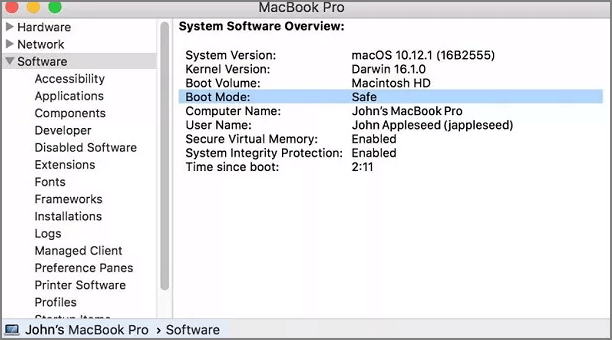
You can boot your Mac in Safe Mode to fix a stuck loading screen error, which may be caused by corrupted malware or software. In Safe Mode, only the major functions operate, helping you identify the culprit. To boot your MacBook in Mac Safe Mode, follow these steps:
Step 1. Keep holding the Shift + Power button.
Step 2. Press the power button on your MacBook until the loading screen appears. This may take a few seconds.
Step 3. There you may detect the Safe Mode.
Step 4. Make sure it is chosen, and then allow your Mac to run.
Your PC will now start in a secure environment, which should resolve the issue with Macs freezing at the loading screen.
Fix 2. Reset SMC to Fix Mac Stuck on Loading Screen
To reset the SMC on a MacBook with a T2 chip, follow these steps:
Step 1. Shut down your Mac, mainly by hitting the power button.
Step 2. Press the Shift + Control + Option keys together.
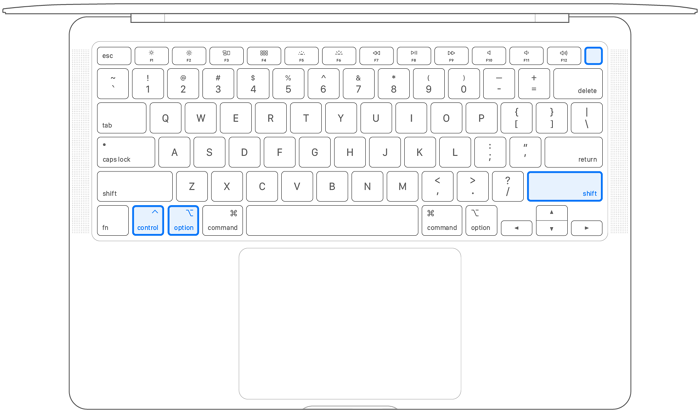
Step 3. Press and hold the power button on your Mac for 7 seconds while keeping the Command (⌘) and Option (⌥) keys pressed. This will initiate a shutdown of the Mac.
Step 4. Press the power button, hold it for a few seconds, then press and hold the power button again. Release all buttons and press the power button once more to restart the Mac.
Fix 3. Reset NVRAM and PRAM to Troubleshoot Mac Stuck Issue
NVRAM/PRAM is a non-If your Mac is stuck and the progress bar is stuck at 100%, you can try resetting NVRAM and PRAM to resolve the issue. This can be done by restarting your Mac and immediately holding down the Command + Option + P + R keys, which will preserve major details such as disk selection and kernel panic in volatile memory. If the progress bar is still stuck, resetting NVRAM and PRAM may be necessary, and following the steps below can help you do so.
Step 1. Hold down the Command + Option + P + R keys to reset NVRAM/PRAM.

Step 2. Resetting the NVRAM/PRAM on a Mac stuck on the loading screen can resolve the issue quickly, as it will clear any corrupted data and restore the system to its default settings.
You can check a more detailed tutorial on how to reset NVRAM here:
To reset NVRAM/PRAM on your MacBook Pro/Air, simply shut down your device, locate the power button on the right side of the laptop (MacBook Air) or the top right side (MacBook Pro), and press the power button while holding down the Command (⌘) + Option (⌥) + P + R keys. Keep holding the keys for 20 seconds to ensure the NVRAM is completely reset.
NVRAM reset is a simple troubleshooting method that can resolve various Mac issues by clearing the computer's non-volatile random-access memory. This process can resolve problems such as a frozen cursor, login issues, and display settings not saving. To perform an NVRAM reset, shut down your MacBook, locate the power button, and press the power button while holding down the Command (⌘) + Option (⌥) + P + R keys. Continue holding the keys for 20 seconds, then release them.
Fix 4. Disconnect External Devices and Reboot Your Mac
If your MacBook Pro or another Mac is stuck on the loading screen, the quickest fix is often to simply restart it. Try disconnecting any external devices and rebooting - this is a hassle-free and often effective solution. Flawed peripherals or external devices can be the culprit behind this issue, so disconnecting them is a good first step. By following these steps, you may be able to resolve the problem and get your Mac up and running again.
Step 1. To turn off your Mac, press and hold the power button for about 10 seconds. This will shut down your computer.
Step 2. Detach all the peripheral devices from your MacBook.
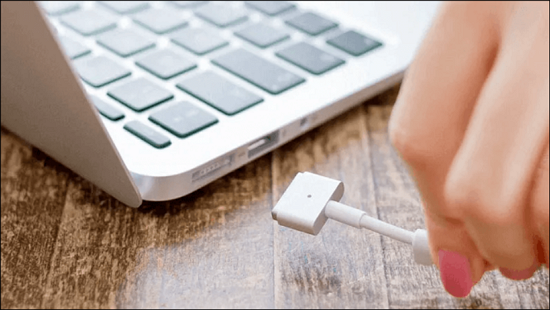
Step 3. To reboot a Mac, press the power button on the computer for a few seconds until it turns off, then press the power button again to turn it back on. This will restart the computer and may resolve any issues you're experiencing.
Fix 5. Repair Startup Disk in Disk Utility to Fix Boot Issue
If your Mac is stuck on the loading screen, a corrupted boot disk might be the culprit. Fortunately, you can repair the disk using the built-in Disk Utility First Aid option on your MacBook. To do this, go through the steps below: the steps below.
Step 1. You need to boot Mac into Disk Utility.
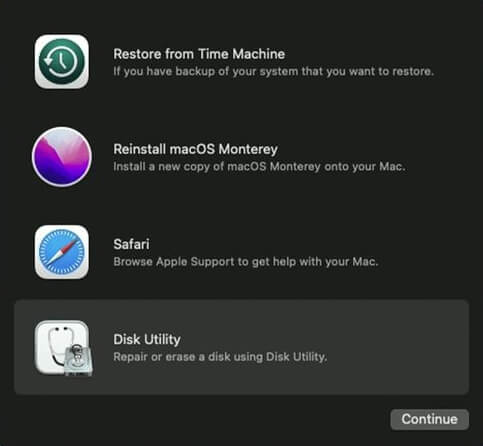
Step 2. Choose the Mac startup disk in the Disc Utility box and press First Aid to run a diagnostic and repair any issues with the startup disk.
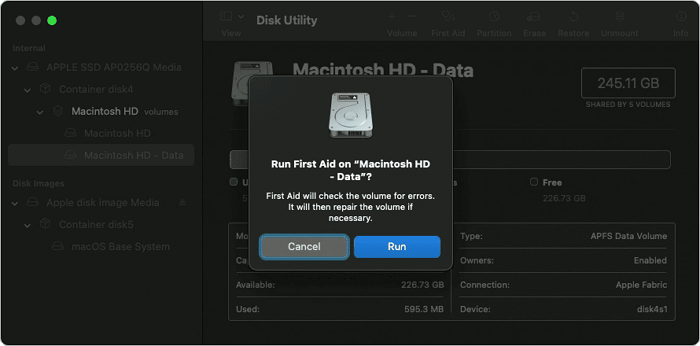
Step 3. Watch for the disc to be checked and repaired.
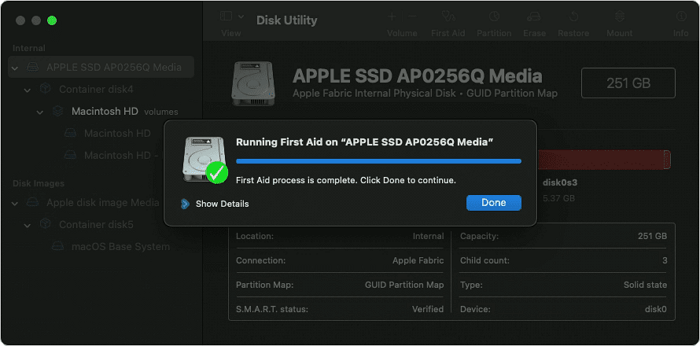
- Notice:
- If First Aid effectively locates and fixes the issues, you can reboot your Mac quickly and without a slow start. This is because Disc Utility helps speed up Mac boot-up, preventing your Mac desktop or MacBook from freezing on the startup screen.
Fix 6. Reinstall macOS in Recovery Mode to Troubleshoot Mac
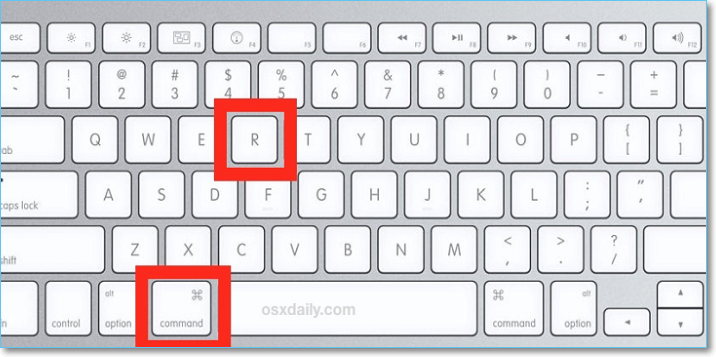
The Mac stuck on the loading screen issue may be caused by a malfunctioning macOS. To troubleshoot, you can try reinstalling the operating system in Recovery mode, which may resolve the issue if the current version is outdated or faulty. If other solutions don't work, reinstalling macOS in Recovery mode can be a helpful step to resolve the problem. To do this, follow the steps below.
Step 1. This is not a valid command. The Command + R key is used to restart the Mac, not to perform any other action.
Step 2. Your MacBook screen will demonstrate the Utility options.
Step 3. Opt for the "Reinstall macOS" option.
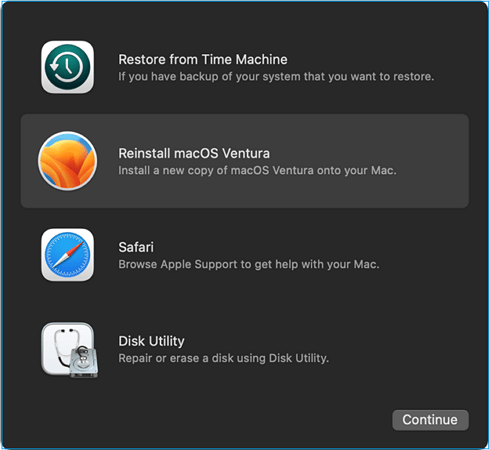
Step 4. The installation process for the new software or operating system is complete. Reboot the Mac to see if the issue is resolved.
Does Reinstalling macOS in Recovery Mode Delete Everything on Mac
macOS Recovery is a feature that allows you to reinstall the Mac operating system on your built-in drive or an external drive with ease.
How to Recover Data with Software When Mac Cannot Boot
A Mac data recovery program from a trusted company can restore a large amount of data in just three simple steps, and also recover deleted files from the Trash.
Deep Data Recovery for Mac helps in recovering information from various Mac-based devices, including memory cards, USB drives, cameras, and storage drives, even without a Time Machine backup, with a high success rate.
Losing data unintentionally without a backup due to an unforeseen disaster, such as hardware failure, virus attack, Mac software update, unanticipated shutdown, or system crash, can be frustrating. Fortunately, this Mac file recovery software can help retrieve lost data, including photos, videos, audio files, and backups.
The recovery software has various features such as file filter, data protection, scan mode, file preview, bootable media, and recovery to Cloud, among others. For detailed instructions on how to use the software, please refer to the tutorial below.
Step 1. To recover data from an unbootable Mac, install and run Deep Data Recovery for Mac on another Mac computer, and select the option "Unbootable Mac > Start".
Step 2. To create a bootable disc, select a prepared USB drive, then click "Next" to start the process.
- Warning
- The creator will prompt to erase the drive to reallocate the space, then write bootable files to it, so back up all USB files before processing "Eraser".
Step 3. The program creates a 2GB space on the USB to save boot files, leaving the remaining space for storage.
Step 4. Once the process completes, boot the corrupted Mac from a bootable disc and follow the guide to start the recovery process. It's recommended to restore the data to an external hard drive.
Step 5. After booting the Mac, launch Deep Data Recovery for Mac. Select the disk location, such as an internal HDD/SSD or a removable storage device, where you lost data and files. The recovery tool will then automatically scan for lost files.
Note: Before attempting data recovery, create a backup of your Mac to prevent further data loss. Once backed up, the software can recover data from the Mac backup, allowing your computer to write new data again.

Conclusion
To avoid data loss, check if you have a backup of your files on the Mac that freezes during startup. If you have a backup, you can restore your files from the backup. If you don't have a backup, you can try to recover your files using data recovery software or by taking your Mac to an Apple Store or authorized service provider.
If your Mac is stuck at the loading stage, Qiling Data Recovery for Mac can help recover lost data. If it continues to hang during startup, try the individual fixes mentioned.
Mac Stuck on Loading Screen FAQs
Go through the below-mentioned FAQs to get a better understanding of the topic:
1. How to Fix Mac that won't restart after the update?
If your Mac won't restart after an update, press and hold the Control-Command-Power button until it turns off. Wait a few seconds, then press the power button again to restart it. Alternatively, you can force it to shut down by pushing the power button, waiting for it to finish shutting down, and then hitting it again to reboot.
2. Why is my Mac stuck on the loading screen?
If your Mac is stuck on the login screen due to file system degradation or disk issues, you can use the Disk Utility First Aid application to scan for faults and fix them.
3. How do I speed up Mac booting?
To free up storage on your Mac and accelerate booting, go to System Settings > General > Storage, where you can turn on options to empty the recycle bin, view which apps use space, and directly manage your data. This allows you to reclaim space and optimize your Mac's performance.
4. Can I recover data from a frozen Mac?
If your Mac won't boot or remains frozen, the best option for retrieving your files is to use Deep Data Recovery for Mac. However, other methods are also available, including using a Time Machine backup, putting your Mac in macOS Target Disc Mode, or utilizing APFS snapshots, which can also help recover your files.
Related Articles
- How to Solve OneDrive Sync Pending Error in Every Possible Way
- C Drive VS D Drive: What Are the Main Differences?
- Fix: Blue Yeti Not Recognized on Windows 10/11 [Step by Step]
- How to Run First Aid from Recovery Mac | Detailed Tutorial for macOS
- Show Windows Credentials Password
Do you know that Windows stores your passwords to see them easily when you forget any password. If not, our article explains methods to show Windows credentials password using two techniques. - How to Fix Windows Startup Repair Infinite Loop
7 fixes for Windows startup repair infinite loop in Windows 7, 8, 8.1, and 10. Fix boot loops with Safe Mode, CHKDSK, Bootrec, System Restore, and more.
Products
Articles & Tutorials
- Data Recovery
- Data Backup
- File Recovery
- File Backup
- System Backup and Restore
- Disk and Partition Clone
- Technical articles
- Mobile articles
- Disk Master Help
- Windows Data Recovery Tutorials
- Windows Secure Delete Tutorials
- Windows Partition Management Tutorials
- Windows File Backup and Restore Tutorials
- Windows System Backup and Restore Tutorials
- Windows Disk Backup and Restore Tutorials
- Windows Clone Tutorials