How to Fix Raw SD Card Won't Format Error [3 Efficient Solutions]
Many users are frustrated when their Raw SD card won't format, but the solution is actually quite straightforward. Those who haven't encountered this issue before or are unfamiliar with it may feel lost, but with a little guidance, it's easy to resolve.
If you're experiencing frustration with a particular issue, don't worry - we're here to help! We've got solutions to alleviate your problems and get you back on track. Keep reading to learn more and find the answers you're looking for!
Use Qiling Disk Master to Fix "Raw SD Card Won't Format" Error - Easy
If your SD card shows up as RAW and won't format to a compatible file system like NTFS, FAT32, or exFAT, there's no need to panic.
Qiling Disk Master is a tool that allows you to configure and modify HDDs, SSDs, and SD cards. If your Raw SD card won't format, you can use Qiling Disk Master's "format raw drive" feature to fix the issue quickly and easily with just a few clicks.
Formatting your drive from RAW to a file system like NTFS or HFS can be done quickly, taking only a couple of seconds.
Step 1. Launch Qiling Disk Master, right-click the partition on your external hard drive/USB/SD card which you want to format and choose the "Format" option.

Step 2. Assign a new partition label, file system (NTFS, FAT32, EXT2, EXT3, EXT4, exFAT), and cluster size to the selected partition.

Step 4. To format your external hard drive/USB/SD card, click the "Proceed" button. This will erase all data on the device and prepare it for new data.
Step 3. In the Warning window, click "Yes" to continue.
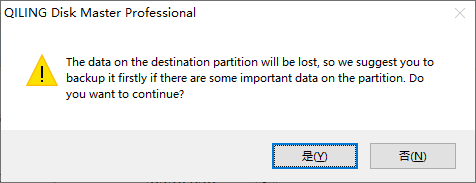
This tool can be used to create, delete, merge, extend, and wipe partitions on internal or external drives, as well as configure or modify existing partitions.
Here are some other main features of Qiling Disk Master:
- Convert file systems
- Convert MBR to GPT
- Set a partition as active
- Check for partition errors
- Copy the OS to another HDD, SSD, or USB drive
- Convert logical partition to primary and vice versa
To fix every single problem you have on disk partition, download Qiling Disk Master right now.
Use Disk Management to Fix "Raw SD Card Won't Format" Error - Medium
Unlike Qiling Disk Master, using Windows Disk Management to fix the "Raw SD Card Won't Format" error involves a lot of steps.
Let me show you step-by-step what to do:
Step 1. Click on the "Start" button and search for "Disk Management."
Step 2. Open "Disk Management" from the results.
Step 3. Select the SD card and then right-click on it.
Step 4. Click on "Format."
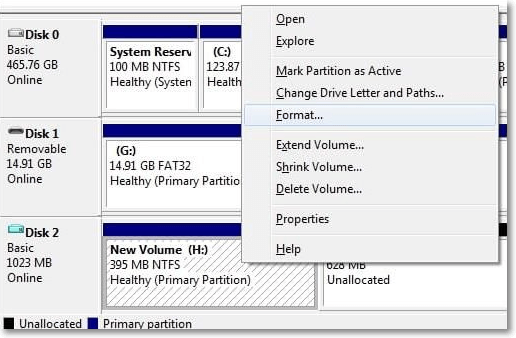
Step 5. In the "Volume Label" give the SD card a name.
Step 6. To set the file system for your SD card, click on the "File System" drop-down in the menu and select the desired file system from the options provided.
Step 7. Select "Perform a quick format" and click on "OK."
Step 8. A confirmation box will pop up; click on "OK."
Now you can format the drive from raw to the selected file system. You can format the drive by selecting the drive in the left pane, then selecting the "format" option from the top menu bar.
Use CMD to Fix "Raw SD Card Won't Format" Error - Difficult
To convert the SD card from RAW to a usable format, you can use the command prompt. First, open the command prompt as an administrator. Then, navigate to the drive where the SD card is mounted.
To fix the "Raw SD Card Won't Format" error using the command prompt, open the command prompt as an administrator, navigate to the drive letter of the SD card, and run the command `chkdsk /r` followed by the drive letter. This will scan the SD card for errors and attempt to repair them.
Step 1. Click on the "Windows" icon in the taskbar.
Step 2. Type and search "command prompt."
Step 3. Click on "Run as administrator."
Step 4. In the Command Prompt, type and enter "diskpart" and then type and enter the following commands: list disk, select disk # (where # is the number of the disk you want to clean), clean, and exit. However, please note that the clean command will delete all data on the selected disk, so be cautious when using it.
- list disk
- select disk 2 (replace 2 with the correct disk number)
- list volume
- select volume 10 (replace 10 with the correct volume number)
- format fs=ntfs quick
- exit
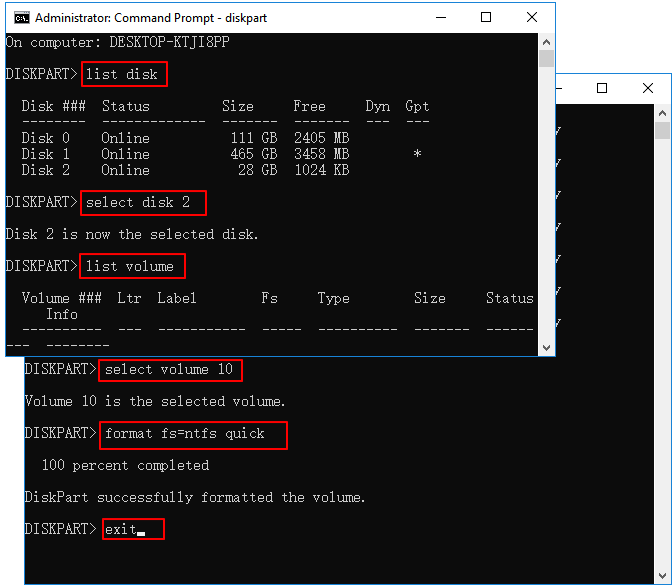
You can click on the links to learn more about Diskpart commands, which are used to manage and manipulate disk partitions on a computer. These commands allow you to create, delete, and modify partitions, as well as perform other disk-related tasks.
Conclusion
If your SD card is showing itself as Raw and isn't formatting to a different file system, it may be due to an incorrect initial formatting command or the card being previously designated as Raw.
You can easily change the file system of your SD card using Qiling Disk Master, a user-friendly tool that makes the process simple with just a few clicks. Alternatively, you can also convert the file system using Disk Management or CMD, but be aware that these methods are more complex and may be more challenging to navigate.
Raw SD Card Won't Format FAQs
If you're experiencing issues formatting a raw SD card, there are a few potential reasons. Firstly, the card may not be recognized by your computer or device, which can prevent it from being formatted. Secondly, the card's file system may be corrupted, making it impossible to format.
1. How do I force a raw SD card to format?
Here's how to do that:
- To access Disk Management, click on the "Start" button located at the bottom left corner of the screen, then type "Disk Management" in the search bar and select the "Disk Management" app from the search results.
- Select the raw SD card, right click on it, and click on "Format".
- Select the file system you want to format it to and click on "OK."
2. How do I fix a corrupted raw SD card?
You can fix a corrupted raw SD card by following the above-mentioned solutions, or use Qiling Disk Master to fix it in a few clicks.
3. Why can't I format my SD card on my Android?
Here are the following reasons for that:
- You'll need to reformat the SD card using the camera's file system, which is likely FAT32. To do this, you'll need to connect the camera to a computer and use the camera's software to reformat the SD card.
- If the SD card is no longer capable of writing data, it will fail to format.
Related Articles
- How to Factory Reset an Acer Laptop on Windows 10/8/7
- Mac Won't Boot or Start After macOS Big Sur/Catalina/Sierra Update
- [Solved!] Your Device Is Missing Important Security and Quality Fixes
- Fix 'Startup Repair cannot repair this computer automatically' in Windows 10/8/7/Vista
- Fix CS:GO "VAC Was Unable to Verify Your Game Session"
Struggling with the error: VAC was Unable to Verify Your Game Session? This guide has 5 best solutions to fix the issue within a few minutes. - [Detailed Guide] How to Fix Cyberpunk 2077 Saves Missing
Losing game progress is a total nightmare, but if your Cyberpunk 2077 save files disappear, there are steps you can take to prevent it from happening again. You can follow simplified ways to fix the issue and ensure your progress is safe.
Products
Articles & Tutorials
- Data Recovery
- Data Backup
- File Recovery
- File Backup
- System Backup and Restore
- Disk and Partition Clone
- Technical articles
- Mobile articles
- Disk Master Help
- Windows Data Recovery Tutorials
- Windows Secure Delete Tutorials
- Windows Partition Management Tutorials
- Windows File Backup and Restore Tutorials
- Windows System Backup and Restore Tutorials
- Windows Disk Backup and Restore Tutorials
- Windows Clone Tutorials