How to Unblock Websites on School Chromebook 2024
Introduction
Schools often block certain websites on school-issued devices, like Chromebooks, to maintain focus and productivity among students and teachers.
A Chromebook is a laptop or tablet that runs the Chrome OS operating system, designed to primarily use web applications and online services.
If you're a student or teacher who needs to access a blocked website on a school Chromebook, there are several solutions to unblock websites on your device.
Difference Between Chromebook and Windows Laptop
Chromebooks and traditional Windows laptops share similarities, but differ in their operating systems, processing power, and storage capacity. While Chromebooks run on Google's Chrome OS and are primarily designed for web-based applications, Windows laptops use the Windows operating system and can run a wide range of software programs. Chromebooks typically have lower processing power and storage capacity compared to Windows laptops, but are often more affordable and energy-efficient. Additionally, Chromebooks are designed to be used primarily online, while Windows laptops can function offline.
Chromebooks and Windows laptops have several key differences. For example, Chromebooks are primarily designed for web-based applications and have limited offline capabilities, whereas Windows laptops can run a wide range of desktop applications and have more flexibility in terms of offline use.
- Operating system: Chromebooks run on the Chrome OS and Windows laptops run on the Windows operating system.
- Storage and file management: Chromebooks rely on cloud storage and internet connectivity, whereas Windows laptops have local storage and can function without an internet connection.
- Compatibility with software: Windows laptops are more compatible with a wider range of software and applications, whereas Chromebooks are limited to web-based and Android apps.
- Security: Chromebooks and Windows laptops have built-in security features, but Chromebooks are considered more secure due to the limited scope of Chrome OS and automatic updates.
- Cost: Chromebooks are generally more affordable than Windows laptops.
- Performance: Windows laptops may offer more powerful hardware and faster performance, but Chromebooks are known for their long battery life and lightweight design, making them a great option for those who need a portable and efficient device.
- Customization: Windows laptops offer more customization options, such as installing software and changing system settings, compared to Chromebooks which have a more streamlined and simplified interface.
Why Do School Chromebooks Block Websites
School Chromebooks are often used by students and teachers to access the internet and online resources. However, to maintain focus and productivity, and protect students from inappropriate or harmful content, school administrators may choose to block certain websites on these devices.
Schools may block websites on Chromebooks due to various reasons, including the need to maintain a safe and focused learning environment, prevent access to potentially distracting or inappropriate content, and ensure compliance with educational standards and policies.
- Schools can prevent students from accessing inappropriate or offensive content by blocking certain websites. This helps protect students from harmful or inappropriate content online.
- Schools can help students and teachers stay focused and productive by blocking distracting websites on school devices, allowing them to use their devices for educational purposes only.
- Schools may block websites known to be used for cyberbullying or other online safety risks to protect students.
- Some schools may be required to block certain websites to comply with legal and ethical guidelines, such as the Children's Internet Protection Act (CIPA).
The decision to block websites on school Chromebooks is made to maintain a productive and safe learning environment for students and teachers.
How to Unblock Websites on School Chromebooks
Here are two options to unblock websites on a school Chromebook:
1. Use a VPN (Virtual Private Network):
A VPN (Virtual Private Network) is a tool that allows you to connect to the internet via a secure, encrypted connection, enabling you to bypass internet filters and access blocked websites on your school Chromebook. To build a VPN on a Chromebook, you can follow a series of steps to set it up and use it to access restricted content.
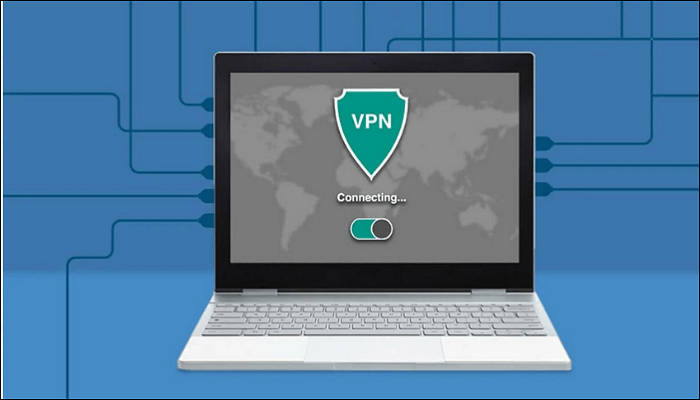
Step 1: To access the Google Cloud Console from a public network, download and install a VPN client from the Chrome Web Store. Choose a reputable and reliable VPN client to ensure secure access.
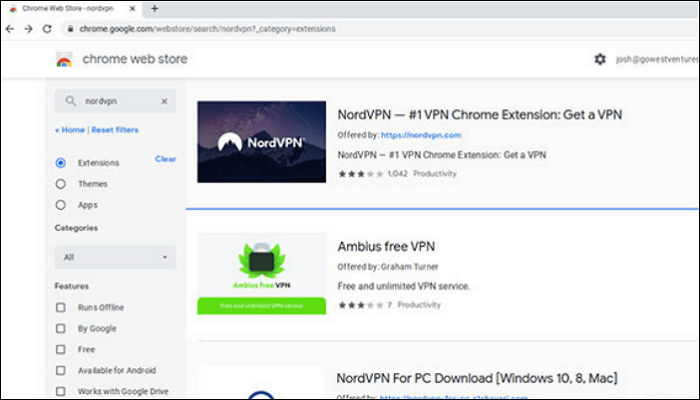
Step 2: To connect to the VPN, open the VPN client and log in with your account credentials.
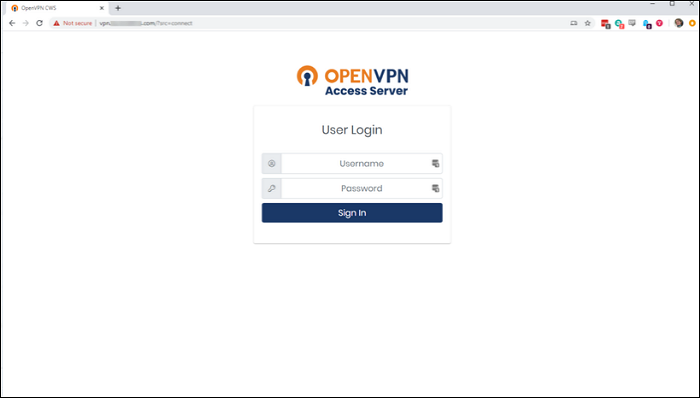
Step 3: Connect to a VPN server by selecting one from the list provided by the VPN client.

Step 4: Once connected to the VPN, you should be able to access the blocked website on your school Chromebook.
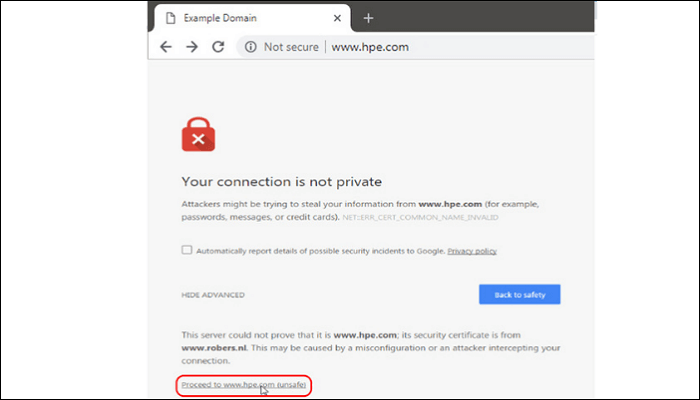
2. Use a proxy server:
Here is how to set up a proxy on a Chromebook:
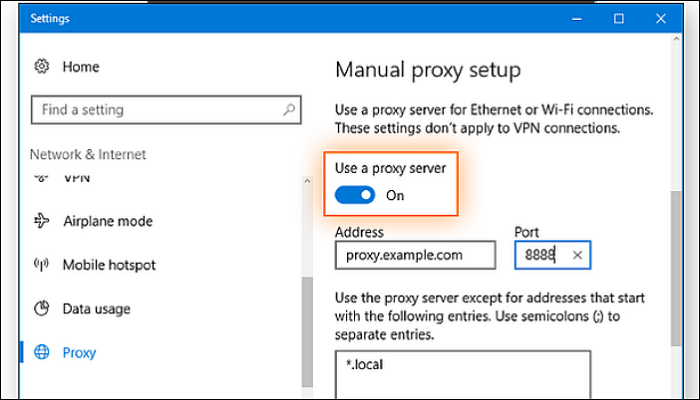
Step 1: Go to Settings > Network > Proxy, click on the dropdown menu next to "Mode" and select your desired option.
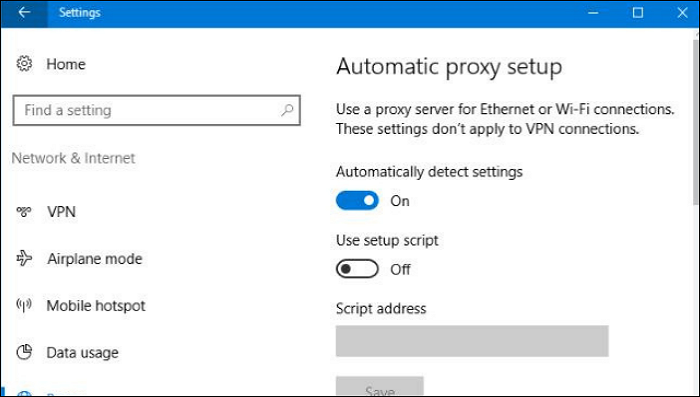
Step 2: Select the "Manual" option and enter the address and port number of the proxy server you want to use.
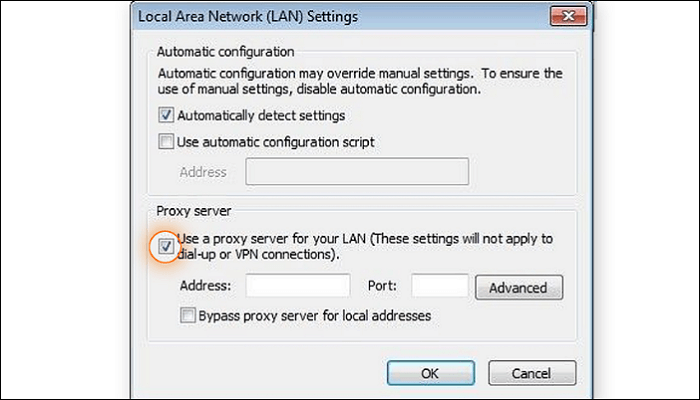
You can find lists of free proxy servers online.
Step 3: Save the changes and try accessing the blocked website again. The website should now be unblocked on your school Chromebook if the changes were successfully applied.

Schools often block websites to prevent students from accessing inappropriate content. To bypass these restrictions, you can try using a virtual private network (VPN) or a proxy server. A VPN encrypts your internet traffic and can help you access blocked websites, while a proxy server can mask your IP address and allow you to access blocked sites.
Conclusion
If you need to unblock websites on a school Chromebook, you can try using a VPN or proxy server to bypass internet filters and access blocked websites, but be aware that your school may have measures to prevent using these methods. If that doesn't work, you may need to try a different solution or consult your school's IT department.
Related Articles
- [FIXED] Could Not Initialize Graphics System on Windows 10 Computer
- What Is Wuauserv and How to Fix Wuauserv High CPU Usage? [Updated 2023]
This article introduces you to the Wuauserv or the Windows Update Service utility. If you are a user-facing high CPU usage due to these services, the article is a perfect overview of the fixes that can be used to resolve the problem. - What Should I Do with My Old SSD in 2023 [New Guide]
What should I do with my old SSD? If you get same questions, this article can help. It introduces four ways to help you reuse your old SSD. - Windows 10 Black Screen After Update [9 Methods]🔥
Windows 10 black screen after update error is one of the most common errors users face after updating their system. If you are also one of those, you should read this blog as we have discussed 9 methods to fix this error here. - [Detailed Info] The Elder Scrolls V: Skyrim Saves Location
This post will guide you on where to find The Elder Scrolls V: Skyrim saves location and provide tutorials to help you back up these important game saves with Qiling Disk Master software. Also, ways of deleting and transferring Skyrim saves are offered too. - What Is SoftThinks Agent Service and How to Fix Its High Disk and CPU Usage
SoftThinks Agent Service is one of the nagging issues in Dell computers, as it takes a lot of Disk and CPU usage. This article will tell you why exactly that happens and how you can stop this service from slowing down your computer.
Products
Articles & Tutorials
- Data Recovery
- Data Backup
- File Recovery
- File Backup
- System Backup and Restore
- Disk and Partition Clone
- Technical articles
- Mobile articles
- Disk Master Help
- Windows Data Recovery Tutorials
- Windows Secure Delete Tutorials
- Windows Partition Management Tutorials
- Windows File Backup and Restore Tutorials
- Windows System Backup and Restore Tutorials
- Windows Disk Backup and Restore Tutorials
- Windows Clone Tutorials