[Detailed Info] The Elder Scrolls V: Skyrim Saves Location
The Elite Scrolls V: Skyrim is a highly enjoyable and fascinating role-playing game with a vast and rich game world, allowing players to manipulate characters, defeat dragons, and enjoy the scenery while listening to the game's music.

The Elder Scrolls V: Skyrim, released in 2011, is available on Windows 7, PlayStation 3, and Xbox 360. Its 2016 and 2017 re-releases, including The Elder Scrolls V: Skyrim Special Edition and Skyrim VR, have made it more accessible. With a minimum of 100 hours required to fully experience the game, game saves become crucial for new players.
This post will guide you on finding the Skyrim save location, changing the save location, and deleting, transferring, and backing up your saves on PC to ensure a complete game experience.
Here are more posts about games offered for you.
How to Find Skyrim Save Location on Windows
The Elder Scrolls V: Skyrim or Skyrim Special Edition can be purchased on Steam and played on Windows 7/8.1/10, with the game file stored in the Steam folder and saves located under the C drive.
Now let's follow the simple steps below to locate the saves of Skyrim or Skyrim Special Edition on Windows.
Step 1. Open the Windows File Explorer.

Step 2. Navigate to Document>My Games
Step 3. To find your saved Skyrim game, click on the "Skyrim" or "Skyrim Special Edition" folder, which will then reveal the "Saves" folder inside.

To navigate to your Skyrim save location directly on Windows 7/8/10, you can simply enter the address in the File Explorer search box. This will allow you to access your save files quickly and easily.
How to Change Skyrim Saves Location
You can change the Skyrim saves location to another drive with more available space, such as D or E drive, to avoid running out of space on the C drive. This will help prevent the game from crashing due to insufficient storage.
Many players have tried to delete the game save and change the Skyrim saves location by overwriting the skyrim.ini file, but this method has proved unsuccessful. A more effective solution is to move the entire "My Documents" file to the desired location.
The specific steps are below.
Step 1. Open Windows File Explorer and hit the "Documents" folder
Step 2. Click the "Properties" option on the top menu
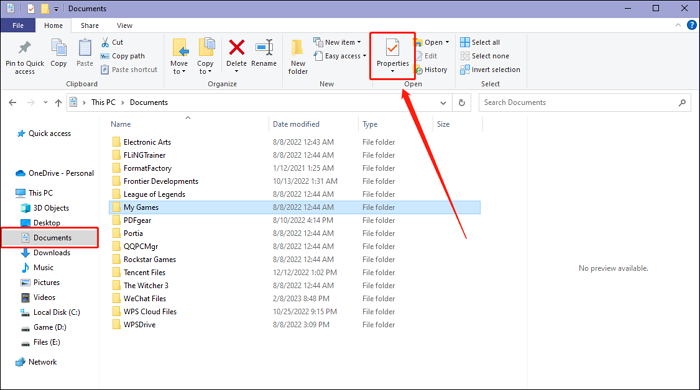
Step 3. To change the location of the Documents folder, select the "More" option in the Hit Location dropdown menu. Then, choose the new location where you want to store the Documents folder.
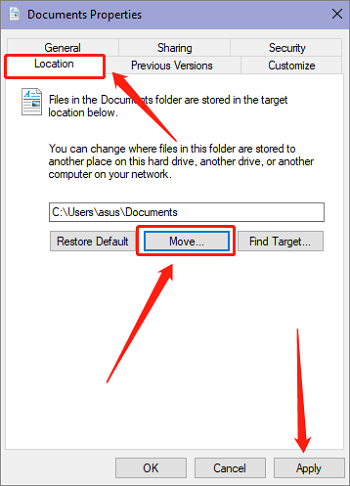
Step 4. Click Apply Now
How to Backup The Elder Scrolls V: Skyrim Saves
Skyrim save files are crucial, but their security is vulnerable to threats such as computer viruses and hardware failures, which can result in lost saves. To avoid these disasters, it's essential to back up Skyrim saves. However, adding mods to Skyrim also poses a risk of game crashes due to mod errors. To prevent these issues, a reliable backup solution is necessary, and Qiling Disk Master Pro can be a powerful helper in this regard.
Qiling Disk Master Pro provides gamers with stable data security by creating scheduled backups and automatically backing up game saves in incremental mode, ensuring the latest game data is always up-to-date.
When you need to delete or transfer game saves, you can also back them up to Qiling's free cloud space for easy retrieval at any time. This convenience also makes it easy to transfer saves between different devices.
To backup your Skyrim saves, follow these simple steps: First, launch the Steam client and navigate to your Library. Next, right-click on The Elder Scrolls V: Skyrim and select "Properties".
Step 2. To back up the game files, go to the "backup and recovery" section, then select "file backup" options, and choose the save folder where the game files are located.

Step 3. To set your own backup cycle with incremental backup type, click on the "Options" and then "Backup Scheme" buttons.
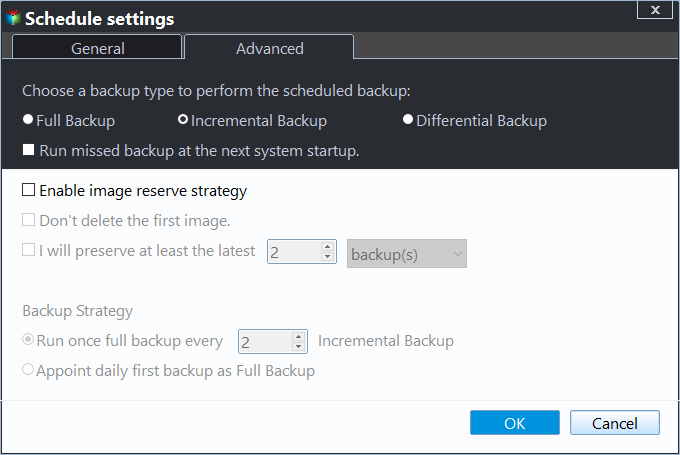
Step 4. To initiate the backup process, select a desired backup destination from options such as a local drive, Qiling free cloud, NAS, or Security Zone. Once the destination is chosen, click the "Proceed" button to start the backup job immediately.

Pro Tips: How to Delete or Transfer Skyrim Saves
How to Delete Skyrim Saves
Here are 2 methods for you to delete The Elder Scrolls V: Skyrim or Skyrim Special Edition Saves.
Method 1. Find the save location and delete the corresponding folder.
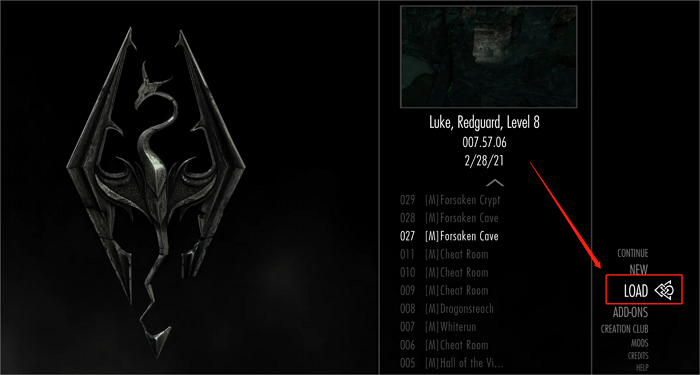
Method 2. To delete a save game in Skyrim, launch the game and select the "Load on" menu. From there, choose the save game you want to delete and press the "X" key. This will remove the selected save game from the game's memory.
- Tip
- If you enable Steam Cloud synchronization, you'll need to delete the corresponding backup in Steam Cloud to avoid having deleted saves reappear when you play the game again.
- To avoid losing game data, consider using a cloud backup service like Steam Cloud, but be aware that it's not foolproof and errors may occur, potentially leading to data loss. For more information on backing up Steam Cloud saves, you can read this article: How to Backup Steam Cloud Saves.
How to Transfer Skyrim Saves
To transfer Skyrim saves, follow these steps: 1) Save your Skyrim game on the current PC. 2) Install Skyrim Special Edition on the new PC or the PC where you want to move your saves. 3) Copy the Skyrim saves folder from the current PC to the new PC.
Step 1. Navigate to the Skyrim saves location and copy the save file you want to transfer to another hard drive or any cloud space.
Step 2. Move the saved file to the Skyrim game folder on another PC, or Skyrim Special Edition saves folder, and run the game to load the transferred save.
- Warning
- If you've installed mods to Skyrim, it's best to backup your saves folder before transferring saves to ensure a smooth process and avoid potential load failures.
Conclusion
We introduced the Skyrim saves location and provided detailed steps to help you find, delete, and transfer your game saves. Additionally, to ensure the safety of your Skyrim data, it's recommended to use Qiling Disk Master Pro to create a safeguard for your game files.
FAQs
1. Can you transfer Skyrim saves from a switch?
You can't transfer Skyrim saves from a Switch. Skyrim and Skyrim Special Edition don't support cross-platform save transfers.
2. Why are my Skyrim saves not loading?
The issue may be caused by insufficient memory on the disk where the game saves are stored, prompting the need to either delete some saves or change the Skyrim save location to another drive. This can be resolved by following the methods outlined in the provided post.
If your computer has enough space, but you still can't load saves normally, try closing the firewall or antivirus software, as they might be causing the issue.
Related Articles
- How to Increase Transfer Speed of External Hard Drive
- Computer Restarts When Playing Games | 10 Fixes🔥
- What Happens When You Format an SD Card? [2024 Ultimate Answer]
- eMMC VS HDD: Which Is Better & What's The Difference
- How to Install Google Drive for Desktop on PC ☁️
You can easily install Google Drive on your system, whether you're using Windows or Mac, and take advantage of its cloud-based storage space to store and share files. - Learn How to Install on ReFS Partition Today | Windows 11 Installation Made Simple
Have you ever thought about installing your Windows 11 on ReFS partition? This article is going to give you a full guide on how to install Windows 11 on ReFS partition with a full tutorial.
Products
Articles & Tutorials
- Data Recovery
- Data Backup
- File Recovery
- File Backup
- System Backup and Restore
- Disk and Partition Clone
- Technical articles
- Mobile articles
- Disk Master Help
- Windows Data Recovery Tutorials
- Windows Secure Delete Tutorials
- Windows Partition Management Tutorials
- Windows File Backup and Restore Tutorials
- Windows System Backup and Restore Tutorials
- Windows Disk Backup and Restore Tutorials
- Windows Clone Tutorials