How Do I Transfer Files from Google Drive to OneDrive [Ultimate Guide]
| Workable Solutions | Step-by-step Troubleshooting |
|---|---|
| Transfer from Google Drive to OneDrive |
|
| Transfer from PC to PC | Open Qiling Disk Master > choose "PC to PC" > connect two PCs > click "Connect"...Full steps |
In today's digital age, people often use cloud storage to save their data, taking advantage of the free storage space offered by various platforms. By signing up for multiple cloud services, individuals can accumulate more free storage and have alternative options to organize their personal and work data. This approach allows users to access and manage their files across different platforms, providing a convenient and flexible way to store and retrieve their digital information.
Transferring files from Google Drive to OneDrive can be a complex process, especially for those who have been using Google Drive for a long time. However, with the right approach, it can be a quick and effective solution. If you're looking to move your Google Drive files to OneDrive, we can help you find the best possible way to do so.
Simple! How to Transfer Files from OneDrive to Google Drive
Data recovery is no longer a challenge with Qiling, a reliable data recovery application that allows users to retrieve lost data with just a few clicks.
Can I Transfer Files from Google Drive to OneDrive
It's now easier to share files between cloud storage drives, and you can securely transfer data from Google Drive to OneDrive, which are both offered by well-established tech companies.
Both Google Drive and OneDrive offer cutting-edge features for storing and transferring data with ease. You can store your personal or business data in these drives, which also provide facilities to synchronize and protect your files. By using either platform, you can get the best benefits in terms of data storage and transfer.
- Sync files on both drives: Transferring files from Google Drive to OneDrive allows for seamless sharing across devices without needing to download them. This feature is particularly useful for OneDrive users who also use Google Drive, as they can share files with their Google Drive partners without having to switch accounts. Additionally, syncing files on both drives enables users to manage their personal and work files more efficiently.
- Office 365 and OneDrive sync: Transferring your work data to OneDrive is a good idea, as it's a more effective business collaboration platform than Google Drive. By moving your data from Google Drive to OneDrive, you can synchronize the features of OneDrive with Microsoft Office 365, enabling seamless collaboration with your team. This integration allows for effortless sharing of data and working together, making it a great way to boost productivity and teamwork.
How Do I Transfer Everything from Google Drive to OneDrive
To transfer your files from Google Drive to OneDrive, you can use one of four different methods. Each method is detailed in the guide, allowing you to choose the one that best suits your needs. By following these steps, you can successfully move your files from Google Drive to OneDrive.
Method 1.Manually Download Google Files and Upload them to OneDrive
To upload files from Google Drive to OneDrive, you need to download the files from Google Drive to your local hard drive, and then upload them to OneDrive.
Follow the detailed steps:
Step 1. Open the internet browser and log in to Google Drive.
Step 2. Once you log in, click on the "My Drive" option and select the files you want to download.
Step 3. Right-click on the selected files and choose the "Download" option.
Note: It will download all the selected files to your local drive.
Step 4. Now, open a New Tab in the same browser and log in to OneDrive.
Step 5. To create a new folder in OneDrive, click on the "Files" tab and then click on the "+ New" option next to the search bar to create a new folder.
Step 6. Open the folder, and select the "Upload" button.
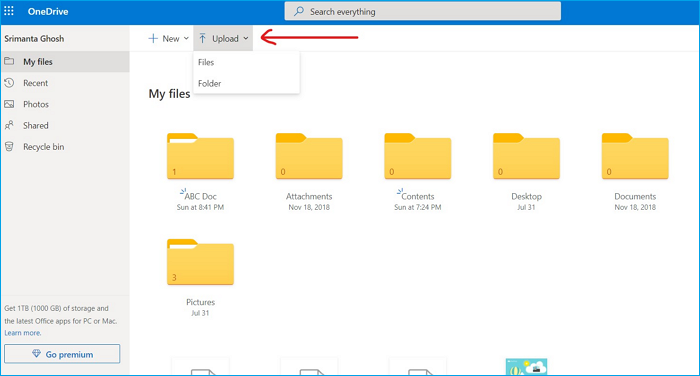
Step 7. To access the downloaded files from Google Drive, open the folder from your local storage device, select the desired files, and then click the "Open" button. This will allow you to view and interact with the downloaded files.
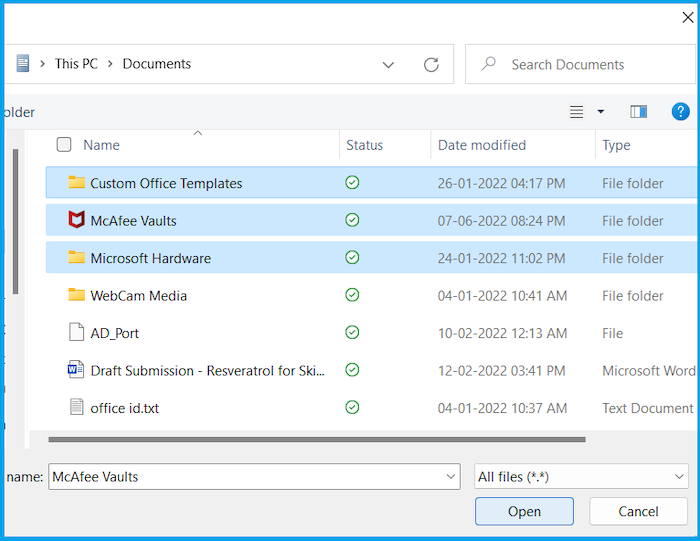
Note: You can choose multiple files by holding the Ctrl key.
Method 2.Use Google Takeout to Transfer Everything from Google Drive to OneDrive
Using Google Takeout is a simple way to sync Google Drive to OneDrive, allowing you to directly move files from Google cloud storage to OneDrive.
Step 1. To export data from Google Drive, open the Internet browser and log in to your Google Drive account. Then, go to the Google Takeout website, where you can select the types of data you want to export, such as Google Drive files, and choose the file format and delivery method.
Step 2. Click the "Deselect All" button, scroll down and check the box next to Drive, then select the "Next Step".
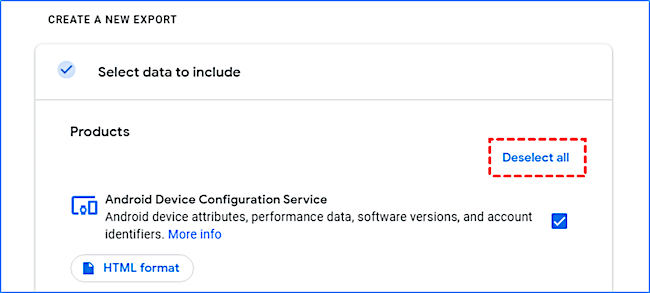
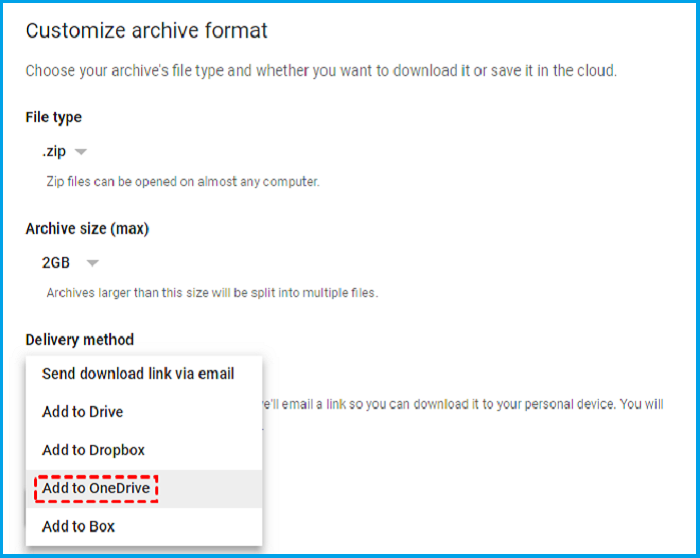
Step 3. Under the Delivery method, click "Add to OneDrive".
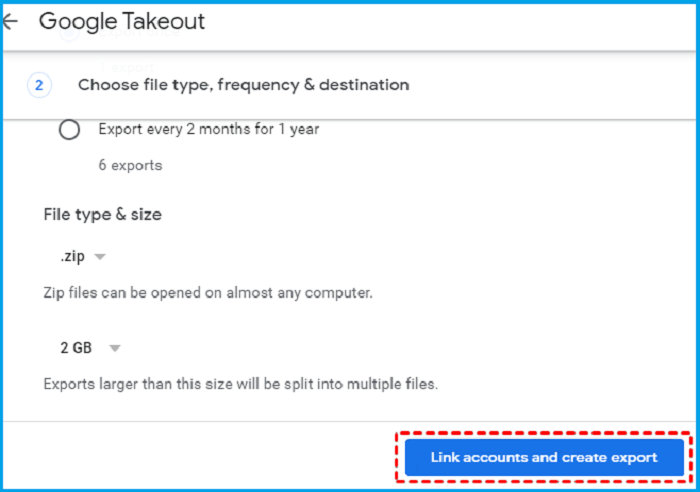
Step 4. Connect your OneDrive account by selecting the "Link account and create an export" option.
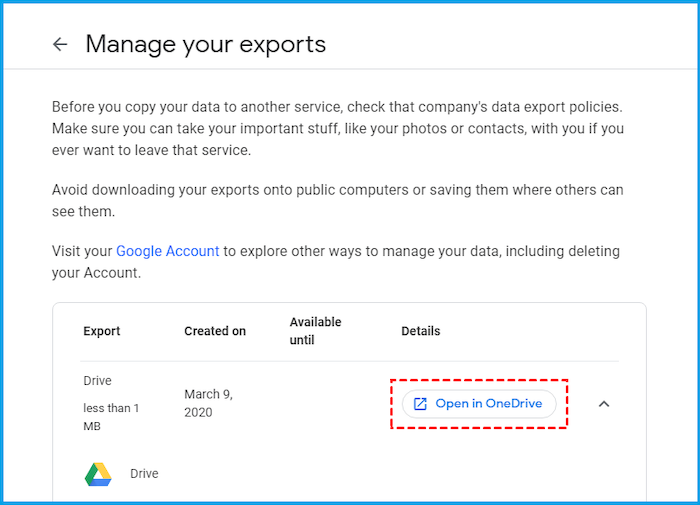
Step 5. To access your Google Drive and OneDrive accounts, follow the on-screen instructions, and you can later check your transferred files by clicking "Open in OneDrive".
Method 3.Use the Share Feature to Migrate Files from Google Drive to OneDrive
Google Drive's Share feature allows users to share files, but the process is time-consuming as files must be shared individually, one by one.
You can also create a new folder to save and transfer all the files at once.
Step 1. Open your Google Drive, then from the left menu, select the "Shared With me" folder.
Step 2. To share files or folders, select the desired item, copy it to a new folder, and repeat the process for each item you want to share.
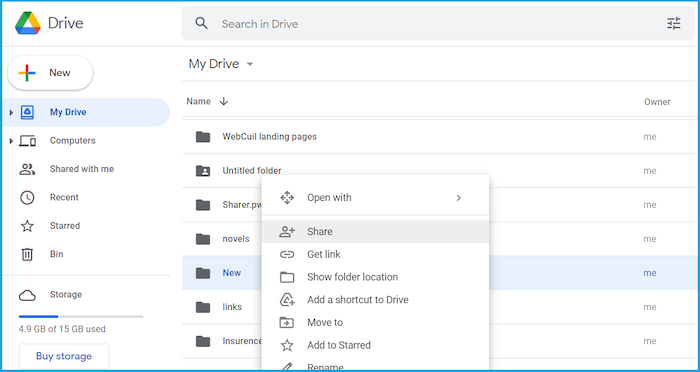
Step 3. To share a folder, select it and right-click on it, then choose the "Share" option from the menu.
Step 4. Add the email of your sharing partner and click on "Sharing Settings" and select Advanced. Change the permissions accordingly and click Send.
Method 4.Use Google Drive and OneDrive Desktop Apps to Move Files
To transfer personal data like pictures, music, and videos from Google Drive to OneDrive, you can use the apps. However, if you want to share Google Docs, Sheets, or Slides, you'll need to use a different method. Follow the steps to transfer your files using the apps.
Step 1. To install Google Drive and OneDrive apps on your computer, click on the given links to download and install them.
Note: The OneDrive application is built-in to Windows 10/11, allowing users to access and sync their files across devices.
Step 2. Sign in to your Google Drive and OneDrive accounts.
Step 3. Select files and folders from Google Drive, then right-click and click "copy" to copy them.
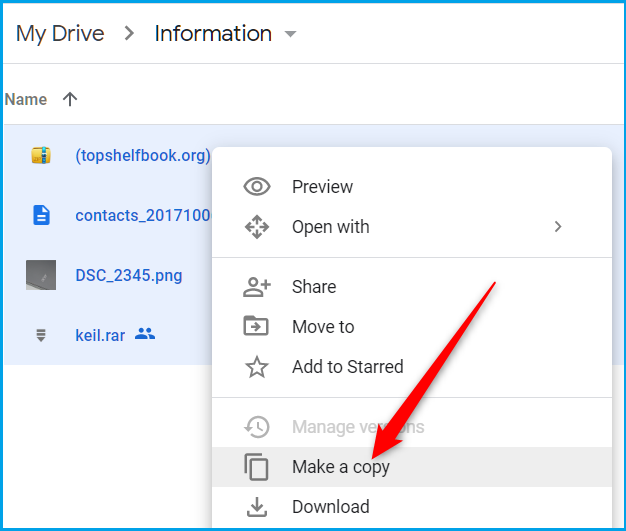
Step 4. Now, open OneDrive and paste the copied files.
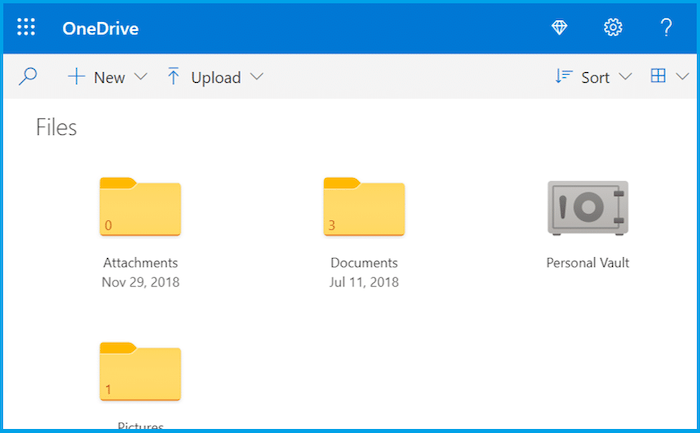
This method enables you to transfer copies of original files from Google Drive to OneDrive, taking less time than other methods, allowing you to share original files instead of cloud drive files.
Bonus Tip: How to Transfer Google Drive/One Drive Folder from PC to PC
Storing and transferring data through cloud drives is a popular trend, but these drives often come with limited free storage space. It's generally more practical to save a large amount of data on your computer. If you need to transfer data, you can do so by using a USB drive, external hard drive, or even burning it onto a CD/DVD. These methods allow you to physically move your data from one device to another, making it a reliable alternative to cloud storage.
Data migration from one PC to another can be a lengthy and time-consuming process, especially for those who are new to it, requiring multiple steps to be completed.
You can use a data migration tool to securely transfer all kinds of data instead of manually migrating it. To achieve the best results, choose the best data migration tool for the job. We recommend using the Qiling Disk Master data migration tool, which helps to quickly transfer your data, saving you time and effort.
This tool is a one-QILING Disk Master software offers a solution to migrate all your files automatically without losing a single file, with its latest version providing advanced and fastest options to transfer data. This tool allows you to transfer everything from audio to applications, making it a comprehensive solution for data migration. The steps to use Qiling Disk Master are listed below.
Step 1. Open Qiling Disk Master on both of your computers, then select the "File sync" option to proceed.

Step 2. Connect two PCs via the network by entering the password or verification code of the target PC, ensuring the correct transfer direction, and clicking "Connect" to proceed.
The verification code is located on the right side of the main screen of the "File sync" feature on the target computer.

Step 3. To transfer files, select "Files" and choose the specific files you want to transfer. You can also click the Edit icon to customize the storage path for the transferred data.

Step 4. Click "Proceed" to start transferring files from PC to PC. The size of the file will determine how long the transfer takes, so be patient and wait for it to complete.
Conclusion
To transfer files from Google Drive to OneDrive, you can use various methods such as using a cloud storage transfer tool, manually downloading and uploading files, or using a third-party service like Qiling Disk Master, which allows for quick and hassle-free transfer of files from PC to PC, including large and varied file types.
Related Articles
- How to Transfer Microsoft Office To Another Computer
- Resolved: Transfer TeamViewer with License to a New Computer
- How to Migrate Dropbox to OneDrive: Step-by-Step Guide
- How do I Transfer Line to New Computer/phone
- [2023 Best Tip] How to Back Up Stardew Valley Saves
Learn how to back up Stardew Valley saves manually or with Qiling Disk Master. Protect game progress and restore save files easily. - How to Back Up Windows 10 Before Upgrading to Windows 11✅
Are you looking to install the latest Windows 11 OS on your PC? If so, follow our step-wise guide on how to back up Windows 10 before upgrading to Windows.
Products
Articles & Tutorials
- Data Recovery
- Data Backup
- File Recovery
- File Backup
- System Backup and Restore
- Disk and Partition Clone
- Technical articles
- Mobile articles
- Disk Master Help
- Windows Data Recovery Tutorials
- Windows Secure Delete Tutorials
- Windows Partition Management Tutorials
- Windows File Backup and Restore Tutorials
- Windows System Backup and Restore Tutorials
- Windows Disk Backup and Restore Tutorials
- Windows Clone Tutorials