Simple! How to Transfer Files from OneDrive to Google Drive
| Workable Solutions | Step-by-step Troubleshooting |
|---|---|
| Method 1. Download and Upload | Log in to OneDrive and select files or folders you want to transfer and click the Download button...Full steps |
| Method 2. Use OneDrive and Google Drive Desktop Apps | Open and log in To access your Google Drive and OneDrive accounts, you can add them to your Google account, which will allow you to select and sync files between the two services. This will enable you to access and manage your files across both platforms.drag files or folders from OneDrive....Full steps |
| Method 3. Sync OneDrive Files to Google Drive |
Create a folder in Google Drive named OneDrive Sync...Full steps |
| To transfer the OneDrive app to another drive or PC, you'll need to uninstall the app from the original device, then download and install it on the new device. Before uninstalling, make sure to sync any unsaved files and folders. | Microsoft's OneDrive is one of the leading cloud storage services in the industry. The OneDrive application...Full steps |
Microsoft OneDrive is a cloud storage drive that offers a safe and secure platform to save data, but its reduced free storage space from 15GB to 5GB may lead to storage issues, prompting the need to transfer files to Google Drive.
Transferring files from OneDrive to Google Drive helps maintain data organization, allowing you to divide personal or professional files between the two storage providers. This can be done for various reasons, such as maintaining a backup or separating work and personal files. This article provides solutions to facilitate this transfer process.
Can I Transfer Photos from OneDrive to Google Drive
We live in a digital era where people prefer storing their files, especially photos, in cloud storage, with many cloud storage drives offering a specific amount of free space. Google Photos is a popular option for storing images on cloud storage.
If you're using both OneDrive and Google Drive, you may want to transfer photos from OneDrive to Google Drive, especially since the Google Photos app on mobile devices is very convenient to use, allowing you to upload photos in bulk. This can be a good option if you're looking to switch from OneDrive to Google Drive for storing images.
Google Photos is a great way to back up photos in high resolution, allowing you to store your original photos without worrying about storage issues. With a massive free storage amount, it's a significant advantage over OneDrive, making it a compelling reason to transfer your photos to Google Photos right away!
Transferring photos from OneDrive to Google Drive is a straightforward process. To do so, simply follow the three easy steps outlined in this article, which can be applied to transferring files in general, and adapt them to moving your photos specifically.
3 Best Ways to Transfer Files from OneDrive to Google Drive
This section will introduce you to three straightforward and effortless methods that will help you transfer all your files from OneDrive to Google Drive. Please don't miss any steps while transferring files using the given methods.
Method 1: Download and Upload
Step 1. Open your internet browser and sign in to your OneDrive account.
Step 2. Select the files or folders you want to transfer and click the Download button on the menu bar.
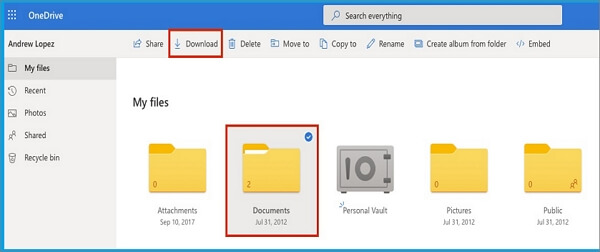
Note: Be patient until the downloading process is complete, as the speed depends on the amount of data and internet connection.
What are the steps you'd like me to follow? Please provide the details so I can assist you better.
Step 3. To upload files to your Google Drive account, you need to log in to your Google Drive account first.
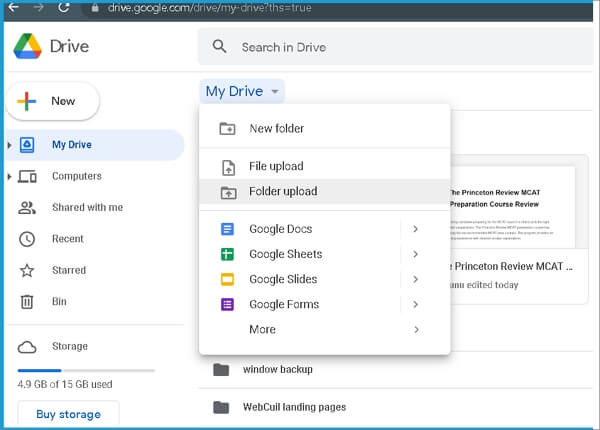
Step 4. To explore your Google Drive, click on the "My Drive" option below the search bar. This will allow you to view and interact with your saved files and folders.
Step 5. To upload files or folders from OneDrive to Google Drive, go to the "My Drive" section and select either "Upload folder" or "Upload File", depending on your preference. Then, choose the folder or files you've previously downloaded from OneDrive.
Note: Hold the Ctrl key to select multiple files at once.
This method is effective but slow and has several limitations, making it impractical for moving large amounts of data as it can take a long time and consume significant space on your computer.
Method 2: Use OneDrive and Google Drive Desktop Apps
To transfer data from OneDrive to Google Drive, download the OneDrive and Google Drive applications to your computer, then move the desired folders or files from OneDrive to Google Drive, which is as simple as moving data from one folder to another.
Step 1. To start, click the provided links to download the Google Drive and OneDrive applications.
Note: The OneDrive app will be pre-installed on your Windows PC if you use Windows 10/11. You can find it by typing "OneDrive" in the search bar.
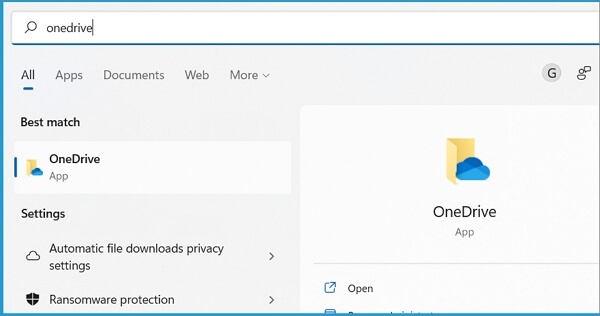
Step 2. After installing both apps, open and log in to your Google Drive and OneDrive accounts.
Step 3. You can easily transfer files from OneDrive to Google Drive by selecting and dragging them from OneDrive and dropping them anywhere in Google Drive, or by copying and pasting them.
Note: Make sure your computer is connected to the internet.
Method 3: Sync OneDrive Files to Google Drive
Here’s how you can sync OneDrive files to Google Drive in a nutshell: To sync OneDrive files to Google Drive, you can use the Google Drive desktop app, which allows you to sync OneDrive files to Google Drive, or use a third-party service like MultCloud or Cloud Sync, which can sync files between OneDrive and Google Drive. Alternatively, you can also use the OneDrive desktop app to sync files to Google Drive. Just select the files or folders you want to sync, and the app will take care of the rest.
To achieve a secure and effortless sync of your desired files, create new folders in OneDrive and Google Drive. This will provide a well-organized storage solution, preventing your synchronized files from blending with others.
Step 1. Create a folder in Google Drive named OneDrive Sync.
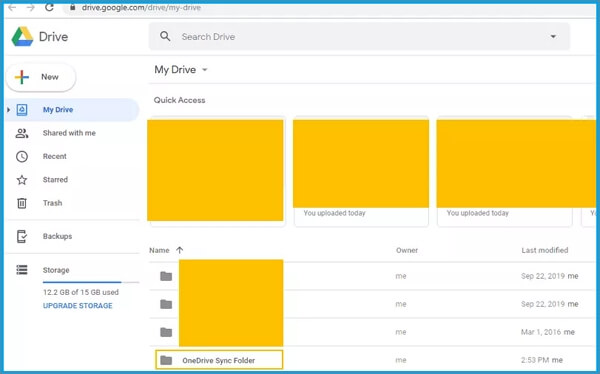
Step 2. Create a folder in OneDrive called Google Drive Sync.
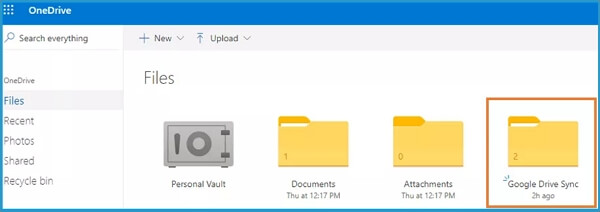
Note: You can also give your desired names to these folders.
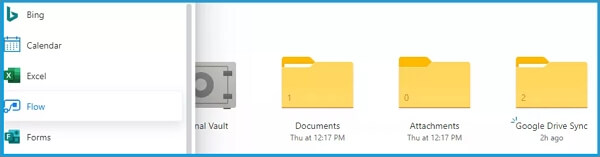
Step 3. To access Flow, navigate to OneDrive's menu grid at the top-left (nine dots) and click on the "All apps" option, then select "Flow" from the list.
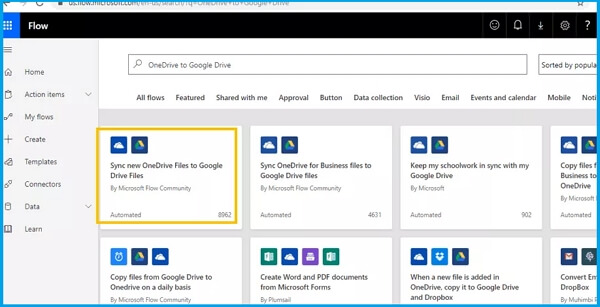
Step 4. Select a suitable template according to your needs. If you are synchronizing personal data, search, OneDrive to Google Drive and choose the first template, named - Sync new OneDrive Files to Google Drive files.
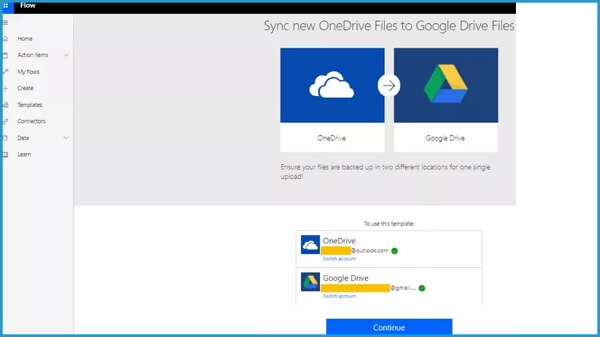
Step 5. To access the workflow, you may be prompted to sign in to both OneDrive and Google Drive accounts again. This is a required step to ensure secure access to your data.
Step 6. Once logged in, a user will see green checkmarks next to their emails. To proceed, they should click the "Continue" button.
Step 7.
- Choose your folder paths.
- Click on the folder icon for the OneDrive folder.
- Click on the > symbol and select the Google Drive Sync Folder to navigate to the root directory of your Google Drive.
Step 8.
- Now, follow the same process with Google Drive.
- Choose folder paths.
- To access the OneDrive Sync Folder, click on the " > " symbol at the roots of the navigation menu and select OneDrive Sync Folder.
- Once done, click on Create Flow.
Step 9. To check the Flow, click on the OneDrive menu and select My flows.
Step 10. At the top right corner, click on Edit to access your created Flow.
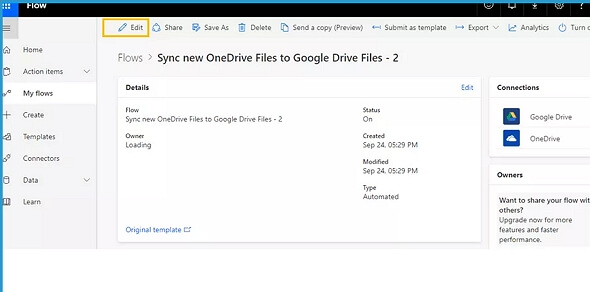
Note: Make sure the rooted folders are selected on both drives.
Step 11. Go To upload a file to OneDrive, go to the OneDrive website, click on the "New" button, select "File" from the dropdown menu, choose the file you want to upload, and click "Open". Additionally, you can right-click on the file and select "Share" and then "OneDrive" to upload it. Also, you can use the "Infer Content-Type" setting to automatically detect the file type.
Synchronizing files in OneDrive and Google Drive allows for automatic updates to shared files, eliminating the need for manual transfers. This can be beneficial for managing storage space, as changes made to files in OneDrive will also apply to the shared files in Google Drive.
More Options: Transfer OneDrive to iCloud/OneDrive/SharePoint/Local Drive
| Solutions | Contents | Get it |
| How to Transfer Files from Onedrive to iCloud on iPad | You can transfer files from OneDrive to iCloud using either a Mac or a PC. | How to Transfer Files from Onedrive to iCloud on iPad |
| Move Files from Onedrive to Another Onedrive | You can move files from OneDrive to another OneDrive by manually copying them, syncing them, or using Power Automate to automate the process. | Move Files from Onedrive to Another Onedrive |
| Migrate from Onedrive to SharePoint | You can manually move files from OneDrive to SharePoint or use the Power Automate feature to streamline the process. | Migrate from Onedrive to SharePoint |
| Move Files from OneDrive to Local Drive | OneDrive efficiently stores your data by using cloud storage, which allows you to access your files from anywhere and syncs them across all your devices. To effectively move your files to your local or hard drive, you can use the OneDrive desktop app to download and save files, or manually copy and paste files from OneDrive to your local drive. | Move Files from OneDrive to Local Drive |
What to Do After Transfer Files from OneDrive to Google Drive
After transferring files from OneDrive to Google Drive, you can review the transferred files to ensure they were successfully moved. You can also organize the files in your Google Drive account, create folders, and set permissions as needed. Additionally, you can explore other Google Drive features such as collaboration tools, version history, and file sharing options to get the most out of your Google Drive account.
Here are the benefits of transferring files from OneDrive to Google Drive:
- Sharing Files: After transferring your files from OneDrive to Google Drive, you can share them with your partner by adding their email and changing the permissions. This allows your partner to access and view the shared files, even if they use a different cloud storage service.
- Managing Data: People use Google Drive for personal data and OneDrive for work data, allowing them to manage their data for a better experience.
- Free Up Storage Space: After transferring files to Google Drive, you can free up storage space on Microsoft's OneDrive by deleting the same files from OneDrive, which typically only offers 5 GB of free space.
- Multiple back-ups of data: To ensure the security of your important files, save them to both cloud drives, thereby creating multiple backups. This way, if one file becomes corrupted, you'll have a duplicate in the other cloud drive, making it easier to recover.
Bonus Tip: How to Transfer OneDrive App to Another Drive or PC
OneDrive, a leading cloud storage service, often takes up a significant amount of storage space on Windows PCs, particularly in the C drive, after prolonged use.
If you're running out of free cloud storage space on OneDrive, you can use Qiling Disk Master to quickly and securely transfer your data to another location or PC, rather than manually moving it. This tool allows you to share and transfer OneDrive files to a new computer or transfer the OneDrive app to another computer that didn't have it installed.
Qiling Disk Master is a professional yet affordable data transfer tool for Windows that helps move files or folders, install applications or games, and even migrate OneDrive data to a different partition or storage drive.
To transfer files to another drive using this software, start by selecting the files or folders you want to move from the source drive. Then, create a new folder on the destination drive and select it as the target location.
Step 1. Launch Qiling Disk Master and select transfer mode
To proceed, go to the "Backup and recovery" section on the main screen of Qiling Disk Master, then click "File sync".

Step 2. Select apps and another drive to transfer
1. Select the source partition and tick applications, programs and software that you'd like to migrate.
2. To initiate the migration process, select another drive or disk as your target device by clicking the triangle icon, and then click "Proceed" to start the migration.

Step 3. Finish the migration process
When the transferring process finishes, click "OK" to complete.
You can restart your PC to keep all the changes, and you should be able to run your migrated apps on the other drive again.
Conclusion
To transfer files from OneDrive to Google Drive, you can choose from various methods. Alternatively, if you want to change OneDrive's location, consider using Qiling Disk Master. This software can also help you migrate data from other cloud-based drives, making it a convenient option for your file transfer needs.
Related Articles
- How to Factory Reset Windows 11 without Moving Apps/Programs
- How to Transfer Files Between Two Different Operating Systems
- Transfer from Windows 8 to Windows 10 or Windows 11
- How to Transfer Files from Mega to Google Drive
- [2022 Featured Pick] 5 Best Backup Software for Small Business
For small business owners, the best backup tools are those that make it easy to use, and this article aims to help them find the ideal backup software for their needs. - How to Back Up Windows Server 2016 [Step by Step]
Windows Server 2016 backup can be simplified by choosing the right solution. The Windows Server backup guide provides a step-by-step process for backing up files, pictures, operating systems, and other data. Qiling Backup Business and Windows Server Backup are both useful tools during this process.
Products
Articles & Tutorials
- Data Recovery
- Data Backup
- File Recovery
- File Backup
- System Backup and Restore
- Disk and Partition Clone
- Technical articles
- Mobile articles
- Disk Master Help
- Windows Data Recovery Tutorials
- Windows Secure Delete Tutorials
- Windows Partition Management Tutorials
- Windows File Backup and Restore Tutorials
- Windows System Backup and Restore Tutorials
- Windows Disk Backup and Restore Tutorials
- Windows Clone Tutorials