How to Download iCloud Backup to PC in 3 Ways
Summary
You can download your iCloud backup to your PC using one of three methods: Qiling iCloud backup extractor, which is the easiest way to selectively download the backup without needing an iPhone, iPad, or iPod; or you can use iCloud.com or the iCloud Control Panel, both of which are free.
- Part 1. Why Do You Need to Download iCloud Backup to PC
- Part 2. How to Download iCloud Backup to PC in 3 Ways
- Part 3. How to Back Up iPhone to PC Directly (Bonus Tip)
Part 1. Why Do You Need to Download iCloud Backup to PC
Apple's iCloud service allows users to store and share data via cloud storage, backing up iPhone/iPad/iPod content wirelessly and sharing photos, calendars, and more across Apple devices.
Users often need to download an iCloud backup to their PC for various reasons such as restoring data, transferring files, or accessing content. To accomplish this, they can follow these steps:
Reason 1. Selectively Recover Files from iCloud Backup
If you enable iCloud Backup on your iPhone, you can only restore the entire backup to your iOS device, but if you want to selectively recover files, you'll need to download the backup to your computer instead.
Reason 2. Free Up iCloud Space
To free up your iCloud space, consider downloading your iCloud backup to your PC, which is one of the biggest occupiers of your storage, and then deleting it to get more space available. This can help you make the most of the 5GB of free space Apple provides.
Reason 3. Rescue Data After the Loss of iOS Device
When your iOS device is lost, you can download your iCloud backup to your PC to retrieve your data, provided you had enabled the backup option. This allows you to access your files even without the device.
Part 2. How to Download iCloud Backup to PC in 3 Ways
Depending on the types of content you want to download from iCloud to your computer, there are three workable ways for you. You can download an iCloud backup to PC using iCloud for Windows, which allows you to access your iCloud Drive files, photos, contacts, calendars, and more. Alternatively, you can use a third-party app or service, such as iMazing or FonePaw, to download your iCloud backup to your PC.
Method 1. Download iCloud Photos to PC with Qiling iCloud Backup Extractor
If you've enabled iCloud Backup on your iPhone, iPad, or iPod and want to download the backup to your PC, you can use a third-party software like Qiling MobiSaver, a reliable iPhone data recovery tool.
This tool can recover lost files on iOS devices and also extract data from iCloud backups to a PC or Mac.
To download iCloud backup to PC:
Step 1. Choose "Recover from iCloud"
Connect your iPhone to your PC, launch Qiling MobiSaver, and choose the "Recover from iCloud" option. Click "Start" to proceed.
Step 2. Turn Off "Find My iPhone"
Turn off "Find My iPhone" on your iPhone/iPad/iPod to continue.
Step 3. Type Code in the Confirmation Box
To confirm, you need to type "123456" in the confirmation box and then click the "Continue" button.
Note: This step will completely erase all data and reset all settings, so make sure you have backed up any important information beforehand.
Step 4. Reset iPhone
Move through the iPhone setup process until you see the reset screen. From there, choose "Restore from iCloud Backup" on Your phone, and enter the Apple ID and password for the account you want to restore the backup from, then click "Next" on your PC.
Step 5. Select the Files
If you need to recover all files, click the "Select All" button below, otherwise, select the specific type of data you want to recover.
Step 6. Analyze the iPhone
The software will analyze your phone, which may take a few minutes, and please refrain from disconnecting or using your device during this time.
Step 7. Scan Lost Data and Recover
Qiling MobiSaver will automatically scan your iCloud backup file to find the lost data. This process may take a few minutes, so please wait patiently. Once the scan is complete, select the desired data to recover and click the "Recover" button.
Method 2. Download iCloud Backup to PC Selectively via iCloud.com
If you selectively backed up your iPhone/iPad/iPod content by toggling on specific options, you can download some categories, such as photos and contacts, directly from iCloud to your PC by visiting iCloud.com.
- Notice:
- You can access and view categories like Mail, Calendar, Notes, and Reminders only from iCloud.com, but with Method 1, you can extract any file from your iCloud backup to your PC.
To download iCloud photos to PC:
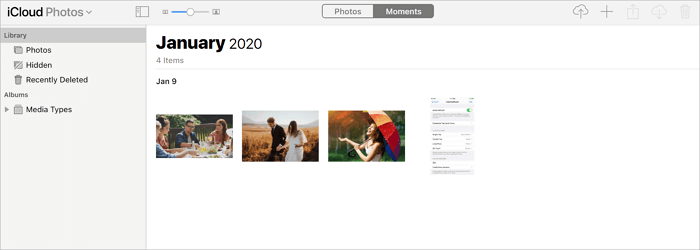
Step 1. On your PC, open a browser and visit iCloud.com.
Step 2. Sign in with the Apple ID you use on your iDevice.
Step 3. Select the photos you want to download to your PC, then click the "Download" button to save them to your computer.
Step 4. Click the "Download" icon to download iCloud photos to your computer.
If you're looking to download iCloud contacts, check out the guide on how to download contacts from iCloud to PC.
Method 3. Download iCloud Backup to PC via iCloud for Windows
You can also automatically download iCloud data to your PC by installing iCloud for Windows. This allows you to download some categories, such as photos and videos, similar to using iCloud.com.
To download iCloud photos to PC via iCloud for Windows:
Step 1. Download and install iCloud for Windows on your computer.
Step 2. Open the iCloud control panel and sign in.
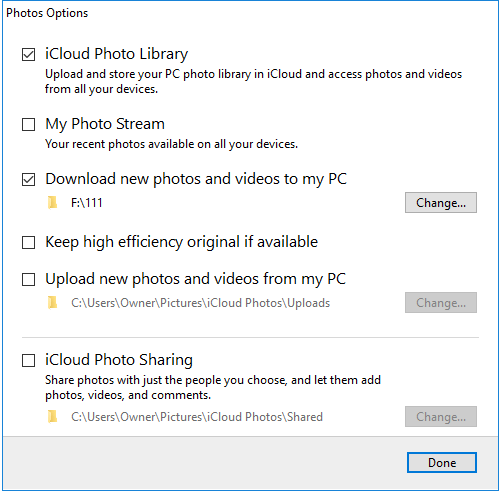
Step 3. Go to Settings, scroll down and click on Photos, then click on Options next to Photos, check iCloud Photos, and click Done, then Apply.
Step 4. After updating your phone, all new photos and videos will be synced to your PC automatically.
Part 3. How to Back Up iPhone to PC Directly
iCloud offers limited free space for storing iPhone data, but it also restricts access to your data. To avoid this, you can directly back up your iPhone to a PC using a software like Qiling MobiMover, which provides iPhone data transfer and backup capabilities.
With the tool installed on your PC, you can back up your iPhone to PC all at once or selectively, and also transfer data between your iDevice and a computer or between two iOS devices.
To back up iPhone to PC directly:
Step 1. To back up your iPhone or iPad to your PC, connect your device to your computer using a USB cable and click "Trust" on your device to establish a connection. Then, launch Qiling MobiMover and navigate to the "Backup Manager" section, where you can select the "Back up" option to initiate the backup process.
Step 2. Check the types of files you need to back up, then click the backup button to start backing up your iPhone or iPad.
Step 3. The time it takes for the backup to complete depends on the size of the content. You'll need to wait patiently for the backup to finish.
The Bottom Line
To download an iCloud backup to PC, you can use an iPhone backup extractor like Qiling MobiSaver if you used the "iCloud Backup" feature, or access iCloud.com or use iCloud for Windows if you backed up your iPhone content by category.
Related Articles
- How to Recover Telegram Chat on iPhone [Full Guide]
- Where Do the Deleted Files Go on iPhone, How to Recover Deleted Files on iPhone 13/SE/12/11
- Full Guide to Restore LINE Chat from Google Drive (iPhone & Android)
- Where Do Deleted Text Messages Go on iPhone [Text Message Recovery Tips]
- How to Correct #DIV/0 Error in Excel | Check Your Full Guide 2022
#DIV/0 is one of the most frequent errors in tables when we are in middle of work. It is frustrated to see such annoying error. How to correct #DIV/0 error? And how to avoid #DIV/0 error in Excel down the line? Read and bookmark this page, check methods to fix the #DIV/0 error. - How to Corrupt a PDF File so That It Can't Be Opened (Step-by-Step Guide)
To corrupt a PDF file so it can't be opened, you can use Notepad or Corrupt a File. Net tool. Alternatively, if you accidentally corrupt a wanted PDF, you can use Deep Data Recovery to fix it efficiently, restoring text, hyperlinks, graphs, watermark, and digital signatures.
Products
Articles & Tutorials
- Data Recovery
- Data Backup
- File Recovery
- File Backup
- System Backup and Restore
- Disk and Partition Clone
- Technical articles
- Mobile articles
- Disk Master Help
- Windows Data Recovery Tutorials
- Windows Secure Delete Tutorials
- Windows Partition Management Tutorials
- Windows File Backup and Restore Tutorials
- Windows System Backup and Restore Tutorials
- Windows Disk Backup and Restore Tutorials
- Windows Clone Tutorials