How to Clone Windows 10 to a Smaller SSD
Replacing a 1 TB hard drive with a 500 GB SSD sounds backwards until you check the actual used space. Most Windows 10 installs hold far less than the drive they sit on, and the smaller SSD is faster and cheaper.
This guide explains how to measure the real data size, free up room, shrink the partition, and clone the system so Windows 10 still starts on the smaller drive.
PAGE CONTENT
- When a Smaller SSD Makes Sense
- Measure and Free Up Space
- Shrink the Partition Before the Clone
- Clone Windows 10 with Qiling Disk Master
- Boot and Verify the Smaller Drive
- FAQs About Cloning to a Smaller SSD
- Back Up Windows Before You Clone
When a Smaller SSD Makes Sense
- Only a fraction is used. A 500 GB SSD holds a system that uses 200 GB with room to spare.
- The budget is tight. Smaller drives cost less per unit and still deliver the speed gain.
- The laptop has one slot. A compact, single-sided drive is the only option that fits.
- Data lives elsewhere. Games and media on another disk keep the system volume light.
- The old drive goes to a spare. The larger HDD becomes external backup storage.
A clone to a smaller target only works when the used space fits. Windows also needs free room for updates, the page file, and temporary files, so leave at least 15 percent unused.

Measure and Free Up Space
- Check the used space. Open Settings, then System, then Storage to read the real figure.
- Remove old updates. Use Disk Cleanup to delete previous Windows installations.
- Move personal folders. Redirect Downloads, Pictures, and Videos to another drive.
- Trim restore points. Keep the latest restore point and delete the older shadows.
- Shrink hibernate and page files. These hidden files can occupy many gigabytes.
Aim for a used size at least 20 GB below the SSD capacity. That gap covers the page file, updates, and the temporary space Windows needs during a feature upgrade.
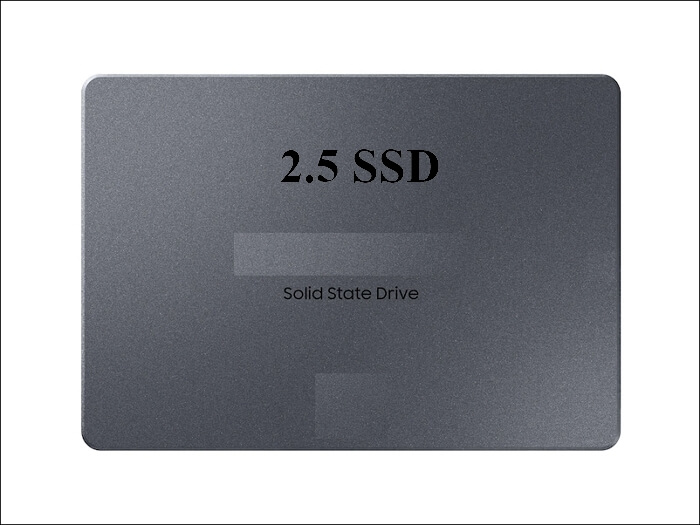
Shrink the Partition Before the Clone
- Defragment the HDD first. A fragmented source slows the shrink and the copy.
- Use Disk Management. Shrink the system volume so it ends below the new capacity.
- Move unmovable files. Disable hibernation and the page file if the shrink stops early.
- Leave the boot partitions. Keep the EFI or system reserved volume at its original size.
- Check the final layout. The total of all partitions must fit inside the smaller disk.
If Disk Management refuses to shrink far enough, a third-party partition tool can move the files that block it. Do this before the clone, not during it.
Clone Windows 10 with Qiling Disk Master
Qiling Disk Master can clone a disk to a smaller target when the used space fits, and it adjusts the partition size in the same task. Download it on the PC that runs Windows 10.
Step 1. Open Qiling Disk Master, choose Clone, and then select Disk Clone.

Step 2. Select the Windows 10 disk as the source and click Next.

Step 3. Select the smaller SSD as the destination and confirm that its data will be replaced.

Step 4. Review the layout, keep the EFI and recovery volumes, and tick Optimize for SSD before you confirm.

Step 5. Click Proceed, wait for the copy to finish, then shut the PC down before you swap the drives.

Boot and Verify the Smaller Drive
- Set the SSD first. Choose its entry in the firmware boot order.
- Check the drive letter. Confirm that C: is the SSD and reports the smaller capacity.
- Watch free space. Windows should show the expected room after the first boot.
- Run Windows Update. Updates need free space, so install them before filling the disk.
- Keep the old drive. Store it untouched for a week in case a file was missed.
If Windows stops with an inaccessible boot device error, the storage driver or the boot entry is wrong. The fixes in Cloned Drive Wont Boot Fix cover both cases.
FAQs About Cloning to a Smaller SSD
Can Windows 10 be cloned to a smaller SSD?
Yes, when the used space fits and the partitions are resized. Qiling Disk Master handles the resize in the clone task.
Why does the clone refuse to start?
The source data is larger than the target. Free up space or shrink the system volume first.
Will the recovery partition still fit?
It must fit, or drop it. Keep the EFI volume, and recreate the recovery partition later if you need it.
Is a 500 GB SSD enough for Windows 10?
For most home users, yes. Games and media belong on a second drive to keep the system lean.
Do I need to reinstall Windows?
No. A disk clone keeps programs, settings, and the licence, so the copy boots as the same system.
Back Up Windows Before You Clone
Before changing drives or partitions, create a full system backup. Qiling Disk Master creates an image you can restore from if the smaller drive will not start.
Step 1. Open Qiling Disk Master and select System Backup to include Windows and the boot partitions.

Step 2. Save the image to a drive other than the target disk and start the backup.

Step 3. Click Proceed to start the system backup and wait patiently until it finishes. You can also tick Shut down the computer when the operation is completed to power off automatically.

Step 4. If the SSD will not start, restore the image to the original drive and try again.

Conclusion
Cloning Windows 10 to a smaller SSD is a space problem, not a system problem. Measure the used data, clear the old updates and personal folders, shrink the system volume far enough, and keep the boot partitions intact. Then clone the disk with SSD optimisation and confirm the reported capacity on the first boot. Leave the old drive untouched until updates and daily work run normally.
For more on right-sizing a Windows clone, see How to Clone Only the OS Partition to a New SSD, How to Clone a 2.5-Inch SSD to an M.2 SSD, How to Replace the C Drive with an SSD, and How to Clone an HDD to an SSD on Windows 10.
Related Articles
- Cloned Drive Wont Boot Fix
Repair the boot entry when the copy refuses to start. - How to Clone the Windows 11 System Reserved Partition
Small boot volumes must survive the resize as well. - 4K Alignment When Cloning an SSD
A resized partition still needs correct alignment. - How to Clone an NVMe SSD to a Larger NVMe
The same steps work in reverse when space is the goal. - How to Clone Windows 11 to a Smaller SSD
Shrink the source first so the layout fits the smaller drive.
Products
Articles & Tutorials
- Data Recovery
- Data Backup
- File Recovery
- File Backup
- System Backup and Restore
- Disk and Partition Clone
- Technical articles
- Mobile articles
- Disk Master Help
- Windows Data Recovery Tutorials
- Windows Secure Delete Tutorials
- Windows Partition Management Tutorials
- Windows File Backup and Restore Tutorials
- Windows System Backup and Restore Tutorials
- Windows Disk Backup and Restore Tutorials
- Windows Clone Tutorials