How to Clone Windows 11 to a New Laptop
A new laptop arrives with a fresh install and none of your software. Rebuilding it takes days, while cloning Windows 11 keeps the apps, accounts, and settings exactly as they were.
This guide explains the hardware checks a new laptop needs, how to prepare the storage drivers, and how to clone the system so the copy starts on the new machine.
PAGE CONTENT
- When to Move Windows 11 to a New Laptop
- Prepare Drivers and Check TPM
- Connect the New Drive and Match Boot Mode
- Clone Windows 11 with Qiling Disk Master
- First Boot and Reactivation
- FAQs About Moving Windows 11
- Back Up Windows Before You Clone
When to Move Windows 11 to a New Laptop
- The software stack is heavy. Design, audio, or development tools take weeks to configure again.
- Settings matter. Browser profiles, mail accounts, and licences all live in the old install.
- The old laptop is dying. A failing hinge or battery is a reason to move before the disk fails too.
- The new machine is supported. Windows 11 needs TPM 2.0 and Secure Boot on the target board.
- The old laptop stays as backup. Keeping both machines lets you compare behaviour after the move.
A clone moves the system image, not the hardware identities. The new laptop keeps its own serial number, TPM, and firmware, which is why drivers and activation need attention.
Prepare Drivers and Check TPM
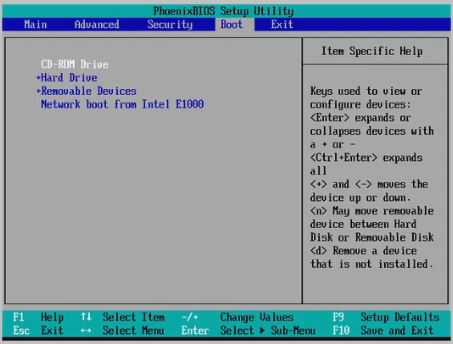
- Note the boot mode. Most new laptops ship with UEFI and Secure Boot, so the source must be GPT.
- Collect storage drivers. An NVMe or RAID controller may need its driver before Windows can start.
- Check TPM 2.0. Enable the firmware TPM so Windows 11 sees a valid security device.
- Enable Secure Boot. Turn it on after the clone and confirm the boot entry is signed.
- Link the licence. Tie the Windows 11 licence to your Microsoft account before the move.
Install the chipset and storage drivers on the old laptop first, while it still boots normally. Adding them after a failed start is far harder than preparing in advance.
Connect the New Drive and Match Boot Mode
- Use a USB adapter. Attach the new laptop SSD to the old machine for the copy.
- Keep the new drive blank. Remove any factory partition so the clone can write the layout.
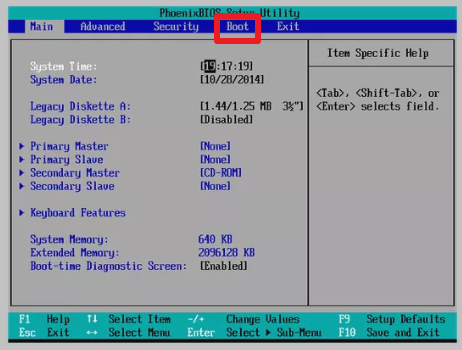
- Match GPT and UEFI. A UEFI laptop expects a GPT disk with an EFI system partition.
- Record the boot entry. Note the firmware name of the new SSD before you install it.
- Keep the factory image. Copy the original new-laptop drive to an external disk first.
If the new laptop has only one M.2 slot, clone through a USB enclosure instead of opening both machines. The copy needs both drives visible at the same time.
Clone Windows 11 with Qiling Disk Master
Qiling Disk Master clones the whole system disk, including the EFI and recovery volumes, onto the new SSD. Download it on the old laptop before you attach the target drive.
Step 1. Open Qiling Disk Master, choose Clone, and then select Disk Clone.

Step 2. Select the old laptop system disk as the source and click Next.

Step 3. Select the new laptop SSD as the destination and confirm that its data will be replaced.

Step 4. Review the layout, keep the EFI, MSR, and recovery volumes, and tick Optimize for SSD.

Step 5. Click Proceed, wait for the copy to finish, then shut the old laptop down before you unplug the adapter.

First Boot and Reactivation
- Install the SSD. Fit the copied drive in the new laptop and close the chassis carefully.
- Set the boot order. Choose the new SSD in the firmware boot menu.
- Expect a driver sweep. Windows may install chipset, touchpad, and audio drivers on first start.
- Reactivate Windows. Use the account-linked licence or the product key from the old machine.
- Test the features. Check Wi-Fi, camera, fingerprint reader, and sleep before you retire the old laptop.
If Windows stops with an inaccessible boot device error, the storage driver is missing. Boot from recovery media, load the driver, and run a startup repair.
FAQs About Moving Windows 11
Can Windows 11 be cloned to a different laptop?
Yes, if the boot mode matches and the storage driver is present. Different hardware may need reactivation.
Will the licence transfer?
A retail or account-linked licence can move. An OEM licence tied to the old board usually cannot.
Do I need sysprep?
Only if the copy will run beside the original. For a single replacement, prepare drivers and reactivate instead.
Why does the new laptop ask for a BitLocker key?
The TPM changed, so Windows asks for the recovery key. Suspend BitLocker before the clone to avoid the prompt.
Will the old laptop still work?
Yes, until you wipe it. Keep it intact for a week in case a file or licence is missing from the copy.
Back Up Windows Before You Clone
Before changing drives or machines, create a full system backup. Qiling Disk Master creates an image you can restore from if the new laptop will not start.
Step 1. Open Qiling Disk Master and select System Backup to include Windows and the boot partitions.

Step 2. Save the image to a drive other than the target disk and start the backup.

Step 3. Click Proceed to start the system backup and wait patiently until it finishes. You can also tick Shut down the computer when the operation is completed to power off automatically.

Step 4. If the new laptop will not start, restore the image to a spare drive and boot from it.

Conclusion
Moving Windows 11 to a new laptop is a hardware match, not a simple file copy. Confirm UEFI and GPT, add the storage drivers, enable TPM 2.0, and suspend BitLocker before the clone. Copy the whole disk with SSD optimisation, fit it in the new chassis, and set the boot order. Then let Windows install the remaining drivers and reactivate the licence before you retire the old machine.
For more on moving a working system, see Migrate Windows 10 from One PC to Another, How to Clone a Virtual Machine Disk to a Physical Drive, Cloned Drive Wont Boot Fix, and How to Clone a Windows Server System Disk.
Related Articles
- How to Clone an HP Laptop HDD to an SSD
A single laptop swap follows the same driver checks. - How to Clone a Dell Laptop HDD to an SSD
Firmware and boot entries differ by laptop brand. - How to Clone a Lenovo Laptop HDD to an SSD
Some models hide the drive behind a service cover. - Replace a Hard Drive with an SSD Without Reinstalling Windows
Keep applications and settings in place by cloning. - How to Clone Windows 11 to a Spare Laptop
Compare boot mode and chipset before moving the system.
Products
Articles & Tutorials
- Data Recovery
- Data Backup
- File Recovery
- File Backup
- System Backup and Restore
- Disk and Partition Clone
- Technical articles
- Mobile articles
- Disk Master Help
- Windows Data Recovery Tutorials
- Windows Secure Delete Tutorials
- Windows Partition Management Tutorials
- Windows File Backup and Restore Tutorials
- Windows System Backup and Restore Tutorials
- Windows Disk Backup and Restore Tutorials
- Windows Clone Tutorials