How to Clone Windows 11 to a Spare Laptop
When the main laptop fails, a spare machine with the same Windows setup is worth more than a fresh install. A clone can move the working system onto the second laptop, provided the hardware differences are understood.
This guide explains how close the two machines must be, how to prepare drivers and activation, and how to clone the drive and fix the first boot.
PAGE CONTENT
- When a Spare Laptop Makes Sense
- Compare the Two Machines First
- Prepare Drivers and Activation
- Clone to the Spare Laptop with Qiling Disk Master
- First Boot on the Spare Hardware
- FAQs About Cross-Laptop Clones
- Back Up Windows Before You Clone
When a Spare Laptop Makes Sense
- The original machine is failing. A weak screen, hinge, or keyboard makes a swap cheaper than a repair.
- The spare is the same model or family. Shared chipsets mean the drivers mostly match.
- The software takes hours to rebuild. Design suites, development tools, and licensed programs come along with the copy.
- A trip cannot wait for a reinstall. A spare laptop with the working system is a same-day fix.
- The licence allows it. Retail Windows can move, but an OEM licence usually stays with the original board.
A clone is not a migration between unrelated machines. It works best when both laptops are close in age and chipset, and when you accept one repair cycle on the first boot.
Compare the Two Machines First
- Check the boot mode. A UEFI source needs a UEFI target, and legacy BIOS needs the same.
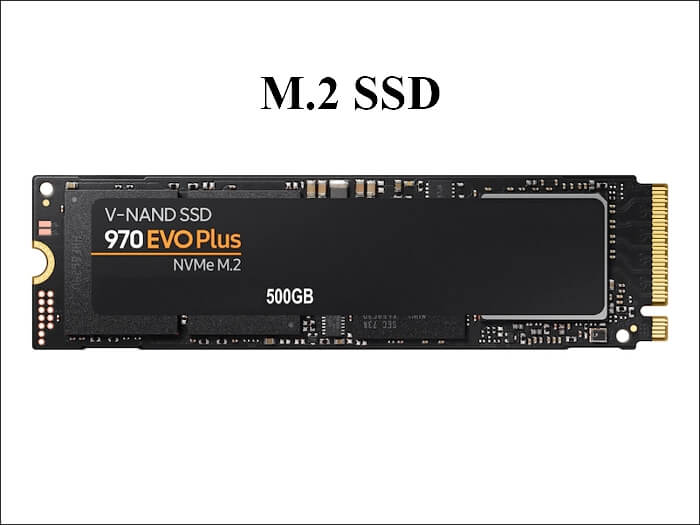
- Compare the storage controller. NVMe, SATA, and RAID modes decide which driver the copy needs.
- Look at the display and GPU. A very different graphics chip can leave the screen at low resolution.
- Confirm the target has a drive bay. The spare laptop must accept the SSD or HDD the copy will use.
- Note the disk size. The spare drive must hold the used space and the hidden partitions.
The closer the two machines, the fewer fixes after the copy. A same-model spare usually boots with only a driver refresh, while an unrelated model may need a full driver pass.
Prepare Drivers and Activation
- Download the target driver pack. Store the chipset, storage, network, and graphics drivers on a USB stick.
- Note the Windows licence. Record the product key or confirm the digital licence link before the swap.
- Remove machine-specific tools. Vendor control panels for the old laptop do not belong on the new one.
- Plan a sysprep pass if both will run. Two copies with the same identity conflict on a network.
- Turn off device encryption. Suspend BitLocker so the copied disk is readable on the new board.
Activation is the usual disappointment. A retail key moves, but an OEM key tied to the old board may refuse. Decide before the copy whether you will buy a licence or return to the original machine.
Clone to the Spare Laptop with Qiling Disk Master
Qiling Disk Master copies the system disk to a drive that will be fitted into the spare laptop. The target can sit in a USB enclosure during the copy, which avoids opening both machines at once.
Watch the video tutorial below to clone the drive step by step with Qiling Disk Master.
Step 1. Open Qiling Disk Master, choose Clone, and then select Disk Clone.

Step 2. Select the system disk of the working laptop as the source and click Next.

Step 3. Select the drive for the spare laptop as the destination and confirm the warning.

Step 4. Keep all partitions and tick Optimize for SSD when the target is solid state.

Step 5. Click Proceed, wait for the copy to finish, then shut down and fit the drive.

First Boot on the Spare Hardware
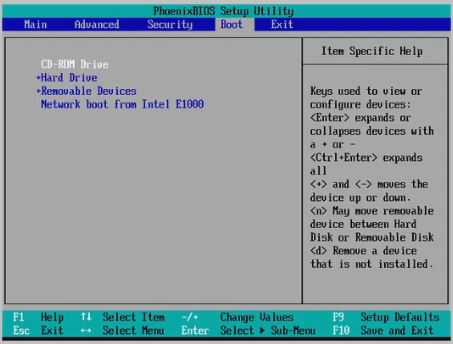
- Match the boot mode. Set the spare laptop to UEFI or legacy to mirror the source disk.
- Expect one restart. Windows detects the new chipset and reconfigures devices on first boot.
- Install the drivers from the USB stick. Network and storage come first, graphics after.
- Reactivate Windows. Use the retail key or the digital entitlement on the account.
- Correct the clock and the MAC address. Two machines with the same identity upset routers and servers.
If the machine stops with an inaccessible boot device message, the storage driver is missing. Boot from the Windows USB and load the chipset driver before Windows starts again.
FAQs About Cross-Laptop Clones
Can Windows 11 move to a different laptop?
Yes, with driver preparation. Very different hardware may still need a repair install.
Will the copy work on a smaller screen?
Yes. Windows adapts the resolution once the graphics driver loads.
Does the licence transfer?
Retail licences usually do. OEM licences stay with the original machine.
Can both laptops use the same copy?
Only with sysprep and new names. Duplicate identities cause network conflicts.
Do I need to reinstall Office?
No. The clone brings the installation, though the licence may ask for reactivation.
Back Up Windows Before You Clone
Moving a system to a second machine is the moment to keep a full image of the original. If the spare refuses to boot, the source remains recoverable.
Watch the video tutorial below to back up Windows and restore it if the clone fails.
Step 1. Open Qiling Disk Master and select System Backup to include the boot partitions.

Step 2. Save the image to a drive other than the target disk and start the backup.

Step 3. Click Proceed to start the system backup and wait patiently until it finishes. You can also tick Shut down the computer when the operation is completed to power off automatically.

Step 4. If the spare laptop will not start, restore the image to the original machine and work from there.

Conclusion
Cross-laptop cloning works when the machines are close and the preparation is honest. Compare the boot mode, chipset, and drive bay, store the target drivers on a USB stick, and suspend encryption before the copy. Expect one restart, install the drivers, and reactivate Windows on the new board.
For more on moving a system, see How to Clone Windows 11 to a New Laptop, Easily Migrate Windows 10 from One PC to Another, How to Clone Your Desktop Computer, and How to Clone Windows 11 to an External SSD.
Related Articles
- How to Clone an MSI Laptop HDD to SSD
Gaming notebooks need the same driver care. - How to Clone an ASUS Laptop HDD to SSD
Check the bay layout before the swap. - Replace Hard Drive with SSD without Reinstalling Windows
The same copy method applies to one machine. - How to Clone a Dual-Boot Windows and Linux Drive
Two systems on one disk travel together. - Do You Have to Reinstall Windows After Installing a New M2 SSD?
Answer the question before you plan the job.
Products
Articles & Tutorials
- Data Recovery
- Data Backup
- File Recovery
- File Backup
- System Backup and Restore
- Disk and Partition Clone
- Technical articles
- Mobile articles
- Disk Master Help
- Windows Data Recovery Tutorials
- Windows Secure Delete Tutorials
- Windows Partition Management Tutorials
- Windows File Backup and Restore Tutorials
- Windows System Backup and Restore Tutorials
- Windows Disk Backup and Restore Tutorials
- Windows Clone Tutorials