How to Clone Windows to Another PC Without Reinstalling
Moving a Windows installation from one computer to another is more complex than cloning a drive inside the same machine. The new PC may have a different CPU, chipset, storage controller, and boot mode, and Windows keeps hardware-specific drivers and settings from the old machine. A straight copy often ends in a blue screen or a boot failure.
This guide covers the core problems of cross-hardware cloning, how Sysprep generalizes the system, how Windows 11 and 10 detect new drivers, the difference between UEFI and Legacy boot, and how to keep Windows activated on the new PC.
PAGE CONTENT
- Why Cross-Hardware Cloning Is Hard
- Generalize Windows with Sysprep
- Boot Mode and Partition Style
- Clone and Restore with Qiling Disk Master
- Boot and Activate on the New PC
- FAQs About Cloning to Another PC
- Back Up the Source PC First
Why Cross-Hardware Cloning Is Hard
- Driver mismatch. The old PC's chipset, storage, and network drivers do not match the new motherboard and can cause a STOP error.
- HAL layer differences. Windows stores a Hardware Abstraction Layer tied to the old CPU and interrupt controller.
- Boot mode mismatch. If the old PC used Legacy BIOS and the new one uses UEFI, the boot loader cannot start.
- Disk signature conflict. Both disks carry the same signature and Windows can confuse the boot volume.
- Activation binding. A retail license may transfer, but an OEM or digital license is tied to the old motherboard.
The key is to generalize Windows before the move so it strips machine-specific drivers and rebuilds them on the first boot of the new PC. Without this step, you are likely to see INACCESSIBLE_BOOT_DEVICE or a reboot loop.
Generalize Windows with Sysprep
- Open audit mode. Run sysprep /audit to enter the mode used by OEMs and IT departments.
- Run generalize. Execute sysprep /generalize /oobe /shutdown to remove hardware-specific settings.
- Do not boot the old PC again. After generalize, the next boot must be on the new hardware to keep the generalize state.
- Clone immediately. Shut down the source PC and clone the disk right away while it is in the generalized state.
- Expect OOBE. The new PC will show the out-of-box experience and ask for region, account, and privacy settings.
Sysprep generalize removes the security identifier, driver cache, and hardware-specific registry entries. Windows 10 and 11 then detect the new hardware during the first boot and install the needed drivers automatically if they are included in the driver store or available through Windows Update.
Boot Mode and Partition Style
- UEFI uses GPT. Modern PCs boot in UEFI mode from a GPT disk with an EFI System Partition.
- Legacy uses MBR. Older BIOS systems boot from an MBR disk with an active primary partition.
- Match the styles. If both PCs use UEFI, clone GPT to GPT; if both use Legacy, clone MBR to MBR.
- Convert if needed. Some tools can convert MBR to GPT during the clone so the new UEFI PC can boot.
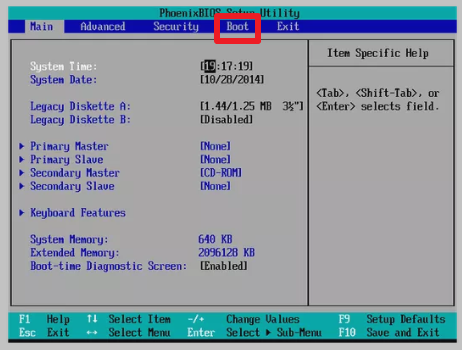
- Check BIOS settings. Enter the new PC's BIOS and confirm UEFI or Legacy is set to match the cloned disk.
If the new PC boots in UEFI but the cloned disk is MBR, Windows will not start. The cleanest solution is to convert the disk to GPT during the clone or to run mbr2gpt from Windows Recovery before the first boot.
Clone and Restore with Qiling Disk Master
Qiling Disk Master supports system backup and universal restore. Back up the source PC, move the image to the new PC, and use the Universal Restore option to inject the storage driver for the new hardware during recovery.
Watch the video tutorial below to clone the drive step by step with Qiling Disk Master.
Step 1. Open Qiling Disk Master, choose Clone, and then select Disk Clone.

Step 2. Select the source system disk from the old PC and click Next.

Step 3. Choose the disk in the new PC or a temporary drive as the destination and confirm the overwrite.

Step 4. Enable the option to align for SSD and choose whether to convert the partition style to match the new PC.

Step 5. Click Proceed, finish the copy, then move the drive into the new PC and use Universal Restore if Windows does not boot.

Boot and Activate on the New PC
- First boot can be slow. Windows detects new hardware and installs drivers, which may take several minutes and several restarts.
- Install missing drivers. Open Device Manager and install any unknown devices from the motherboard manufacturer's website.
- Check activation. Open Settings, Update and Security, Activation to see whether Windows is activated.
- Use a Microsoft account. A digital license linked to a Microsoft account can reactivate on the new hardware.
- Call support if needed. For a retail key, run slmgr /ato or use the phone activation option if online activation fails.
Windows 10 and 11 handle most driver detection automatically, but the chipset and storage drivers are the most critical. If the PC blue-screens on boot, boot into Safe Mode or use Universal Restore to inject the correct storage driver.
FAQs About Cloning to Another PC
Will Windows activate on the new PC after cloning?
An OEM license is tied to the original motherboard and will not transfer. A retail license or a digital license linked to your Microsoft account can reactivate on the new hardware.
Do I have to run Sysprep before cloning to another PC?
It is strongly recommended. Sysprep generalize removes hardware-specific drivers and settings so Windows can rebuild them on the new PC. Without it, you may get a blue screen.
Can I clone from an MBR disk to a UEFI PC?
Yes, but you must convert the disk to GPT, either during the clone with a supporting tool or by running mbr2gpt from Windows Recovery before the first boot.
Why does the cloned Windows show INACCESSIBLE_BOOT_DEVICE?
The storage driver for the new motherboard is not loaded. Use Universal Restore, boot into Safe Mode, or install the storage driver from the manufacturer before the first full boot.
Can I move a Windows 11 install from Intel to AMD hardware?
Yes, but you must generalize with Sysprep first. Windows will detect the new CPU and chipset on the next boot and install the matching drivers.
Back Up the Source PC First
Cross-hardware cloning can fail because of driver or boot-mode conflicts. A full system backup of the source PC ensures you can try again or roll back to the original machine without losing data.
Watch the video tutorial below to back up Windows and restore it if the clone fails.
Step 1. Open Qiling Disk Master and select System Backup to image the source PC's system disk.

Step 2. Save the image to an external USB drive or a network location that the new PC can reach.

Step 3. Click Proceed to start the backup. Do not interrupt the process or the image may be unusable.

Step 4. If the new PC will not boot from the cloned disk, restore the image with Universal Restore to inject the correct storage driver.

Conclusion
Cloning Windows to another PC is possible but demands attention to drivers, boot mode, and activation. Generalize with Sysprep first, match the partition style to the new PC's boot mode, use Universal Restore if the storage driver is missing, and reactivate Windows with a retail or Microsoft-linked digital license. Plan for a longer first boot while Windows detects the new hardware.
For more on boot mode and partition conversions, see Clone an MBR Disk to a GPT SSD, Switch from IDE to AHCI After Cloning, Clone a Dynamic Disk to a Basic Disk, and Clone the System Drive After a Windows Update.
Related Articles
- Migrate Windows 10 from One PC to Another
Move a Windows 10 install to different hardware safely. - Clone Windows 11 to a New Laptop
Transfer Windows 11 to a brand-new laptop. - Windows Not Activated After Cloning
Reactivate Windows after moving to new hardware. - Clone Windows 11 to a Spare Laptop
Set up a backup laptop with the same Windows install. - Cloned Drive Won't Boot? Fix It
Repair boot failures after a cross-hardware clone.
Products
Articles & Tutorials
- Data Recovery
- Data Backup
- File Recovery
- File Backup
- System Backup and Restore
- Disk and Partition Clone
- Technical articles
- Mobile articles
- Disk Master Help
- Windows Data Recovery Tutorials
- Windows Secure Delete Tutorials
- Windows Partition Management Tutorials
- Windows File Backup and Restore Tutorials
- Windows System Backup and Restore Tutorials
- Windows Disk Backup and Restore Tutorials
- Windows Clone Tutorials