How to Upgrade Xbox One X to SSD - Guide with Pictures
The gaming industry is booming, with console gaming being the preferred choice for many. The Xbox One X is a popular gaming console, but upgrading to an SSD can enhance the overall gaming experience.
To upgrade your Xbox One X to an SSD, you'll need to follow a series of steps, which can be broken down into several stages. Qiling provides the necessary tools and software to facilitate this process. By referring to the table, you'll gain a comprehensive understanding of the stages involved, including the details required for each step. This will enable you to get started with upgrading your Xbox One X to an SSD with confidence.
| 🚩Stage | 💡Duration | 🔨Tools | 🔎Complex Level |
| 10-20 Minutes |
|
Medium | |
| 1-2 Minutes |
|
Easy | |
| 10-20 Minutes |
|
Medium |
Preparations List: Before Upgrading Xbox One X to an SSD
Before upgrading your Xbox One X from a hard drive to an SSD, it's essential to prepare and follow certain measures to ensure a smooth transition. This includes backing up your data, updating your console to the latest software, and ensuring you have the correct SSD model compatible with your Xbox One X. Additionally, you'll need to purchase a compatible SSD, such as a 1TB or 2TB SSD, and follow the official Microsoft guidelines for the upgrade process.
Purchase Certified SSD:
When purchasing a certified SSD, it's essential to consider its performance, efficiency, and reliability. Look for an SSD that offers fast and efficient working speed, with a cost-effective price that won't break the bank. Additionally, ensure the SSD has sufficient capacity to store large amounts of data, and is equipped with high-quality hardware to maintain its performance over time.
Initialize the Target SSD:
Initializing a target SSD involves preparing a newly installed or unused SSD for use in a computer system by setting up the SSD and preparing it for data storage and retrieval, including partitioning, formatting, data erasure, alignment, and operating system compatibility.
Tool Preparation to Install SSD:
To pull an internal hard drive from your Xbox One X while installing an SSD, you'll need a few essential tools, including tweezers, a spudger, and a screwdriver, which will enable you to efficiently remove and install the hard drive and SSD.
Qiling Disk Master - Cloning
To ensure a smooth transition from an HDD to an SSD, download a reliable tool like Qiling Disk Master, which offers a fast and safe cloning process that won't lose any data. This software also allows your computer to boot successfully from the cloned disk, making it a safe and reliable option for data migration.
Stage 1: Take Out Original Hard Drive on Xbox One X
To upgrade your Xbox One X to SSD, you'll need to remove the original hard drive from the console, which can be done by following a series of straightforward instructions.
Step 1: To access the internal components, remove the sticker and external screws, then slide the upper case horizontally. Next, rotate the console 90° and pull the plastic case from the front, which will release the clips holding the upper plastic case in place.
Step 2: To access the Xbox console's interior, start by lifting the upper case from the bottom. Rotate the case 90° and then lift the upper plastic case from the left side, while holding the left side in place. Next, push upward on the right side to move the screw boss out of the way, and continue to move the upper case at a 75° angle.
Step 3: Remove the upper plastic case, disconnect the ribbon cable, and unscrew the front circuit board screws to access the internal components. Then, remove the front circuit board and upper metal case to expose the front connector, which can be detached next.
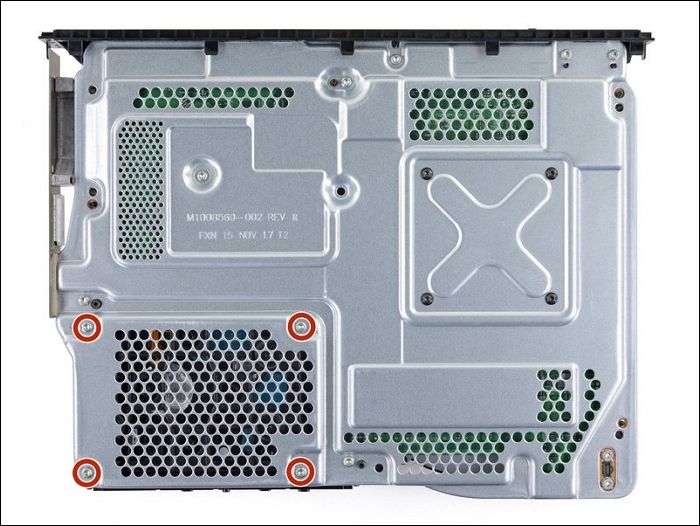
Step 4: Remove the lower metal case by unscrewing it, then detach the hard drive case, unplug the disc drive, remove the SATA cable, and finally take out the hard drive.
Stage 2: Clone the Internal Hard Drive to SSD
To clone your Xbox hard drive to an SSD, you need to connect both drives to your PC via data cables and use Qiling Disk Master software to transfer the data and operating system to the SSD.
Upgrading the Xbox One X to an SSD is a crucial and delicate process, requiring a careful cloning of the hard drive. To do this, follow these easy-to-follow step-by-step instructions:
Step 1. Select the source disk.
- To clone a disk, click the "Clone" option from the left menu, then select either "Clone OS Disk" or "Clone Data Disk" and click "Next".
- Choose the source disk and click "Next".
Step 2. Select the target disk.
- Select the desired hard drive or solid-state drive as your destination and click "Next" to proceed.
Step 3. View the disk layout and edit the target disk partition size.
Then click "Continue" when the program warns it will wipe out all data on the target disk. (If you have valuable data on the target disk, back up it in advance.)
You can customize your disk layout by selecting "Autofit the disk", "Clone as the source", or "Edit disk layout" and choosing the option that suits your needs, such as leaving more space for the C drive.
Step 4. Click "Proceed" to start the disk cloning process.
- Read Warning message and confirm "Yes" button.
See the key features of Qiling Disk Master:
- Clone HDD to SSD
- Upgrade Xbox One hard drive
- Upgrade storage device for gaming
- Format/wipe Xbox One hard drive
- Clone SSD to larger one
- And more
Clone partitions, 4K alignment, and changing the SSD cluster size are possible with this software.
Stage 3: Install Cloned SSD to Xbox One X
To install the cloned SSD in the Xbox One X, head back to Stage 1, but in the reverse direction, and follow the simplified instructions to install the cloned SSD, upgrading the Xbox One X to an SSD.
Step 1: Insert the SSD connector into the mountain bracket, then secure the SSD in place by plugging in the SATA cable and ensuring it is snugly enclosed on all sides.
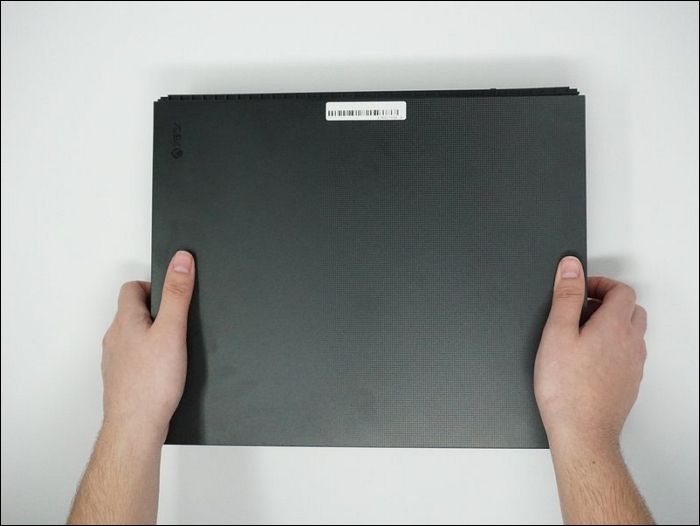
Step 2: Fix the SSD into the Xbox console by securely attaching it with screws using a screwdriver. Once the SSD is in place, put the outer case back on the console to complete the repair.
Why Update Xbox One X to SSD
Upgrading an Xbox One X to an SSD can significantly improve your gaming experience, providing faster loading times, reduced game crashes, and enhanced overall performance. This is because SSDs (solid-state drives) offer much faster data access and transfer speeds compared to traditional hard disk drives (HDDs), which are typically used in Xbox One X consoles. With an SSD upgrade, you can expect to see a noticeable reduction in loading times, allowing you to get back to gaming faster. Additionally, SSDs are more reliable and less prone to mechanical failure, which can lead to game crashes and other issues.
- Faster Loading Times: An SSD (Solid-State Drive) outperforms traditional HDDs in terms of speed and efficiency, processing data much faster and more smoothly.
- Improved Performance: A solid-state drive (SSD) can boost your Xbox One X's performance by increasing game responsiveness due to its faster read and write speeds.
- More Storage: The Xbox One X comes with a built-in hard drive, which may have limited capacity. Upgrading to an SSD can provide additional storage at a faster speed.
- Quieter Operation: Solid-state drives (SSDs) are a type of storage that doesn't have moving parts, unlike traditional hard drives. This makes them quieter and more durable, allowing you to focus on gaming without distractions.
If you're planning to upgrade your Xbox One X, consider the following steps. First, back up your data to an external hard drive or cloud storage.
Conclusion
Upgrading your Xbox One X to an SSD can significantly improve system speed, performance, and loading times, making it a desirable upgrade for gamers. Fortunately, you can easily upgrade the HDD to an SSD within the Xbox One X, and Qiling Disk Master is a highly recommended and trusted solution for this process.
Upgrade Xbox One X to SSD FAQs
If you're still unsure about upgrading your Xbox One X to an SSD, this article provides brief details on the process. If you have any further questions, the FAQs section may offer the answers you're looking for.
1. Can you add storage for Xbox One X?
To add SSD storage to an Xbox One X, you need to use specialized tools to remove the original hard drive, then carefully install the SSD, reconnect the cables and connectors, and finally close the console's upper case. This process requires some technical expertise and specialized tools, but allows for increased storage capacity.
2. Is it worth installing an SSD one Xbox One X/S?
Installing an SSD within Xbox One X/S is worthwhile as it provides faster processing speed, efficient game loading times, quieter operations, and more storage to install and store games.
3. Which SSD is best for Xbox One X upgrade?
The Samsung T7 Portable SSD is a top choice for Xbox One X users, offering high speed and efficiency at a great price of $79.99.
Related Articles
- How to Format EFI Partition in Windows 11/10? [Your Guide Here 2023]
- How to Convert MBR to GPT Using CMD in Windows 11
- Does SSD Get Slower When Full? Easy Tricks to Fix SSD Slowing Down
- How to Clear Windows DNS Cache [Server&Workstation]
- Windows 11 KB5011563 Update: Unsupported Devices Display Desktop Watermark
Windows 11 release KB update now! As the recent Windows 11 Release Preview said, Windows 11 will add a desktop watermark for unsupported hardware. Indeed the update did that on your device. How to remove Windows 11 Watermark. - Full Guide to Fix Windows 11 Slow Startup Error
If you're experiencing slow startup errors on your Windows 11 computer, there are 9 simple methods to fix the issue.
Products
Articles & Tutorials
- Data Recovery
- Data Backup
- File Recovery
- File Backup
- System Backup and Restore
- Disk and Partition Clone
- Technical articles
- Mobile articles
- Disk Master Help
- Windows Data Recovery Tutorials
- Windows Secure Delete Tutorials
- Windows Partition Management Tutorials
- Windows File Backup and Restore Tutorials
- Windows System Backup and Restore Tutorials
- Windows Disk Backup and Restore Tutorials
- Windows Clone Tutorials