How to Upgrade Xbox 360 Hard Drive to SSD [Easy Tutorial]
If your Xbox 360 is slowing down, you may want to consider upgrading its hard drive to an SSD, which can improve performance and provide more storage space for your games and other content. This can help to breathe new life into your console and allow you to enjoy your favorite games and nostalgic titles with improved performance and faster loading times.
Upgrading your Xbox 360's hard drive to a new SSD (solid-state drive) can significantly boost performance and responsiveness, making your old console feel like new again. This guide provides a step-by-step process to achieve this upgrade, allowing you to take advantage of an SSD with more storage capacity and lower power consumption.
Here's a basic table to give you a sneak peek at the stages you'll be going through, and the time you'll need to make the changes.
| 🚩Stages | 🔎Duration | 🧩Complexity Level | 🔦Tools |
|---|---|---|---|
| 10-15 minutes, depending on your speed | Intermediate | T6 Torx Screwdriver and TR10 Torx Security Screwdriver | |
| Stage 2. Cloning the Hard Drive to the SSD | The time it takes to update a console, such as a PlayStation or Xbox, can vary depending on the number of games and file sizes on your hard drive. On average, it can take around 5-10 minutes to complete the update process. | Beginner-friendly | Qiling Disk Master, USB to SATA cable. |
| Stage 3. Installing the SSD | 5-10 minutes to get everything back together | Beginner-friendly | T6 Torx Screwdriver and TR10 Torx Security Screwdriver |
Here are a few things to look at before replacing the hard drive:
💡Buy a certificated SSD:
When purchasing a portable SSD, ensure you buy one from a reputable brand to guarantee full capacity and zero performance issues, as well as a warranty for the drive. Before making a purchase, also check the listed speeds, capacity, performance, price, and quality to make an informed decision.
💡Initialize the target SSD:
To get started, test the drive and format it to ensure it's working properly. Also, make sure the drive is under 1TB in size, as old Xbox 360 consoles have a 1TB storage limit.
Read Also: How to Initialize an SSD
💡Download a reliable cloning tool:
I recommend using Qiling Disk Master to clone your original Xbox hard drive to your new SSD, which is beginner-friendly and offers easy cloning features. This tool clones games and game data to the new SSD, allowing you to upgrade your Xbox 360 hard drive to SSD without losing any data. Additionally, you'll need a USB to SATA cable to connect the drive to your PC.
💡Prepare the tools to install the SSD:
To open the hard drive casing and install the new SSD, you will need a T6 and TR10 Torx screwdriver.
- Notice:
- The Xbox uses a 2.5-The case has a 3.1 inch hard drive bay, which is a bit smaller than a standard 3.5 inch hard drive bay, meaning you can only use smaller SSDs that come in a 2.5 inch form factor, such as SATA SSDs, and not larger NVME SSDs.
Once you're ready with the checklist above, proceed to the stages listed below. To make the Xbox 360 hard drive update smoother, ensure you have prepared well, as mentioned above. The following link can help if you want to play Xbox games from an external hard drive.
Stage 1. Remove the Original Hard Drive From Xbox 360
To remove the original hard drive from an Xbox 360, you'll need to follow these steps: First, disconnect the power cord and any other cables from the console. Then, locate the hard drive, which is usually located on the top or side of the console, and gently pry it loose from its mounting bracket using a plastic spudger or similar tool. Be careful not to damage the surrounding components or the hard drive itself.
Step 1. To remove the hard drive enclosure from your Xbox 360, follow these steps:
Step 2. Remove the 4 T6 screws from the bottom side of the enclosure, including the one under the silver Microsoft sticker, by unscrewing them.
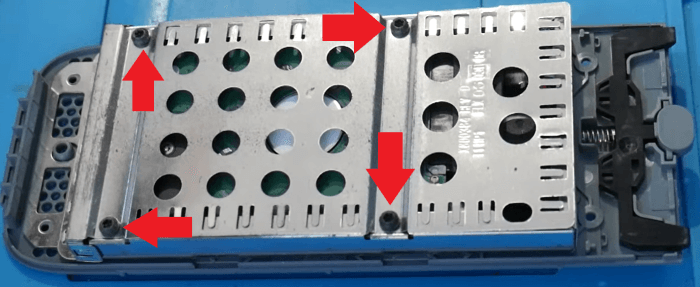
Step 3. Once the bottom screws are removed, flip the enclosure and take the top off. You should see 4 black TR10 screws that also need to be removed. These can be taken off easily.
Step 4. To remove the hard drive, start by removing the top metal cover, then disconnect the hard drive connector. Once this is done, you can slide the hard drive out.
Stage 2. Clone the Original Hard Drive to SSD
To clone your hard drive to your new SSD, connect the hard drive and SSD to your PC using a USB to SATA cable and a separate cable for the SSD. You can find the necessary cables online. Then, download and install Qiling Disk Master, and follow its steps to complete the cloning process.
Step 1. Select the source disk.
- To clone a disk, click the "Clone" option from the left menu, then select "Clone OS Disk" or "Clone Data Disk" depending on your needs, and proceed by clicking "Next".
- Choose the source disk and click "Next".
Step 2. Select the target disk.
- Select the desired hard drive or solid-state drive as the destination and click "Next" to proceed.
Step 3. View the disk layout and edit the target disk partition size.
To wipe out all data on a target disk, first, open the Disk Cleanup tool. Then, click "Continue" when the program warns it will wipe out all data on the target disk. (If you have valuable data on the target disk, back up it in advance.)
You can customize your disk layout by selecting "Autofit the disk", "Clone as the source", or "Edit disk layout", with the last option being recommended if you want to leave more space for the C drive.
Step 4. Click "Proceed" to start the disk cloning process.
- Read Warning message and confirm "Yes" button.
After cloning your hard drive, you can also utilize Qiling Disk Master's tools to maintain your drives' health and prevent defects.
- Manage Partitions - The app allows you to easily manage your Xbox One hard drive, enabling you to create, delete, resize, move, extend, merge, format, and wipe the drive with just one click.
- Test Speeds - The DiskMark feature allows you to test your hard drive and SSD speeds and optimize the drive for the best performance.
- Check Drive Health - You can also check your drive's health to ensure your new SSD is running smoothly and your old Xbox hard drive is still error-free. This is especially important after upgrading to a new SSD, as it helps you confirm that everything is working properly.
- 4K Alignment SSD - 4K alignment is a feature that can improve the performance of solid-state drives (SSDs) by aligning the drive's blocks to a 4K boundary, resulting in a performance boost.
To upgrade your Xbox's storage, you'll need to purchase a compatible SSD. Make sure to get one that's specifically designed for Xbox, as it will ensure compatibility and performance.
Stage 3. Install the SSD to Xbox 360
Once you've successfully cloned your hard drive to your new SSD, you can then proceed with the installation stage.
Just follow the steps below and install your SSD in the hard drive enclosure of your Xbox. This tutorial is from the Xbox official page; it's reliable.
Step 1. Place the new SSD into the hard drive enclosure, ensuring that none of the golden connector pins are exposed, as shown in the screenshot.
Step 2. Place the metal cover back on with the four black screws using the TR10 screwdriver.
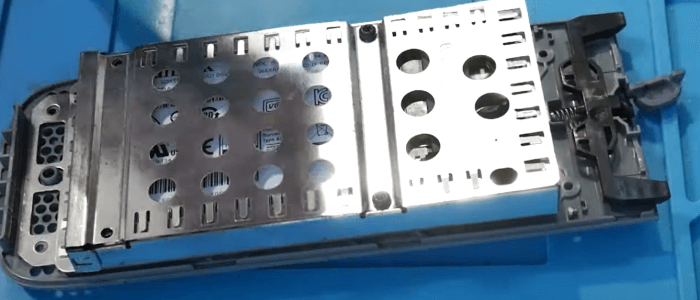
Step 3. Once you've completed the previous steps, put on the plastic shroud and secure it with the 4 T6 screws. Make sure to tighten all the screws back in place to ensure everything is properly secured.

You've successfully installed a new SSD in your old Xbox 360 console. Simply put the enclosure back on the console, and you're done. This upgrade provides you faster performance and minimal loading times, making your gaming experience even more enjoyable.
Conclusion
Installing a new SSD in your old Xbox 360 console can breathe new life into it, improving performance and loading times. To do this, you'll need to go through three stages. By following these steps, you can upgrade your console and enjoy faster gameplay and loading times, extending its lifespan.
Just follow the step-by-step play games or run homebrew apps on your Xbox, follow these simple steps: First, ensure you have a compatible Xbox 360 console and a USB drive with at least 4GB of free space. Next, download and install the Qiling Disk Master tool. Then, clone your original Xbox 360 hard drive using Qiling Disk Master, which will make the process as effortless as possible. Once you've cloned the drive, simply replace the original hard drive with the cloned one in your Xbox 360 console. That's it! With these easy steps, you'll be able to enjoy playing games or running homebrew apps on your Xbox, and you can share this article with anyone who wants to give their old Xbox 360 consoles a performance boost.
Upgrade Xbox 360 Hard Drive to SSD FAQs
Installing an SSD in your Xbox 360 is a relatively straightforward process, but if you have any lingering questions, check out the FAQs below for some additional guidance.
1. Can you replace Xbox 360 hard drive with an SSD?
To replace the Xbox 360 hard drive with an SSD, use an SSD with a capacity of less than 1 TB and in the 2.5-inch form factor. Also, have a T6 and TR10 screwdriver ready for the process.
Note: Before attempting to clone your hard drive, make sure to clone it beforehand using Qiling Disk Master and a USB to SATA cable. This precautionary step will help ensure that your data is safely backed up in case anything goes wrong during the cloning process.
2. Is SSD better than HDD for Xbox 360?
An SSD is better than an HDD for an Xbox 360 as it provides improved performance, faster loading times, and a longer console lifespan, enhancing the overall gaming experience.
3. How much space is enough for Xbox 360 SSD?
For an Xbox 360, an SSD with a capacity of 1 TB or less is sufficient, while a modded console can use an SSD up to 2 TB. Regular consoles are limited to 1 TB.
Related Articles
- How to Wipe Hard Drive in Windows 10 - 3 Safe Ways 🔥
- How to Transfer OEM Windows 10 to A New PC [Easy & Quick]
- How Do I Install a Second Hard Drive? Here Is the Complete Guide
- M.2 vs. SSD, What's the Difference [New Details]
- How to Convert Dynamic Disk to Basic Disk in Windows 11
To convert a dynamic disk to a basic disk in Windows 11 or Windows 10, follow these steps. First, open Disk Management by pressing the Windows key + R, typing "diskmgmt. - 3 Ways to Convert Dynamic Disk to Basic Without Data Loss (Free/Paid)
You can convert a dynamic disk to a basic disk using Magic Partition Manager software under Windows XP/Vista/7/8 and Windows Server 2003/2008/2012, or use a free tool, without losing any data.
Products
Articles & Tutorials
- Data Recovery
- Data Backup
- File Recovery
- File Backup
- System Backup and Restore
- Disk and Partition Clone
- Technical articles
- Mobile articles
- Disk Master Help
- Windows Data Recovery Tutorials
- Windows Secure Delete Tutorials
- Windows Partition Management Tutorials
- Windows File Backup and Restore Tutorials
- Windows System Backup and Restore Tutorials
- Windows Disk Backup and Restore Tutorials
- Windows Clone Tutorials