How to Install and Format SD Card for Steam Deck [Step-by-Step Guide]
Key Takeaways:
To prepare your SD card for the Steam Deck, you'll want to determine the best format for it. Once you've chosen the right format, you can proceed with installing and formatting the SD card for your Steam Deck using one of two efficient methods.
The Steam Deck is a top-notch portable gaming console, but its storage limitations often cause problems, prompting users to expand its capacity by installing an SD card to download more games.
To format and install an SD card for the Steam Deck, users need to first purchase and obtain the SD card, then insert it into the Steam Deck, and finally format it using the device's settings. This process allows the SD card to be used to store games and other content, expanding the device's storage capacity.
Preparations to Install and Format SD Card for Steam Deck
Installing an SD card on your Steam Deck allows you to move games from internal storage to the SD card or download games directly to the SD card, freeing up space. The SD card is a useful device for storing data, making it an essential component for expanding your Steam Deck's storage capacity.
- Choose the best SD card: To choose a safe and reliable SD card for your Steam Deck, consider opting for reputable brands like Samsung or SanDisk Extreme Pro, which are known for their high-quality and performance.
- Find the suitable Steam Deck SD card size: The Steam Deck's storage capacities of 256GB and 512GB are the most suitable choices for storing game data.
- Set the right SD card format: SD cards must be in a specific file system format for use on different devices. The correct format for the Steam Deck is EXT4.
To install a new SD card on the Steam Deck, first determine the proper size and type, then install and format it. Once complete, follow the step-by-step tutorial in the next part to get started. If you're curious about testing the speed of your Steam Deck SD card, you can click the link to learn more.

To run a Steam Deck SD card speed test efficiently, follow these steps: Insert the SD card into the Steam Deck and navigate to the Settings menu. Select the "Storage" option and then choose the SD card from the list.
To ensure a smooth gaming experience on the Steam Deck, the speed of an SD card matters a lot. If you're wondering how to test the SD card speed for your Steam Deck, you can learn two ways to run the Steam Deck SD Card Speed Test on this page.
How to Install and Format Stem Deck SD Card - Two Ways
Setting up the SD card format for Steam Deck is not tricky. To save time and increase your formatting success rate, we recommend first formatting your Steam Deck SD card on Windows, which can help streamline the process.
Note: Formatting the SD card will delete all its contents, but doing so on Windows will make it easier to back up important files. To proceed, you can follow these steps:
Install and Format Stem Deck SD Card on Windows
The built-The Windows system provides a tool that cannot use the EXT4 format required by Steam Deck. To resolve this issue, using a professional and reliable disk management tool like Qiling Disk Master Free can help manage disks and partitions, improving drive performance.
To format an SD card for your Steam Deck, start by downloading the SD card formatter from the official Steam website. Once downloaded, open the application and follow the on-screen instructions to select the SD card you want to format.
Step 1. Launch Qiling Disk Master, right-click the partition you intend to format, and choose "Format" to initiate the formatting process.
Step 2. In the new window, enter the partition label, select the desired file system (FAT32, EXT2, EXT3, or EXT4), and set the cluster size as needed.
Step 3. Click the "Proceed" to start formatting the partition to FAT32/EXT2/EXT3/EXT4.
Step 4. To install the software, first, download the executable file from the official website. Then, run the downloaded file and follow the installation wizard.
- Tip
- If your SD card is in NTFS format, you can convert it to EXT4 using Qiling Disk Master without losing any data.
If you encounter any problems with your SD card, Qiling Disk Master can help you fix it. This software also offers additional features.
After formatting the Steam Deck SD card to the correct format, you can insert it and use it on Steam Deck.
Install and Format SD Card on Steam Deck
To format the Steam Deck SD card, which uses the Linux format of EXT4, you can follow these steps. Steam Deck provides built-in functions to help you format the SD card, and once you have installed it, you can use these functions to download and format it.
Step 1. The SD card slot on the Steam Deck is typically found on the right side of the bottom of the device.
Step 2. Insert the card into the slot in the direction of the arrow on the card.
Step 3. If the SD card is not recognized, ensure it's fully inserted into the slot and an icon will appear at the top of the Steam Deck. If not, try removing and reinserting it.
Step 4. Format the Steam Deck SD card:
- To access the settings on your Steam Deck, open the Steam menu and select the "Settings" option.
- In the System menu, find the Format SD Card option
- Confirm the warning message and start formatting.
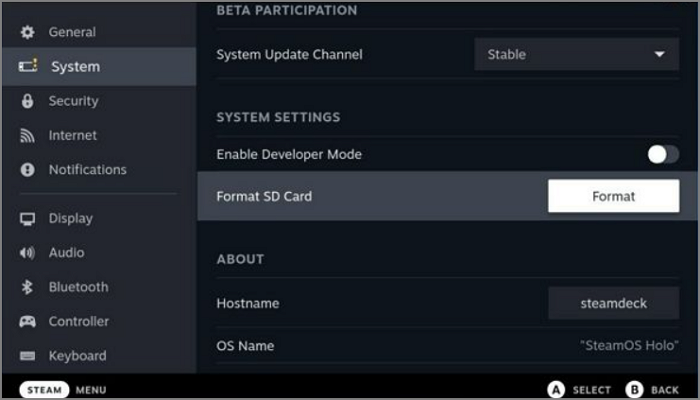
Step 5. To set the SD card as the default storage, go to Settings, find Storage, and set the SD card as the default.
When formatting an SD card via Steam Deck, users may encounter an error where the device is unable to format the card. To resolve this issue, users can attempt to use Qiling Disk Master to fix the problem.
Installing Windows on the Steam Deck in 2024 is a straightforward process. First, you'll need to download the Windows on Steam Deck ISO file from the official Steam website. Next, create a bootable USB drive using a tool like Rufus or Etcher, and then copy the ISO file to the USB drive.
Learn how to install Windows OS on your Steam Deck in detail, with a step-by-step tutorial and troubleshooting alternatives, to get the most out of your device.
Conclusion
Before installing an SD card, it's essential to choose the right one for your needs and set it to EXT4 format. This preparation is crucial for installing and formatting SD cards for your Steam Deck, and two methods are available to help you achieve this.
Formatting an SD card for Steam Deck is easy, but Qiling Disk Master offers more powerful features and can also repair the SD card when it's not working with Steam Deck.
If you encounter any Steam Deck errors, such as the "Steam takes forever to allocate disk space" issue or the "Steam unpacking slow" error, you can click the "click to fix it" option, and Qiling Disk Master will assist you in resolving these problems.
FAQs of Install and Format SD Card for Steam Deck
To format the SD card for Steam Deck, you can follow the two methods provided in the article, which include using the Steam Deck itself and using a computer. Additionally, you can refer to the FAQs and answers provided for more information.
1. What format does Steam Deck SD card should be in?
The Steam Deck's SD card requires a specific format, EXT4, to function properly, and using any other format will not be compatible with the device.
2. Is it better to use SDXC or SDHC for Steam Deck?
SDXC cards are the best option for the Steam Deck due to their fast read and write speeds, making them ideal for loading and installing games. When selecting an SD card, consider the read, load, and install times to ensure the best performance.
3. What should I do if the Steam Deck Format SD card is greyed out?
If the Format SD Card option is greyed out on Steam Deck, it might be caused by the corrupted SD card, or the Steam Deck is not fully charged.
Related Articles
- How to Fix Extend Volume Greyed Out in Windows 11?
- 5 Best FAT32 Format Tools Free Download for Windows🔥
- How to Fix Dell No Bootable Devices Found [2024 Full Guide]
- Full Guide: Check SSD Health in Windows 8 [Free & Efficient]
- How Do I Completely Wipe C Drive [Full Guide]
If you're looking to erase all information on your C drive but haven't found a practical method yet, this article provides a full guide with easy steps to help you wipe your C drive. - How to Wipe Hard Drive Before Selling in Windows 10/8/7 [Two Efficient Methods]
To erase and wipe a hard drive before selling it, you can either use the built-in Disk Management tool in Windows to delete the partition and wipe the drive, or use a third-party tool like DBAN (Darik's Boot and Nuke) to securely erase the drive.
Products
Articles & Tutorials
- Data Recovery
- Data Backup
- File Recovery
- File Backup
- System Backup and Restore
- Disk and Partition Clone
- Technical articles
- Mobile articles
- Disk Master Help
- Windows Data Recovery Tutorials
- Windows Secure Delete Tutorials
- Windows Partition Management Tutorials
- Windows File Backup and Restore Tutorials
- Windows System Backup and Restore Tutorials
- Windows Disk Backup and Restore Tutorials
- Windows Clone Tutorials