How Do I Completely Wipe C Drive [Full Guide]
To completely erase all data and the Windows operating system on your C drive, you can't just format the drive, as the data remains recoverable with a professional tool. If you want to wipe the C drive, you'll need to follow specific steps to securely erase all data and operating system.
Things You Should Do Before Wiping C Drive
If you force wipe your Windows OS, which is usually on the C drive, your computer will likely become unbootable and you may lose your data, as system files, programs, and user files are stored on the C drive.
To avoid data loss, it's recommended to migrate the OS to another disk and set it as the boot disk, ensuring a smooth transition and minimizing potential issues.
To migrate your operating system from a hard disk drive (HDD) to a solid-state drive (SSD), follow these steps: first, back up all your important files and data to an external drive or cloud storage, then, purchase an SSD of sufficient capacity, next, install the SSD into your computer, after that, download and run a cloning software such as Qiling Disk Master, which will create an exact copy of your HDD onto the SSD, finally, replace the HDD with the SSD, and reboot your computer.
To migrate your Windows OS from a Hard Disk Drive (HDD) to a Solid State Drive (SSD), follow this tutorial and use the Qiling OS migration tool, which makes the process safe and easy by transferring and moving the OS to the SSD or HDD without the need for reinstallation.
Consider creating a backup for the C drive in case you accidentally remove significant files.
To remove everything on the C drive, refer to either way 1 or way 2. Alternatively, if you want to keep the OS and erase other data on your C drive, check out way 3.
Way 1. Wipe System Disk Using Third-party Software
If you're planning to wipe your C drive clean and use it for data storage, I recommend using a professional tool like Qiling Disk Master to ensure a safe and efficient process.
This free partition manager software enables you to wipe a disk quickly and effectively with its simple and user-friendly interface. With its "Wipe Disk" feature, you can erase all data on the drive fast and securely, making it easy to manage and maintain your computer's storage.
We've set two options for you to wipe data. Choose the one you need.
Option 1. Wipe Partition
- Right-Click the partition you want to erase data from, and choose "Wipe" from the context menu.
- To wipe a partition, open the Disk Management window, select the partition you want to wipe, right-click on it, and select "Delete Partition" or "Wipe Partition". In the new window, set the time for which you want to wipe your partition.
- Click the "Proceed" button in the lower right corner after checking the changes.
Option 2. Wipe Disk
- Select the HDD/SSD. And right-click to choose "Wipe Disk".
- Set the number of times to wipe data. This can be set to 10 at most.
- Click "Proceed" to start the operation.
If you find this software practical and easy to use, you can share it with your friends.
Way 2. Clean System Disk Using Diskpart
To wipe all data, files, and the OS on your C drive, you can use the Windows built-in program Diskpart, which offers a "clean all" command line that removes all data on the whole hard disk, making it unrecoverable. However, this will result in serious data loss, so it's essential to prepare fully before proceeding. To do this, open Command Prompt as an administrator, type "diskpart," and press Enter. Then, type "list disk" and press Enter to identify your C drive. Next, type "select disk X" (where X is the number of your C drive), and press Enter.
Step 1. To access the Windows Recovery Environment, go to Start, then Settings, followed by System (for Windows 11) or Update & Security (for Windows 10), and select Recovery. From there, click on Restart (now) under the Advanced Startup section.
Step 2. Go to "Troubleshoot" > "Advanced options" > "Command Prompt".
Step 3. Type in the following commands and hit "Enter" after inputting each line:
- diskpart
- list disk
- select disk 0 (Replace 0 with the number of the disk where your system partition is located.)
- clean all
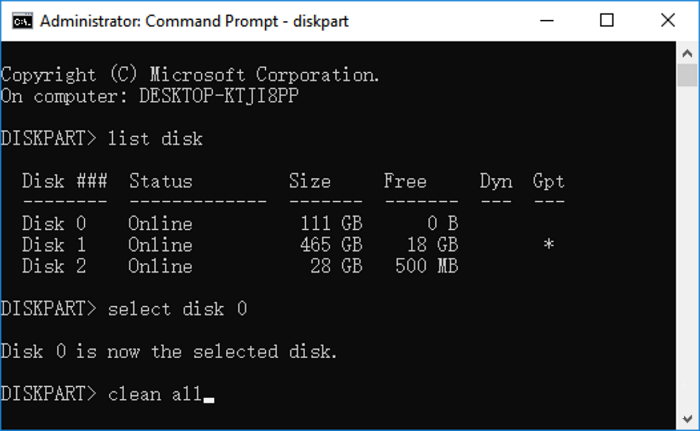
After the process is finished, you can then initialize the disk for further use, such as a backup disk or secondary storage.
Way 3. Perform Windows Reset
If you want to free up space on your C drive or resolve system errors, you don't need to erase everything. Instead, you can reset Windows, which will remove temporary files, system logs, and other data that's not essential to the operating system. This can help resolve issues like low disk space and system crashes without deleting important files or reinstalling Windows.
To completely reset your PC, erase all personal files and software on the C drive, then reinstall Windows and the original applications. You can find a step-by-step guide on how to reset your PC here.
Step 1. To reset your Windows PC, go to "Start" > "Settings", then select "System" (Windows 11) or "Update & Security" (Windows 10), and finally click on "Recovery", then select "Reset PC".
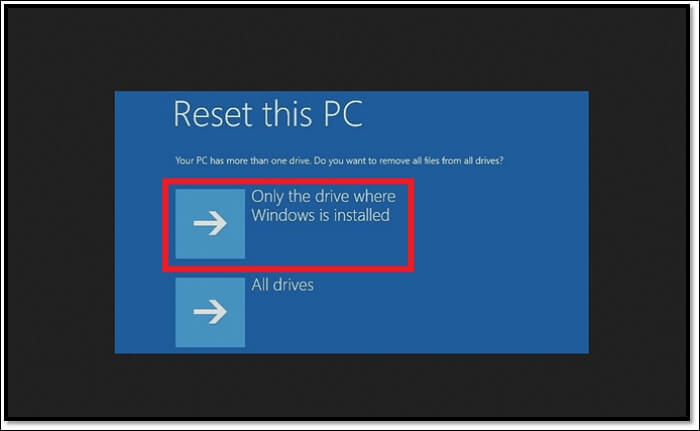
Step 2. To reset your PC, go to the "Troubleshoot" section, then select "Reset this PC" and choose "Only the drive where Windows is installed".
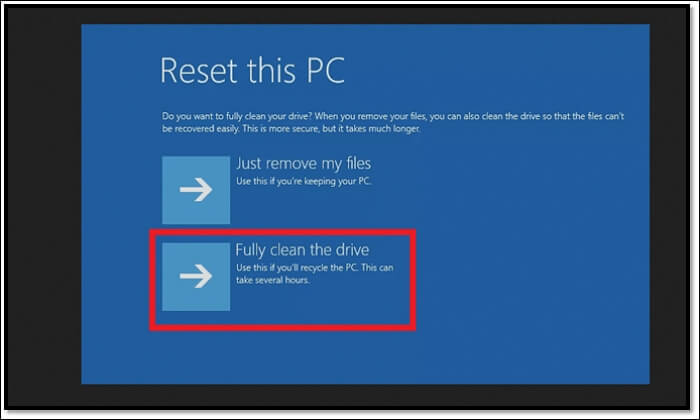
Step 3. When deleting files, be cautious and consider the consequences. If you're simply removing unwanted files, selecting "Just remove my files" is a safe choice. However, if you're planning to fully wipe the drive, be aware that this will make your data unrecoverable, so choose "Fully clean the drive" with care.
Step 4. Confirm and start the process.
This process will cause your computer to restart a few times and can wipe the hard drive without deleting Windows.
Do you have all the information you need? If so, do remember to share this article on your social media to help more users.
Conclusion
If you need to wipe the C drive and delete the OS from the drive, there are three methods to consider: using Qiling Disk Master, Diskpart, or resetting the Windows system. Among these options, Qiling Disk Master stands out as the easiest and most effective utility for the task, offering a convenient solution for deleting the OS from the drive.
FAQs on Wipe C drive
Here are some common questions related to this topic. You can see if there's any you'd be interested in.
1. Should I wipe my C drive?
Wiping the hard drive is recommended when disposing of a computer to prevent data leaks and ensure private information remains unrecoverable. This process makes the data unrecoverable, protecting it from unauthorized access.
2. What happens if I delete the C drive?
If Windows is installed on a drive other than C, you can delete the C drive without affecting the operating system's boot process. However, if Windows is installed on the C drive, deleting it will prevent the computer from booting.
3. Does wiping a drive remove OS?
Wiping a drive will remove your OS, requiring a Windows reinstallation to access the system. Proceed with caution and thorough preparation.
Related Articles
- Top 5 Free Disk Formatter Recommend for Windows & Mac
- How to Install Windows 10 to eMMC [Step-by-Step Guide]
- Solve Toshiba SSD Slow Write Speed [100% Working]
- I Need Help: How to View the User Password in Windows 10
Are you struggling to recall a forgotten Windows 10 user password and want to know how to view the user password in Windows 10? This post provides you the 2023 newest and most comprehensive answer. - [SD Card Unavailable] Fix SD Card Wont Mount on Android & PC
Mounting and unmounting an SD card refers to the process of attaching and detaching it from a digital device, such as an Android phone or camera. However, if your micro SD card fails to mount, you may encounter issues. This can happen on both Windows PCs and Android smartphones. - There Is No Disk in the Drive. Please Insert a Disk into Drive
When you start your computer, you may encounter an error message stating that there is no disk in the drive. To resolve the “No disk in Drive” error in Windows 7, 8, 8.1, or 10, simply follow the methods offered here.
Products
Articles & Tutorials
- Data Recovery
- Data Backup
- File Recovery
- File Backup
- System Backup and Restore
- Disk and Partition Clone
- Technical articles
- Mobile articles
- Disk Master Help
- Windows Data Recovery Tutorials
- Windows Secure Delete Tutorials
- Windows Partition Management Tutorials
- Windows File Backup and Restore Tutorials
- Windows System Backup and Restore Tutorials
- Windows Disk Backup and Restore Tutorials
- Windows Clone Tutorials