Shrink Volume Shows 0 MB Available
Quick Navigation:
- Why Windows Reports 0 MB
- Find What Blocks the Shrink
- Clear the Obstacles
- Shrink With a Partition Tool
- Frequently Asked Questions
Shrink Volume can offer a number that looks wrong: 0 MB, or a few hundred megabytes on a volume that shows fifty gigabytes free in File Explorer. The dialog measures what Windows can move out of the way, not what the volume contains, and the two numbers are often far apart.
Why Windows Reports 0 MB
The shrink operation can only cut the volume at a point where every allocated cluster beyond the new end can be relocated. When a file that cannot be moved sits near the end, no cut point is available and the available shrink space falls to zero.
A small group of files falls into that category: the master file table and its reserved area, the page file, the hibernation file, and the data that System Protection keeps for restore points and shadow copies.
That is why a volume can be half empty and still offer nothing. The free space exists, but it lies in front of a file that Windows refuses to move while the system is running.
Find What Blocks the Shrink
Compare the two numbers first: the available shrink space in the dialog and the free space reported by Explorer. The difference is what Windows cannot relocate, and its size hints at which file is in the way.
A hibernation file matches the installed memory, a system-managed page file grows with use, and restore points can hold several gigabytes. Any of them can pin the end of the volume.
The master file table is harder to see. On a volume that has been written to for years it can sit in the middle of the data, and no setting moves it out of the way, which is the point where a partition tool becomes the practical answer.
System Protection, the page file, and hibernation are configured in the Windows system settings, and Disk Cleanup removes the restore points that hold space at the end of the volume. Those built-in tools work on system files only and leave your documents untouched.
Clear the Obstacles
Turn off hibernation in the power settings, which deletes the hibernation file, then reopen the shrink dialog and read the number again. If it grows, the file was the obstacle and the operation can now run.
Next, open System Protection and delete the restore points except the most recent one, or turn protection off for that volume temporarily. Restart before the next attempt so the change reaches the file system.
If the number is still 0 MB, move the page file to another disk, restart, and try once more. Re-enable protection, hibernation, and the page file after the shrink has finished, so the machine keeps its recovery options.
Shrink With a Partition Tool
When every built-in step leaves the number at 0 MB, the limit is in the tool rather than in the volume. Qiling Disk Master relocates the files Windows refuses to move, and it shows the size the volume will keep before the change starts.
Step 1. Check the Volume on the Disk Map
Open the program and read the disk map. The volume appears with its capacity and the space it still uses, and the partitions behind it show how the released space will fit into the layout. Confirm the disk number before you continue.

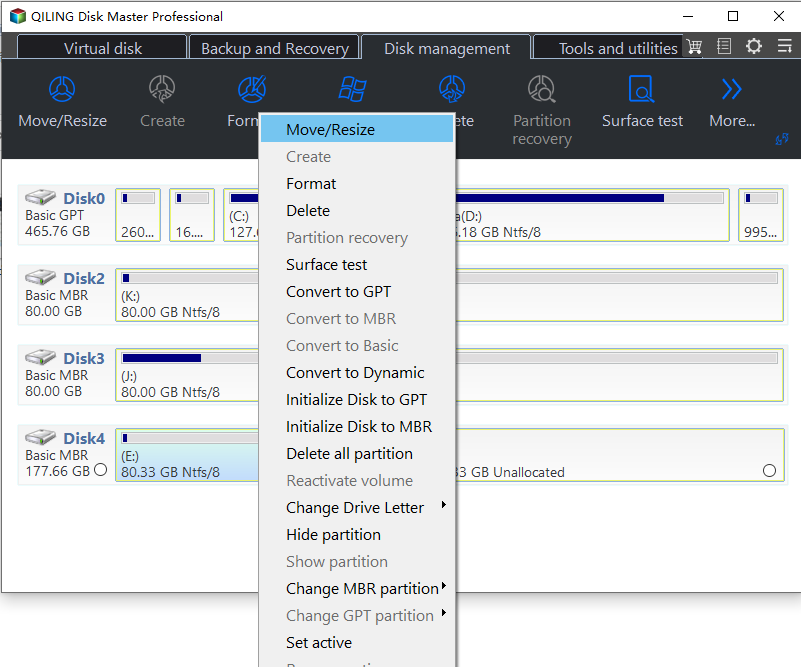
Step 2. Open Move/Resize on the Volume
Right-click the volume and choose Move/Resize. The wizard opens on that partition with the current size as its starting point, so the new size is defined against the volume you selected.
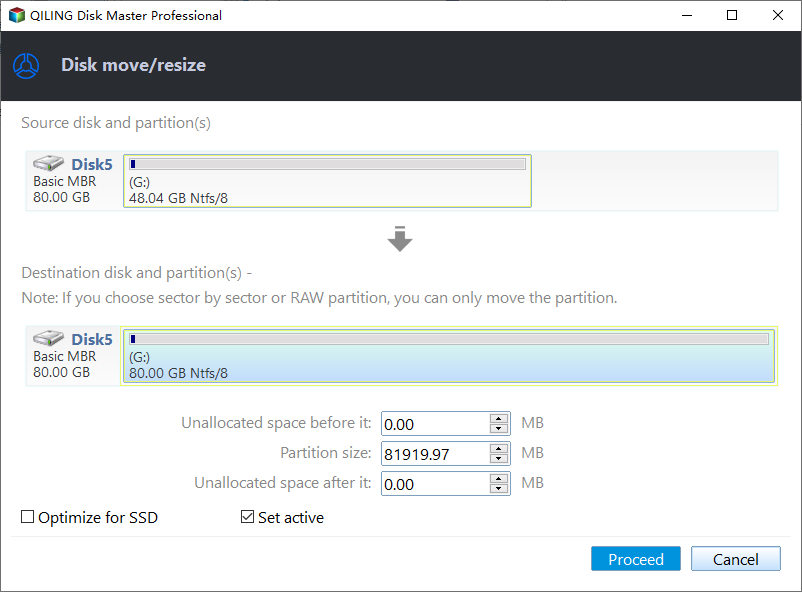
Step 3. Enter the New Size and Click Proceed
Type the partition size the volume should keep, and check that the released space is left as unallocated space after the partition. Click Proceed; the operation runs in a progress window that reports Moving or resizing, and the machine restarts if the system volume has to be moved. Leave it powered until the window closes, then create a partition on the new block or extend a neighbour into it.
Frequently Asked Questions
Why is 0 MB offered when the volume has plenty of free space?
Because the free space is not at the end of the volume in a movable form. The dialog reports the space Windows can reach by relocating files, and an unmovable file near the end leaves nothing to report.
Does defragmentation make the shrink possible?
Sometimes it helps, because consolidating free space gives Windows room to work. It does not move the master file table or delete shadow copies, so the number can stay at 0 MB afterwards.
Can I shrink the system volume while Windows is running?
Yes with a partition tool, which schedules the parts that touch the system volume for the next restart. Disk Management can shrink C: while Windows runs, but only down to its own limit.
If the space released by the shrink has to move behind another volume, the sequence in the disk space message explained covers that step.
Related Articles
- Move the Recovery Partition
- 844 MB Unallocated After a Windows 11 25H2 Update
- Remove the Recovery Partition
- 26H2 Upgrade Failed With 0x800F0922
- All Options Grayed Out in Disk Management
Products
Articles & Tutorials
- Data Recovery
- Data Backup
- File Recovery
- File Backup
- System Backup and Restore
- Disk and Partition Clone
- Technical articles
- Mobile articles
- Disk Master Help
- Windows Data Recovery Tutorials
- Windows Secure Delete Tutorials
- Windows Partition Management Tutorials
- Windows File Backup and Restore Tutorials
- Windows System Backup and Restore Tutorials
- Windows Disk Backup and Restore Tutorials
- Windows Clone Tutorials