OneDrive Files Not Showing Online: Why & How to Fix
PAGE CONTENT:
- ?♂️ User Case
- To sync your OneDrive files across all your devices, you can try the following: check that your OneDrive app is updated on your PC, and also ensure that the files you want to sync are in the correct OneDrive folder. You can also try right-clicking on the folder and selecting "Sync" or "Sync all" to force the sync. If the issue persists, you can try restarting your OneDrive app or even your PC. If you're still having trouble, you can contact OneDrive support for further assistance.- From Microsoft OneDrive Community
If you've experienced the issue where files you upload to OneDrive appear on your local PC folder but not online, don't worry - this post will explain why this happens and provide solutions to fix it. We'll also offer a solution to prevent this problem and back up files to OneDrive without syncing.
Reasons Why OneDrive Files Not Showing Online
Before finding solutions to the "OneDrive files not showing online" issue, you may want to know why this happens in the first place. Here are some reasons that could cause your OneDrive files to go missing online.
1. OneDrive is not logged in on your PC
If you see a gray X on the OneDrive icon on your taskbar, it means you're not logged into OneDrive. To fix this, click on the icon to log in and enter your Microsoft account credentials.
2. OneDrive is not up-to-date
To update OneDrive, open the app, click on the gear icon in the upper-right corner, then click on 'Settings' and select 'Update Now'.
3. OneDrive is not syncing all folders
To sync all folders on your PC with OneDrive, open the app, click the gear icon, select 'Settings', go to the 'Choose Folders' tab, and check the box next to 'Sync all files and folders in OneDrive'.
4. Files are being blocked by antivirus software
If you have antivirus software installed on your PC, it may be blocking OneDrive from syncing properly, so you'll need to add OneDrive to your antivirus software's exceptions list.
5. OneDrive is not set to start up automatically
To fix OneDrive not syncing, open the Start menu, search for "OneDrive", right-click on the entry, select "More" and "Open file location", then right-click on the "OneDrive" shortcut, select "Properties", check "Run as Administrator" in the Shortcut tab, click "Advanced", check "Run as Administrator", and click "OK" to save changes.
OneDrive may not always be secure, with instances of compromised data. Users must take precautions against security threats and data breaches. However, having a backup of OneDrive data can provide peace of mind in case of emergencies.
3 Available Solutions to Fix OneDrive Not Syncing
If your OneDrive files are missing online, there are several potential reasons and solutions to try. To get your files to show up online again, you can try checking the OneDrive website, restarting your computer, checking for any conflicts with other cloud storage services, and verifying the file type and permissions. Additionally, ensuring that your OneDrive account is properly synced and that the files are not deleted or moved to a different location can also resolve the issue.
Solution 1. Restart OneDrive on your PC
If OneDrive isn't syncing correctly, restart the app on your PC by going to your Start menu, typing 'OneDrive', and clicking on the result. This simple step can often resolve the issue. If restarting the app doesn't work, you can try restarting your PC, checking your internet connection, or looking for updates for the OneDrive app.
Step 1. To exit OneDrive, right-click on the OneDrive icon in your taskbar and select 'Exit'.
Step 2. Open the Start menu and search for 'OneDrive'.
Step 3. Click on 'OneDrive' to relaunch the app.
Solution 2. Disable Antivirus Software & Firewall Temporarily
Step 1. To access Windows Update settings, click on the Windows Start icon, then select the "Settings" option. From the Settings window, click on the "Update & Security" option.
Step 2. Select Update Security > Click Open Windows Defender Security Center.
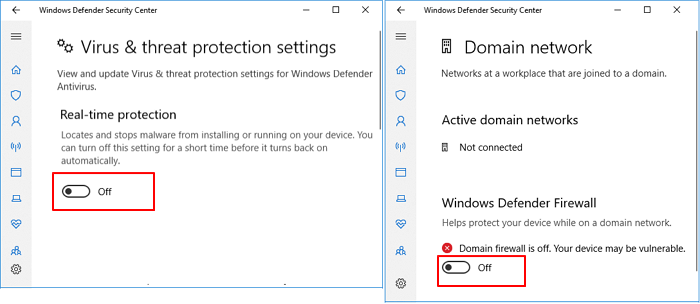
Step 3. To temporarily turn off or disable Virus & threat protection and Firewall & network protection, select the option.
Solution 3. Reset OneDrive on your PC
If the first two solutions don't work, you can try resetting OneDrive on your PC. To do this, go to the Start menu, type "OneDrive" in the search bar, and select the "OneDrive" application. Right-click on the OneDrive icon in the system tray, then select "Quit OneDrive".
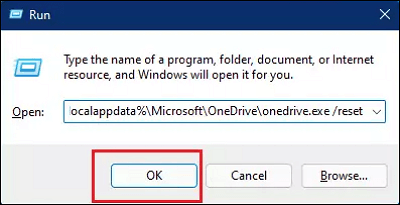
Step 1. Press the Windows + R keys together, and enter %localappdata%\Microsoft\OneDrive\onedrive.exe /reset in the Run dialog, then click OK.
Step 2. If the OneDrive icon in the notification area disappears and then reappears after a few minutes, it indicates that the OneDrive reset was successful.
Step 3. If you see the "Windows cannot find..." prompt message, enter the path `C:\Program Files (x86)\Microsoft OneDrive\onedrive.exe /reset` in the Run dialog and try again.
How to Backup Files to OneDrive without Syncing
OneDrive allows users to back up and access files from anywhere with an internet connection, in addition to syncing files across devices.
To automatically back up files to OneDrive, you can use a third-party backup software like Qiling Disk Master to save time and effort, especially when dealing with large amounts of files or folders.
With Qiling Disk Master, you can set up scheduled backups to automatically back up all critical files on your computer to your OneDrive account according to your needs, such as daily, weekly, or monthly backups.
You may also be interested:
Here are the steps to back up files to OneDrive with Qiling Disk Master:
Step 1. To initiate a backup, click the Select backup contents option.

Step 2. There are four data backup categories, including File, Disk, OS, and Mail, and clicking on File backup is the next step.

Step 3. On the left, both local and network files will be shown, allowing you to browse and select the desired backup files from the directory.

Step 4. To store the backup, follow the on-screen instructions and select a location such as an external hard drive, cloud storage, or a specific folder on your computer.

Click Options to encrypt the backup with a password in Backup Options, then click Backup Scheme to specify the backup schedule and start the backup at a certain event, with other additional choices available to tailor the backup process.

Step 5. The backup may be stored on a local disk, Qiling's online service, or NAS.

Step 6. Qiling Disk Master allows users to back up data to both a third-party cloud drive and its own cloud drive.
To back up data to a cloud drive provided by a third party, select Local Drive, scroll down to add Cloud Device, and add and log in to your account.
Step 7. Click Proceed to begin the backup process. After it's finished, the backup job will be displayed as a card on the left side of the panel, and you can right-click on it to manage it further.
The Bottom Line
We shared possible reasons why OneDrive files are not showing online and provided three solutions to fix the issue, hoping these measures can help you sync your files properly.
If you're looking for a better way to protect the safety of your files, you can try backing up files to OneDrive with Qiling Disk Master instead of syncing with OneDrive.
OneDrive Files not Showing Online FAQ
1. Why can't I see my OneDrive files online?
Here are a few reasons why you might not be able to see your OneDrive files online:
- OneDrive is not logged in on your PC
- OneDrive is not up-to-date
- OneDrive is not syncing all folders
- Files are being blocked by antivirus software
- OneDrive is not set to start up automatically
- OneDrive is paused
- The file is too large or has an invalid character in the file name. This error typically occurs when you're trying to upload a file to a server, but the file size exceeds the server's maximum allowed size or contains special characters that are not allowed in file names.
You can refer to the post above for corresponding solutions.
2. How do I view my OneDrive files online?
To view your OneDrive files online, go to onedrive.com, log in with your Microsoft account, and all your files will be listed on the main page. If not signed in, click Sign in at the top right, enter your email and password, and click Sign in again.
3. Should I disable OneDrive for security reasons? How do you set up your OneDrive to not auto-sync files? Or are there certain folders that should be un-synced?
OneDrive is a cloud storage service that syncs your files across devices, allowing you to access them anywhere. You can disable it or unsync specific folders for security reasons.
Related Articles
- Why Is OneDrive Not Syncing on Windows PC? Answers and Fixes Are Here!
- Can You Backup C Drive to OneDrive in Windows 10/11
- Top 5 Best Free Registry Backup Software [Updated 2023]
- Backup Solutions for Small and Mid-sized Companies of 2023
- How to Open Outlook Backup Files in PST Format
- [QuickBooks Online Backup] How to Backup QuickBooks Online to Desktop
- 5 Best Free Hard Disk Backup Software for Windows 11/10/8/7[The Latest]
A hard disk is a physical component of a computer where data is stored, and backing it up is crucial to protect your information in case of a hard drive failure. Fortunately, there are various hard disk backup software programs available, and here are five of the best and most popular ones.
Products
Articles & Tutorials
- Data Recovery
- Data Backup
- File Recovery
- File Backup
- System Backup and Restore
- Disk and Partition Clone
- Technical articles
- Mobile articles
- Disk Master Help
- Windows Data Recovery Tutorials
- Windows Secure Delete Tutorials
- Windows Partition Management Tutorials
- Windows File Backup and Restore Tutorials
- Windows System Backup and Restore Tutorials
- Windows Disk Backup and Restore Tutorials
- Windows Clone Tutorials