[2 Ways] How to Create Windows 10 Image with Pre-Installed Software
- To create a Windows 10 image with pre-installed software using Qiling Disk Master, you can follow these steps:
- You can create a Windows 10 image with pre-installed software using the Windows Media Creation Tool. This tool allows you to create a bootable USB drive or CD/DVD that can be used to install Windows 10 on a computer.
- To create a bootable USB media using Qiling Disk Master, follow these steps: First, download and install Qiling Disk Master on your computer. Next, plug in your USB drive and open Qiling Disk Master.
- The Final Thought
- Create Windows 10 Image with Pre-Installed Software FAQs
- ??♂️
- You can create a Windows 10 ISO image with pre-installed software and use it to boot up your laptop after formatting or on a new one, but it requires some technical steps. You'll need to create a bootable USB drive or CD/DVD with the Windows 10 installation media, then use a tool like Windows 10 Media Creation Tool to create an ISO image with your customizations. This ISO image can then be used to install Windows 10 on your laptop or new device. However, please note that you'll need to ensure that the software you've installed is compatible with the new device and that you have the necessary licenses for the software. Additionally, you may need to reinstall some drivers or software to get everything working properly.
Installing Windows 10 from a standard ISO is straightforward, but personalizing the system takes time. You still need to install drivers, updates, programs, settings, and business tools manually. If you need to prepare multiple PCs, repeating that setup on every computer is inefficient.
A Windows 10 image with pre-installed software can save time by capturing a configured system and deploying it to other computers.
To create this kind of Windows 10 image, you can use system imaging, deployment tools, or third-party backup and deployment software. The goal is to capture Windows, installed programs, and required settings into a reusable image.
Create Windows 10 Image with Pre-Installed Software via Qiling Disk Master
Creating and deploying an image to many computers can be challenging, but Qiling Disk Master simplifies the process. It can help create a Windows 10 system image with installed software and restore or deploy it to compatible hardware with less manual work.
Pros
- Create system images of your current OS and deploy them across multiple devices in a single, effortless step.
- The software allows for the deployment of ISO images in batches, enabling administrators to manage and control them remotely. This feature streamlines the process of installing and configuring multiple systems, reducing the time and effort required for each deployment.
- Update and upgrade the ISOs with software and set up PCs quickly.
- In emergency situations, having a streamlined process in place can help minimize disruptions to your business. This can be achieved through having a clear emergency protocol, identifying critical tasks and systems, and implementing a backup plan to ensure continuity.
Cons
- A little pricy since it comes with advanced software.
- Limits the advanced features with the free version.
Steps to Create Windows 10 Image with Pre-Installed Software via Qiling Disk Master
Step 1. Click "Backup and recovery" main tab page.

Step 2. Among the four available categories, click System backup.

Step 3. Qiling Disk Master will automatically select your system partition, requiring only a selection of the backup destination.

Step 4. You can save the backup file to either a local drive on your computer or a Network-Attached Storage (NAS) device.
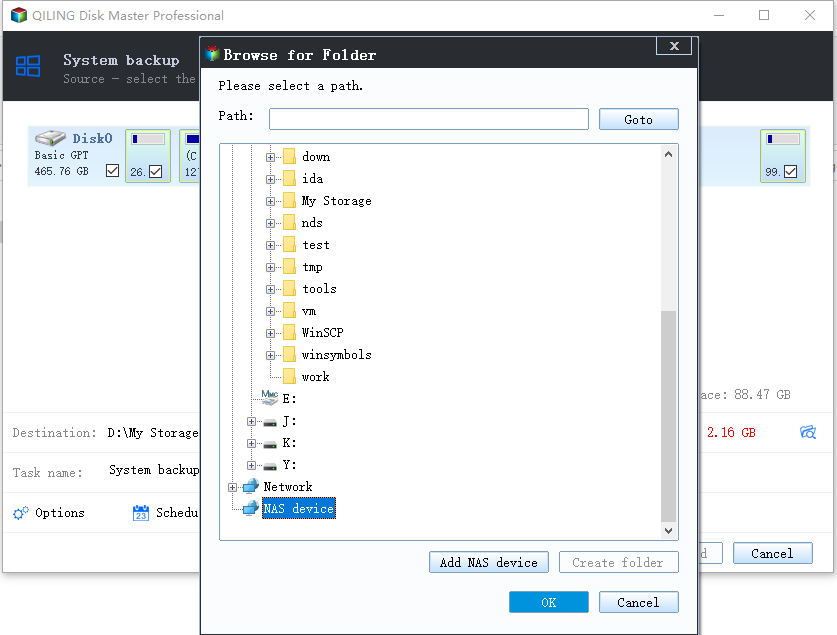
Step 5. After completing the backup process, you can check the backup status, recover, open, or delete the backup by right-clicking the backup task on the left.

Create Windows 10 Image with Pre-Installed Software via Windows Media Creation Tool
The Windows Media Creation Tool allows for quick creation of installation media or upgrades to Windows 10/11. However, for more customized setups, the Windows 10 Assessment and Deployment kit (ADK) and Windows System Image Manager (SIM) are required to create and customize the Windows setup. This process is useful for clean installations, making new copies, or reinstalling the operating system.
Pros
- Completely free and launched by Microsoft itself.
- Helps in creating ISO images and installation media for multiple PCs.
- It packs all the solid functionalities into one.
Cons
- Creating ISO images with the Windows media creating tool is a more complicated process compared to other software tools.
- You must load this into Pendrives and boot it on different PCs separately.
To create a Windows 10 image with pre-installed software using the Windows Media Creation Tool, follow these steps: First, download the Media Creation Tool from Microsoft's official website. Next, run the tool and select the option to create an installation media for another PC.
Step 1: Download and install the MediaCreationTool20H2.exe on your PC. Click on it to run.
Step 2: Accept all the license terms and conditions to continue.
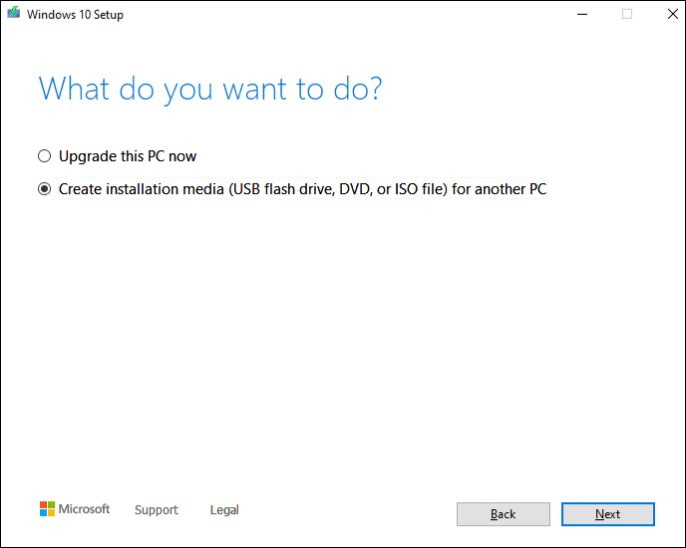
Step 3: A "what do you want to do?" window opens, and select Create installation media (USB flash drive, DVD, or ISO file) for another PC from the options.
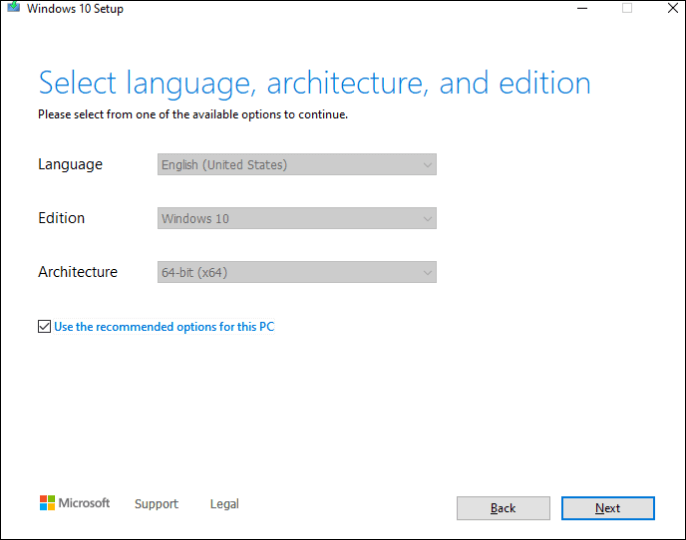
Step 4: Now, you can see the "Select language, architecture, and edition" Windows. Select the required options for Language, Edition, and Architecture, or change the default settings by unchecking "Use the recommended options for this PC" and specifying the new settings of your choice.
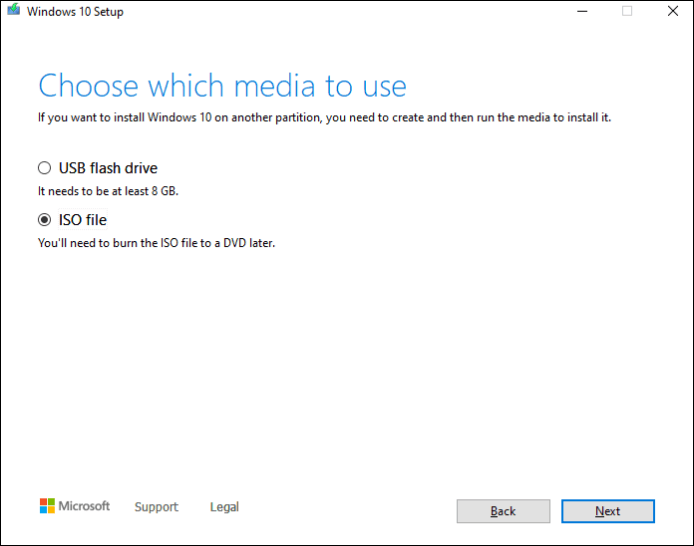
Step 5: A "Choose which media to use" window opens, select ISO file, and click next to select a location in the file explorer on your device to save the ISO file.
Step 6: The Media Creation Tool will create the ISO system image, which may take some time depending on the Windows version being used.
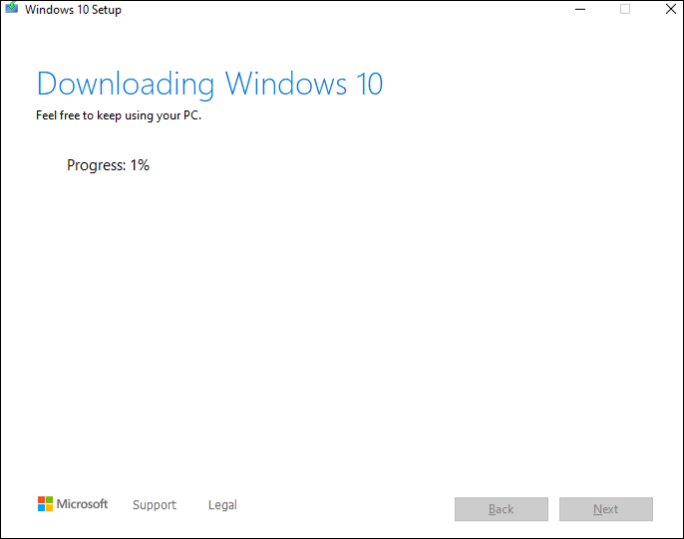
Step 7: To install the operating system on multiple systems, you'll first need to burn the ISO file onto a DVD or any bootable media. This ISO file can then be used to install the OS on as many systems as you wish.
Bonus: Use Qiling Disk Master to Create a Bootable USB Media
Now that you know how to create a Windows 10 ISO image with pre-installed software, you'll also need bootable USB media to boot up the custom ISO file on new PCs effectively. This bootable media allows you to mount the ISO files onto a new PC without the need for an operating system, and Qiling Disk Master is a great tool for creating bootable media.
You can use Qiling Disk Master to create bootable media such as CDs, DVDs, and USB flash drives, which can be loaded with your ISO file to deploy it. This helps create a restoration system to boot computers and streamline business in emergency situations, allowing you to mount and run your ISO image exactly as desired.
Step 1. Prepare a USB drive which can be written and read.
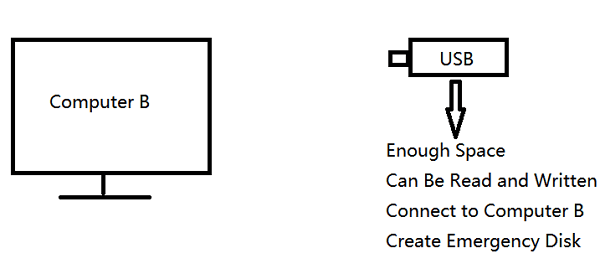
Step 2. Launch and install Qiling Disk Master on the Computer B.
Step 3. Click on "Tools and utilities" and select "Create Emergency Disk" to proceed.

Step 4. The process of selecting the Boot disk location allows you to choose how you want to create the bootable media, which can be an ISO file, a bootable USB drive, or a CD/DVD disc. This step enables you to prepare the necessary media for booting the operating system or other software.

Step 5. Then click "Proceed" to start.
The Final Verdict
Creating a Windows 10 ISO image with pre-installed software can save you time and effort by providing a ready-to-use operating system with your desired software. This can be achieved through two methods: using Qiling Disk Master to create a bootable media creation, or utilizing the Windows Media Creation Tool to create an ISO image with pre-installed software. By having a pre-configured ISO image, you can quickly restore your system in case of emergencies or use it to set up new devices, making it a convenient and efficient solution.
If you found this article helpful, please share it with your friends and leave a comment about it. If you have any questions or queries regarding the topic, feel free to ask them in the comment box. Additionally, let me know of any future issues you wish to see articles from Qiling.
FAQs
Here are some of the most frequent FAQs on creating Windows 10 ISO images with pre-installed software. If you have similar queries hope this will help you.
1. How to create Windows 10 ISO image from an existing installation?
You can use the Media Creation tool on Windows 10 to create a custom ISO for Windows 10, which can then be deployed on other systems. This process involves downloading the necessary files, choosing the installation media, and customizing settings such as languages, architecture, and Windows editions. Once completed, the custom ISO is ready for deployment.
2. How do I create a bootable USB with pre-installed programs and custom settings?
To create bootable media, start by creating an ISO image with the desired programs and settings. Next, utilize Qiling Disk Master's tool to create the bootable media, allowing for efficient deployment or emergency use.
3. How do I create a custom Windows installation image?
To create customized Windows installation images, set up a virtual machine with the Windows OS, install the required applications and configure the desired settings. Then, capture the virtual machine file to generate a WIM file, which can be deployed across various computers using bootable media.
Related Articles
- How to Backup An External Hard Drive to Another External Hard Drive in Windows 10
- 4 Ways | How to Reinstall Windows Without Losing Games
- Restore your hard drive and operating system
- 3-Minute Guide | How to Restore Outlook Backup With Ease
- Create Portable Windows 11/10/8/7 USB Drive in 2 Ways
- Best Ways to Store Videos Long Time[4 Choices 100% Working]
- For Beginner's: Put a Windows 11 PC to Sleep
To put a Windows 11 PC to sleep mode, you can use the Start menu, Command Prompt, or Powercfg command. You can also use the Power button on your keyboard or the Start menu to put your PC to sleep.
Products
Articles & Tutorials
- Data Recovery
- Data Backup
- File Recovery
- File Backup
- System Backup and Restore
- Disk and Partition Clone
- Technical articles
- Mobile articles
- Disk Master Help
- Windows Data Recovery Tutorials
- Windows Secure Delete Tutorials
- Windows Partition Management Tutorials
- Windows File Backup and Restore Tutorials
- Windows System Backup and Restore Tutorials
- Windows Disk Backup and Restore Tutorials
- Windows Clone Tutorials