Best Windows 11 Backup Software (Free & Paid)
Windows 11 ships with backup tools, but none of them creates a complete, bootable copy of your system by itself. File History protects only your personal folders, OneDrive syncs files instead of backing them up, and the legacy system image tool has no real scheduling. That is why most users still look for dedicated Windows 11 backup software.
This guide compares the best Windows 11 backup software, both free and paid, explains what each one is genuinely good at, and shows how to make your first backup with the top pick.
PAGE CONTENT
- What to Look for in Windows 11 Backup Software
- Top Picks at a Glance
- Best Overall: Qiling Backup
- Free Options Built into Windows 11
- How to Choose the Right Tool
- FAQs About Windows 11 Backup Software
What to Look for in Windows 11 Backup Software
Backup tools look similar on the surface, so judge them by what happens on the day something goes wrong. These are the features that matter most on Windows 11:
- System image backup - can it capture Windows, the EFI and recovery partitions, installed programs, and settings as one restorable image?
- File and folder backup - can it also protect documents, photos, and project folders on your own schedule?
- Backup types and scheduling - does it support full, incremental, and differential backups, and can it run automatically without supervision?
- Compression and encryption - a compressed image saves space, and password protection keeps a stolen external drive from exposing your data.
- Recovery outside Windows - when Windows will not start, can you boot from a USB drive or the software's recovery environment and restore the image?
- Restore to different hardware - if the PC dies, can the image be restored to a replacement machine, or only to the original drive?
- Cost and licensing - check whether the free edition covers system images and recovery, and whether the paid upgrade is a one-time purchase or a subscription.
Also keep Windows 11 specifics in mind. If BitLocker is enabled, make sure you can restore an encrypted system volume, and keep your recovery key outside the backup itself.
Top Picks at a Glance
Here is how the most common choices compare for Windows 11 users:
- Qiling Backup - the best overall pick. System, disk, partition, and file backup in one tool, with scheduling, compression, and a free edition that already covers most home backup jobs.
- Acronis Cyber Protect Home Office - a broad feature set that combines backup with antivirus. Powerful, but it is a yearly subscription and heavier on system resources.
- Macrium Reflect - imaging and cloning are its strengths, and it is a good fit if your main goal is moving Windows to a new SSD. The free edition has been discontinued, so expect a paid license.
- Paragon Backup & Recovery - flexible scheduling and archiving options, with a more technical interface that suits experienced users.
- Ashampoo Backup Pro - simple, guided image backups for beginners who want few decisions to make.
- Windows 11 built-in tools - free and already installed, but limited: no unified system image with scheduling, no compression, and no restore to dissimilar hardware.
If you want to compare dedicated imaging tools in more depth, see our Acronis True Image alternative and Macrium Reflect alternative guides.
Best Overall: Qiling Backup
Qiling Backup is the best all-round choice for Windows 11 because it handles the two jobs most people actually need. It creates a full system image for disaster recovery, and it backs up individual files and folders on a schedule, all from one interface and without a subscription.
Step 1. Install and open Qiling Backup, then choose the backup type you need on the main page: "System Backup" for Windows and your programs, "File Backup" for your own documents, or "Disk/Partition Backup" for a full drive.

Step 2. Check the source. For a system backup, the Windows and boot partitions are selected automatically, so you do not have to identify them yourself.

Step 3. Choose a destination such as an external SSD, a USB drive, or a NAS. Keep the backup off the drive you are protecting.

Step 4. Open "Schedule" to automate the job, then click "Proceed". Qiling Backup supports full, incremental, and differential backups, so later runs only store the changes and finish much faster.
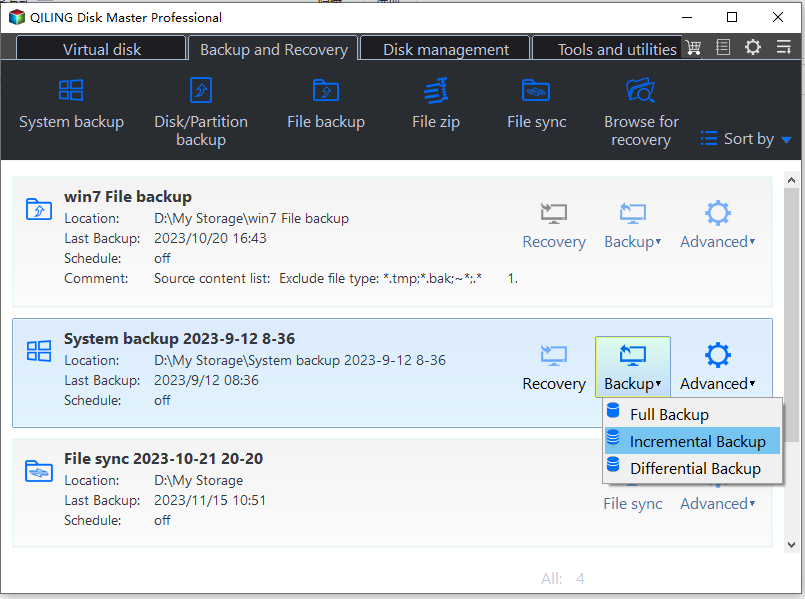
What you get with the free edition: system, disk, partition, and file backup, scheduled tasks, image compression, password protection, and recovery from the software's own bootable environment. The paid upgrade adds features such as system migration and email backup. If you are moving to a new drive rather than restoring, the same tool handles it - see clone vs image for the difference.
Free Options Built into Windows 11
Before paying for anything, it helps to know exactly what Windows 11 already offers, because the built-in tools cover less than most people expect.
- Backup and Restore (Windows 7) - still present in Windows 11 and can create a system image, but it cannot refresh that image on a schedule, offers no compression, and its recovery environment needs a separate repair disc.
- File History - keeps versioned copies of your personal folders on an external drive. Useful for documents, but it never backs up Windows itself.
- OneDrive folder sync - keeps files available online, yet it is a sync service, not a backup: a deletion or a ransomware encryption is synced too.
- System restore points - record system files and the registry, not your data, and they do not survive a failed drive.
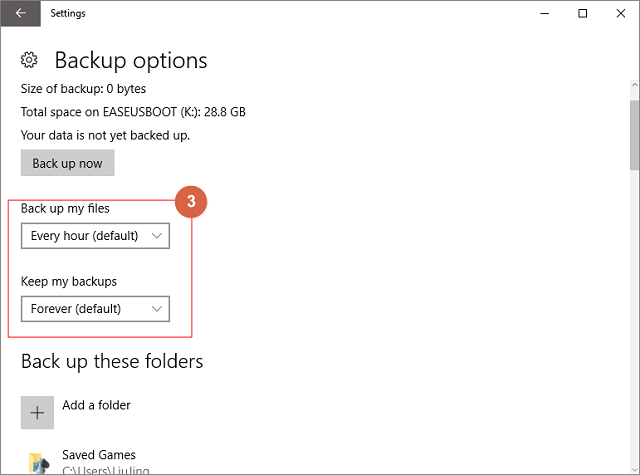
To turn on File History, connect an external drive and go to Settings > System > Storage > Advanced storage settings > Backup options, then select "Automatically back up my files".
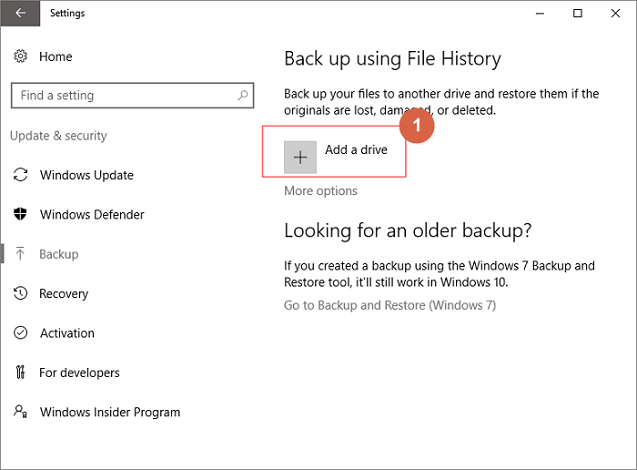
You can adjust the frequency and choose which folders are included from "More options".
For a full explanation of how these built-in tools differ, read how Windows backup works, or follow the system backup image guide if you want the complete picture rather than folders only.
How to Choose the Right Tool
Match the tool to the failure you are most likely to face:
- A dead drive or a Windows that will not boot - you need system image backup and recovery outside Windows. Pick Qiling Backup, Macrium Reflect, or Acronis.
- A file you deleted or overwrote by mistake - you need versioned file backup. A file backup with several restore points solves this; an image alone does not.
- A laptop that could be lost or stolen - add an offsite copy. Pair local software with cloud backup so one disaster cannot remove both copies.
- A tight budget - start with Windows 11's built-in tools plus a free edition such as Qiling Backup Free, and only upgrade when you hit a limit.
- Moving Windows to a larger SSD - this is a cloning task, not a backup task. Read clone vs image before you start.
Whatever you choose, follow the 3-2-1 rule: keep three copies of important data, on two different types of media, with one copy offsite. For more groundwork, see how to back up files on a computer.
FAQs About Windows 11 Backup Software
Is the backup built into Windows 11 enough?
For personal documents, File History is a reasonable start. It is not enough on its own, because it cannot restore a failed drive, cannot rebuild Windows, and does not compress or encrypt anything. Add a system image tool for full protection.
Can I back up Windows 11 to an external SSD or USB drive?
Yes, and it is the usual choice for a home backup. The destination only needs enough free space for the image, which is roughly the size of the used space on the source drive before compression. Avoid saving the image on the drive you are backing up.
What do I lose with a free backup tool?
Usually advanced extras rather than core protection. Free editions often leave out features such as email backup, continuous cloud replication, or restoring to very different hardware. Basic system images, file backups, scheduling, and recovery are commonly included.
How often should I back up Windows 11?
A weekly file backup plus a monthly system image suits most home users, with a fresh image before any major Windows update or hardware change. If you work on important documents daily, run the file backup daily instead.
Does backup software slow down my PC?
Only while a job is running, and incremental backups limit how long that is. Schedule backups for a time when you are not using the PC, or cap the backup speed if the tool supports it, so the copy does not fight with your normal work.
Conclusion
The best Windows 11 backup software is the one that can rebuild your PC, not just copy your documents. Qiling Backup covers system image, disk, partition, and file backup with scheduling, compression, and a free edition that is enough for most home use. If you prefer a different focus, Macrium Reflect is strong for imaging, Acronis adds security features, and Paragon or Ashampoo suit simpler or more technical tastes. Whichever you choose, test a restore before you depend on it.
Start with the system backup image guide, then set up automatic backups so you never have to remember the job again.
Related Articles
- Best Acronis True Image Alternative for Backup & Cloning (2026)
- Best Macrium Reflect Alternative for Free Disk Cloning (2026)
- Best Cloud Backup Software for PCs and Servers
- How to Create a Windows 10 System Backup Image
Step-by-step guide to creating a restorable system image and bringing Windows back after a disk failure or a broken update. - Backup Before Windows 11 25H2 Update: Protect Files and System
What to save before installing a Windows 11 feature update, and how to keep a rollback path if the update fails.
Products
Articles & Tutorials
- Data Recovery
- Data Backup
- File Recovery
- File Backup
- System Backup and Restore
- Disk and Partition Clone
- Technical articles
- Mobile articles
- Disk Master Help
- Windows Data Recovery Tutorials
- Windows Secure Delete Tutorials
- Windows Partition Management Tutorials
- Windows File Backup and Restore Tutorials
- Windows System Backup and Restore Tutorials
- Windows Disk Backup and Restore Tutorials
- Windows Clone Tutorials