Best Cloud Backup Software for PCs and Servers
Quick Navigation:
- 1. Why Should You Choose Cloud Backup
- 2. How to Choose the Right Cloud Backup Software
- 3. Top 5 Best Cloud Backup Software Recommended
If you're concerned about losing access to your files, whether they're papers, images, or other data, it's essential to protect and back them up in a remote location. Traditional hard drive storage is no longer a secure option, so backing up your data to the cloud is the best solution.
Finding the best cloud backup software can be a hassle, but this article aims to ease that out by covering the finest cloud backup tools available in the market. To store your data in the cloud, you'll need cloud backup software, and this article will help you navigate through the options to find the perfect one for your needs. Let's get started!

Why Should You Choose Cloud Backup
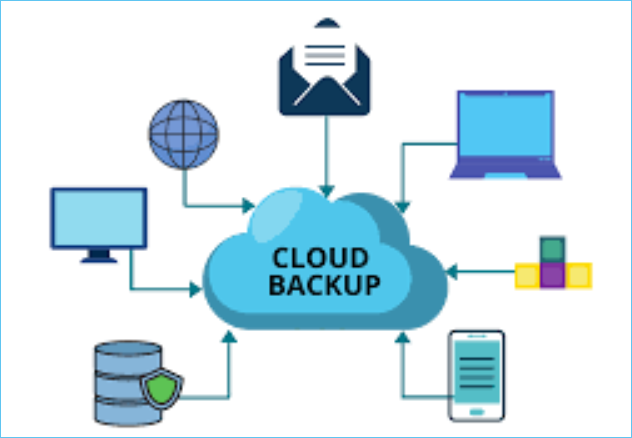
A cloud backup is a method that sends a replica of a file to a secondary site to preserve it if the primary location's equipment fails or a natural disaster occurs, strengthening a company's data security policy without adding to IT personnel's burden.
A cloud backup tool creates copies of data and stores them on separate media or another storage system in a business's data center, making it easy to retrieve in case of a recovery crisis. Many companies use cloud backup as their off-site facility, although there are alternative options and ways to backup business data. If a business maintains its own cloud service, it may own the off-site server, but if it uses a service provider, the chargeback process remains the same.
Some of the benefits of cloud backup are:
- 100% data security
- Decrease operating costs
- Cost-effective
- Synchronization
- Accessibility
A Quick Answer: Is Cloud Backup Safe
The issue of cloud backup has been a popular topic in recent years, with many people shifting to keeping data backups on the cloud since its introduction.
How to Choose the Right Cloud Backup Software
When choosing a cloud backup tool, consider factors such as data storage capacity, security features, and pricing plans to select the one that best suits your needs.
Quality of Service: When evaluating cloud backup services, focus on their capabilities and service quality to ensure they meet your needs.
Ease of Use: Before choosing software, it's helpful to understand its interface to ensure it's user-friendly and easy to navigate, making the selection process smoother.
Performance: The most significant service aspect is its overall feel, whether accessed through a web browser, a specialized client, or a mobile app, depending on the context.
Security: All security measures, including data backup encryption and protection against ransomware, are in place.
Cost: To summarize, when deciding whether to pay for a service, consider the value it provides and whether it's worth the cost.
Cloud Backup VS Cloud Storage: What's the Difference
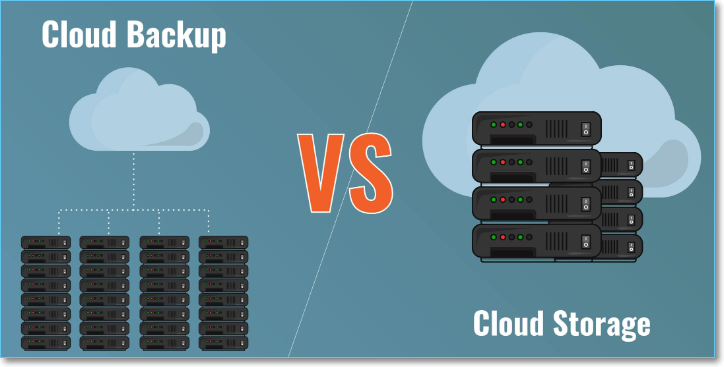
Cloud backup and cloud storage serve different purposes, with cloud backup focusing on data protection and recovery, typically through automated backups, while cloud storage is used for storing and sharing files, often with features like collaboration and versioning. This distinction is key to understanding the difference between the two.
Top 5 Best Cloud Backup Software Recommended
The best cloud backup software is a must-have to prevent data loss due to viruses, ransomware, and malware, as well as hard drive failures. Since traditional storage devices can be vulnerable to damage or viruses, a cloud backup solution is essential to safeguard your essential data. Among the top cloud backup tools are various options that offer reliable and secure data protection.
1. Qiling Backup
Pricing: Starts at $39.95 per year
Qiling Backup offers a comprehensive solution to all backup needs. It allows users to easily back up their entire computer to the Qiling Backup cloud server, where data is stored securely. Users can also compress backups to save space, although this may slow down the backup process. Additionally, backups can be encrypted and password-protected to prevent unauthorized access, and stored in the Qiling Backup cloud for enhanced data security.
Key Features
- Flexible and schedule backup plans for certain days or events.
- To backup and restore a drive, system software, and data files with Qiling, consider using a reliable backup software. This will allow you to schedule automatic backups, compress and encrypt files, and store them on an external drive or cloud storage.
- To quickly clone a disk/partition and the Windows operating system between an HDD (Hard Disk Drive) and an SSD (Solid State Drive), you can use a cloning software like Qiling Backup. These tools allow you to create an exact copy of your existing HDD to the SSD, including the operating system, programs, and data.
- To prepare for crisis recovery, create a portable USB device and a WinPE disk. The portable USB device can be used to boot into a Windows environment from any computer, while the WinPE disk allows you to boot into a minimal Windows environment with limited functionality, but with access to your files and programs.
Pros
- Easy to use
- Supports OneDrive
- 100% data security
Cons
- Slow speed
To learn how to use this efficient software, follow the steps below.
Step 1. To initiate a file backup using Qiling Backup for the first time, tap the "File backup" option on the home screen.

Step 2. You can select various types of files to back up, such as pictures, videos, documents, and more.

Step 3. To back up files, folders, or directories, follow the paths to locate them, then select them all.
Step 4. To select a backup location, go to the "Settings" menu, then click on "Backup and reset". From there, you can choose a location to save your backup, such as an external hard drive, a cloud storage service like Google Drive or Dropbox, or a network location.

Step 5. Qiling Backup allows users to save backup files to various devices, including local hard drives, external USB drives, SD cards, network drives, NAS drives, and Qiling cloud drives. We recommend storing backups in the cloud for greater accessibility, flexibility, and safety.
Step 6. If you want to set up an automatic and intelligent backup schedule for the next file backup task, go to the "Options" setting. There, you can choose to encrypt confidential files, compress the backup image size, or customize a backup schedule to specify when the next backup should start.

Customize an advanced and automatic backup task here:

Step 7. Click "Proceed" to start the file backup process, and your completed backup files will be displayed on the left in a card format.

2. Backblaze
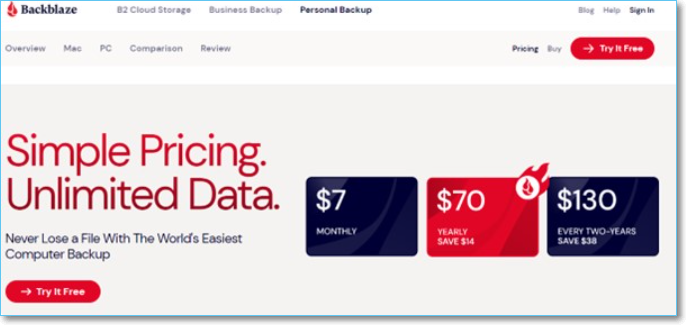
Pricing: $7 per month
URL: https://www.backblaze.com/
Backblaze is a cost-effective cloud-backup provider with fast upload rates and a user-friendly interface. It offers restore-by-email capability and even helps track down a misplaced or stolen laptop by geolocating its Wi-Fi network.
Key Features
- Everything is contained between two simple panels.
- Strong encryption, fortified data centers, and two-factor authentication are used.
- It protects your data from accidental loss or theft.
- It has a restore by mail capability that allows you to recover your data by sending an email.
Pros
- Quick service
- Easily affordable
- Unlimited storage
Cons
- No multiple computer package
3. iDrive
Pricing: $59.62 for 5TB per year
URL: https://www.idrive.com/
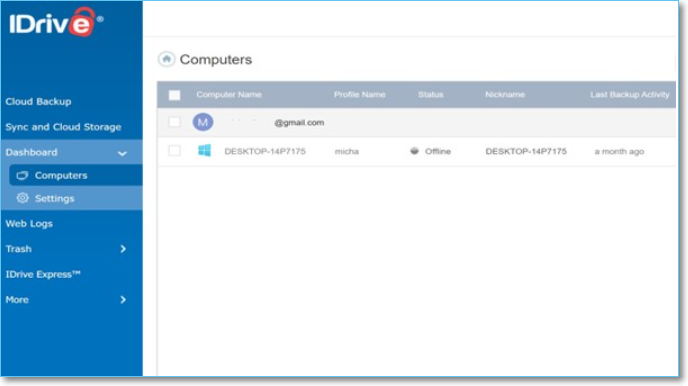
iDrive offers a low-cost online backup solution with good security and privacy, supporting various devices including data centers, NAS, tablets, phones, removable hard drives, and desktop computers, with features like version control available for 30 days.
Key Features
- It employs a block-level algorithm to ensure that no bandwidth is wasted.
- You can back up your mobile devices using Android and iOS applications.
- The service enables the physical delivery of data through a courier service, allowing for the secure and private transportation of sensitive information.
Pros
- Fast and Reliable
- Easy to use
- 5GB free
Cons
- Slow service
4. Dropbox
Pricing: Starts at $9.99 per month
URL: https://www.dropbox.com/
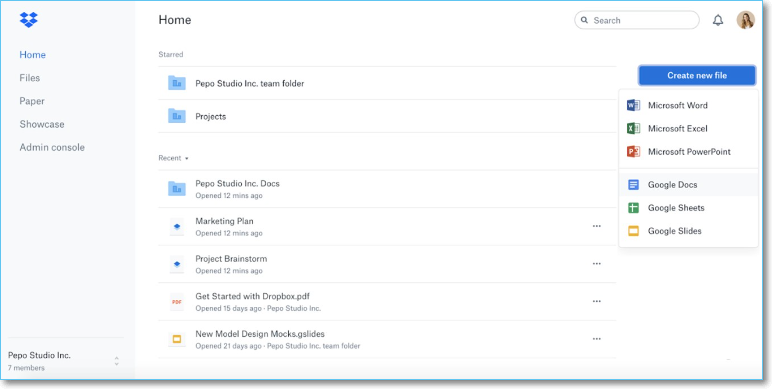
Dropbox is another well-Dropbox is a popular cloud storage service that caters to both individuals and businesses, offering a range of options and a vast amount of storage capacity, making it a suitable choice for various cloud storage needs.
Key Features
- The device has a wide range of tools and a substantial amount of storage space.
- The system has a single admin login and data is retained for 180 days.
- It supports 256-bit AES encryption, SSL/TLS, and user permissions.
Pros
- Free 5GB
- Provides 100% data security
- Easy to use
Cons
- Lack of metadata
- Outdated functionalities
5. Carbonite
Pricing: Starts at $6/month billed annually
URL: https://www.carbonite.com/
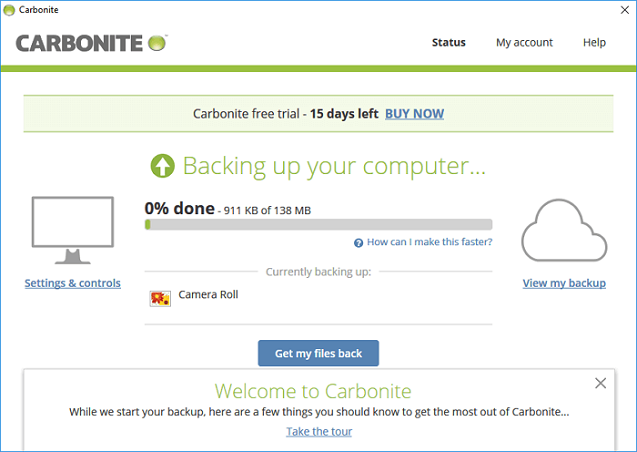
Carbonite, a top-notch NAS cloud backup option, shares similarities with Backblaze in its focus on simplicity and unlimited capacity, but lacks functionality, exceling only at its core purpose of backing up computers.
Key Features
- It has robust encryption with AES 256-bit and SSL/TLS.
- All files are accessible through a web interface and mobile apps for iOS and Android.
- It offers many options for restoring the stored data.
- The first backup is mostly automated, and subsequent backups only upload updated data, making the process more efficient and less time-consuming.
Pros
- Secure platform
- Unlimited storage
- Strong encryption
Cons
- Limited features
- Slow download speed
Conclusion
To ensure the safety of your data, which is prone to loss or malfunction on hard drives, consider using the best cloud backup software. This can be selected from the tools discussed in this article. We recommend Qiling Backup for backing up data to Qiling backup servers, as it provides maximum data protection. Download Qiling Backup today to safeguard your data.
Related Articles
- Quick Solutions | Windows Defender Missing Windows 11
- [Solved] This Application Was Unable to Start Correctly (Error Code: 0xc000007b)
- Top 5 Third-party Time Machine Alternatives for Windows 11/10/8/7
- Does Windows File History Backup Everything? Know More About File History
- Migrate OS to Crucial SSD via Free Qiling Disk Master
Want to migrate OS to Crucial SSD for free quickly and safely? This post will save you from installation CD and all the complicated operation. - Mount System Image Backup on Virtual Drive to Restore Single File in Windows 10/8/7
You will find the perfect solution to mount backup image to restore individual files while Windows Backup and Restore does not support to restore single file from system image file.
Products
Articles & Tutorials
- Data Recovery
- Data Backup
- File Recovery
- File Backup
- System Backup and Restore
- Disk and Partition Clone
- Technical articles
- Mobile articles
- Disk Master Help
- Windows Data Recovery Tutorials
- Windows Secure Delete Tutorials
- Windows Partition Management Tutorials
- Windows File Backup and Restore Tutorials
- Windows System Backup and Restore Tutorials
- Windows Disk Backup and Restore Tutorials
- Windows Clone Tutorials