SSD Cache vs RAM Disk: Which Speeds Up Windows 11 More?
When you want to make Windows 11 faster without buying a new drive, two popular options stand out: an SSD cache and a RAM disk. Both use fast storage to reduce the time you spend waiting, but they solve different problems. An SSD cache keeps copies of frequently used data on a fast SSD so a slow hard drive feels quicker. A RAM disk turns part of your memory into an ultra-fast virtual drive for temporary files.
Choosing between them — or deciding to use both — comes down to what you need: raw speed, capacity, data persistence, or SSD wear reduction. This guide compares SSD cache and RAM disk across every important dimension and shows how to set up each one in Windows 11 using Qiling Fast Cache and Qiling Disk Master.
PAGE CONTENT
- What SSD Cache and RAM Disk Actually Do
- SSD Cache vs RAM Disk: Side-by-Side Comparison
- When an SSD Cache Is the Better Choice
- When a RAM Disk Is the Better Choice
- Set Up an SSD Cache with Qiling Fast Cache
- Set Up a RAM Disk with Qiling Disk Master
- Which Should You Use? + FAQs
- Back Up Windows Before You Change Settings
What SSD Cache and RAM Disk Actually Do
An SSD cache sits in front of a slower drive. When Windows or an app reads a file, the tool remembers which blocks are used most often and stores copies of them on a fast SSD or NVMe drive. The next time those blocks are requested, they come from the SSD instead of the slow HDD. Your original data stays untouched — the cache is just a copy.
A RAM disk is different. It carves out a portion of your system memory and presents it to Windows as a real drive with its own letter. Files you save to it live entirely in RAM. Because RAM is far faster than any SSD, read and write speeds are enormous. But RAM is volatile, so everything on the RAM disk disappears when the PC shuts down.
In short: an SSD cache accelerates existing drives, while a RAM disk adds a new ultra-fast drive that you point specific apps at.
SSD Cache vs RAM Disk: Side-by-Side Comparison
The table below summarizes how the two approaches differ across the factors that matter most.
| Factor | SSD Cache | RAM Disk |
|---|---|---|
| Speed | Fast (500-7,000 MB/s) | Extreme (10,000-40,000 MB/s) |
| Capacity | Large (up to hundreds of GB) | Small (limited by spare RAM, 2-32 GB) |
| Persistence | Survives reboots | Wiped on every reboot |
| Cost | Requires a spare SSD | Uses RAM you already have |
| Reduces SSD wear | No (adds SSD writes) | Yes (moves writes off SSD) |
| Apps need changes | No — transparent | Yes — point apps to the drive |
| Best for | Speeding up an HDD or slow SSD | Temp files, browser cache, scratch disks |
Neither option is universally better. They are complementary, and many users get the best results by running both.
When an SSD Cache Is the Better Choice
An SSD cache wins when you want to speed up a large amount of data without changing how you work.
- You still boot from an HDD. Caching the system drive on a small SSD transforms boot and app launch times.
- You have a large data drive. A multi-terabyte HDD full of games, projects, or media benefits from an SSD cache holding its hottest files.
- You want it to "just work." An SSD cache is transparent — apps need no changes and data survives reboots.
- You have a spare SSD lying unused. Putting it to work as a cache is free performance.
Because the cache is large and persistent, it learns your habits over time and keeps delivering speedups day after day.
When a RAM Disk Is the Better Choice
A RAM disk wins when you need the absolute fastest storage for temporary, replaceable data.
- You want to reduce SSD wear. Browser cache and temp files generate constant small writes; putting them in RAM saves your SSD.
- You do heavy creative work. Video and photo editors use scratch disks that benefit enormously from RAM speed.
- You value privacy. Sensitive temporary data is wiped automatically on shutdown.
- You have plenty of spare RAM. With 16 GB or more, a RAM disk costs you nothing extra.
The trade-off is volatility. Never store the only copy of an important file on a RAM disk.
Set Up an SSD Cache with Qiling Fast Cache
Qiling Fast Cache is the tool to use for an SSD cache. It can also use RAM as an L1 cache for even more speed.
Step 1. Download and install Qiling Fast Cache.
Step 2. Open the app and click the + button to create a new cache task.

Step 3. Select SSD as the cache type. Pick the SSD or NVMe partition that will hold the cache. Make sure it has enough free space — 64 GB or more gives the best hit rate.

Step 4. Choose the drive to accelerate — usually the HDD you want to speed up — and click OK.
Step 5. Watch the statistics. The main window shows the hit rate, cached data size, and read performance. A hit rate above 50% means the cache is doing its job.

Set Up a RAM Disk with Qiling Disk Master
Qiling Disk Master includes a one-click RAM disk feature. Use it when you want an extreme-speed drive for temporary files.
Step 1. Download and install Qiling Disk Master.
Step 2. Open the Tools and Utilities page in the main window.
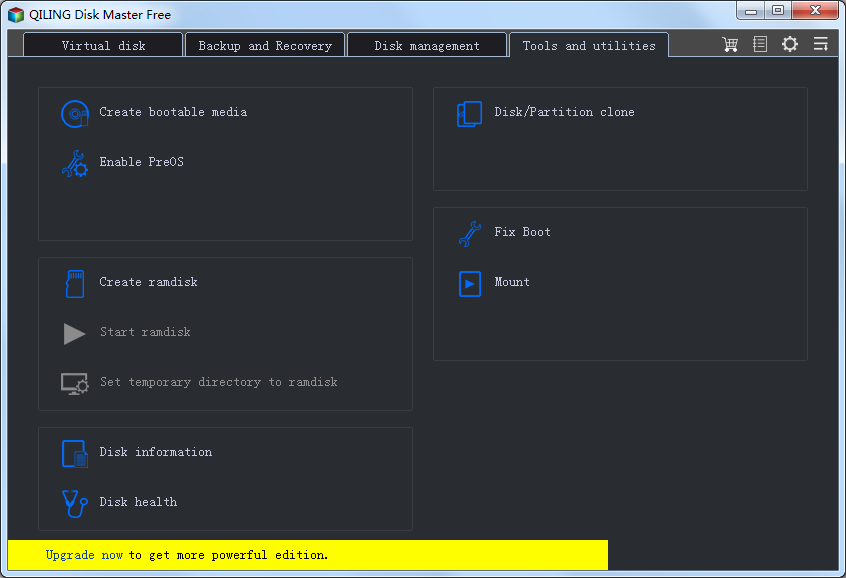
Step 3. Click "Create ramdisk". A dialog opens where you configure the drive.
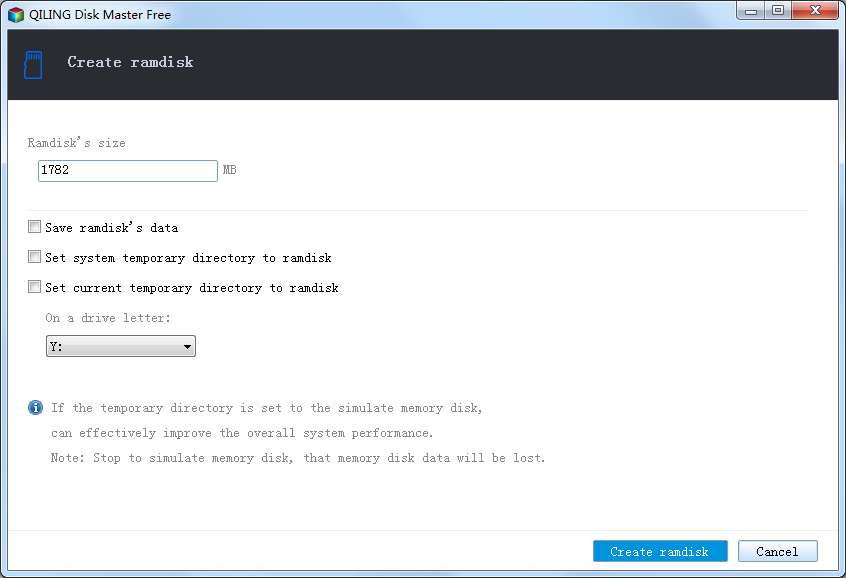
Step 4. Set the size (2-8 GB is typical) and choose a drive letter such as R:. Select NTFS and enable auto-mount at startup.
Step 5. Click the Create ramdisk button. The new drive appears in File Explorer, ready to use.
Which Should You Use? + FAQs
Here is a simple rule of thumb:
- Slow HDD and want everything faster? Use an SSD cache (Fast Cache).
- Want the fastest possible temp storage and less SSD wear? Use a RAM disk (Disk Master).
- Want both? Run Fast Cache on your HDD and a RAM disk for temp and browser cache. With 16 GB of RAM or more, this is the ideal setup.
Can I use SSD cache and RAM disk at the same time?
Yes. They do not conflict. Qiling Fast Cache caches your HDD reads, while the RAM disk handles temporary writes. Running both gives the best overall responsiveness.
Is a RAM disk faster than an SSD cache?
Yes, RAM is much faster than any SSD. But a RAM disk is small and volatile, while an SSD cache is large and persistent, so each is better suited to different tasks.
Do I need more RAM to use a RAM disk?
You need spare RAM. With 16 GB total, allocate 2-4 GB to the RAM disk and leave the rest for Windows. With 8 GB or less, skip the RAM disk and use an SSD cache instead.
Will an SSD cache wear out my SSD?
A read cache mostly reads from the SSD, which causes little wear. If you enable write caching, some writes go to the SSD, so choose a cache SSD you are comfortable using.
Back Up Windows Before You Change Settings
Both tools are safe to set up, but if you are also changing storage drivers or BIOS settings, a backup protects your system. Qiling Disk Master creates a full Windows image you can restore from if anything goes wrong.
Part 1: Create a Full System Backup
Step 1. Install and open Qiling Disk Master. On the home screen, open "Backup and Recovery" and choose "System Backup". This option automatically includes Windows and the hidden boot partitions, so you do not have to select them one by one.

Step 2. Check the source. The disk where Windows is installed and its system partitions are already ticked for you. If you only need your personal documents, run a separate "File Backup" task instead.

Step 3. Click the destination box and choose where the image should be saved. Use an external HDD or SSD, a NAS, or any drive other than the one Windows is installed on, and make sure it has enough free space.

Step 4. Review the task summary and click "Proceed". Wait until the progress bar reaches 100%. Do not unplug the drive or turn off the PC while the backup is running.

Part 2: Restore Windows from the Backup
Step 1. Open Qiling Disk Master again, go to "Backup and Recovery", and select the recovery option. Your backup images are listed, so pick the one you created before the changes began.

Step 2. Choose the target disk or partition. Normally you restore to the original system disk. If the drive was replaced, select the new disk instead, and the restore rebuilds Windows together with its boot partitions.

Step 3. Preview the restore plan, click "Proceed", and confirm the warning. The PC restarts to finish the job, and Windows comes back exactly as it was on the day the image was created, with your files and programs intact.

- Note
- Keep the backup image on a separate drive, and refresh it before changing storage drivers or BIOS storage settings.
Conclusion
SSD cache and RAM disk are two different ways to make Windows 11 faster. An SSD cache, created with Qiling Fast Cache, accelerates a slow HDD by keeping frequently used data on a fast SSD — large, persistent, and transparent to your apps. A RAM disk, created with Qiling Disk Master, adds an ultra-fast virtual drive in memory for temporary files, browser cache, and scratch data — extreme speed, but volatile. If you want to speed up an HDD, choose the SSD cache. If you want the fastest temp storage and less SSD wear, choose the RAM disk. If you have 16 GB of RAM or more, use both for the best results.
Protect your PC with Qiling Backup—create a system image before your next round of settings changes.
For more Windows 11 performance guides, see Windows 11 Fast Cache, How to Create a RAM Disk in Windows 11, Move Browser Cache to RAM Disk, Move TEMP Folder to RAM Disk, and Speed Up Windows 11 with RAM and SSD Cache.
Related Articles
- How to Move Browser Cache to RAM Disk in Windows 11
- Speed Up Windows 11 with RAM Cache and SSD Cache
- Windows 11 Guide: Features, Upgrade Tips and What to Know
- ReadyBoost vs RAM Disk vs SSD Cache: Which to Use in Windows 11
- Should You Cache a Slow Drive or Buy a Bigger SSD?
- Can a Disk Cache Hide a Failing Drive?
Products
Articles & Tutorials
- Data Recovery
- Data Backup
- File Recovery
- File Backup
- System Backup and Restore
- Disk and Partition Clone
- Technical articles
- Mobile articles
- Disk Master Help
- Windows Data Recovery Tutorials
- Windows Secure Delete Tutorials
- Windows Partition Management Tutorials
- Windows File Backup and Restore Tutorials
- Windows System Backup and Restore Tutorials
- Windows Disk Backup and Restore Tutorials
- Windows Clone Tutorials