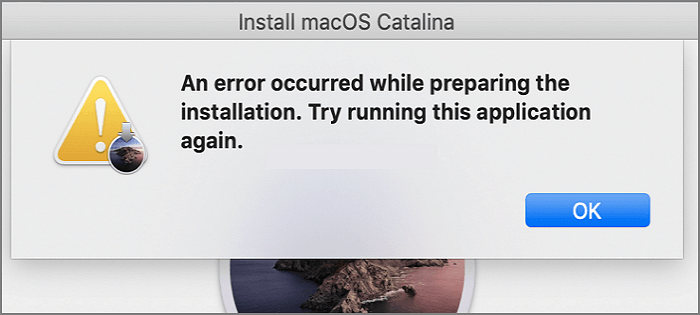
How to Fix 'An Error Occurred While Preparing the Installation' Error [macOS Upgrade Issue]
| Workable Solutions | Step-by-step Troubleshooting |
|---|---|
| 1. Restart Mac Fix An Error Occurred While Preparing the Installation | Restarting the system is one of the simplest ways to resolve the 'An Error Occurred While...Full steps |
| 2. Stay in a Stable Internet Environment to Fix the Issue | You might not know, but the installer requires the internet to complete the process. With the net...Full steps |
| 3. Check the Time and Data on Your Mac | Click on the Apple Menu and select System Settings from the drop-down menu. From the left-hand...Full steps |
| 4. Try to Install macOS in Mac Safe Mode | Turn off the system and start it again. Now, press and hold the Shift key till you come across...Full steps |
| Other Solutions | Did you know you can fix the installation error using a combo update? You can update the system with...Full steps |
An Error Occurred While Preparing the Installation Overview
One of the most common errors encountered while installing a macOS base system is the "An Error Occurred While Preparing the Installation" error, which typically occurs due to installer issues and needs to be resolved promptly.
Here are the reasons that can lead to the "An Error Occurred While Preparing the Installation":
- Corrupted installer
- Incorrect time and date details on the system
However, there are several solutions you can apply to fix this issue. Read on the section below to know more!
To avoid losing important data, back up your files using Deep Data Recovery for Mac Pro before installing or updating macOS.
Back Up Your Mac and Never Lose Data
You can back up and restore your MacBook or iMac without using Time Machine, iCloud, or external hard drives by using the built-in Backup feature in System Preferences. This feature allows you to create a backup of your computer's data and settings, and then restore it if needed.
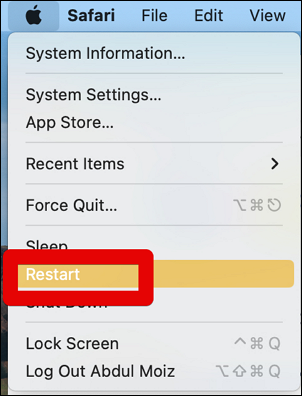
Method 1. Restart Mac to Fix 'An Error Occurred While Preparing the Installation'
Restarting the system is one of the simplest ways to resolve the 'An Error Occurred While Preparing the Installation' error. Press the power button, wait for the system to shut down, wait a moment and press the power button again to turn on the system. Alternatively, you can restart your MacBook Pro or Mac using the macOS Restart option.
Method 2. Stay in a Stable Internet Environment
The installer requires internet access to download firmware and specific system information, making a stable internet connection necessary for a smooth installation process.
Method 3. Check the Time and Data on Your Mac
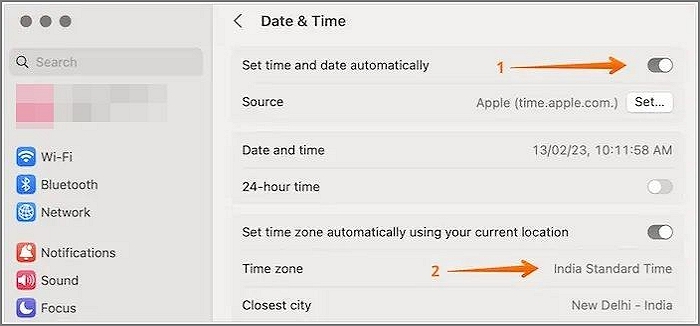
To resolve the "An Error Occurred While Preparing the Installation" error, ensure you have the correct time and date on your system. If your system clock is not set correctly, it may cause issues during the installation process. To fix this, follow these steps: check your system's time and date settings, and make sure they are accurate.
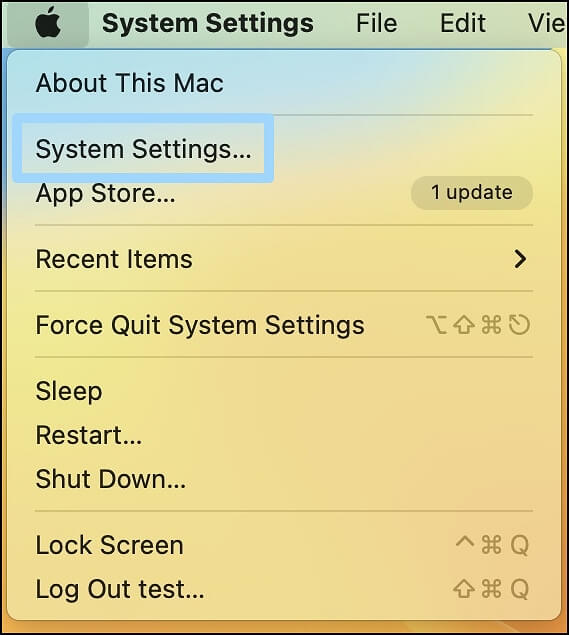
Step 1. Click on the Apple Menu and select System Settings from the drop-down menu.
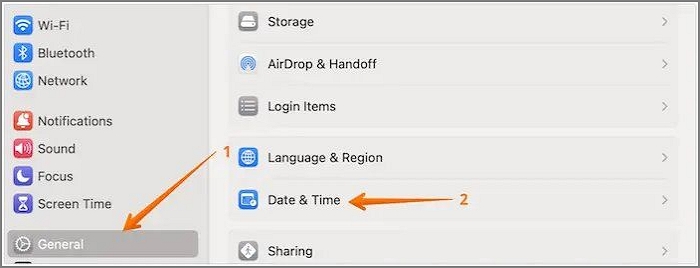
Step 2. From the left-hand bar, select General and click on Date and Time from the right-hand side.
Step 3. Go ahead with the "Set date and time automatically" option.
Step 4. Opt for the region you are in from the drop-down menu.
Method 4. Try to Install macOS in Mac Safe Mode
Mac Safe Mode is a feature that loads only essential system components, disabling third-party apps to prevent them from interfering with the system and potentially causing errors.
Here are the steps you need to adopt:
Step 1. Turn off the system and start it again.
Step 2. Press and hold the Shift key till you come across the Apple logo, then log in.
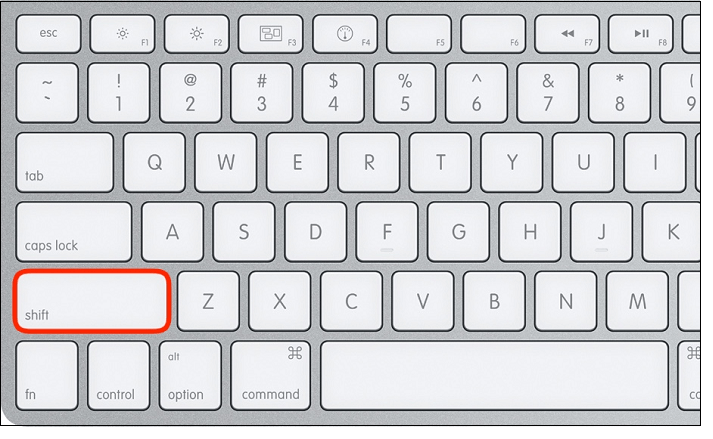
Step 3. Once your system enters Safe Mode, you can install macOS Monterey or other versions.
Note: If you're having trouble installing macOS Ventura, you can click the link to learn more about the issue and potential solutions.
Method 5. Use a macOS Combo Update to Fix the Installation Error
You can fix the installation error by using a combo update, which allows you to update your system with the major release from the previous macOS version, and can be downloaded from Apple's official website. However, please note that these files are large and require a stable and fast internet connection.
Method 6. Reinstall macOS in Mac Recovery Mode
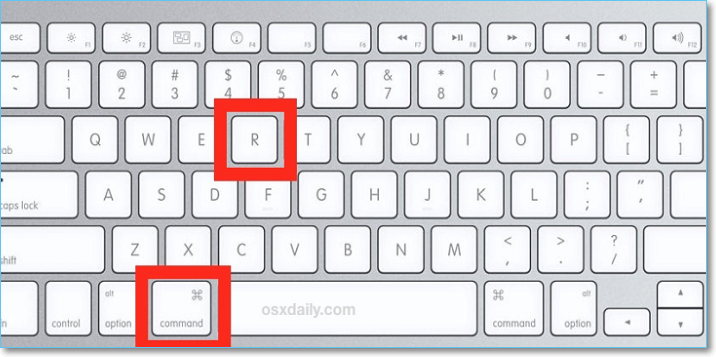
If you're experiencing an installation error on your Mac, you can try using the Mac Recovery Mode to resolve the issue. To do this, restart your Mac and immediately hold down the Command (⌘) + R keys. This will boot your Mac into Recovery Mode.
Step 1. Turn off the system. Turn it on and press Option-⌘-R keys/Shift-Option-⌘-R/Command (⌘)-R immediately.
Step 2. Now, select Reinstall macOS. Click on Continue.
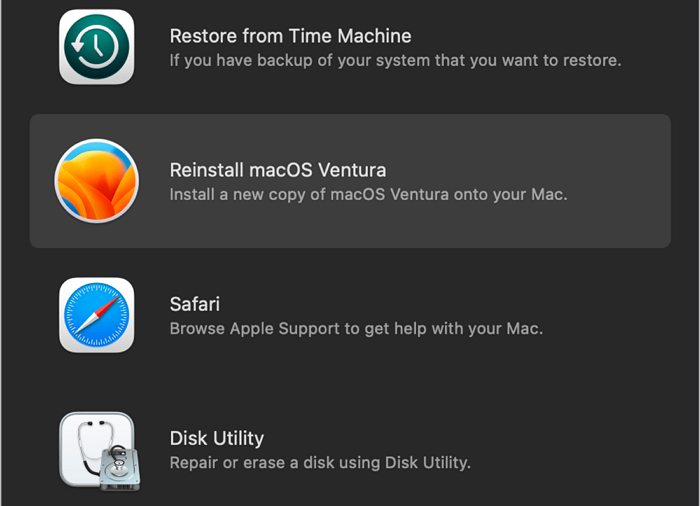
Note: The Shift-Option-⌘-R combination is used to get the original macOS version, while the Option-⌘-R keys combination is used to get the latest compatible Mac version. You can reinstall the previous macOS with the Command (⌘)-R keys.
Method 7. Factory Reset Mac and Reinstall macOS
You can try to factory reset your Mac without a password by booting it in Recovery Mode and reinstalling the OS, or by erasing all content and settings, which involves following specific steps.
Step 1. 1. Restart your Mac. 2. Immediately hold down the power button until the device shuts down.
Step 2. Follow the prompt to erase your Mac step by step. Now, click "Continue".
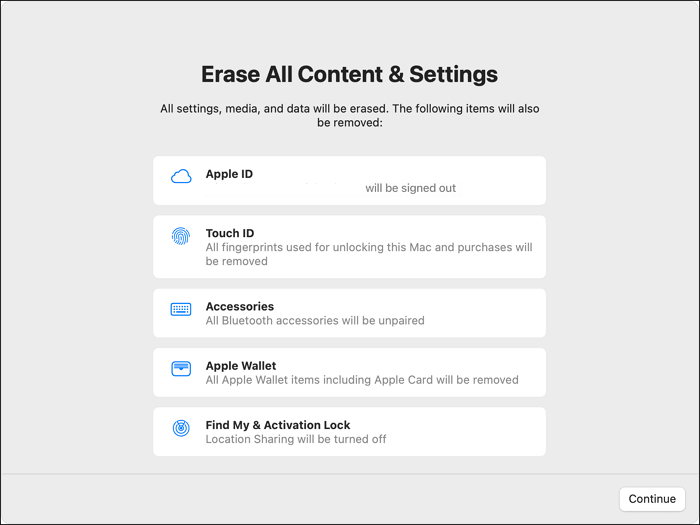
Step 3. To proceed, select the "Options" menu, then choose "Continue". Simply follow the on-screen instructions to complete the process.
Step 4. To reinstall macOS from the Recovery app, go to the Recovery app window and select Reinstall macOS. Then, click Continue and follow the on-screen instructions.
Note: The steps to reset a Mac may vary based on the Mac model you have.
Method 8. Contact Apple Support
If you're having trouble with your Apple device, you can visit the Apple Support store nearby to get help resolving the issue right away.

Restore Lost Data After Fixing 'An Error Occurred While Preparing the Installation'
If you've lost data while trying to fix the "An Error Occurred While Preparing The Installation" problem, don't panic! Instead, use the best data recovery software, Deep Data Recovery for Mac, to quickly restore your data, regardless of the cause of the loss.
Here are some highlights of this recovery program:
- The Qiling Mac recovery program is a user-friendly software designed to efficiently aid in data retrieval, making it accessible to even new Mac users with ease.
- Mac users can quickly recover deleted files from various data types, including emails, documents, photos, and videos.
- This software can recover data from various Mac-based devices, including memory cards, fusion drives, HDDs, and supports SSD Trim data recovery.
Here are the easy-to-implement steps you need to follow to use this tool:
Step 1. Search for lost files
To search for lost files on macOS, select the disk location where the files were likely stored, and then click the "Search for lost files" button. This can be done on various macOS versions, including Sierra, High Sierra, Mojave, Catalina, Big Sur, Monterey, Ventura, and the latest Sonoma.
Note: Before attempting data recovery, it's recommended to create a backup of your Mac using the "Disk Backup" feature, which can be found in the left sidebar. This backup will ensure that you don't lose any data during the recovery process. Once the backup is complete, the software can recover data from the Mac backup, allowing you to restore your lost files and continue using your computer without any issues.

Step 2. Go through the scanning results
Deep Data Recovery for Mac will immediately scan your selected disk volume and display the scanning results.

Step 3. Select the file(s) and recover
Select the desired files from the scan results, then click the "Recover" button to retrieve them.

Bottom Line
The "An Error Occurred While Preparing the Installation" error is a common issue Mac users face. Fortunately, there are several solutions to resolve this issue, including reinstalling macOS via Recovery Mode or opting for the combo update.
If you take precautions, data loss is still a possibility, so you may need to choose a professional data recovery tool. In this case, installing Deep Data Recovery for Mac can be beneficial, allowing you to take advantage of its features.
Try this exciting data recovery software today!
An Error Occurred While Preparing the Installation FAQs
If you're experiencing the error "An Error Occurred While Preparing the Installation" while trying to install a program, there are several solutions you can try to resolve the issue. Firstly, ensure that the program you're trying to install is compatible with your system's architecture (32-bit or 64-bit). If you're trying to install a 64-bit program on a 32-bit system, it may not work.
1. How to Fix the macOS Ventura installation failed?
To fix the macOS Ventura installation failed issue, check if you have sufficient storage space, assess the Firewall settings, and restart the system to see if the problem is resolved.
2. Why the 'An Error Occurred While Preparing the Installation' error appear on my Mac?
The "An Error Occurred While Preparing the Installation" error on a Mac can be caused by various factors, including corrupt installers and incorrect date and time information.
3. How to fix the 'An Error Occurred While Preparing the Installation' error?
To resolve the 'An Error Occurred While Preparing the Installation' error, you can try installing macOS in Mac safe mode, check the time and date, or use the combo update.
4. How to recover data after reinstalling macOS to fix 'An Error Occurred While Preparing the Installation'?
To recover data after reinstalling macOS to fix 'An Error Occurred While Preparing The Installation', use a data recovery tool like Deep Data Recovery for Mac.
Related Articles
- (Solved!) Secure Boot Enabled But Not Active🔥
- [3 Solutions] Fix Corrupted USB on Mac Without Losing Data
- Service Host: Local System High Disk, CPU and Memory Usage [100% Solved]
- How to Factory Reset Windows 10 Without Settings | 3 Ways🔥
Windows 10 is now the most popular operating system in the Windows family, owning the biggest market share. In this article, we'll tell you how to factory reset Windows 10 without settings and make your PC fresh without losing any data and apps. - Fix Mark Partition as Active Greyed Out in Disk Management in Windows 10/11
Fix Mark Partition as Active greyed out in Windows. Learn why the option is unavailable and how to repair boot partition settings. - MBR Error 1 on Windows? Reason & Fixes
If you're experiencing MBR error 1, as this error can cause Windows to fail to boot. Fortunately, there are three effective ways to fix it, which will be covered in this article.
Products
Articles & Tutorials
- Data Recovery
- Data Backup
- File Recovery
- File Backup
- System Backup and Restore
- Disk and Partition Clone
- Technical articles
- Mobile articles
- Disk Master Help
- Windows Data Recovery Tutorials
- Windows Secure Delete Tutorials
- Windows Partition Management Tutorials
- Windows File Backup and Restore Tutorials
- Windows System Backup and Restore Tutorials
- Windows Disk Backup and Restore Tutorials
- Windows Clone Tutorials