How to Right-click on Mac/MacBook Air without Mouse
The right-On a Mac, you can right-click on the trackpad by clicking the Control key and the trackpad simultaneously, or by clicking the trackpad with two fingers. This allows you to access additional options and features, even when a mouse is not available.
Why right-On a Mac, right-clicking allows you to perform various tasks, such as saving a picture, unpinning an app, copying and pasting, sorting, creating new folders, opening DMG files, getting detailed information, and changing desktop backgrounds, among others.
On a Mac, you can right-click using alternative methods if you don't have a mouse. One solution is to use a trackpad gesture, which typically involves tapping with two fingers or a long press on the trackpad.
How to Right Click on Mac without Mouse [Trackpad]
There are different ways you can right-click on Mac without a mouse. Here, we have listed the possible ways to do so. Let's take a look.
Method 1. Press Control and Tap Trackpad
To right-click on a Mac, press the Control key and click on the trackpad. This will simulate a right-click action, allowing you to access contextual menus and other options.
If your MacBook's Trackpad is not working, try restarting your MacBook, checking for software updates, and ensuring that the Trackpad is enabled in System Preferences. If the issue persists, reset the Trackpad by going to System Preferences > Trackpad > Point & Click, then click on the "Reset" button. If the problem still exists, try booting your MacBook in Safe Mode and then check if the Trackpad is working.
If your MacBook Pro trackpad is not working, try restarting your laptop, checking for software updates, and ensuring the trackpad is clean and free of debris. You can also try disabling and re-enabling the trackpad in System Preferences, resetting the trackpad, or using the built-in Accessibility features to enable trackpad functionality.
If your MacBook Pro's Trackpad is not working, there are several troubleshooting steps you can take to resolve the issue. First, restart your MacBook to see if it resolves the problem. If not, try resetting the Trackpad by going to System Preferences > Trackpad > Options and unchecking the box next to "Tap to click" and then re-enabling it.
Method 2. Use Two Fingers on Trackpad
The following method lets you enable the option of using two fingers on the trackpad. For that, you need to follow these steps:
Step 1. Go to the Apple Menu.
Step 2. Click on "System Preferences (System Settings)".
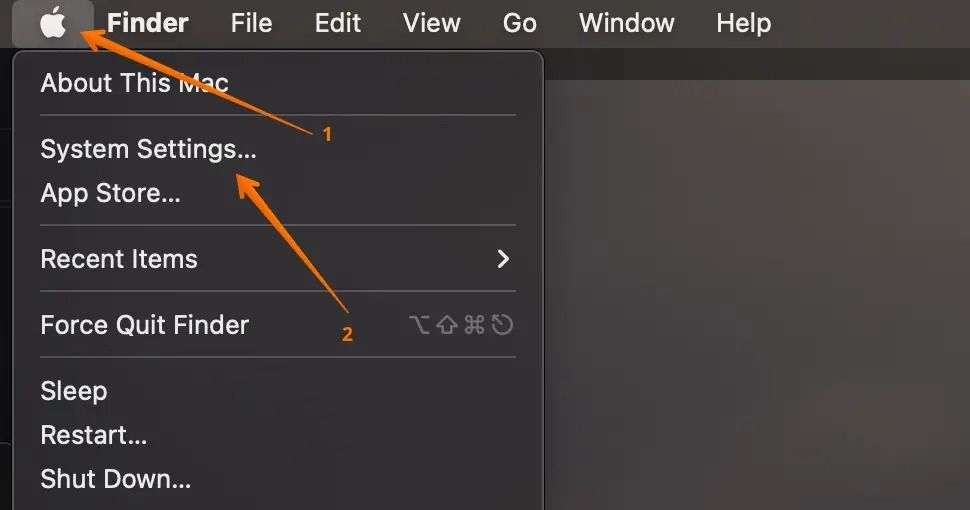
Step 3. Select "Trackpad" from the left-hand side settings.
Step 4. Choose the "Point & Click" tab from the right-hand side.
Step 5. Go to the "Secondary click" option and checkmark it.
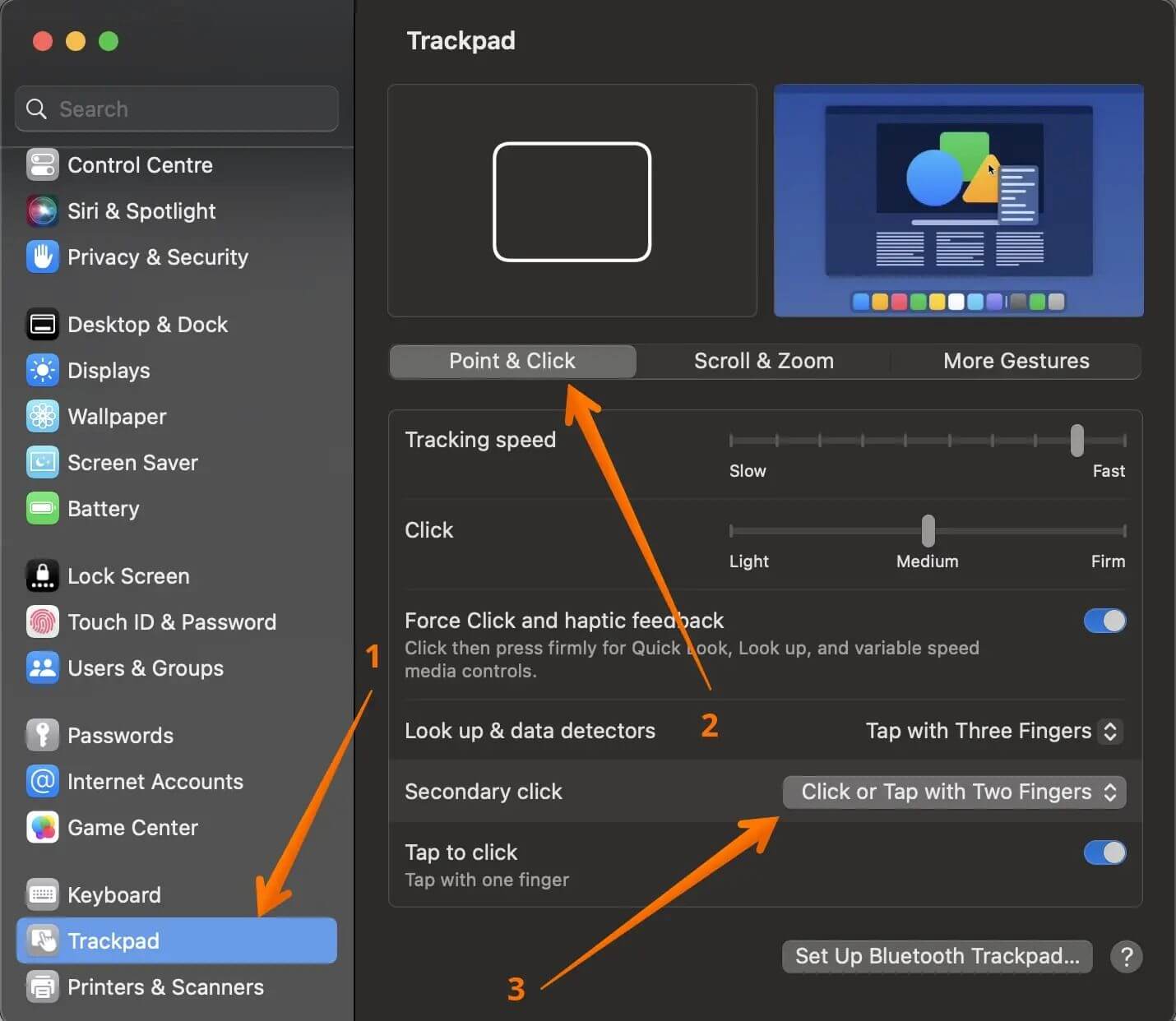
Step 6. To check or tap with two fingers, select "Check or Tap With Two Fingers" from the drop-down menu.
To right-click on a Mac, simply tap the trackpad with two fingers.
Method 3. Assign a Corner on Trackpad in System Preference
If you don't like the two-To right-click on Mac without a mouse, you can assign a corner on the trackpad. To do this, go to System Preferences, then Trackpad, and select the "Clicks" tab. From there, you can choose to assign a right click to the bottom left or bottom right corner of the trackpad. This will allow you to right-click on your Mac using the trackpad.
Step 1. Click on the Apple Menu.
Step 2. Select "System Preferences".
Step 3. Choose "Trackpad".
Step 4. Go to the "Point & Click" tab.
Step 5. Select the "Secondary click" option and checkmark it.

Step 6. In the Secondary click section, select "Click the Bottom-Right Corner or Click Bottom-Left Corner" from the drop-down menu.
To perform a right-click action, click on the corner of the screen.
To right-click on a Mac without a mouse, press the Control key and the click on the desired item. This action will bring up a contextual menu with options specific to the item you clicked on.
Use Mouse to Right Click on Mac
Those who don't want to use the Trackpad options can use a mouse, but the type of mouse used may affect the experience, with Magic Mouse potentially offering more features than standard USB or Bluetooth mice.
How to Right-click on Mac Using Magic Mouse
The Magic Mouse has only one button, which is the top portion, and you need to click on it on the left for left-click and on the right for right-click.
Here are the steps to enable right click on Mac using Magic Mouse:
Step 1. Go to the Apple Menu.
Step 2. Choose "System Preferences".
Step 3. Select "Mouse".
Step 4. Go to the Point & Click tab.
Step 5. Go to the "Secondary click" option and checkmark it.
Step 6. From the drop-down menu, choose "Click on the right side".
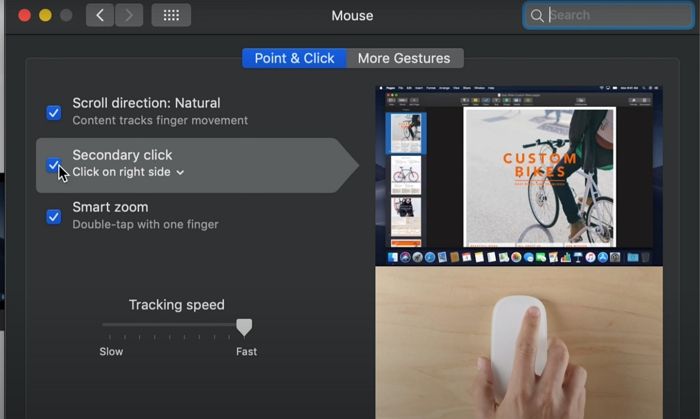
The default option is to trigger the right-click function when clicking on the right part of the mouse, but some left-handed users prefer clicking on the left side to get the right-click functionality.
Right-On a Mac, you can copy or cut files and paste them by clicking and using the "Copy", "Cut", and "Paste" commands. To learn more methods to cut and paste on your Mac, read this article.
How to Right-click on Mac Using a Third-party Mouse
Using a third-To set up a right-click on a Mac mouse, you can either press the right-click button if it's a two-buttoned mouse, or use the mouse's OEM software to customize the right-click functionality further if available.
The right-Clicking a button expands a menu with options to move files to the trash and empty the bin. If you've accidentally deleted important files, data recovery software like Deep Data Recovery can help recover them.
Extra Tip: Solutions to Fix Right Click Not Working
While right-click on the mouse connected to Mac doesn't need anything special, there are instances when the right-click function does not work as expected. Below is the list of possible reasons we have noticed for which the right-click on the Mac may not work.
Possible Reasons for Right-Click Not Working:
- 🖱️Mouse or Trackpad Issues: Hardware problems with your mouse or trackpad can cause right-click malfunctions, such as faulty connections, worn-out buttons, or sensor issues.
- ⚠️Software Glitches: An application can hijack standard keyboard shortcuts, such as right-click, for its own features, potentially interfering with standard usage.
- ⚙️System Preferences Misconfiguration: Incorrect settings in the System Preferences can affect the right-click function, possibly due to issues with trackpad or mouse settings, accessibility options, or gestures configuration.
- 💾External Devices: External devices like printers, graphics tablets, or drawing pads can interfere with the right-click functionality due to conflicting drivers or software, causing issues with the mouse's ability to register right-clicks.
Solutions to Fix Right-Click Not Working:
- Check Hardware Connections: Ensure your mouse or trackpad is correctly connected to your Mac, checking for battery levels and stable Bluetooth or other wireless connections if using a wireless device.
- Restart Your Mac: A simple restart can often resolve minor software glitches and refresh system processes, potentially restoring the right-click functionality, and if your Mac is frozen, try to hard restart it.
- Test in Safe Mode: To diagnose whether third-party applications are causing the issue on your Mac, boot it in Safe Mode. This will disable non-essential software, allowing you to determine if a specific app is causing conflicts.
- Update macOS: Keeping your macOS up to date in Software Update is essential for system stability, as an outdated operating system might contain bugs that affect various functions, including right-clicking, so update your Mac to make right-click functional.
- Reset PRAM/NVRAM and SMC: Resetting the PRAM or NVRAM can help resolve issues with hardware-related settings that might be affecting the right-click function, allowing you to start fresh and potentially resolve the problem.
- Disconnect External Devices: Temporarily disconnect any external devices to see if they are causing the problem, and then reconnect them one by one to find the source of the issue if necessary.
Conclusion
Right-Clicking on a Mac is a basic computer skill, but there are different ways to do so. For instance, you can select the Control key and single-click on the trackpad.
You can also assign corners on the trackpad to get the right click functionally triggered, but some people may find this tedious. Alternatively, you can use a mouse.
How to Right-click on Mac FAQs
If something doesn't work on a PC or Mac, it can be difficult. Fortunately, there are alternative methods to troubleshoot the issue, especially in urgent situations. For example, if you're having trouble with a specific software or application, you can try using a different browser or checking for updates. If you're experiencing hardware issues, you can try restarting your device or running a diagnostic test.
1. How do I right-click on my Mac without a mouse?
To right-You can get the right-click functionality on a Mac by holding down the control key while clicking with the trackpad. This will simulate a right-click, allowing you to access contextual menus and other options.
2. How do you right-click on a Mac without control?
To right-To right-click on a Mac without a control button, go to System Preferences, select Trackpad, and checkmark options to assign actions to the right-click function.
3. How do you right-click on a trackpad?
You can assign corners to get that right-click functionality or assign a two-finger tap or click on the Trackpad.
4. How do you right-click on a laptop without a mouse?
You can use the right-click key or press the control key while selecting an item to reveal its menu.
Related Articles
- How to Delete Search Engines on Google Chrome on Windows, Mac, Android, and iPhone
- Does exFAT Work on Mac and PC? Learning the Usage of exFAT
- (Answered!) How to Reinstall Windows 10 from BIOS🔥
- 5 Most Common Mac Startup Key Combinations You Need to Know [for macOS Ventura/Monterey]
Products
Articles & Tutorials
- Data Recovery
- Data Backup
- File Recovery
- File Backup
- System Backup and Restore
- Disk and Partition Clone
- Technical articles
- Mobile articles
- Disk Master Help
- Windows Data Recovery Tutorials
- Windows Secure Delete Tutorials
- Windows Partition Management Tutorials
- Windows File Backup and Restore Tutorials
- Windows System Backup and Restore Tutorials
- Windows Disk Backup and Restore Tutorials
- Windows Clone Tutorials