4 Free Ways to Transfer Google Drive to Another Account
Table of Content:
Overview of Google Drive
You want to transfer Google Drive to another account because you've changed jobs, moved to a new country, or simply want to consolidate your online storage with a different account. Perhaps you've created a new Google account for personal use and want to transfer your work files to it. Whatever the reason, you're looking for a way to seamlessly move your Google Drive files to a different account, ensuring business continuity and minimizing disruption to your workflow.
To move files from one Google Drive to another, start by opening the Google Drive account you want to move files from. Select the files you want to move by checking the boxes next to them.
Extra Tip - Transfer All Data from One Computer to Another
Overview of Google Drive
Google Drive is a cloud-Google Drive is a cloud-based file storage and management service that enables users to store, sync, and share files across various devices. Launched in April 2012, the service is now available on all major platforms, including Windows, macOS, iOS, and Android. With 15 GB of free storage, users can access their files from anywhere and have changes automatically synced across all devices, making it a convenient and reliable solution for file management.
Google Drive offers cloud storage and collaboration features, allowing users to store and access files from anywhere. With real-time editing and commenting capabilities, it facilitates teamwork and communication among users. Its popularity has grown significantly, with over 1 billion active users.
Why Do You Want to Transfer Google Drive to Another Account?
You might transfer Google Drive to another account if you're changing jobs or companies, such as leaving a current company to join a new one, and want to continue accessing your data after you leave.
Transferring Google Drive to another account can help keep personal and work data separate, allowing for quick access to work files in a dedicated work account.
Transferring Google Drive to another account can help free up space on your current account by moving files to a separate storage, decluttering your drive and making it easier to find the files you need.
The Easy Ways: How to Move Files from One Google Drive to Another
Method 1. Use the "Share" button on Google Drive
To transfer your Google Drive account from one account to another, start by signing in to the account you want to transfer data from and add the new account as a manager. Then, go to the new account and navigate to the Google Drive settings, where you can add the old account as a collaborator.
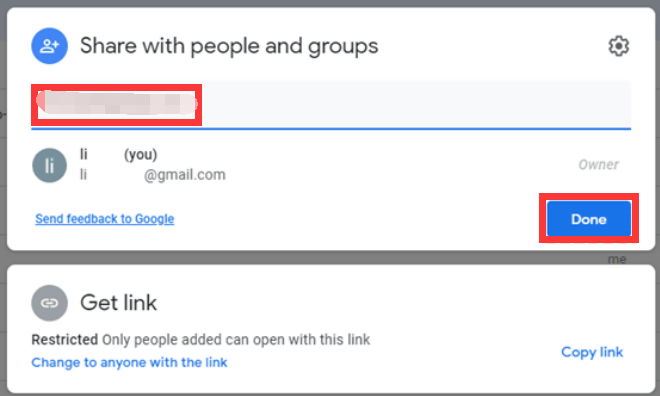
Step 1. To transfer files or folders from one Google Drive account to another, sign in to your Google Drive account, right-click the files or folders you want to transfer, and click on the "Share" button.
Step 2. Enter the email address of the person you want to share with and click the "Done" button in the "Share with people and groups" window.
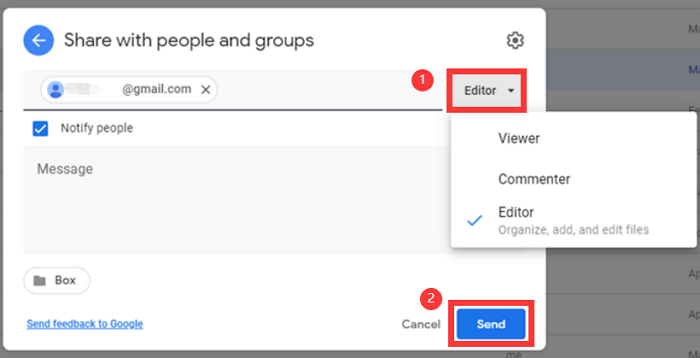
Step 3. To share a Google Doc, click on the arrow key and select one of the three permissions options: Viewer, Commenter, or Editor. Then, click the "Send" button to share the document.
Step 4. Once you've accepted the share request, the Google Drive will be successfully transferred to the other account. To access the data, simply log into your other account and select the "My Drive" tab.
Transferring Google Drive from one account to another is a straightforward process that won't result in any data loss. Your files and folders will be retained, so you can confidently move your Google Drive content to a new account without worrying about losing anything important. This process is efficient and easy to complete, making it a seamless transition.
Method 2. Directly Download and Upload
Step 1. Sign in to your old Google account.
Step 2. Create a new folder, designated for storing files to be migrated to another account, and populate it with relevant data.
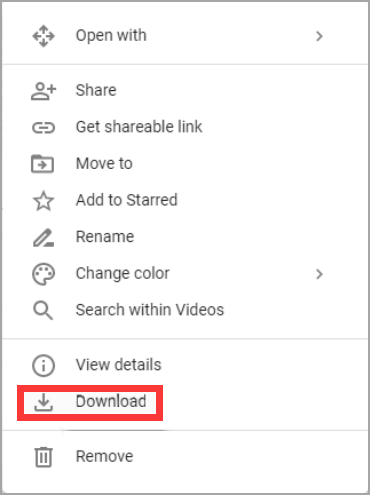
Step 3. Right-click the file, then click the "Download" button from the list, and wait for the download process to complete.
Google Drive will automatically compress your files into a zip file.
Step 4.To upload files and folders to your new Google account, start by logging in to your account. Once logged in, click the "+" New" button to initiate the upload process. Before uploading, make sure to unzip any compressed files from a zip file, as Google Drive may not be able to read them directly. After unzipping, you can then proceed to upload the files and folders to your Google Drive storage.
Method 3. Use Google Takeout to Transfer All Files from One Google Drive to Another
Google Takeout allows you to easily export your own uploaded data to another device, but it cannot transfer data shared with you by others, which requires manual handling.
Step 1. Move to Google Takeoutand log in to your Google accounts.
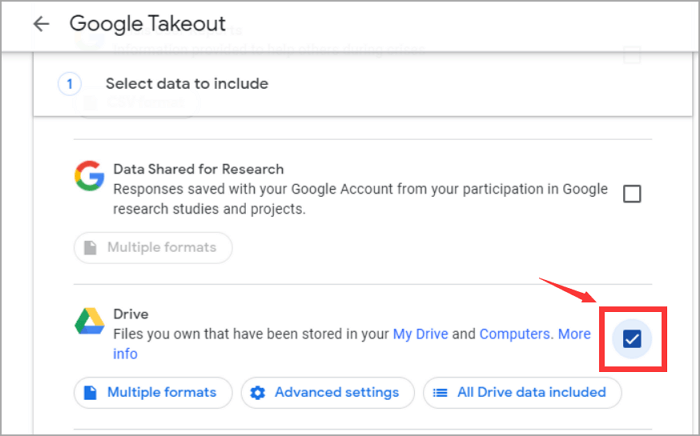
Step 2. Check the old Google Drive account to export under the "Select data to include" tab. Scroll down to click on the "Next Step" button.
Step 3. Under the "Choose file type, frequency & destination" tab, select delivery method as "Add to Drive."
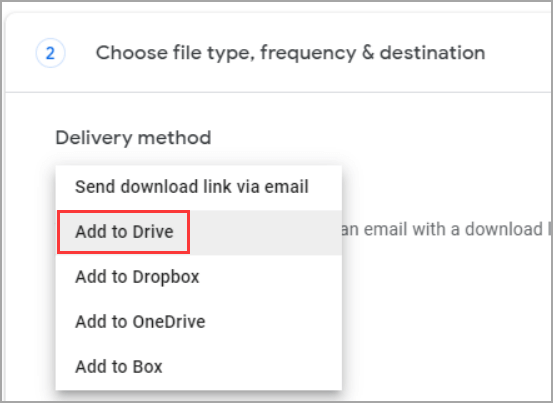
Step 4. Click "Create Export."
Save the compressed files to your local desktop, unzip them, and upload all the files to a new account.
Extra Tip - Transfer All Data from One Computer to Another
If you want to transfer data between two PCs directly, rather than using a cloud service, you can use Qiling Disk Master, a software that allows for fast file transfer between devices connected to the same local area network (LAN).
Related Articles
- How to Back Up/Transfer Kodi(XBMC) with Addons and Settings
- How to Transfer Active Directory to a New Windows Server 2022/2019/2016 [Complete Guide]
- How to Fix Dell Laptop Black Screen
- How to Move/Migrate Sage 50 Accounting Software to New Server
- 7 Ways to Clean Up C Drive in Windows Server 2022/2019/2016
To clean up the C drive in Windows Server, consider the seven methods outlined on our page, specifically tailored for Windows Server 2022/2019/2016, to effectively declutter and optimize the C drive. - Access Your Computer from Anywhere | Remote Access
Remote access allows you to access your computer from anywhere, whether it's from a different computer, a friend's phone, or a cybercafe, using various software options and following detailed steps.
Products
Articles & Tutorials
- Data Recovery
- Data Backup
- File Recovery
- File Backup
- System Backup and Restore
- Disk and Partition Clone
- Technical articles
- Mobile articles
- Disk Master Help
- Windows Data Recovery Tutorials
- Windows Secure Delete Tutorials
- Windows Partition Management Tutorials
- Windows File Backup and Restore Tutorials
- Windows System Backup and Restore Tutorials
- Windows Disk Backup and Restore Tutorials
- Windows Clone Tutorials